

Loading LAS files in bulk
From the Home Page, use the Well Drop-down menu to find the 'Import LAS Logs' option. If you are in the Viewer, use the Data Drop-down menu and open the cascaded Well Drop-down menu to access the Import LAS Logs option.
Click the Import LAS Logs Option from the Well Drop-down menu. This will open the 'Import LAS Logs' dialog.
Drag and drop multiple LAS files into the dialog.
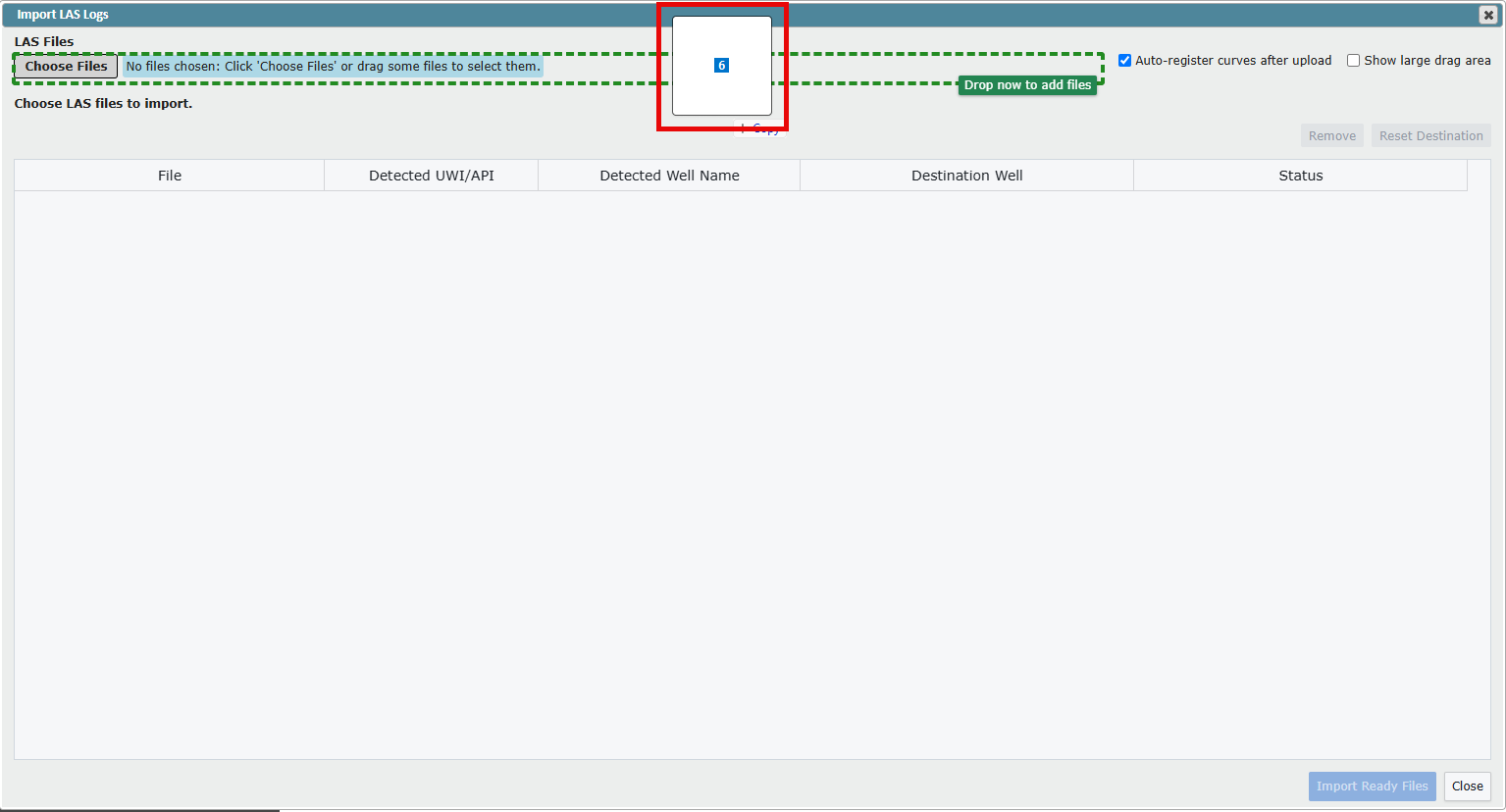
ZoneVu will try and match each LAS file to a well in your account using this logic:
Note: You will always be able to override an auto-assigned well.
Do any well UWI/APIs in this account match the UWI in the LAS header?
If yes, auto-assign it as the destination well.
If no, do any well UWI/APIs in this account match the API in the LAS header?
If yes, auto-assign it as the destination well.
If no, do any well names in this account partially match the well name in the LAS header?
If yes, indicate expected match but, do not auto-assign destination well.
If no, do any well UWI/APIs in this account match the LAS file name?
If yes, indicate expected match but, do not auto-assign destination well.
If no, do any well names in this account match the LAS file name?
If yes, indicate expected match but, do not auto-assign destination well.
Otherwise, user can select the destination well.
If a match is made, the 'Status Column' will indicate why. It will also display "Ready to Import. If no match is made, the LAS file will be skipped during the import and will not be loaded. It does not need to be removed from the list.
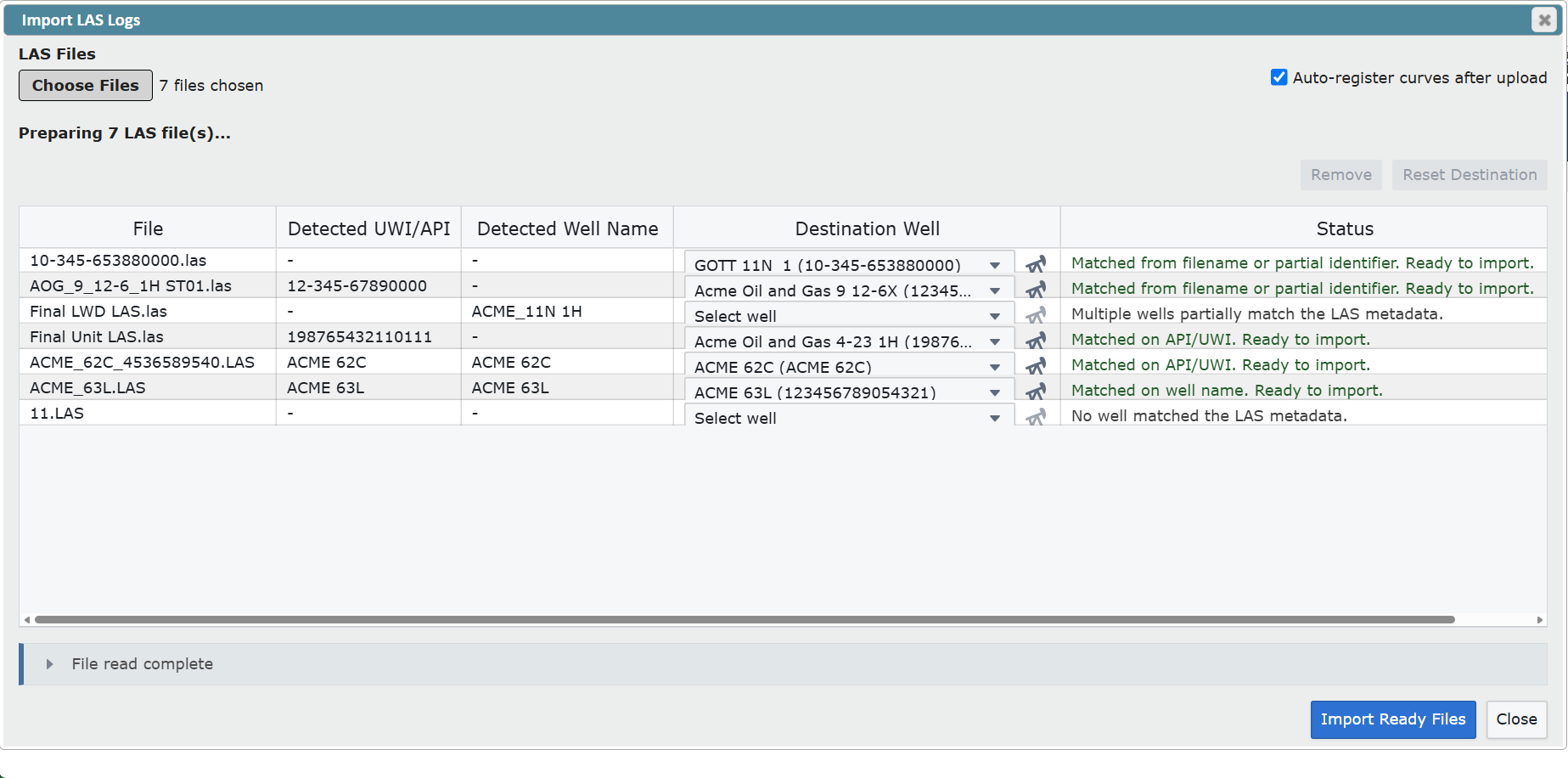
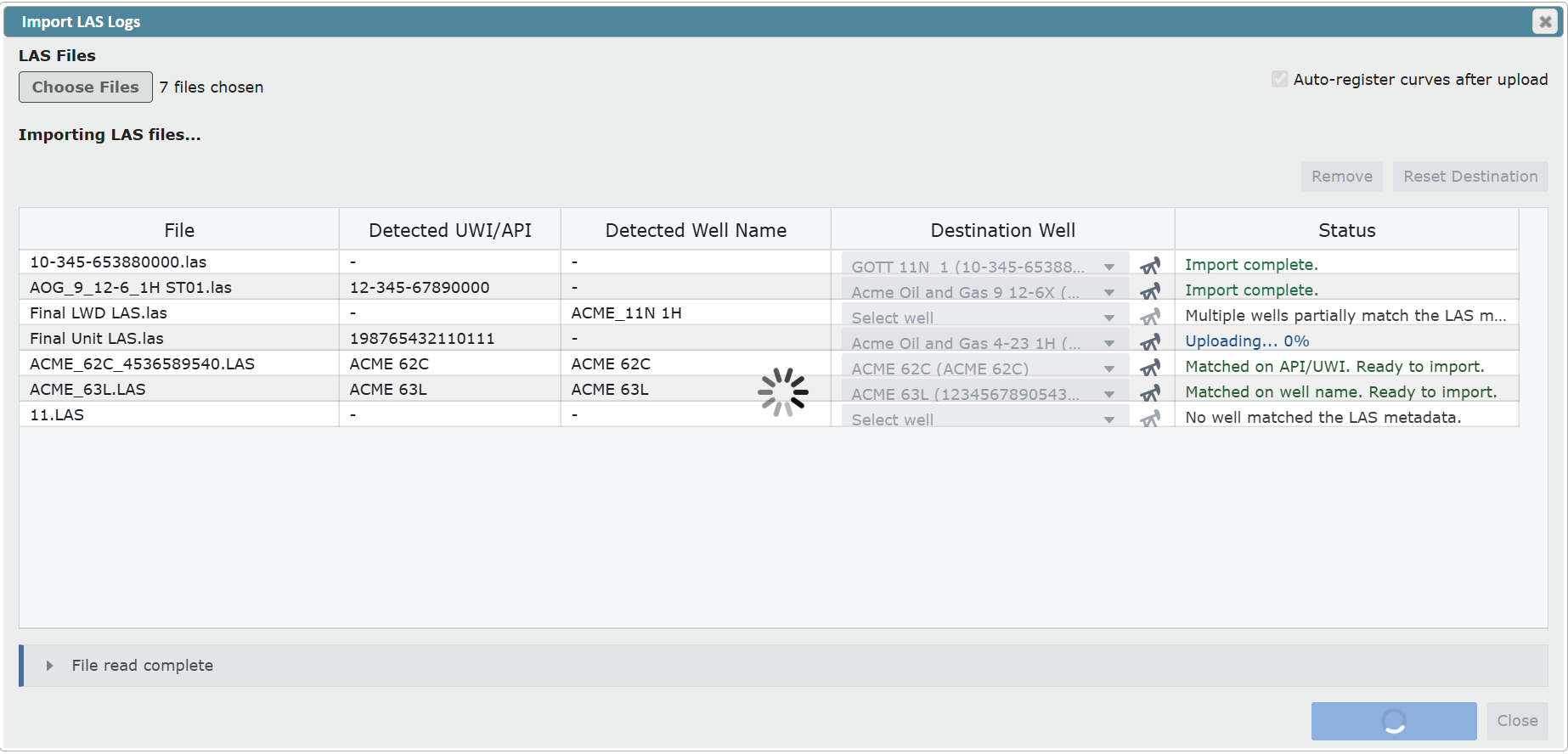
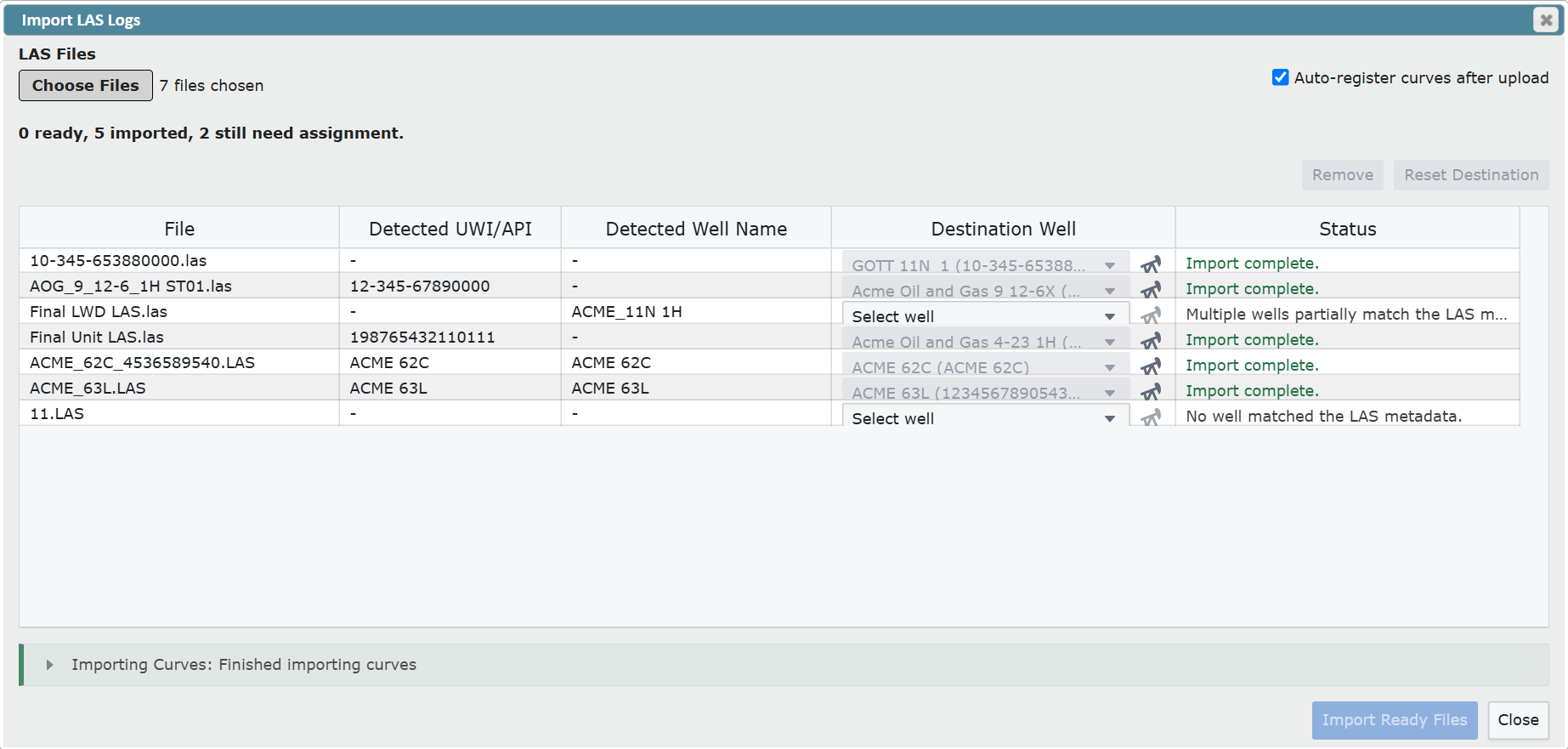
Click 'Import Ready Files' in the bottom right corner of the dialog. The importer will work through uploading one file at a time and then indicate which files were imported.
Multi-Wellbore Wells
For importing LAS files to wells with multiple wellbores ZoneVu will use this wellbore selection logic:
After the well is chosen and before the import, ZoneVu will do a second pass for wellbore selection.
If the selected well has only one wellbore, that wellbore will be picked automatically.
If there are multiple wellbores, ZoneVu will try and match the LAS header to a wellbore UWI.
If ZoneVu cannot find a unique wellbore UWI match, the user has to choose the wellbore manually.