How Business Unit Access Works
Users assigned to the Corporate level have access to all data in the ZoneVu account, regardless of BU assignments.
Users assigned to a Business Unit (BU) or Sub‑Business Unit (sBU) can only access data within that BU and all of its nested sBUs.
Recommended Setup for Contractors
We recommends creating a Business Unit per client and assigning all related data (wells, logs, projects, documents, etc.) to that BU or its sBUs. This ensures each client’s data remains isolated, private, and secure.
Creating a New Business Unit
Only Admin‑level users can modify the Business Unit structure.
To add a new BU:
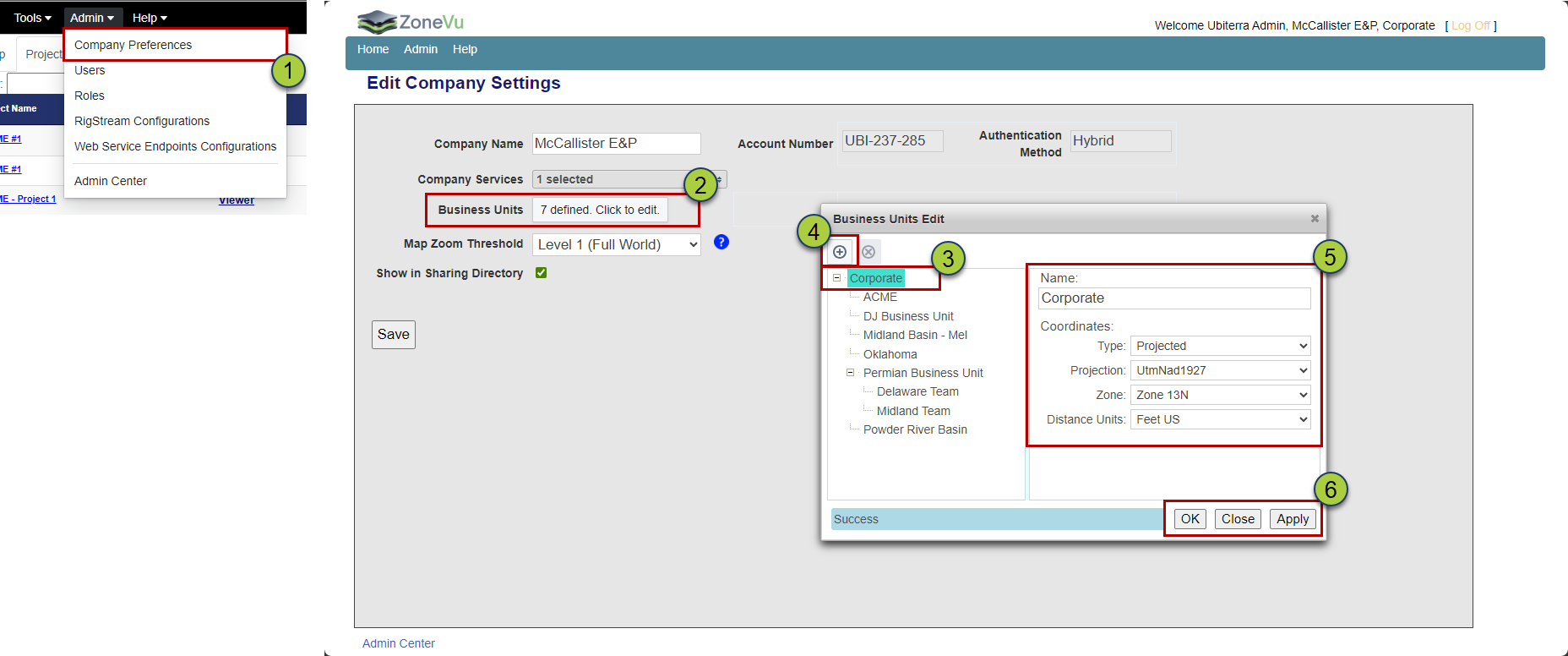
Open the Admin menu and select Company Preferences.
In the Edit Company Settings window, open the Business Units panel.
Select Corporate.
Click the 'Create' button to create a new Business Unit.
Enter a name for the new BU and set a default coordinate system (optional)
Click 'Save' or 'Apply' to save the changes
You can add as many Business Units as needed to build your full corporate structure.
Creating Sub‑Business Units
To add a Sub‑Business Unit beneath an existing BU:
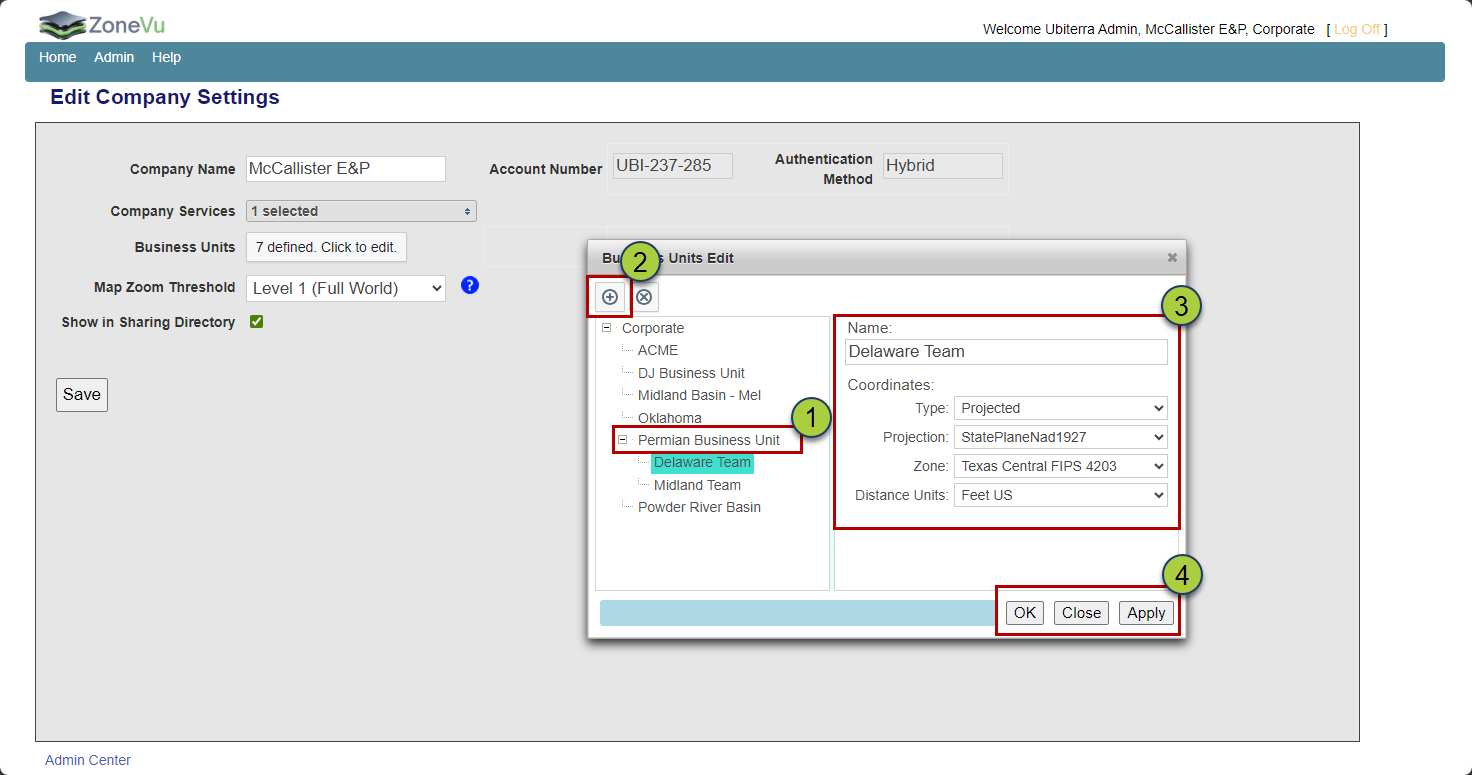
Select the parent Business Unit.
Click the “Create” button to create an sBU underneath it.
Enter a name for the new BU and set a default coordinate system (optional)
Click 'Save' or 'Apply' to save the changes
This allows you to create multi-level structures such as:
Corporate → Permian → Delaware
Corporate → Rockies → DJ Basin
Assigning Data to Business Units
Once your structure is created, you can assign data to the correct BU/sBU to maintain proper access control.
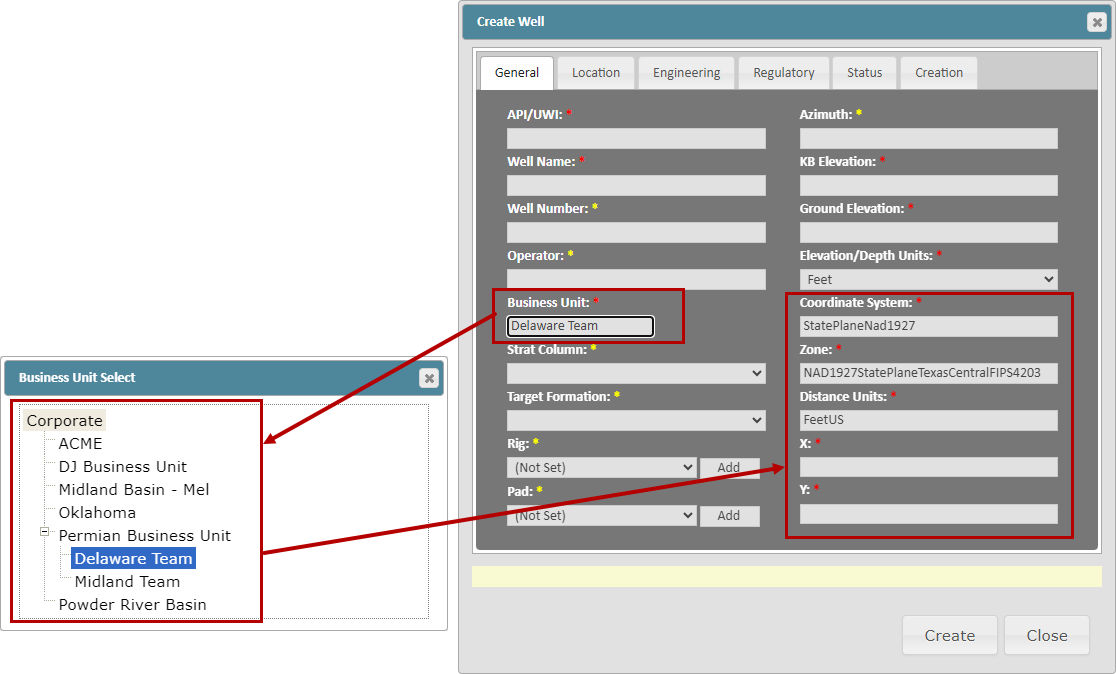
To assign a Project, Well, File, or other data:
Open the Edit Header dialog for that item.
In the Business Unit dropdown, select the appropriate level (Corporate, Business Unit, or Sub‑Business Unit).
Click 'Save' to apply the assignment.
Assigning Users to Business Units
Users can also be assigned to one or more BU/sBU. Allowing you to control what data each user has access to
To assign a user to one or more BU/sBU:
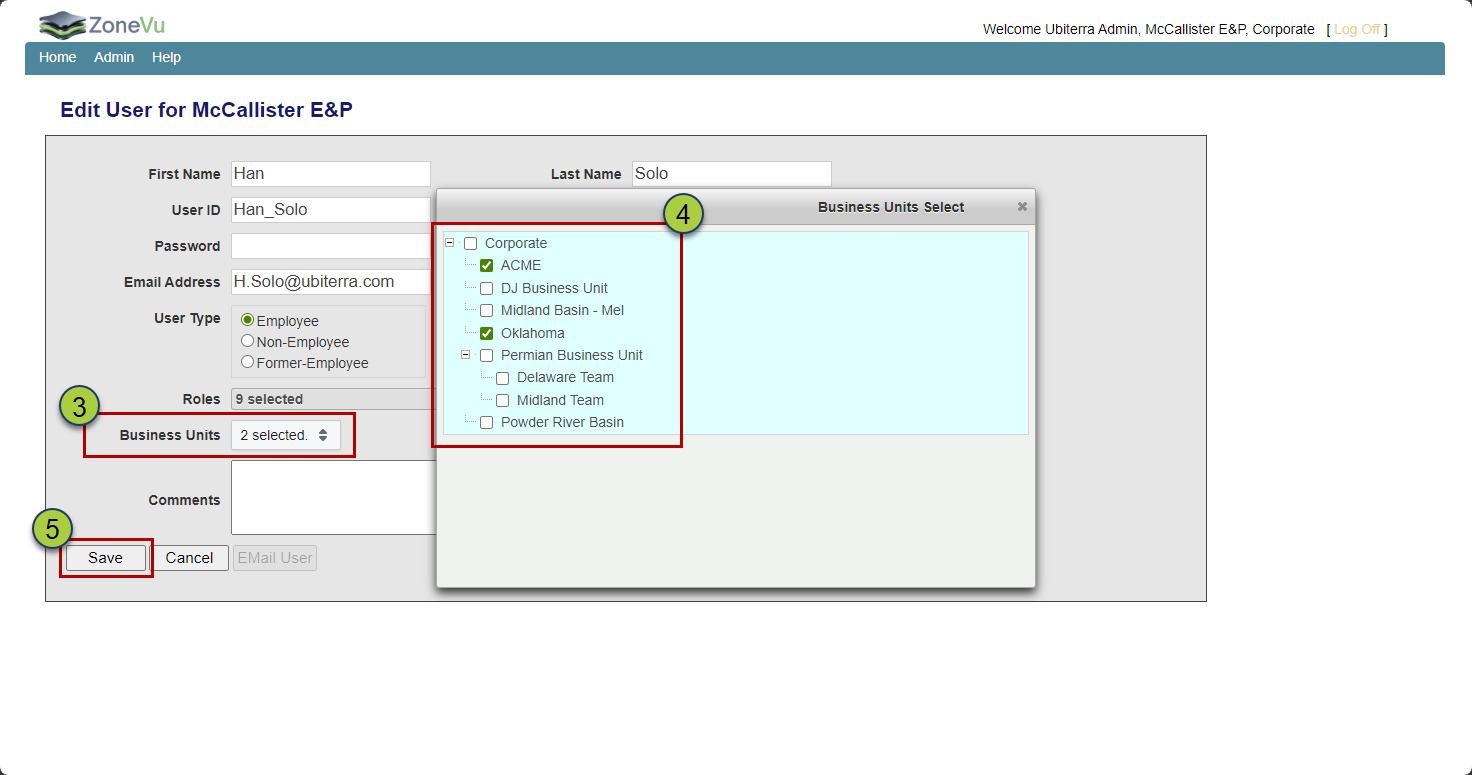
Open the Users option under the Admin menu
Click the 'Edit 'button on that user's profile row
Open the Business Units list
Check the BU/sBU's the user needs access to
Click 'Save 'to update the user's profile settings
This ensures the right users have the right access across the platform.