

As an Administrator, you can define the default Coordinate System used across your ZoneVu account. These defaults can be set at both the Corporate level and for each Business Unit you create, allowing your organization to maintain consistent spatial standards and ensure users are working with the correct coordinate reference.
Setting these defaults ensures that whenever a user selects a Business Unit during data creation or import, the appropriate Coordinate System is automatically applied.
Setting Default Coordinate Systems
To configure default Coordinate Systems for your Corporate account or individual Business Units:
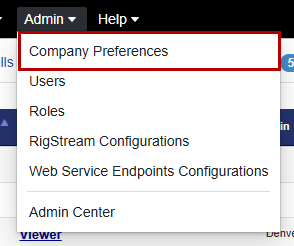
Open the Admin Menu and navigate to Company Preferences.
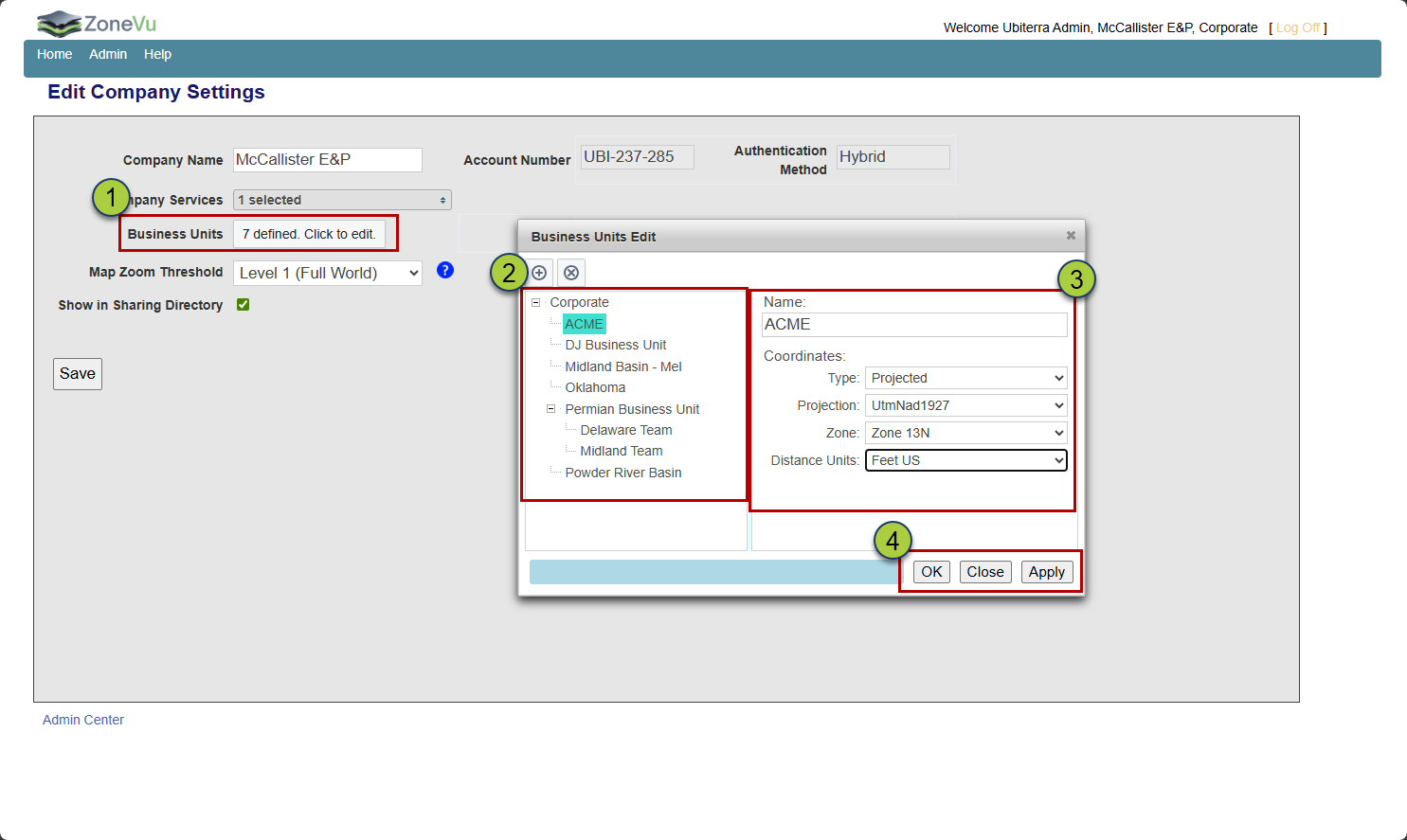
Click the Business Unit List.
Select the Business Unit you want to update.
Choose the desired Default Coordinate System for that Business Unit.
Click 'OK' or 'Apply' to confirm your selection.
How Defaults Are Applied
When a user selects a Business Unit, ZoneVu will automatically update the Coordinate System to match that Business Unit’s default.
Note: ZoneVu will not auto‑update the Coordinate System if the user has manually changed the selection during that session. This prevents unintentionally overwriting deliberate user choices.
Dialogs Affected by Business Unit Coordinate System Defaults
Default Coordinate Systems are automatically applied in the following dialogs:
Create Well
Create Project
Import Grid
Seismic Registration