
There is a filter option at the top of the survey station list on the 'Deviation Survey' tab of the 'Well Folder'. It allows the user to filter for which deviation survey categories they would like to see in the list. If there is a check mark next to the category, it will be shown in the list. If there is an X next to the category, it will not be shown in the list. Click on the X to change it to a check or vice versa.
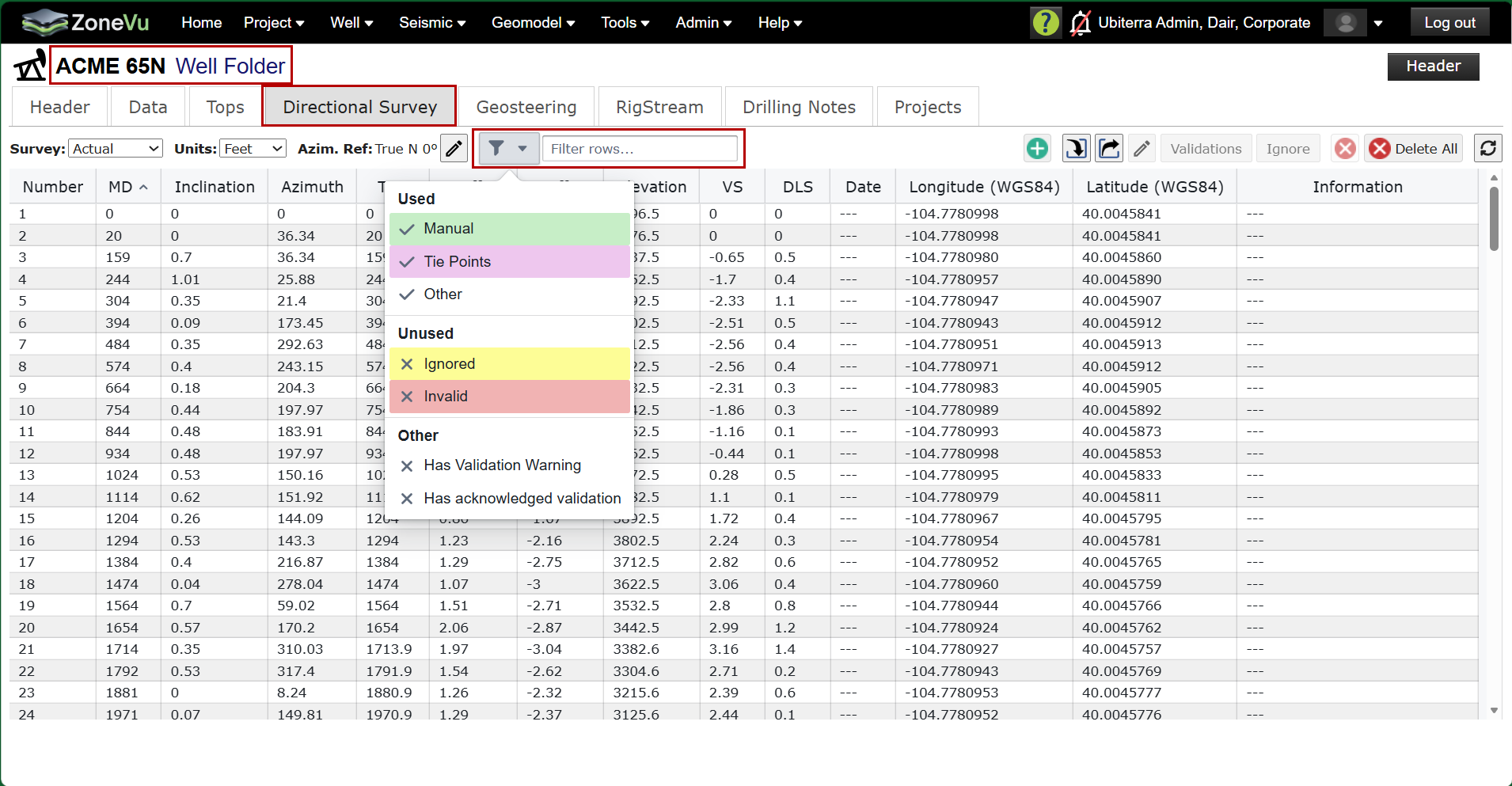
There are 3 sets of categories
Used - Survey stations that are used in the calculation of the wellbore trajectory
Unused - Survey stations that are not used in the calculation of the well bore trajectory
Other - Other categories that can be additional to the Used or Unused categories.
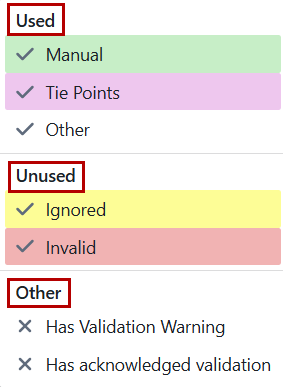
Used Category
Within the Used Category, there are three types:
Manual - A green row indicates a survey station has been loaded manually. This includes loading surveys via the 'Import' button on the Directional Survey tab in the Well Folder and using the Bulk Well Import Spreadsheet.
Tie Points - A pink row indicates the survey station has been loaded using MD, TVD, X offset, and Y offset instead of MD, inclination and Azimuth. If a well is copied the copies directional survey will be tie points. If a user includes both MD, Inc, and Az and information for tie points, MD, TVD, X-offset and Y-Offset, then ZoneVu will default to the tie point information and make the survey stations pink.
RigStream/Other - If a survey station is brought into ZoneVu via RigStream will be white/gray.
Unused Category
Ignored - A yellow row indicates the survey station is being ignored by the wellbore trajectory and by RigStream. Survey stations can be ignored by the use. This is best used when a bad station comes in from the WITSML feed and the user does not want it used in the wellbore calculation. If the user deletes the bad survey station instead of ignoring it. RigStream will add it back in on the next WITSML update as it will be a missing data point. Ignore tells ZoneVu to leave it out of the wellbore trajectory calculation until/unless it is unignored by the user.
Invalid - A red row indicates the survey station is not valid and is not being used to calculate the wellbore trajectory. A survey station cannot be made invalid by a user. There are specific situations when a survey station will be deemed invalid by the ZoneVu. For example, if a survey station is manually input by a user, any other stations with the same MD will be deemed invalid. If that manually loaded station is removed the previously invalidated station will be made valid again. Manually loaded stations will always take president over RigStream loaded staitons at the same MD.
Other
Has Validation Warning - survey stations with validation warnings, identified by RigStream QC, that have not been acknowledged by a user. This survey station row will have a message/validation warning in the 'Information' column.
Has acknowledged validation - survey stations with validation warnings, identified by RigStream QC, that have been acknowledged by a user. This survey station row will have an 'OK' in the 'Information' column.
How to Ignore or Stop Ignoring a Survey station
At times, bad survey data will be populated into your WITSML feed. To remove this bad survey from the Deviation Survey, you must navigate to the Directional Survey tab in the Well Folder and "Ignore" the bad survey. If you "Delete" the bad survey, ZoneVu will replace the deleted survey on the next RigStream Update. See below for a detailed walk-through on how to ignore a bad survey.
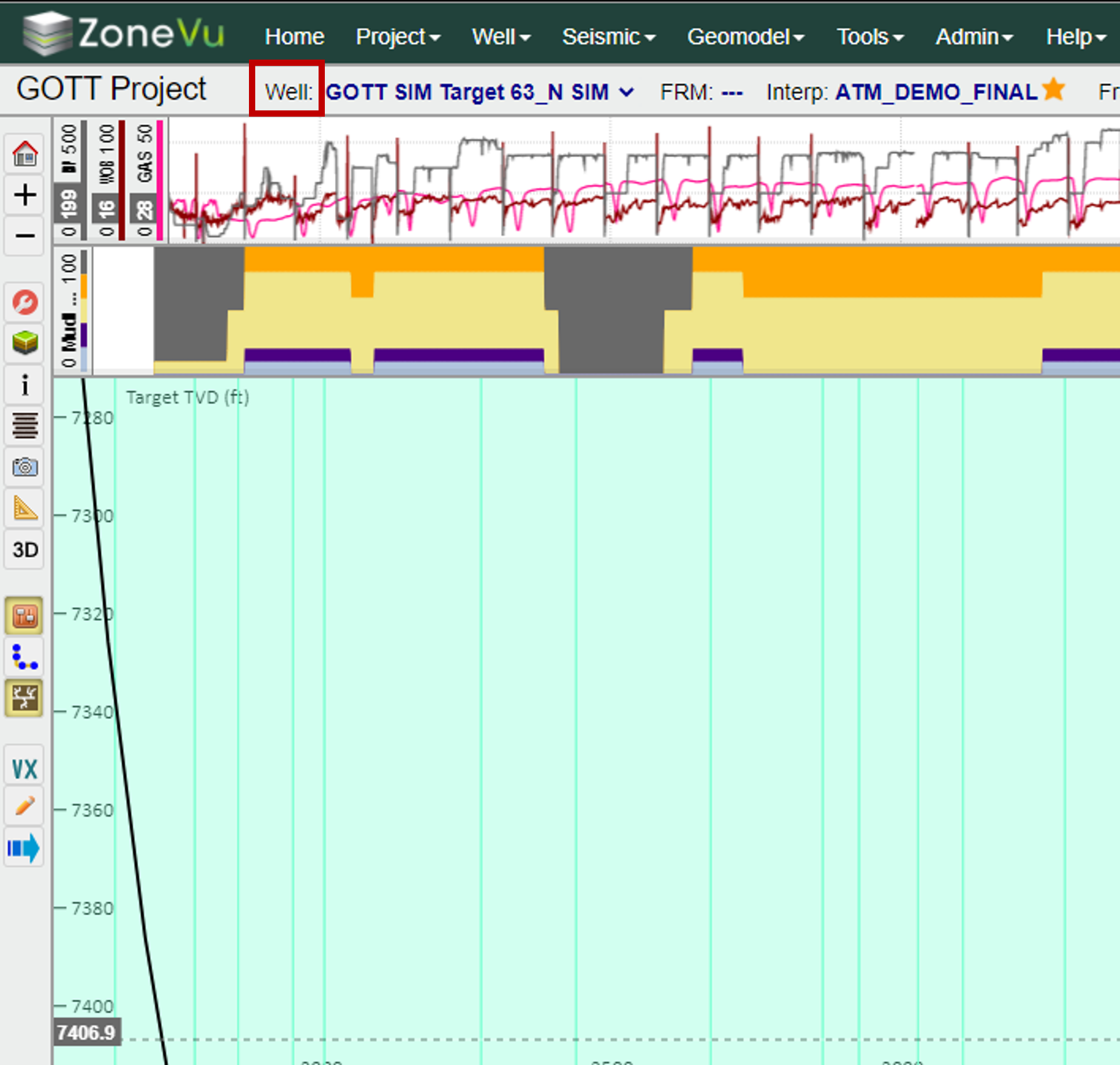
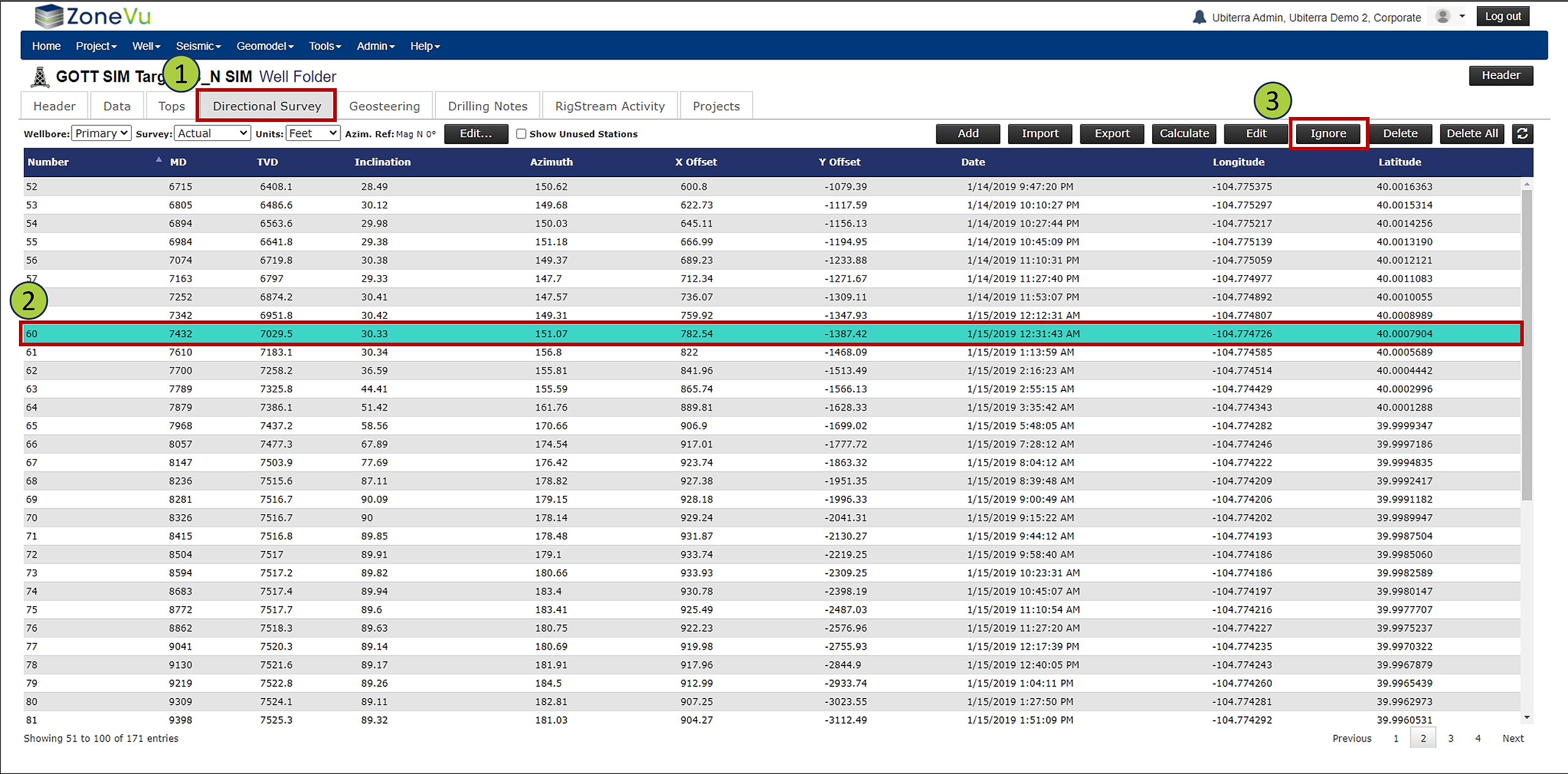
From inside the ZoneVu Viewer, navigate to the Well Folder by selecting "Well:" in the ribbon at the top of the Viewer
Select the Directional Survey tab and make sure you are looking at the "Active" Survey
Find and select the bad survey station
Click the "Ignore" button in the upper-right corner of the window
This will tell ZoneVu that the survey point should not be included in the Deviation Survey, but also not to replace the survey on the next RigStream Update
If you delete the bad survey, ZoneVu will replace it in the next RigStream Update
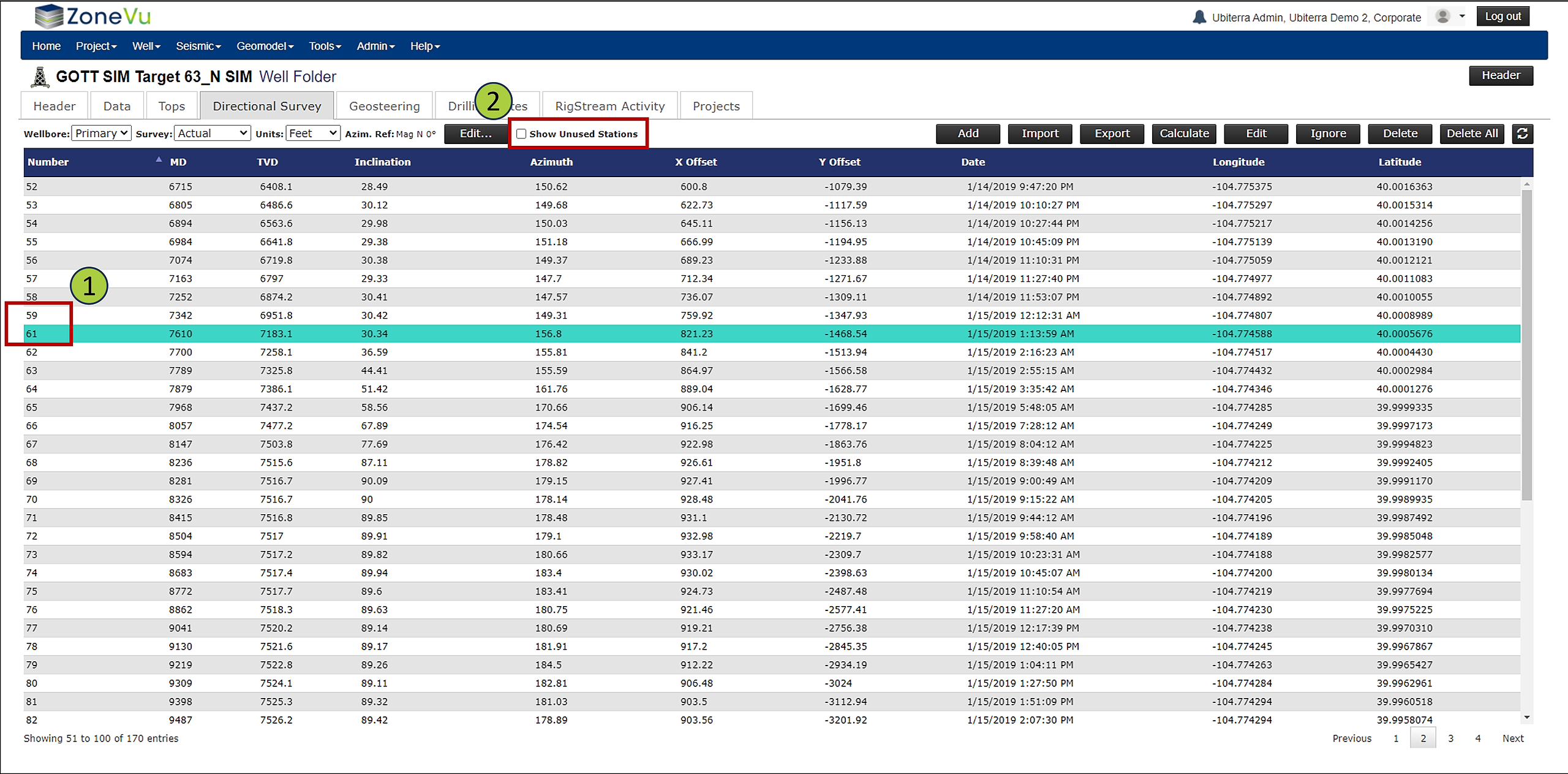
You will notice the ignored survey no longer appears in the list (Note how line 60 no longer appears)
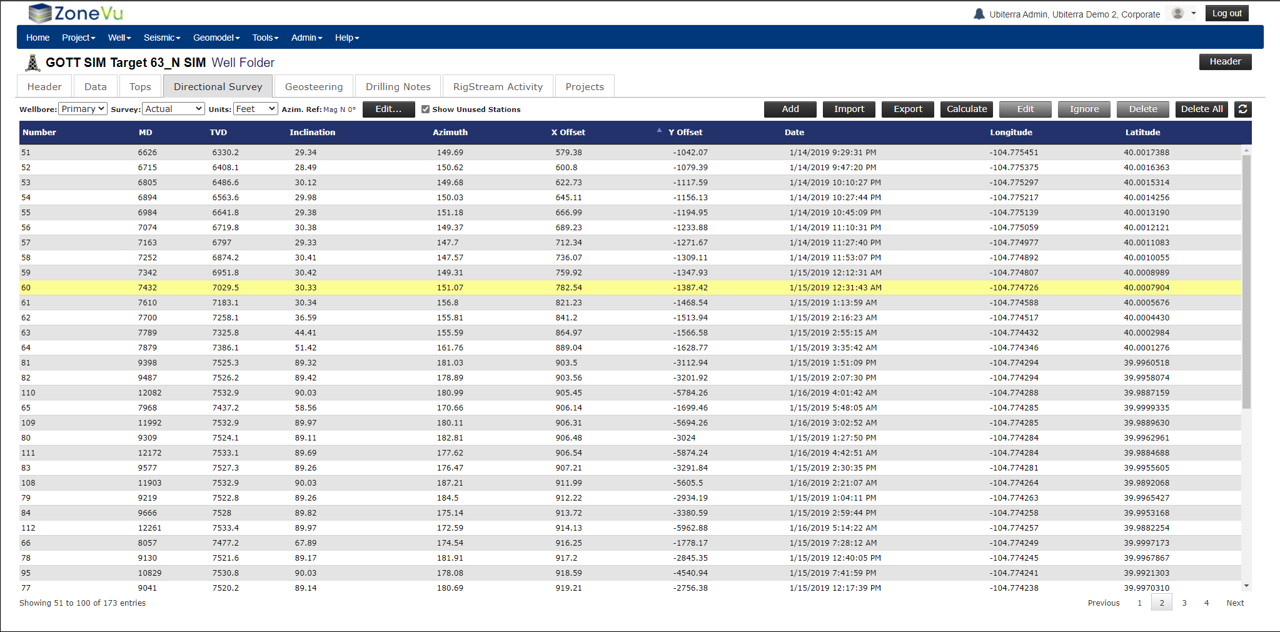
If you wish to view the Ignored Survey(s), check the "Show Unused Stations" checkbox in the upper ribbon
The ignored survey will have a yellow highlighting indicating it has been "Ignored"
To un-ignore a survey, right-click on the ignored survey station and select "Edit"
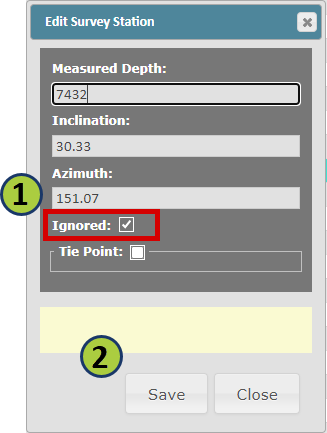
In the Edit Survey Station pop-up, you can uncheck the "Ignored" checkbox to resume using the survey station in the wells Directional Survey
Make sure to click "Save" to save your changes