

You can copy the full set of display setting from one geosteering interoperation into another set for an a geosteering interpretation on another well.
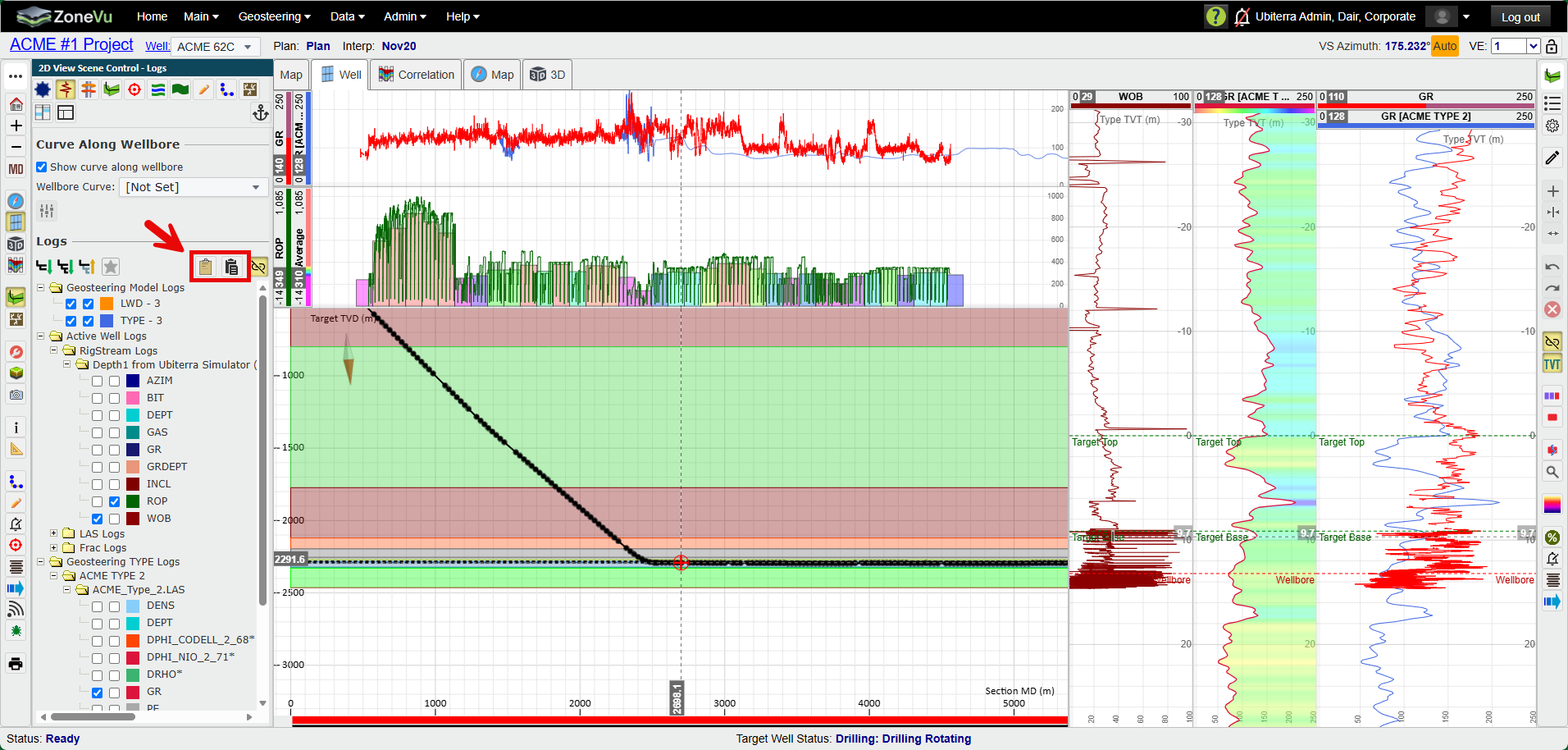
With an interpretation open, click the 'Copy interpretation display settings to clipboard' button
 from the 'Logs' tab of 'Scene Control'. This will copy the display settings from this interpretation to your computer's clipboard. These will be the 'Source Display Settings'.
Open a new or existing interpretation on a different well and click the "Apply Curve Display Setting from the Clipboard" button
 from the 'Logs' tab of 'Scene Control'. This will paste the 'Source Display Settings' into the new interpretation.
Once you have pasted the 'Source Display Settings', the 'Match Interpretation Display Settings' dialog will open. Using the drop downs for each curve You will be able to map any source curve display settings to their destination curve if ZoneVu is unable to find a match from the destination wells curve sets. You will also have the ability to skip loading display settings from source curves that have no valid matches in the destination wells curves set.
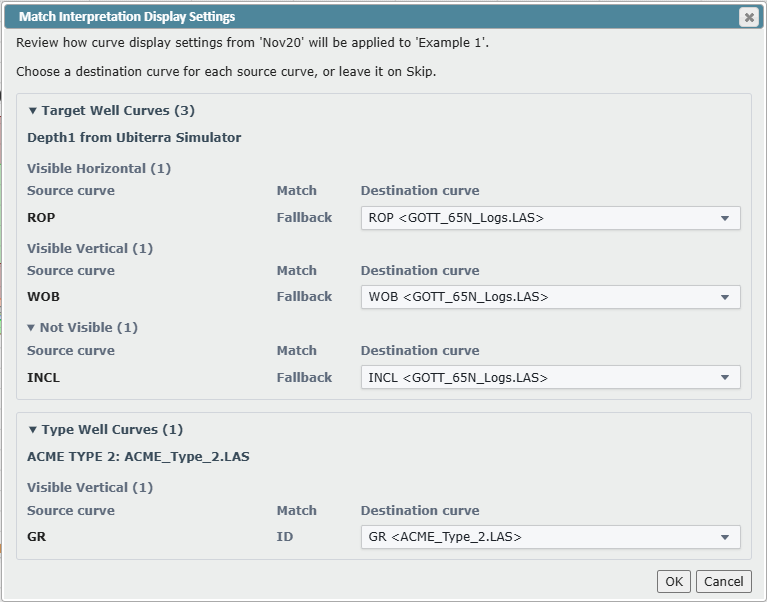
Note: The 'Match Interpretation Display Settings' dialog will only ask for curve match confirmation for curves that are displayed in the source interpretation or have had their display settings manually edited but are not currently displayed in the source interpretation.