Projects in ZoneVu are a subset of the total data that you want to work with. You can create a project at any scale (single Well, Pad, DSU, Basin…) and you can have a Well in as many projects as you like. Since ZoneVu is a single Instance database, there is only one version of the Well in your ZoneVu account no matter how many projects are referencing that Well.
Creating a new Project:
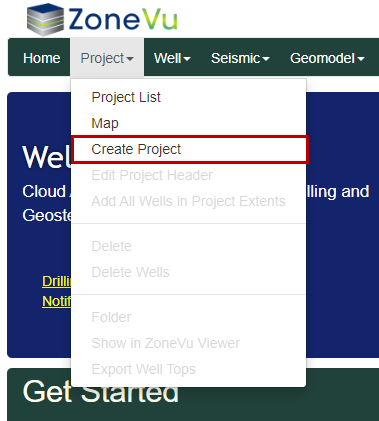
Under the “Project” dropdown, select “Create Project” to open the “Create Project” pop-up
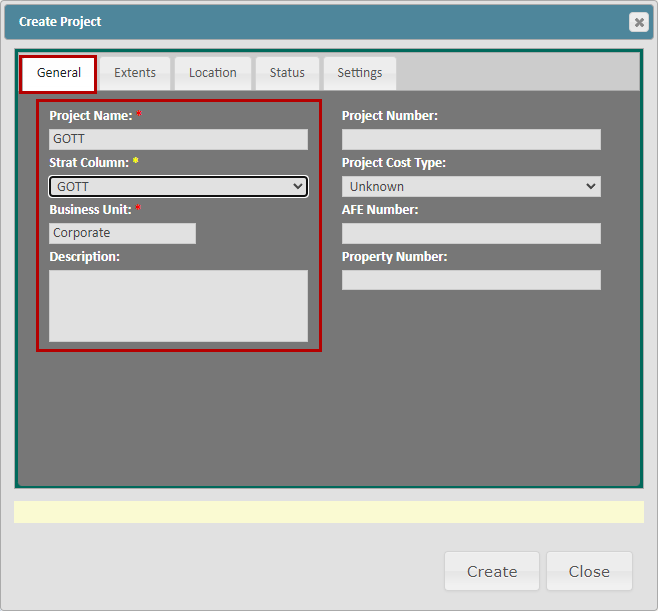
Under the “General” tab, name the project, select the associated Strat Column and the appropriate Business Unit
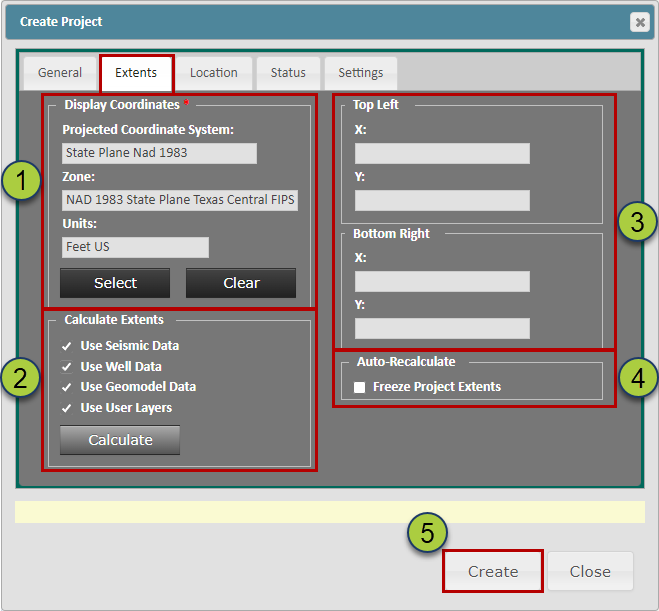
Next, go to the “Extents” tab and define the proper Coordinate System
Note: ZoneVu can handle data from any coordinate system and auto-converts this data from its native coordinate system to the coordinate system defined for the Project
Under the Calculate Extents section, you can choose what data ZoneVu will use to auto-calculate the Project Boundaries
You can manually define the extent of the project boundary by providing the X/Y locations of the Top Left and Bottom Right corners of the rectangle
Note: ZoneVu will automatically populate these fields on the data in the Project
If you do not want ZoneVu to auto-calculate the project extents, then check the “Freeze Project Extents” checkbox
Click the “Create” button to create the new Project
The newly created Project will now appear in the Projects List

Adding Data to your Project
When you add data to a Project, you are not copying this data into the project. Instead, you are creating a reference to the data telling ZoneVu what data to use when opening up a Project. So, when you add or remove data to a project you are not creating or destroying data, but instead establishing or removing a data reference list.
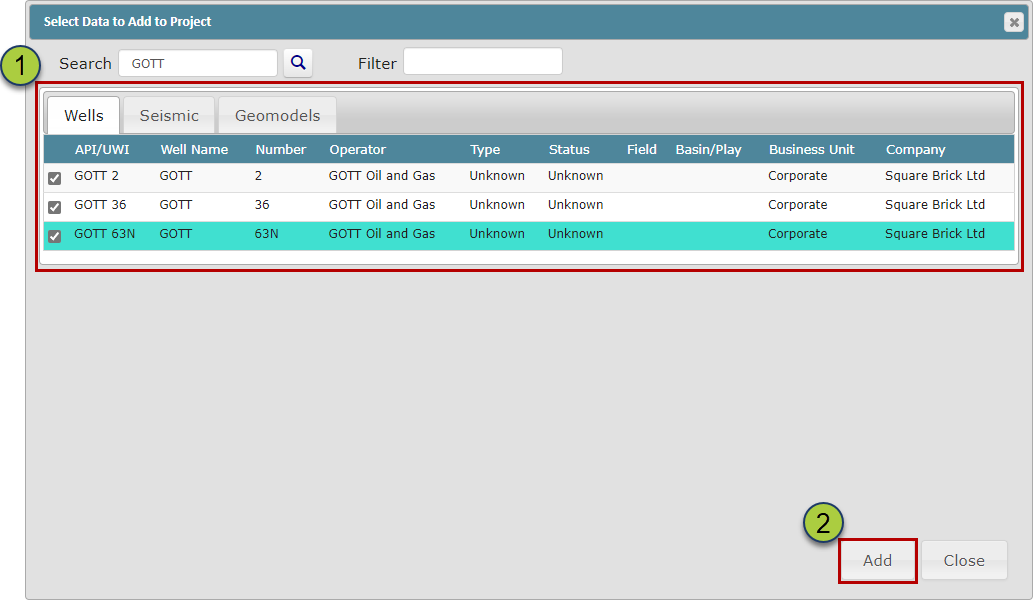
To add data to a project, navigate to the “Data” tab in the Project. Then select a data folder in the left data tree and select the “Add” button on the right-hand side of the screen. This will open the data selection pop-up

The “Data Selection” pop-up will list all data in your ZoneVu account that has not already been added to the Project. You can select the Wells, Geomodels, and Seismic Survey data you want to add to the Project.
Note: you can only add one Geomodel and one Seismic Survey to a project
Select the data you want to add using the left checkboxes and then click the “Add” button
All data that has been added to a Project will be listed in the left-hand Data Tree and in the data list
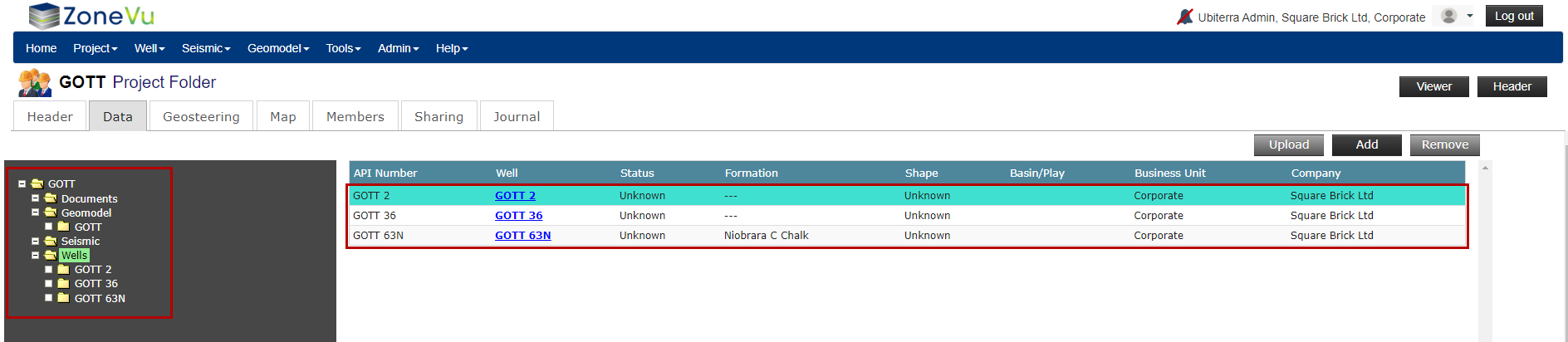
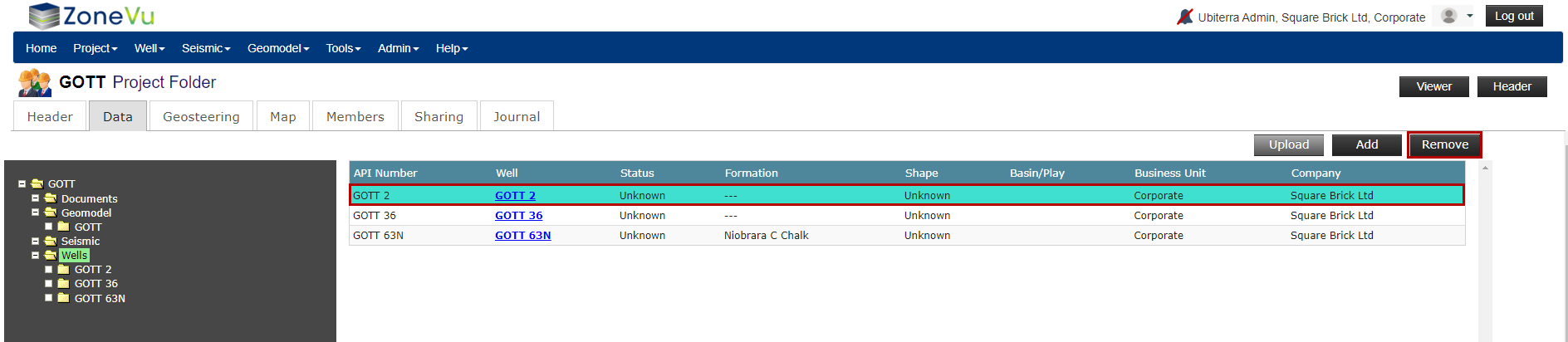
To remove data from the Project, select one or more objects in the data list and click the "Remove" button in the upper right corner
Note: When you remove data from a project you are not destroying data, but instead removing a data reference