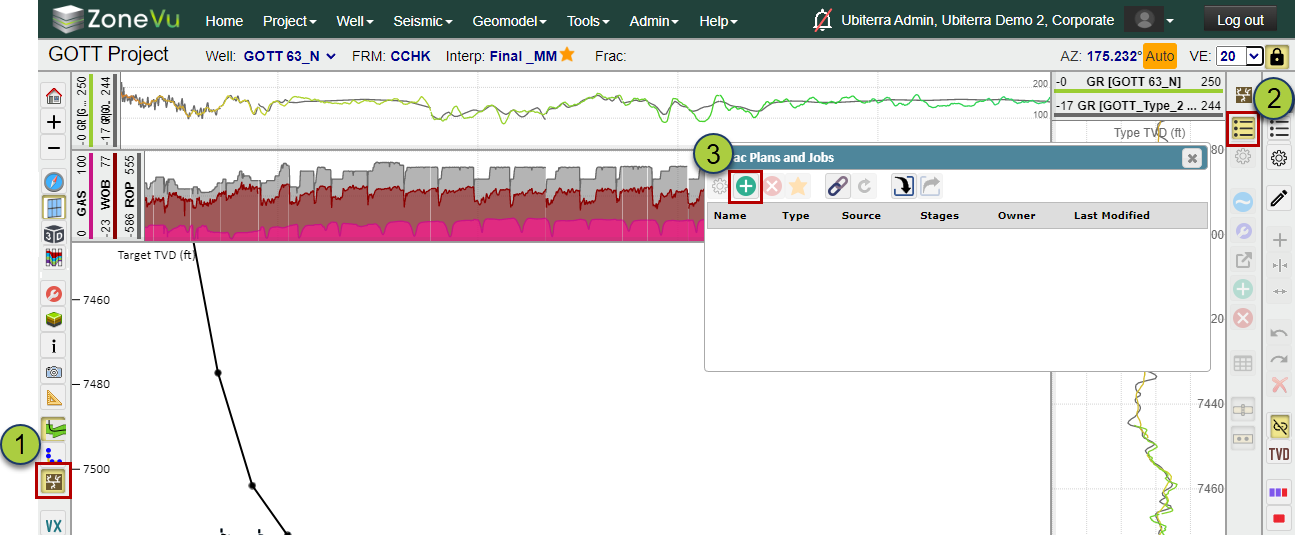
In ZoneVu, you can add data to a Frac in ZoneVu Frac: Creating a New Frac in ZoneVu Frac, importing, or downloading from a Frac Data Provider.
Creating a New Frac in ZoneVu:
Click the "ZoneVu Frac" button to open the Frac Button menu
Click the "Frac List" button to open the Frac List
Click the "Create" button to open the "Create Frac Plan" dialog box
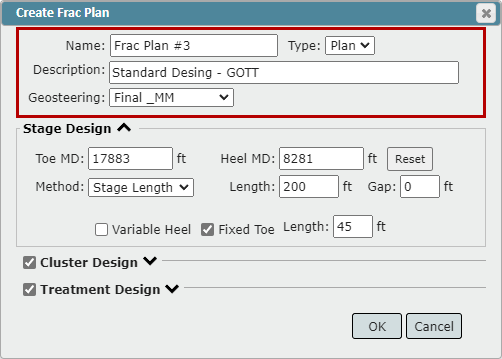
Specify the Header Info:
Name: Name of the Frac
"Type" dropdown: Specify if the Frac is a Plan or Job
Description (Optional): Space for more detailed information about the Frac
"Geosteering" dropdown: Choose which Geosteering Interpretation to tie to the Frac
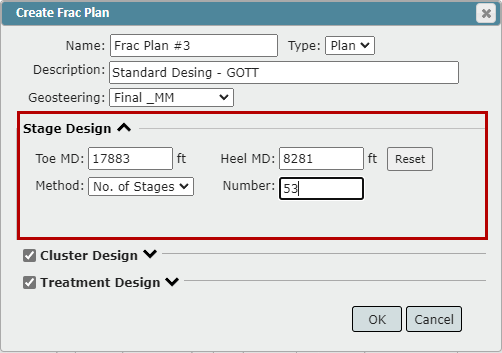
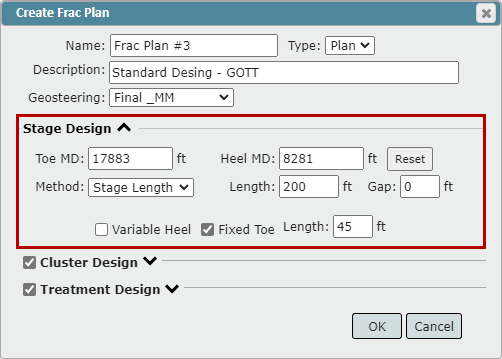
Design the Frac Stages:
Toe MD: The MD depth defining the start of the Frac
By default, ZoneVu will use the max MD of the well
Heel MD: MD depth defining the ending point of the Frac
By default, ZoneVu will use the MD depth where the wellbore reaches 88°
Method: Choose which method to layout the Stages
No. of Stages: ZoneVu Frac will evenly space out the specified number of stages between the defined MD depths
"Number" input: Defines the number of stages for the Frac
Stage Length: ZoneVu Frac will determine the number of stages of a defined length that fit between the defined MD depths
"Length" input: defines the length of each stage
Note: By default, ZoneVu Frac will determine the number of whole stages that can fit between the defined MD depths. This means that the final stage length may not match the defined length, but it should be +/- a few feet.
"Gap" input: Defines a distance from a Plug and the surrounding Perf Clusters that are not considered part of the completed stage length.
If the "Stage Length" is less than the distance between the two bounding Plugs, then the Gap Distance will be used to define this Stage offset length
"Variable Heel" checkbox: Makes the stage length match the Set Length, but the final stage may be less than the defined stage length to account for any excess wellbore length
"Fixed Toe" checkbox: Allows the user to define a different Stage Length for the first stage (Toe Stage)
"Length" input: Defines the Fixed Toe length if the Fixed Toe checkbox is checked
Cluster Design: (Optional)
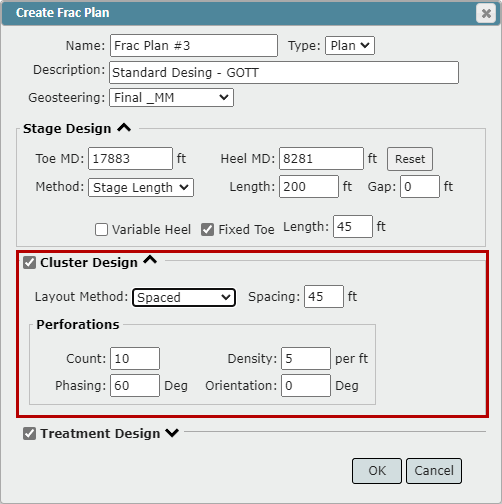
"Layout Method" dropdown: Choose a method to layout the Cluster design
Number: Define a set number of Perf Clusters to be placed in each stage
Spaced: Define the spacing distance between Clusters. ZoneVu Frac will determine the number of clusters that can fit within each stage
Note: By default, the Spacing half-length will be used to offset the first and last clusters from the Stage Boundaries
SpacedOffset: Define the spacing distance between Perf Clusters and the distance the first and last Perf Clusters are offset from the Stage Boundaries.
Note: This option should be used if you want to set a Stage/Cluster offset distance that is different than the Spacing half-length
AddSingle: Adds a single Perf Cluster at the center of the Stage
Perforations design:
Count: Total number of perforations in each cluster
Density: Perforations per distance (feet or meters)
Phasing: Radial degrees between perforations
Orientation: Degrees the first peroration is off vertical (+ = clockwise rotation, - = counterclockwise rotation)
Treatment Design: (Optional)
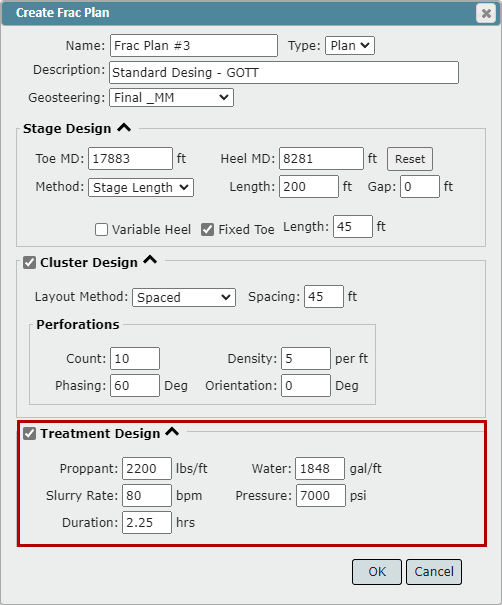
Proppant: Planned proppant (lbs/ft)
Water: Planned Water Volume (gal/ft)
Slurry Rate: Pumping rate (Barrels per minute)
Pressure: Planned treating pressure (PSI)
Duration: Anticipated Frac duration (Decimal hours)
Click the "OK" button to have ZoneVu Frac create your Frac
Importing a Frac into ZoneVu Frac:
Frac Import Spreadsheet Download
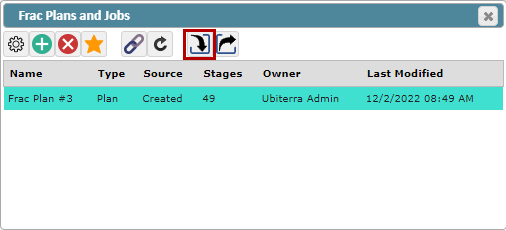
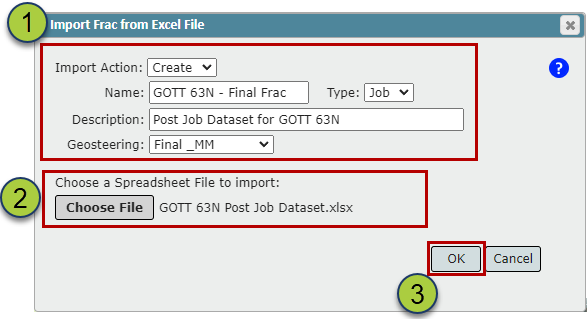
Navigate to the Frac List dialog box and click the "Import" button to open the "Import Frac" dialog box
Fill out the header information
Name the Frac
Use the "Type" dropdown to select if the Frac is a Plan or Job
Use the Description input box to capture more details about the Frac (Optional)
Select a Geosteering Interpretation to link to this Frac (recommended)
ZoneVu will use the selected Geosteering Interpretation to fill out key columns in the Stage Table, and when the Frac is displayed the linked Geosteering interpretation will also be displayed
Drag & Drop the file
Click the "OK" button
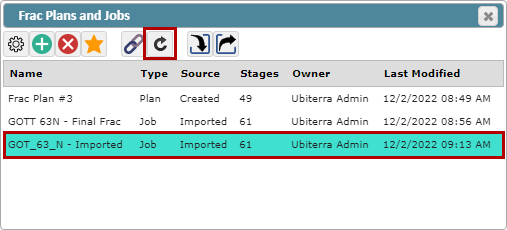
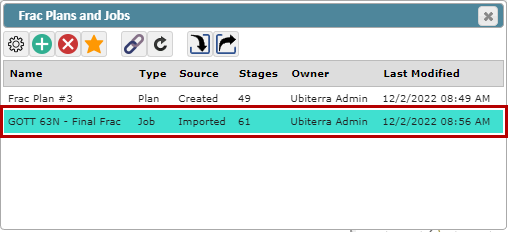
The new Frac will appear in the Frac List once the import has been completed
Downloading data from a Frac Data Provider:
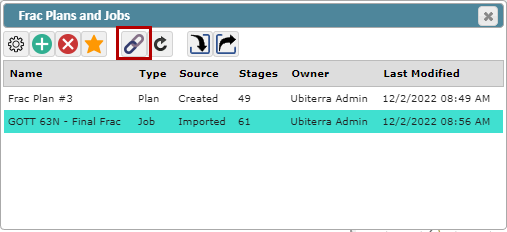
Click the "Retrieve from Data Provider" button
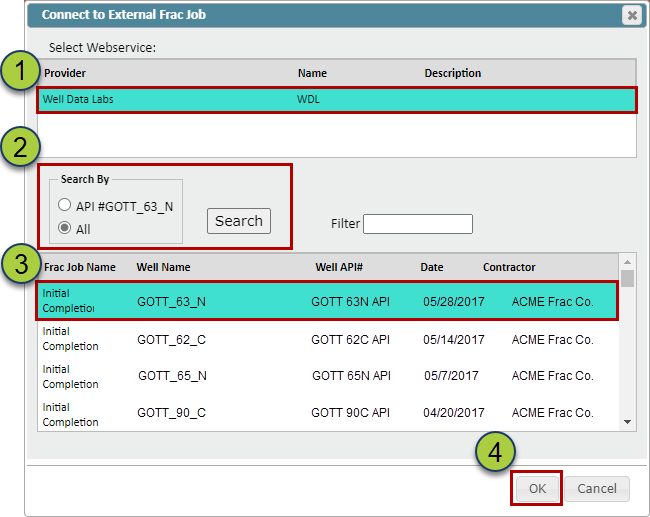
Select the Data Provider
Select the API or list "All Wells" radio button and click the "Search" button
Select the correct Well
Click the "OK" button to download the data into ZoneVu
The new Frac will appear in the Well List. Click the "Update from Data Provider" button to perform a data pull and update the existing frac