The first step to setting up notifications is to confirm the email and phone number associated with your user profile.
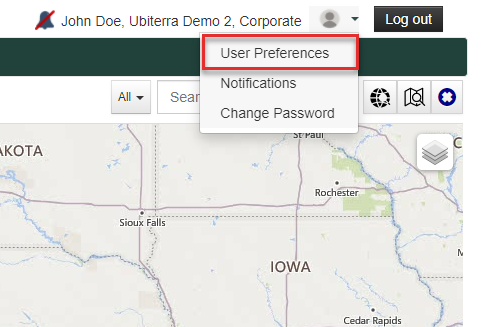
After logging into ZoneVu, go to the user icon in the upper right corner of the screen and select User Preferences.
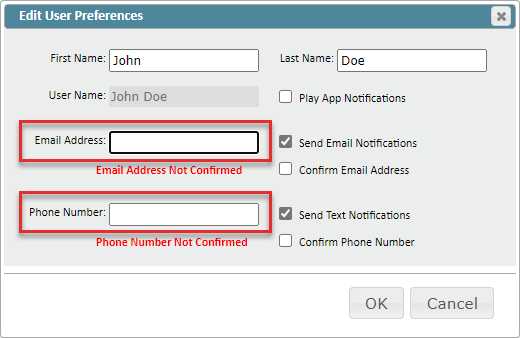
This will bring up the User Preferences pop-up, where you can input your preferred email and phone number and choose what notification method(s) you would prefer.
Before you can receive notifications, you must confirm your email and/or phone number.
Email Address: Enter your email address and select Send Email Notifications and Confirm Email Address and click OK. You will receive an email with a link. Click that link to complete the confirmation.
Phone Number: Enter your phone number and select Send Text Notifications and Confirm Phone Number and click OK. You will receive a text message with a code. Enter that code in the pop-up to complete the confirmation.
Once your contact information has been confirmed, navigate to your drilling well's Viewer.
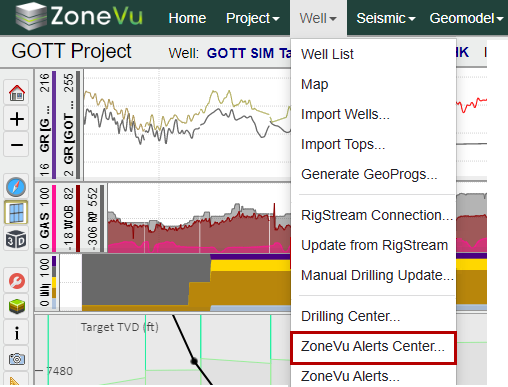
While in the Viewer, under the Well tab, go to ZoneVu Alerts Center
This will open up the ZoneVu Alerts Center pop-up
You can create as many notification rules as you need
Click the green "+" button to create a new Notification Rule
Select your rule type (MD Footage Reached, New Survey Station, Dogleg Severity, Inclination Max/Min, Feature Proximity, Wellbore Proximity, or Log Threshold)
Set the rule parameters
Make any supporting Notes
Click the "Create" button to save your Notification Rules
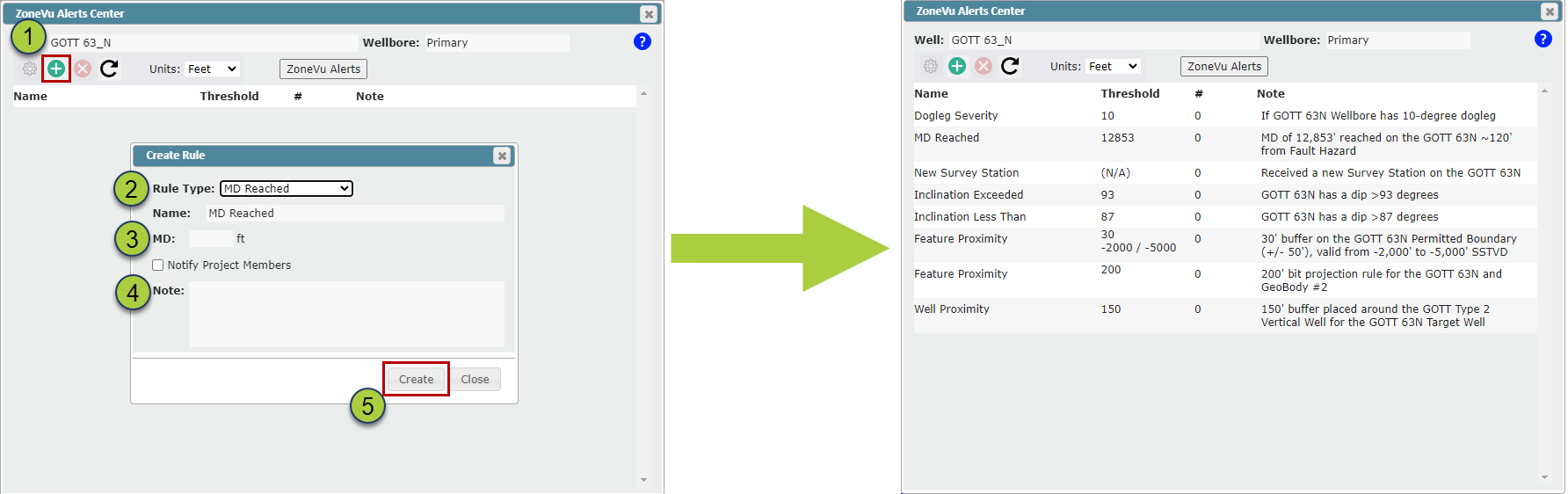
You can delete any Notification Rule by selecting the rule and clicking the Red “X” button
NOTE: Notifications are set at the User Level, and will not be applied to any other user in the project
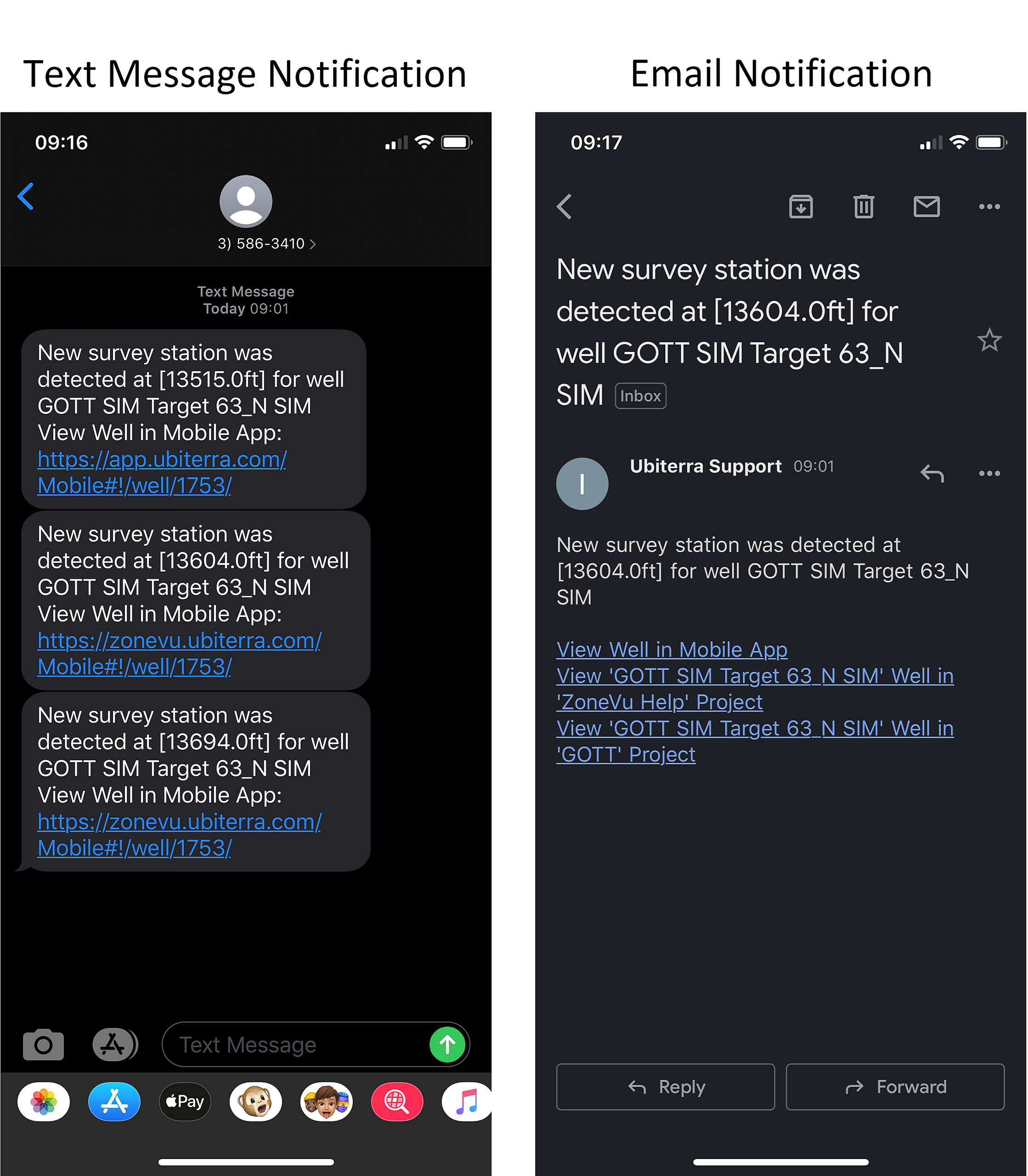
When a Notification threshold has been met or exceeded ZoneVu will send out a notification text or email to the confirmed and preferred method(s). These notifications will specify the Well and which threshold has been met.
Text message notifications will include a link to the Well's Mobile Viewer
Email notifications will include links to both the Well's Viewer and Mobile Viewer
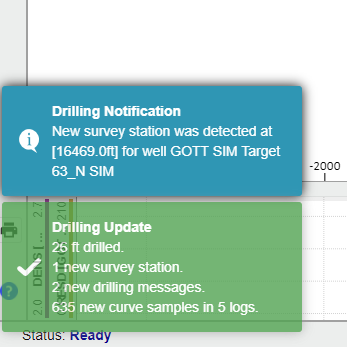
While in the Viewer, a blue pop-up will appear in the bottom left corner indicating what Notification Threshold has been met accompanied by an alarm sound.
You can turn the notification alarm off by pressing the “Bell” button in the upper right corner of your screen.
ZoneVu Alert
Rules:
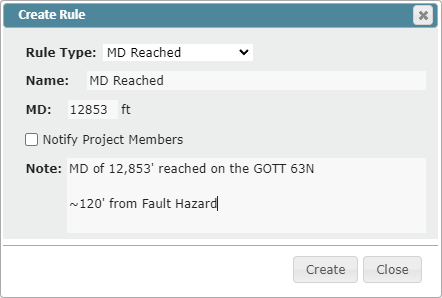
MD Reached: Triggers when the Wellbore reaches the specified MD depth. Note: Wellbore depth is not the same as the Bit Depth
Name: Rule name displayed in the Rules List
MD: Wellbore MD Depth
Notify Project Members checkbox: When the rule is triggered, the Alert will be sent out to the Project Members List
Note: Enter any supporting information for the Alert
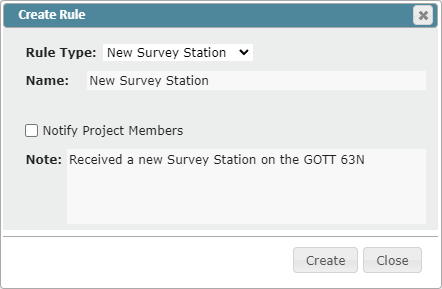
New Survey Station: Triggers when ZoneVu received a new Survey Station via RigStream or Manual Data Loading
Name: Rule name displayed in the Rules List
Notify Project Members: When the rule is triggered, the Alert will be sent out to the Project Members List
Note: Enter any supporting information for the Alert
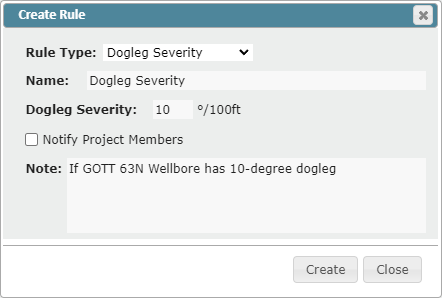
Dogleg Severity: Triggers when the received Survey data has a Dogleg Severity greater than the specified value
Name: Rule name displayed in the Rules List
Dogleg Severity Input: Threshold value (degrees per 100')
Notify Project Members: When the rule is triggered, the Alert will be sent out to the Project Members List
Note: Enter any supporting information for the Alert
Note: this rule does not use the Constant Inc Curve, only the survey inclination
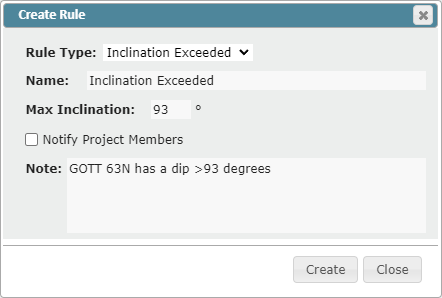
Name: Rule name displayed in the Rules List
Max Inclination input: Set the threshold variable
Notify Project Members: When the rule is triggered, the Alert will be sent out to the Project Members List
Note: Enter any supporting information for the Alert
Inclination Greater Than: Triggers when a survey has an inclination greater than the specified value.
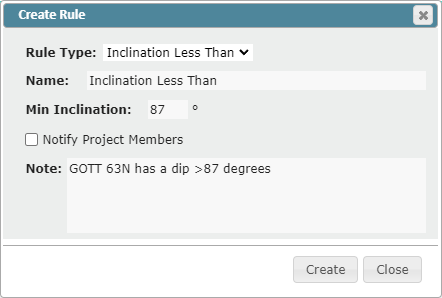
Inclination Less Than: Triggers when a survey has an inclination less than the specified value. Note: this rule does not use the Constant Inc Curve
Name: Rule name displayed in the Rules List
Min Inclination input: Set the threshold variable
Notify Project Members: When the rule is triggered, the Alert will be sent out to the Project Members List
Note: Enter any supporting information for the Alert
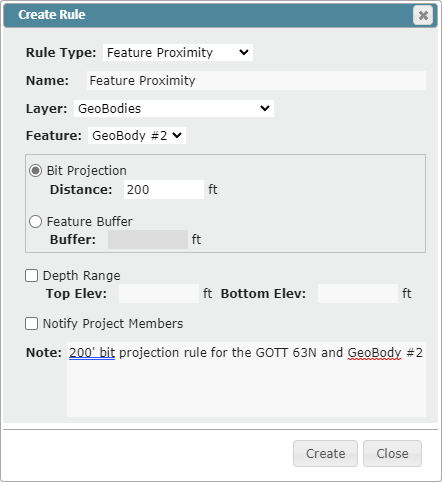
Feature Proximity: Triggers when the bit projection intersects the specified feature, or the wellbore enters the specified buffer zone
Bit Projection: Project the bit out a specified distance using a linear projection. If the bit projection intersects the feature the rule will trigger. If the bit projection stops intersecting the Feature the rule trigger will reset
Name: Rule name displayed in the Rules List
Layer dropdown: Select which Layer file the Feature is located in
Feature dropdown: Select the Feature to set the Proximity Rule on
Bit Projection Distance input: Distance the Bit will be projected out from the last survey
Depth Range checkbox: Set an upper and/or lower depth range where the rule is valid (Depth is SSTVD)
Notify Project Members: When the rule is triggered, the Alert will be sent out to the Project Members List
Note: Enter any supporting information for the Alert
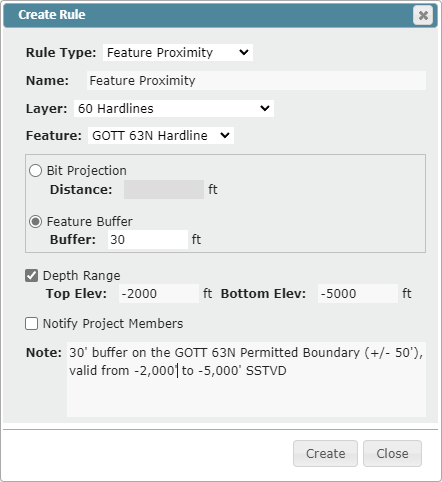
Feature Buffer: Specify a buffer distance applied to both sides of the Feature. If the Wellbore or bit projection enters this buffer the rule will trigger. If the wellbore or bit projection exits the buffer the alert trigger will reset
Name: Rule name displayed in the Rules List
Layer dropdown: Select which Layer file the Feature is located in
Feature dropdown: Select the Feature to set the Proximity Rule on
Feature Buffer Distance input: Buffer distance applied to both sides of the Layer Feature
Depth Range checkbox: Set an upper and/or lower depth range where the rule is valid (Depth is SSTVD)
Notify Project Members: When the rule is triggered, the Alert will be sent out to the Project Members List
Note: Enter any supporting information for the Alert
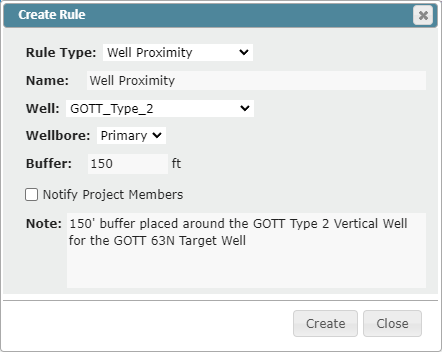
Wellbore Proximity: Triggers when the Wellbore (including Bit Projection when using RigStream) enters the buffer cylinder around the specified Wellbore
Name: Rule name displayed in the Rules List
Well dropdown: Select which Well you want to apply the Proximity Rule to
Wellbore dropdown: Select which of the Wellbores to apply to Proximity Rule to
Buffer input: Specify the buffer distance for the Proximity Rule
Notify Project Members: When the rule is triggered, the Alert will be sent out to the Project Members List
Note: Enter any supporting information for the Alert
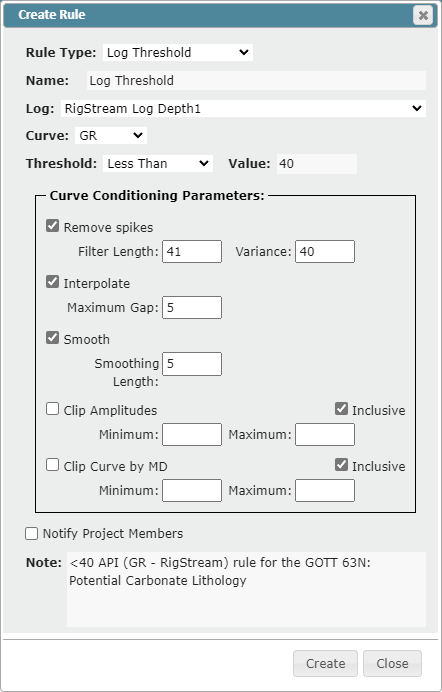
Log Threshold: Triggers when the specified log curve exceeds the specified value. Once the log exits the log curve value range the rule trigger will reset
Name: Rule name displayed in the Rules List
Log dropdown: Select the required Log, this can be a LAS or RigStream Log
Curve dropdown: Select the Log Curve to use for the rule
Threshold Dropdown: Greater Than or Less Than
Value Input: Rule Threshold Value
Curve Conditioning Parameters: Set the Curve Conditioning you want to be applied to the rule curve.
Note: It's recommended you apply the same conditioning parameters used on the displayed log in the Viewer
Notify Project Members: When the rule is triggered, the Alert will be sent out to the Project Members List
Note: Enter any supporting information for the Alert
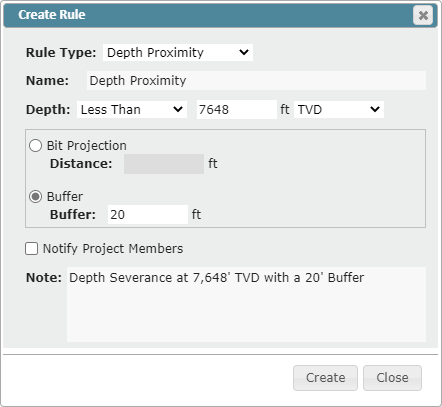
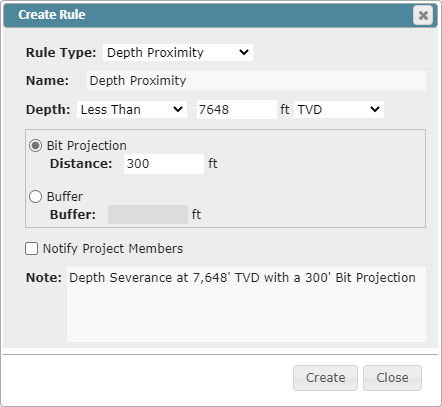
Depth Proximity: Specify a Depth Threshold (TVD or Elevation). The Rule will trigger when the Wellbore (including Bit Projection when using RigStream) crosses the Depth Threshold
Bit Projection: Project the bit out a specified distance using a linear projection. If the bit projection intersects the Depth Threshold the rule will trigger. If the bit projection stops intersecting the Depth Threshold the rule trigger will reset
Name: Rule name displayed in the Rules List
Depth dropdown: Select between "Greater Than" or "Less Than"
Depth input: Type in the Depth Threshold
Unit Selection dropdown: Selection between "TVD" and "Elevation"
Bit Projection Distance input: Type in the Bit Projection Distance
Notify Project Members: When the rule is triggered, the Alert will be sent out to the Project Members List
Note: Enter any supporting information for the Alert
Depth Buffer: Specify a buffer distance applied to the Depth Threshold. If the Wellbore or RigStream Bit Projection enters this buffer the rule will trigger. If the Wellbore or RigStream Bit Projection exits the buffer the alert trigger will reset
Name: Rule name displayed in the Rules List
Depth dropdown: Select between "Greater Than" or "Less Than"
Depth input: Type in the Depth Threshold
Unit Selection dropdown: Selection between "TVD" and "Elevation"
Buffer input: Type in the Buffer Distance
Notify Project Members: When the rule is triggered, the Alert will be sent out to the Project Members List
Note: Enter any supporting information for the Alert