By default, ZoneVu Alerts only sends an alert to the user who created the rule. In addition, ZoneVu Alerts has the ability to alert other team members when a rule is triggered. This article walks through the process of adding Users to the Members List and how to set a rule to notify other Users. (Related Article: How to set up ZoneVu Alerts)
How to add ZoneVu Users to a Projects Member List:
ZoneVu Alerts rules are set up at the Project level and their respective Members Lists are also managed at the Project level. To access the Members List, navigate to the "Members" tab in the Project Folder. From here you can manage the list of Users who can receive alerts set up by other Users in the Project.
Adding New Users: Setting ZoneVu Alerts to Notify Other Team Members
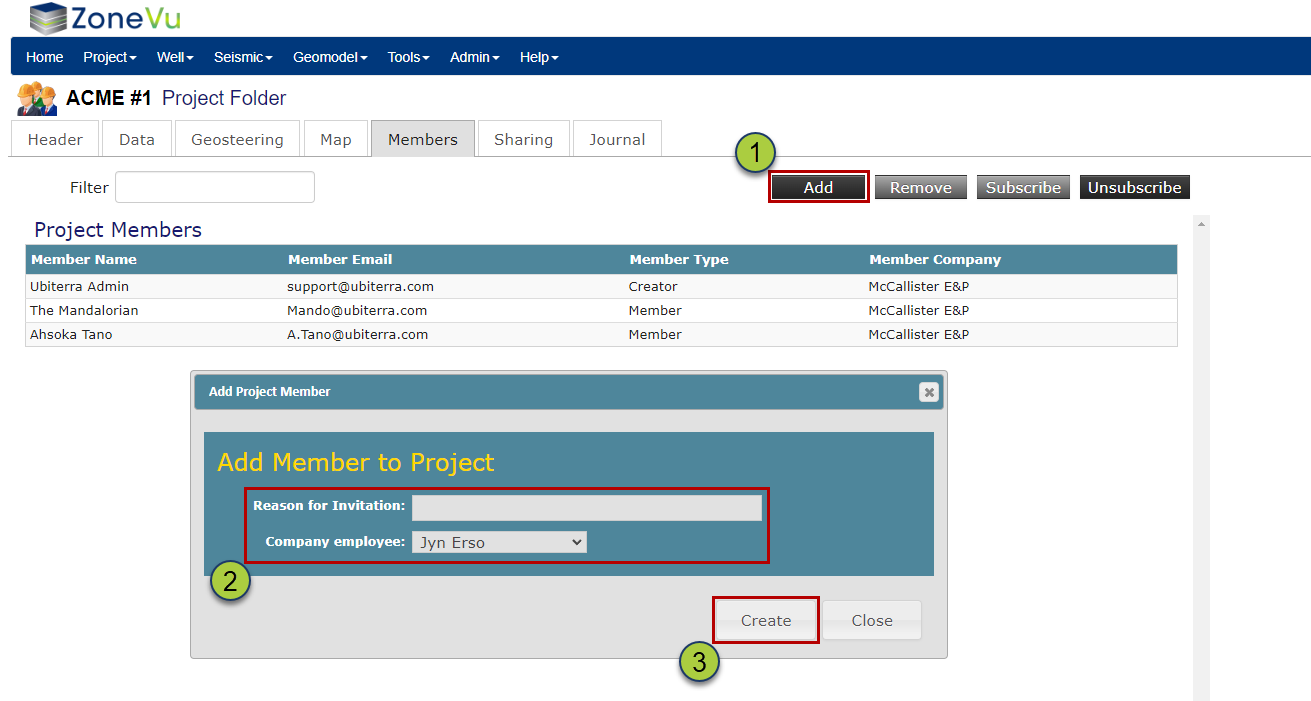
To add a new User, navigate to the "Members" tab in the Project Folder and click the "Add" button
Use the "Company Employee" dropdown to select a User to add to the Members List
Note: Only ZoneVu Users can be added to a Members List
Click the "Create" button to add the User
Editing the Members List:
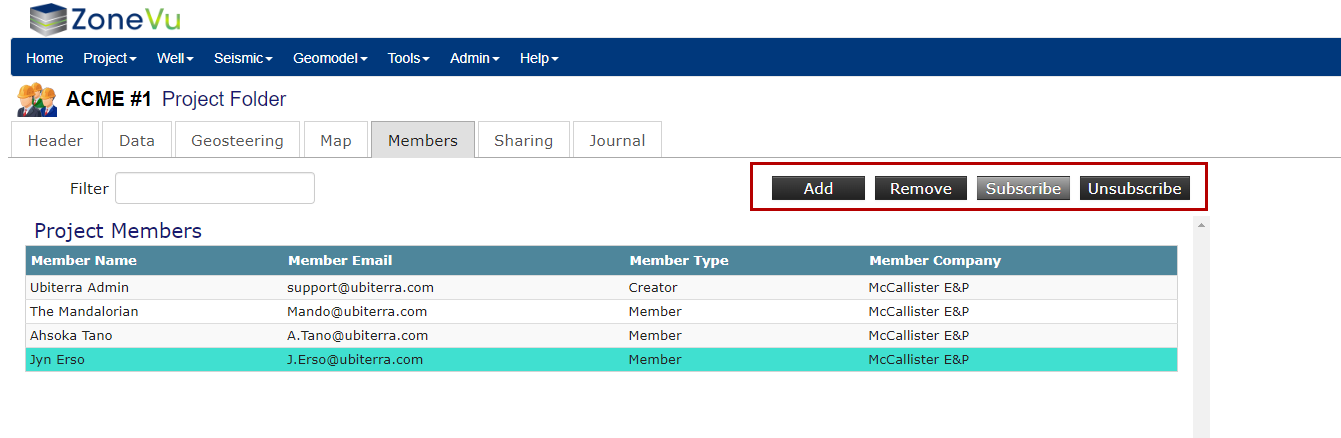
You can manage the Members List by using the buttons in the upper-right corner
"Add" button: Opens the "Add Project Members" dialog box allowing you to add other ZoneVu Users to the Members List
"Remove" button: Removes the Selected User from the Members List
"Subscribe" button: Adds your User Profile to the Members List
"Unsubscribe" button: Removes your User Profile from the Members List
How to set a ZoneVu Alert to notify other Team Members:
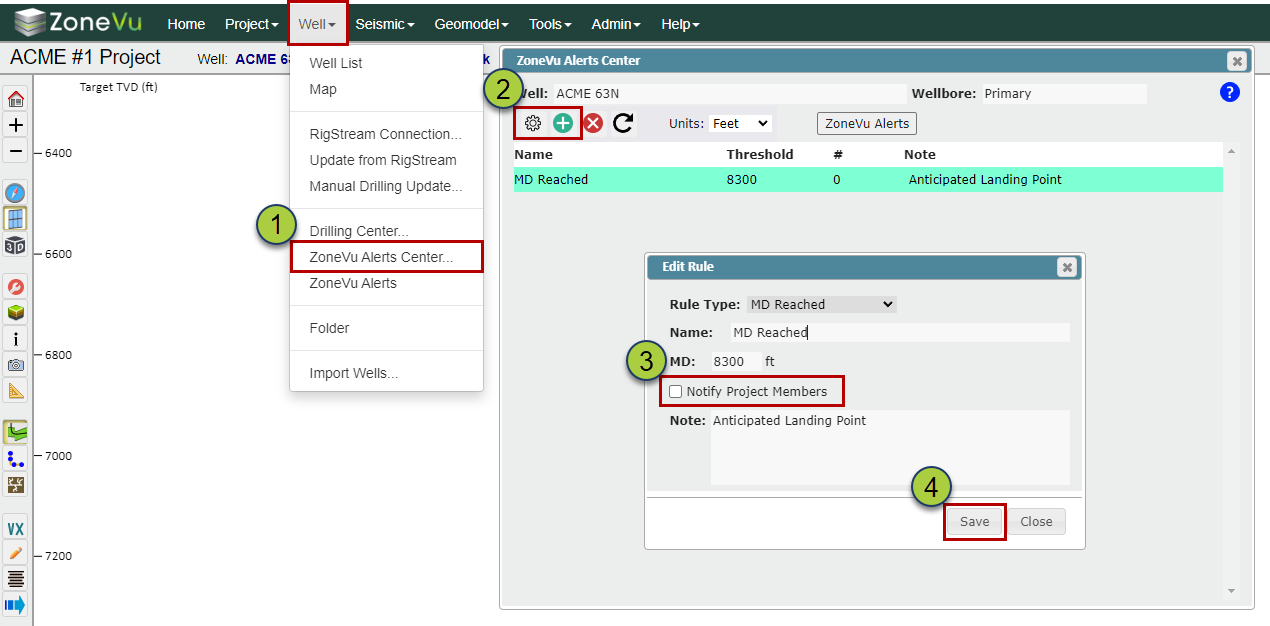
While in the Viewer, select “ZoneVu Alerts Center” under the “Wells” dropdown
Select an existing Rule and click the "Rule Settings" button or click the "Create" button to create a new rule
Check the “Notify Project Members” checkbox
Click the "Save" or "Create" button to save your changes
With the "Notify Project Members" checkbox checked, every time this Rule is triggered ZoneVu Alerts will send an alert to every User added to the Members List on the "Members" tab in the Project Folder
Note: To receive a notification from ZoneVu Alerts, you must confirm your email and/or phone number under your User Profile (Related Article: How to set up ZoneVu Alerts)