ZoneVu allows you to import documents into any Well, Project, Geomodel, or Seismic folder for storage and/or future use. The workflows below walk through the process of importing, categorizing (sub-folder creation), and exporting documents.
Importing a Document:
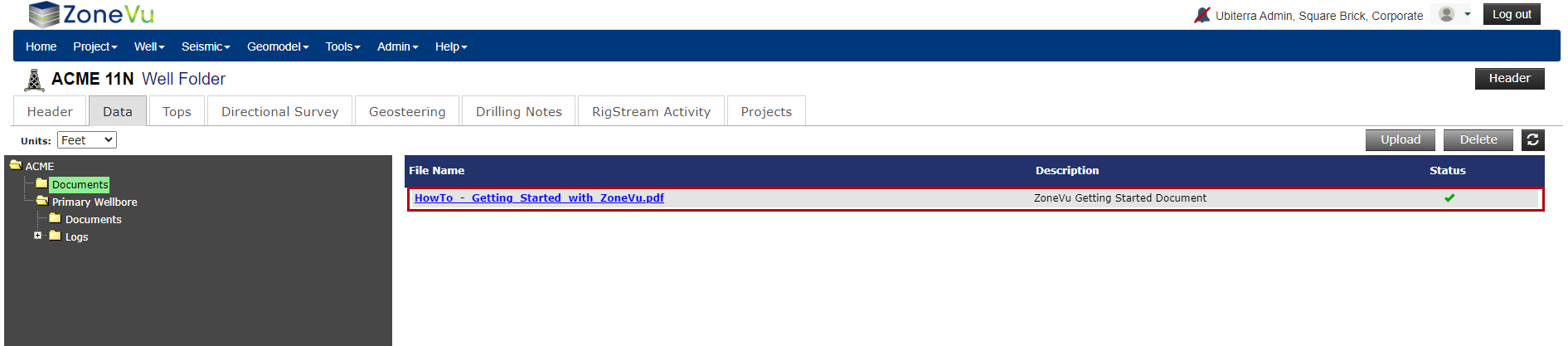
Navigate to a Data Folder and select the Documents Folder or Sub-Folder you want to Import the file into
Click the "Import" button to open the "Document Import" dialog box
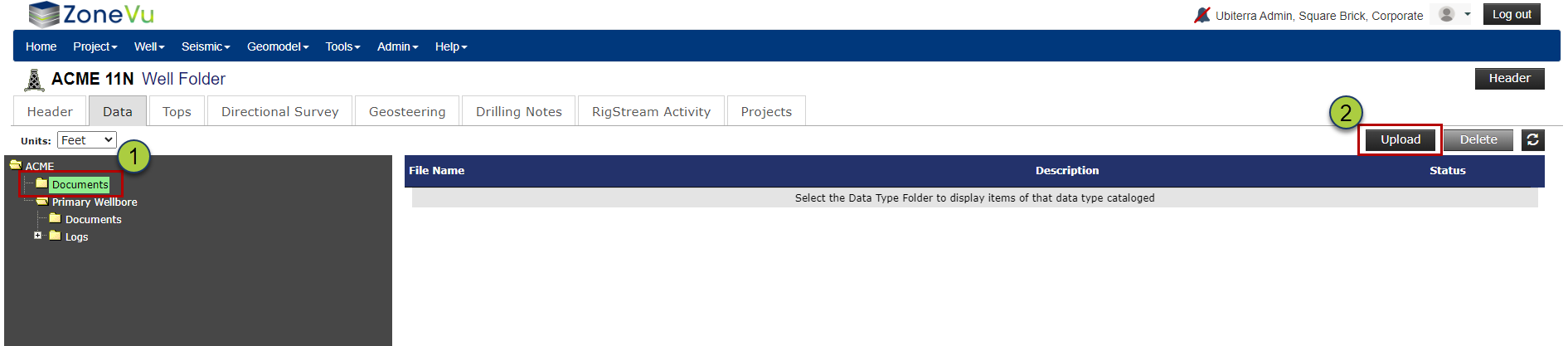
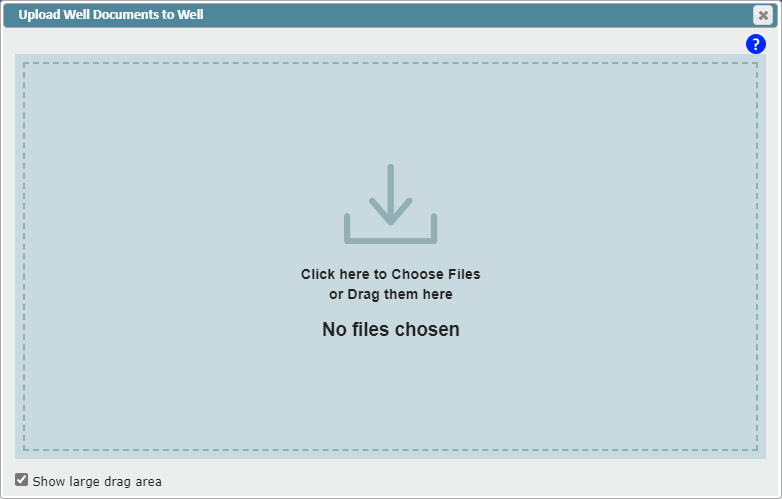
Drag & Drop or choose the file(s)
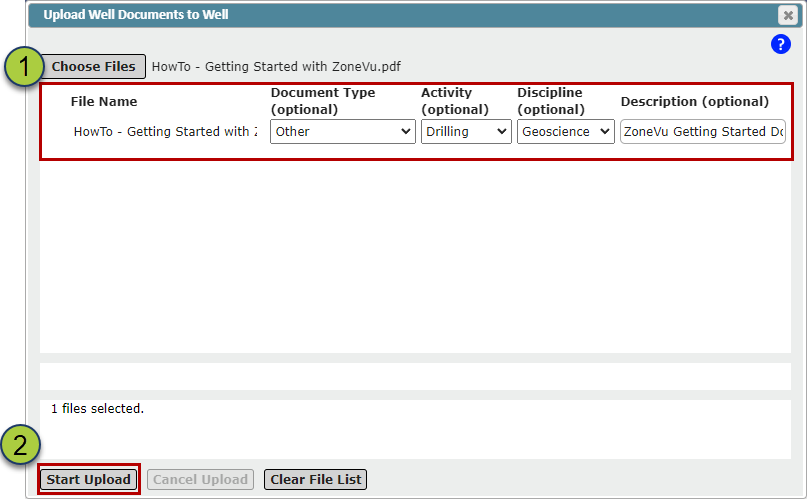
Add header details (optional)
Document Type: Use the dropdown to specify the document type
Activity: Use the dropdown to specify the related activity
Discipline: Use the dropdown to specify which discipline this document is related to
Description: Add any additional documentation text
Note: Seismic Documents only support the addition of a Description.
Click the "Start Import" button
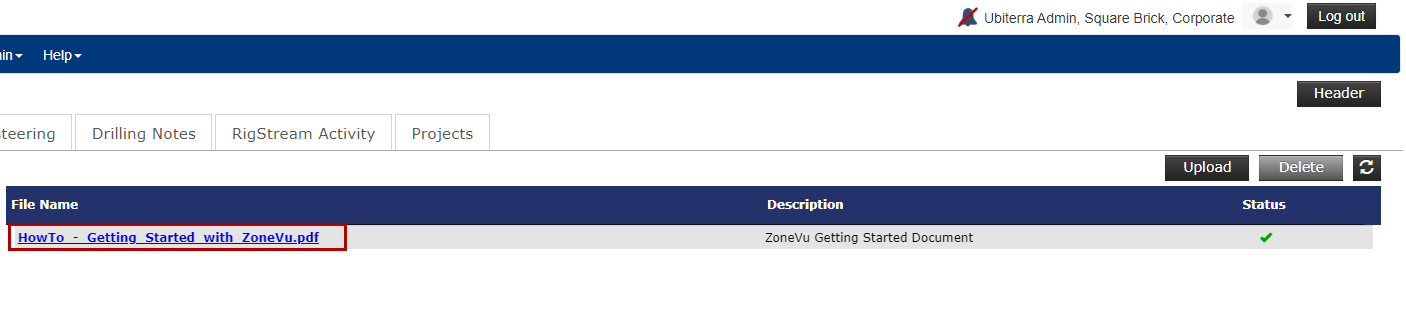
The imported document will now appear in the file list inside the selected Documents Folder
Adding Subfolders to a Folder:
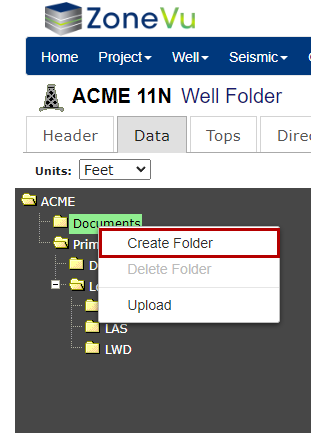
Right-click on a Folder and select "Create Folder"
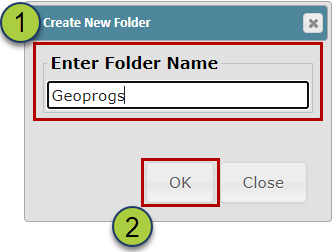
Enter the Sub-Folder's Name in the "Create New Folder" pop-up
Click the "OK" button to create the Folder
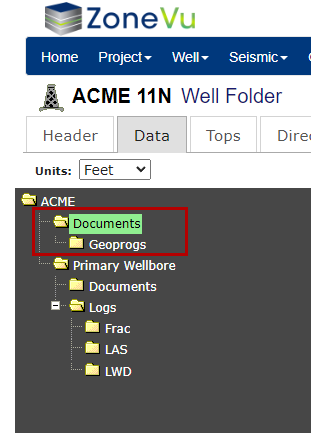
The new folder will be nested under the selected Folder
Exporting a Document:
To export a document, navigate to the correct folder and click on the Document's Name. This is a hyperlink that will download the document to your Computer.