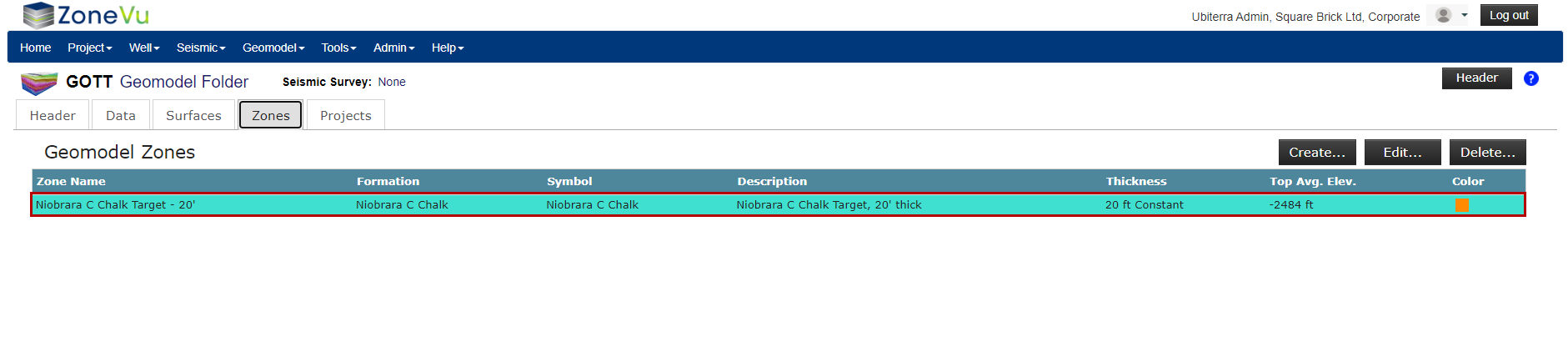
In ZoneVu, the Geomodel is the place where you load all of your Grid Data (Structure, Isopach, and Data Grids), create Structural Surfaces out of the Grid Data or Seismic Horizon Data, and create Zones (Geobodies) where you assign thickness to a Structural Surface. Those Surfaces and Zones are correlated to Geologic Formations that are part of the Stratigraphic Column for the Geomodel.
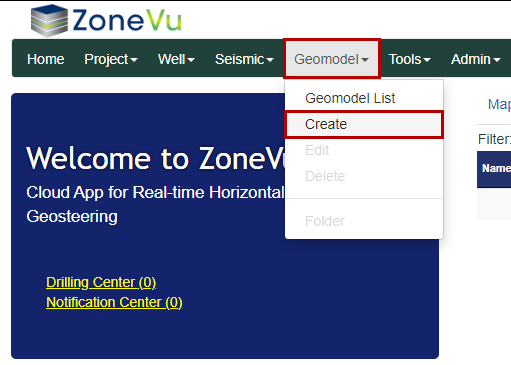
To create a Geomodel, select “Create” under the “Geomodel” dropdown. This will open the “Create Geomodel” pop-up.
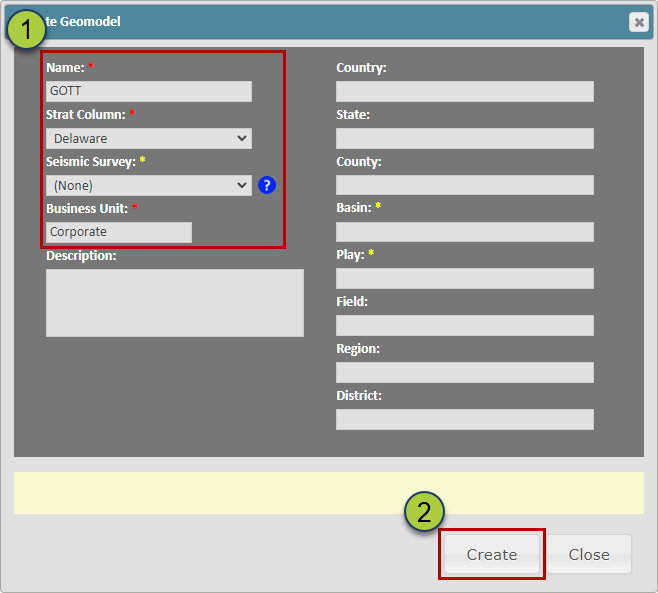
Fill out the required inputs: Name, Strat Column, Seismic Survey (Optional), and Business Unit
Click the “Create” button to create your Geomodel
Loading a Grid:
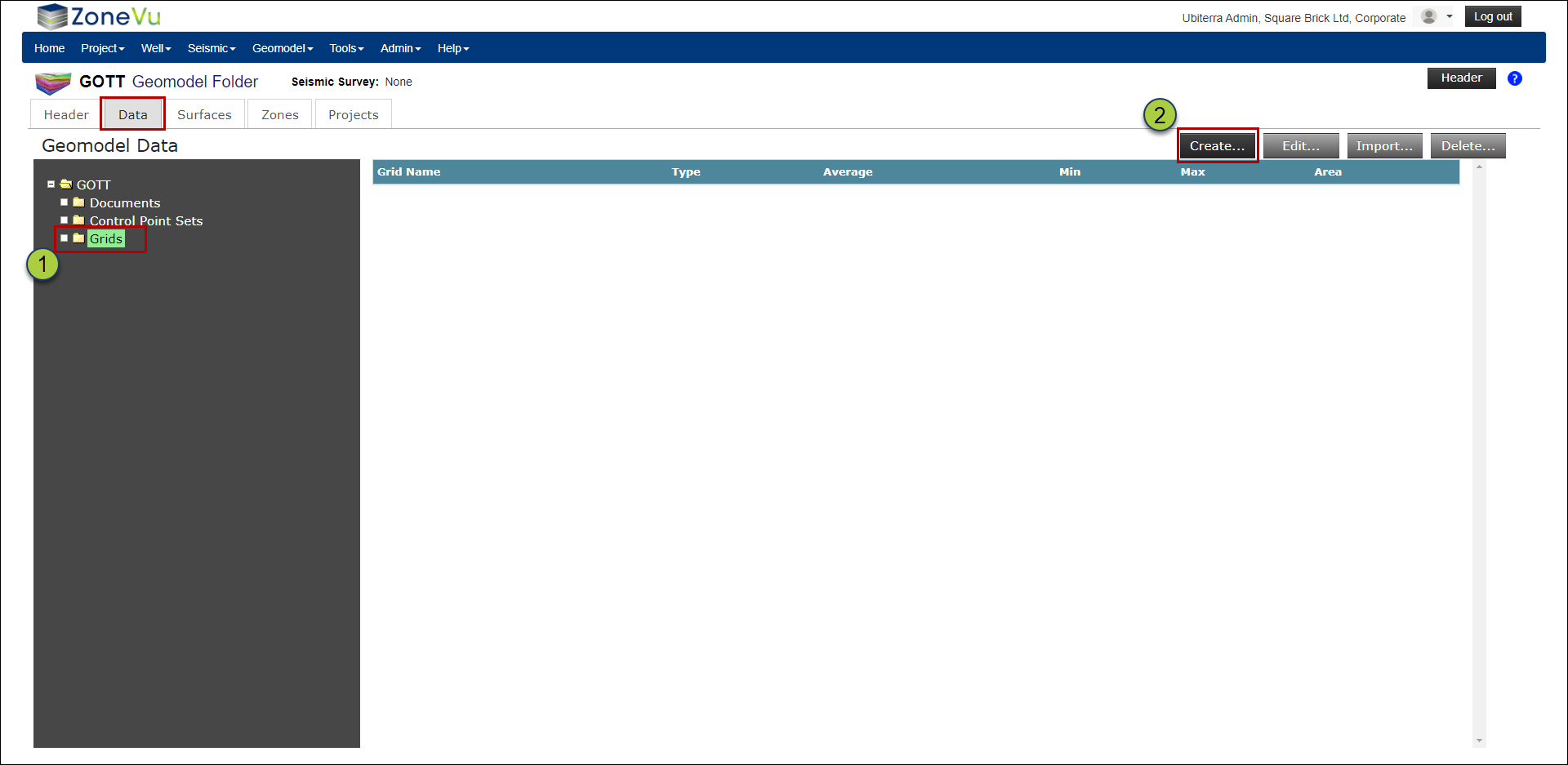
Navigate to the Geomodel folder. This will take you to the “Data” tab
Make sure the “Grids” folder is selected and click the “Create” button to bring up the “Create Grid” pop-up
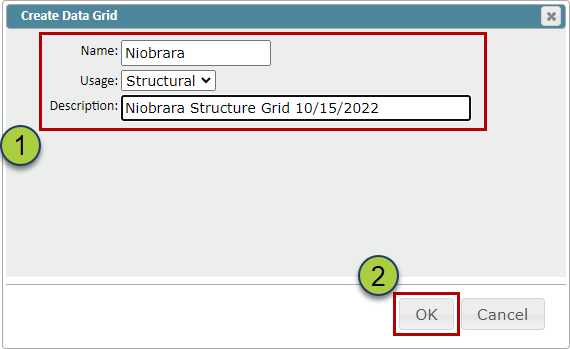
Give your Data Grid a Name, select a Usage (Structure, Isopach, Data), and a description (Optional)
Click the “OK” button to create your Data Grid
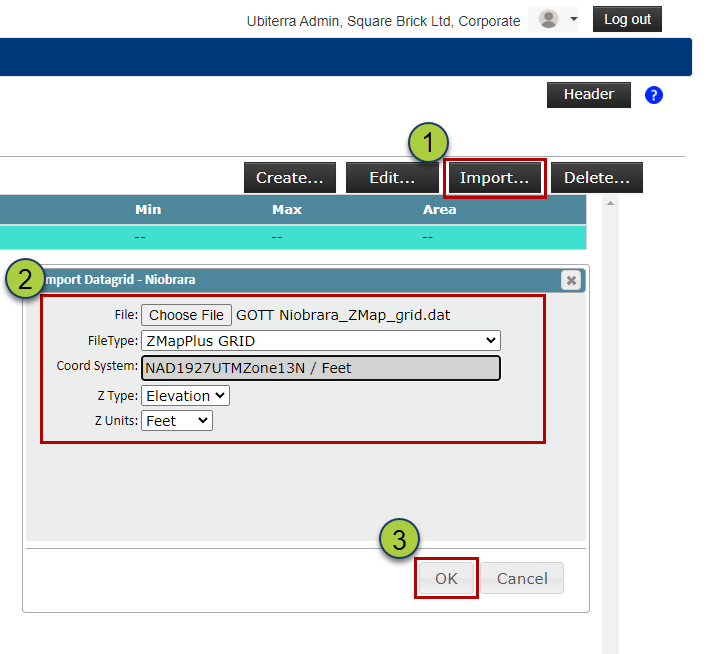
Select your newly created Data Grid, and click the “Import” button to open the Import Data Grid pop-up
Drag & drop or find your file, select the file type (ZMapPlus/ZMap or XYZ), and define the Coordinate System, Z Type, & Z Units
Click the “OK” button to load your Grid Data
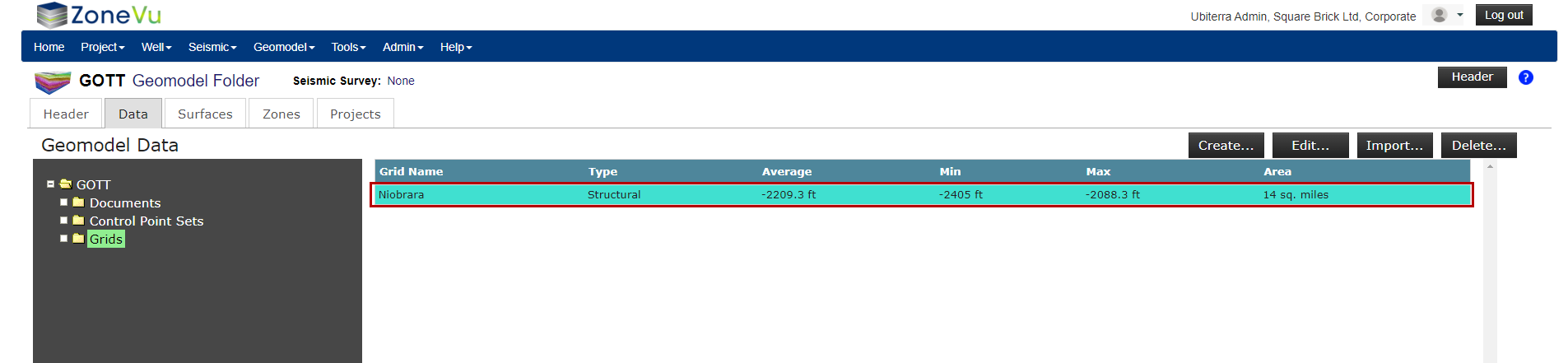
ZoneVu will calculate the Average, Min, Max, & Area of the imported Grid, and use this information to check that the import worked correctly
Creating a Surface:
You can create a Structural Surface out of Structural Grid data or Seismic Horizons. Surfaces can be a direct product of these data sources (Grid or Horizon Data) or you can vertically shift these Surfaces either in bulk or variably using an Isopach.
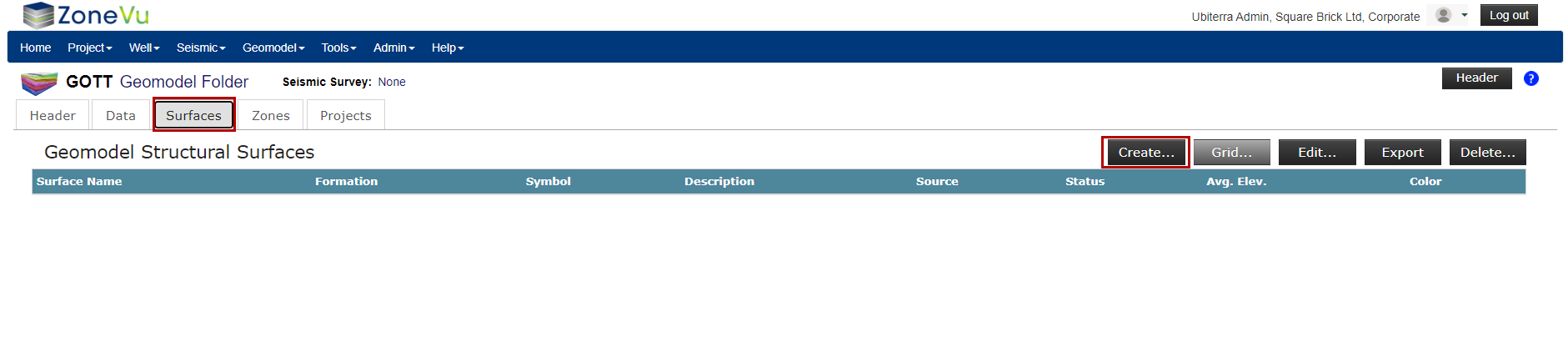
On the “Surfaces” tab in the Geomodel select the “Create” button to open the “Create Surface” pop-up
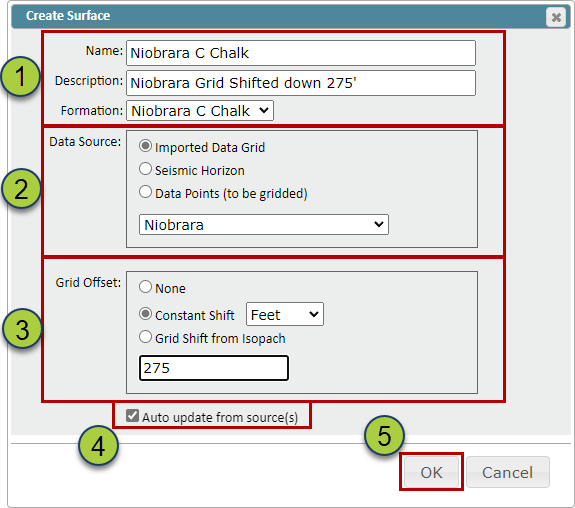
Name your Surface, add a description (Optional), & select the associated formation from the related Strat Column
Note: ZoneVu will use the color from the assigned Strat Column Formation
Select the data source, either from an imported Data Grid, Seismic Horizon, or Point Set to grid up
Select a Grid Offset (Optional) to shift the Surface higher or lower (Positive numbers will shift the Grid downward. Grid Offsets can be either a bulk shift or a variable shift based on an Isopach
The “Auto-update from source(s)” checkbox, when checked on, will automatically update the created Surface when the source data has been updated
Click the “OK” button to create the Surface
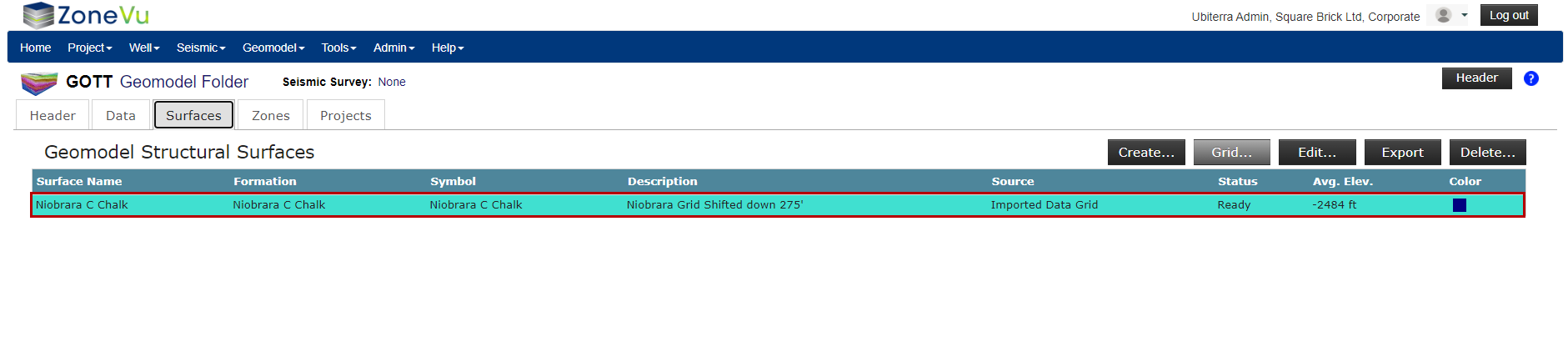
Similar to grid importing, ZoneVu will calculate the average elevation of the Surface to help you check the created Surface
Creating a Zone
Zones are Structural Surfaces that have been given a thickness. To create a Zone, you will select an existing Surface and assign a thickness variable. These variables can be a Constant Thickness, Variable Thickness based on an Isopach, or another Surface creating a bounding Surface.
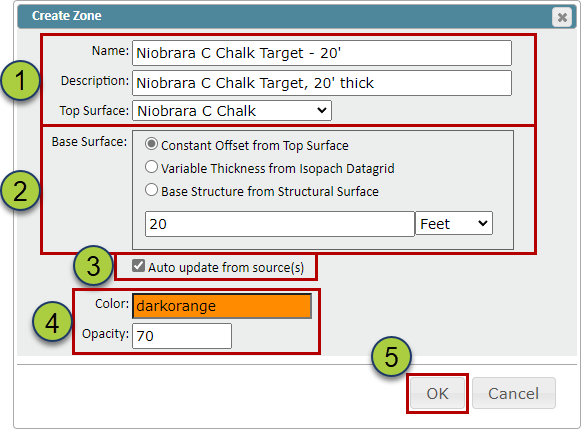
On the “Zones” tab in the Geomodel select the “Create” button to open the “Create Zone” pop-up
Name your Zone, add a description (Optional), & select the Surface
Select what thickness variable to apply to the Surface: Constant Thickness, Variable Thickness based on an Isopach, or another Structure Surface to act as your basal Surface
The “Auto-update from source(s)” checkbox, when checked on, will automatically update the created Surface when the source data has been updated
Specify the color and opacity of the Zone
Click the “OK” button to create the Zone
Similar to grid importing, ZoneVu will calculate the average elevation and Zone thickness of the Surface to help you check the created Zone