

see User-Defined Columns in ZoneVu Frac, User-Defined Column Manger
Merging Data Columns or Re-assigning stage values to new columns
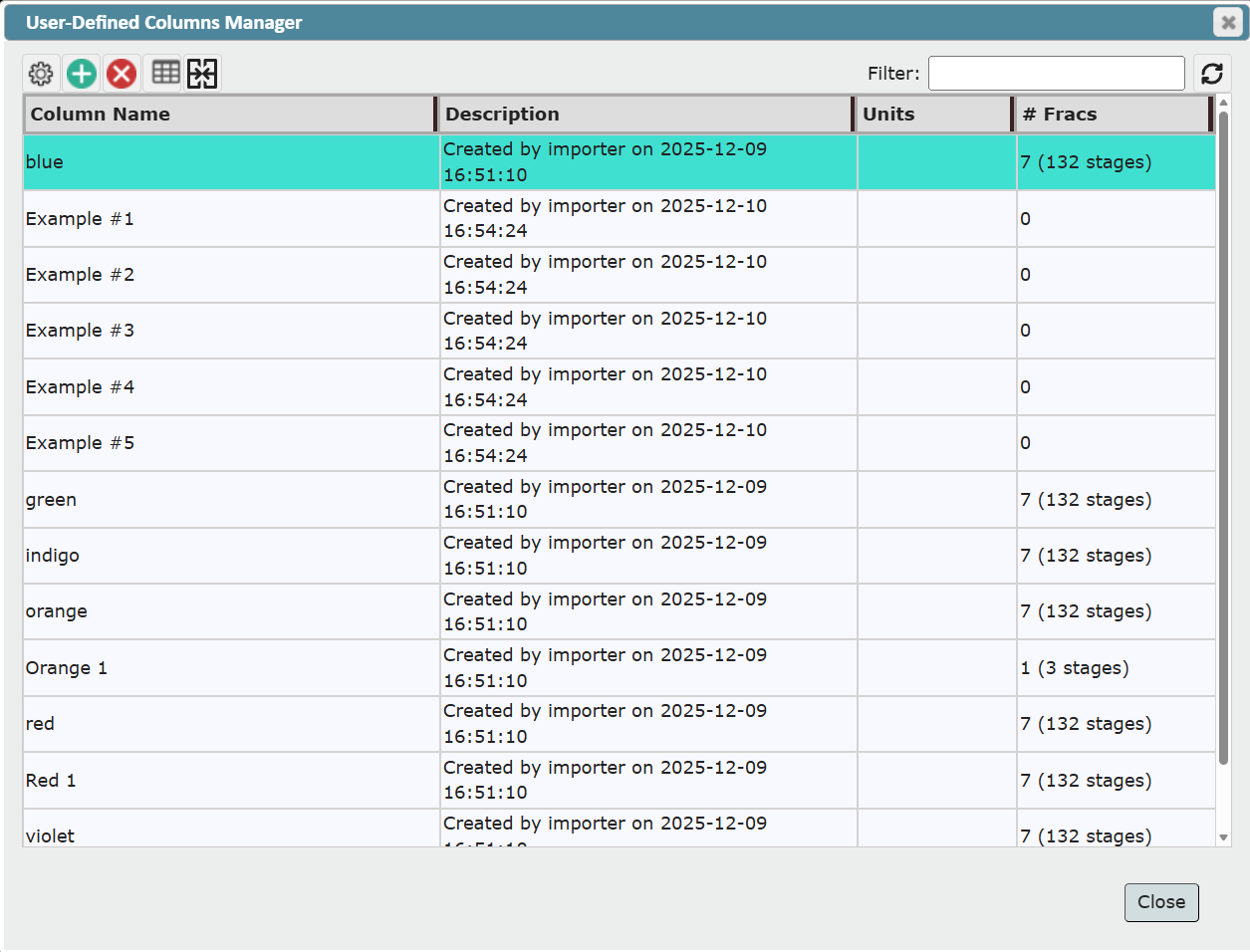
Re-assigning stage values from one User-Defined Column to another User-Defined Column
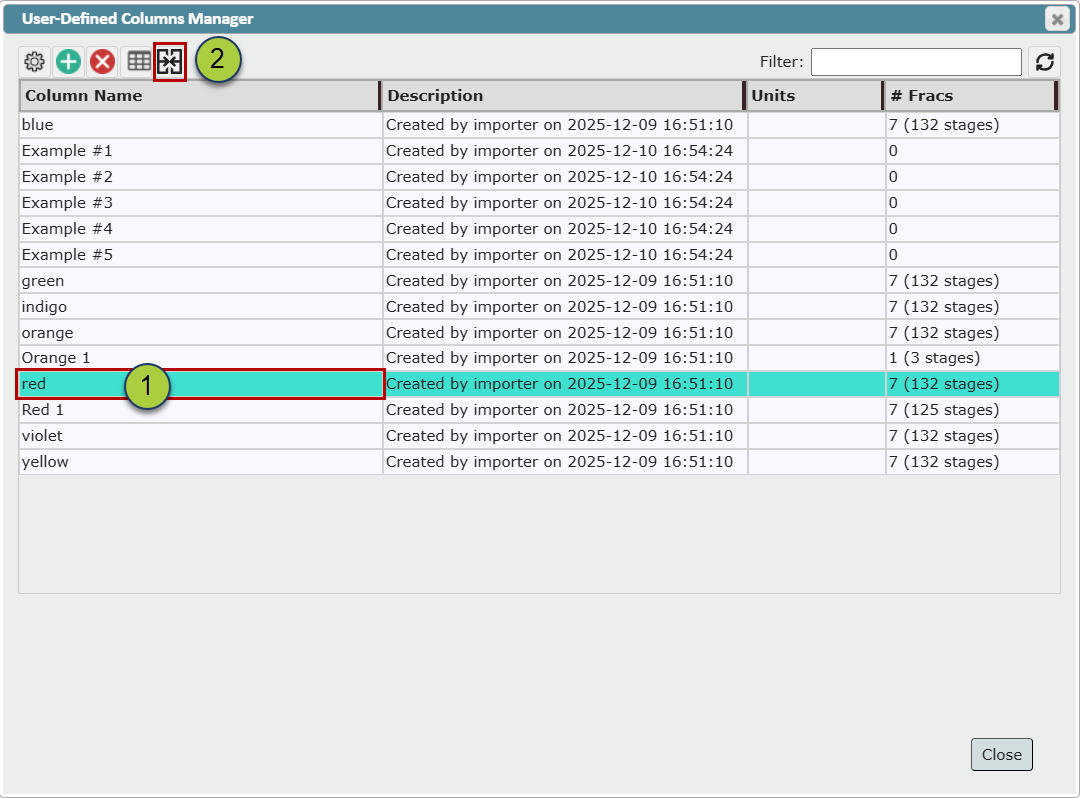
Select the row for the column name that you would like to re-assign, the Source Column.
Click the Re-assign button
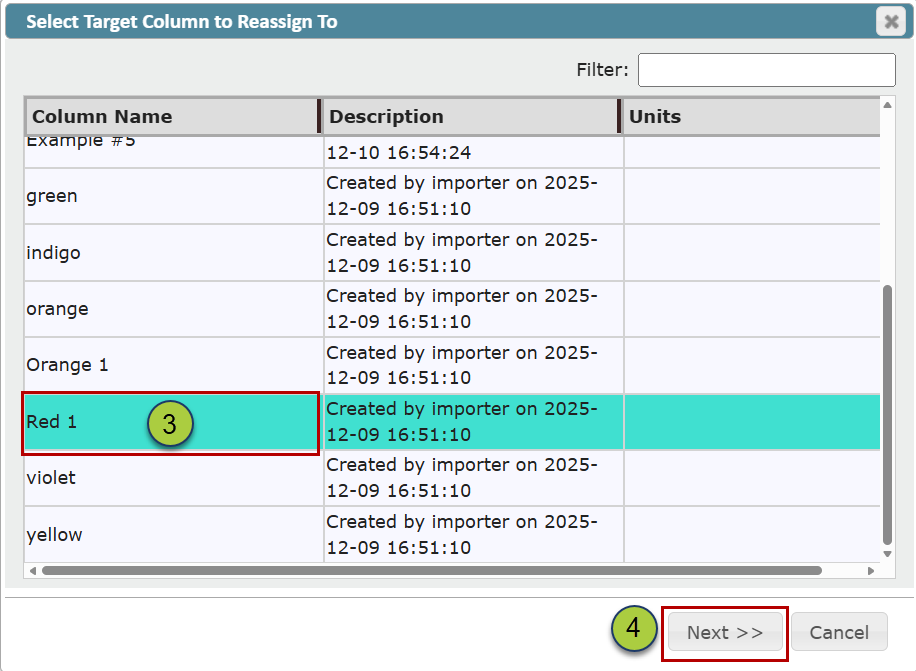
From the 'Select Target Column to Reassign To' dialog select the row for the column name you would like the Source Values to be re-assigned to, the Target Column.
Click 'Next>>' to open the 'Merge User Columns' dialog
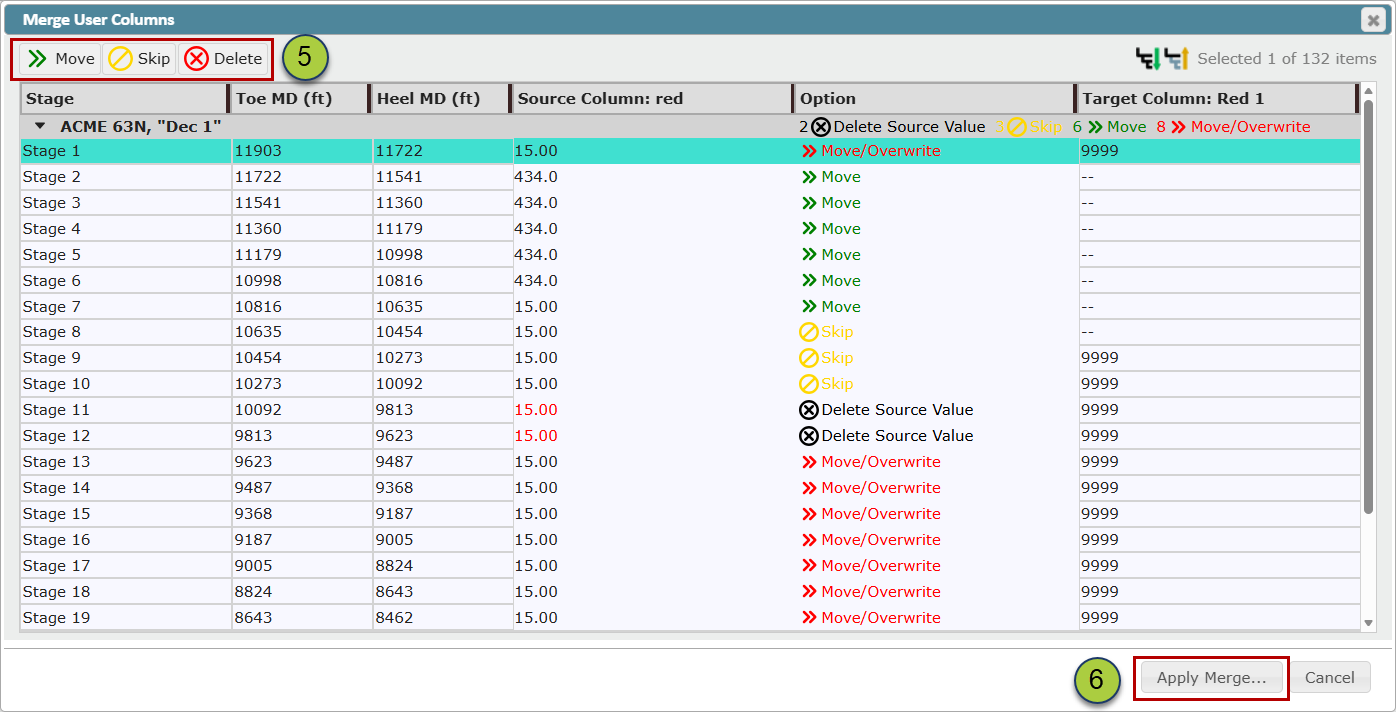
Chose merge options (see 'Merge User Columns Dialog' section below).
Click 'Apply Merge'
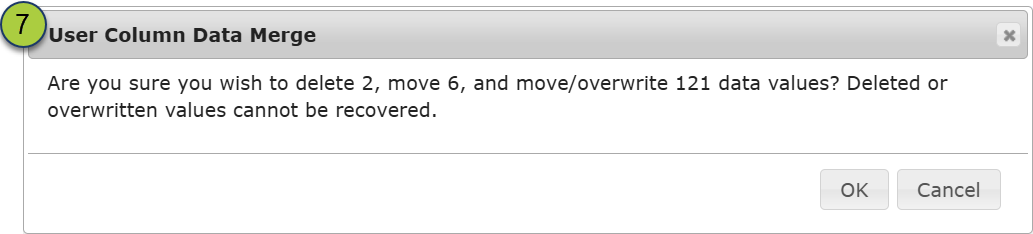
ZoneVu will ask if you are sure about deletions and overwrites as they are instant and permanent. There is no merge undo.
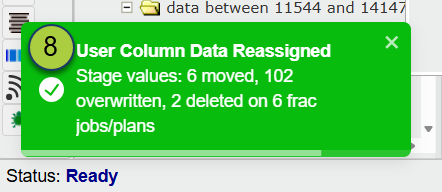
A toast notification will appear in the bottom left of the screen to indicate changes made during the merge.
Merge User Column Dialog
From the 'Merge User Columns' dialog users can expand and collapse the list of fracs that have data in the chosen Source Column. If a user highlights a frac from the collapsed list, all of the rows/stages in that frac will be highlighted. If a user expands a frac, they will be able to highlight selected rows/stages from each frac individually.
 Expand All
 Collapse All
Merge User Columns dialog columns:
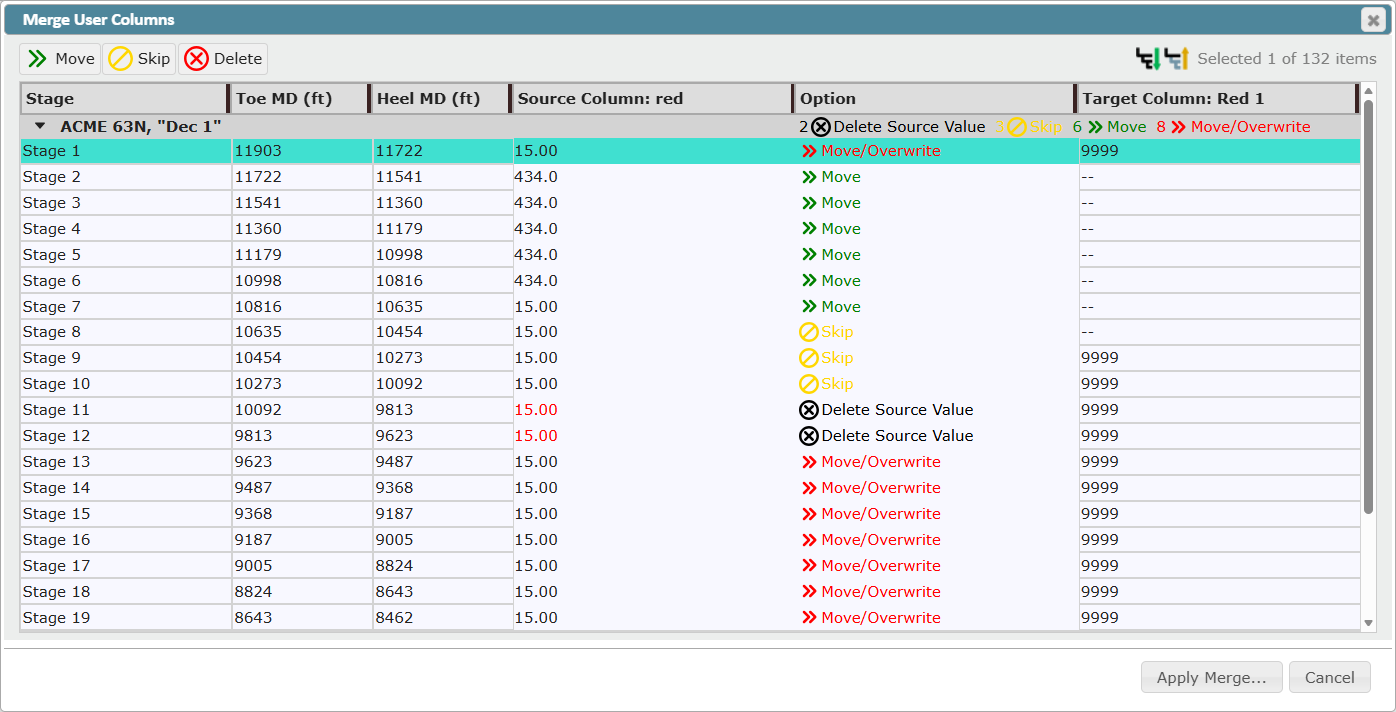
Stage Column- which frac and stage the Source Value will come from, the Source Stage
Toe MD - the toe MD of the Source Stage
Heel MD - the heal MD of the Source Stage
Source Column: Name - gives the name of the source Column (example below: red)
Option - Indicate the action to be taken during the merge (see Merger User Column Options below). The Frac Name Cell will show the total set of actions to be taken in each frac
Target Column: Name - gives the name of the Target Column (example below: Red 1)
Merge User Column Dialog Options:
All options can be applied to an entire frac at once when a frac is collapsed or by using control/shift select
 The 'Move' button is used to indicate which Source Values from the Source Column should be moved to the Target Column.
 The green 'Move' option is chosen by default in the 'Options' column of the 'Merge User Columns' dialog if the Source Value to be moved will not replace/overwrite a value in the Target Column. After the merge is applied, the Source Value will be relocated to the Target Column and will no longer exist in the Source Column.
 the red 'Move/Overwrite' option is chosen by default in the 'Options' column of the 'Merge User Columns dialog' if the Source Value to be moved will replace a value in the Target Column. After the merge is applied, the Source Value will be relocated to the Target Column and will no longer exist in the Source Column, and target value will be deleted.
 The 'Skip' button is used to indicate which Source Values from the Source Column should be skipped and not moved to the Target Column.
 The yellow 'Skip' option can be chosen by the user to ignore moving a source value to the Target Column. A skipped Source Value will remain in the Source Column and will not be moved to the Target Column.
 The 'Delete' button is used to indicate which Source Values should be deleted from the Source Column and not moved to the Target Column.
  The black 'Delete Source Value' option can be chosen by the user to delete a value from the Source Column and not add the value to the Target Column. After the merge is applied, it will be in neither the Source Column nor the Target Column. The Source Value will be deleted.