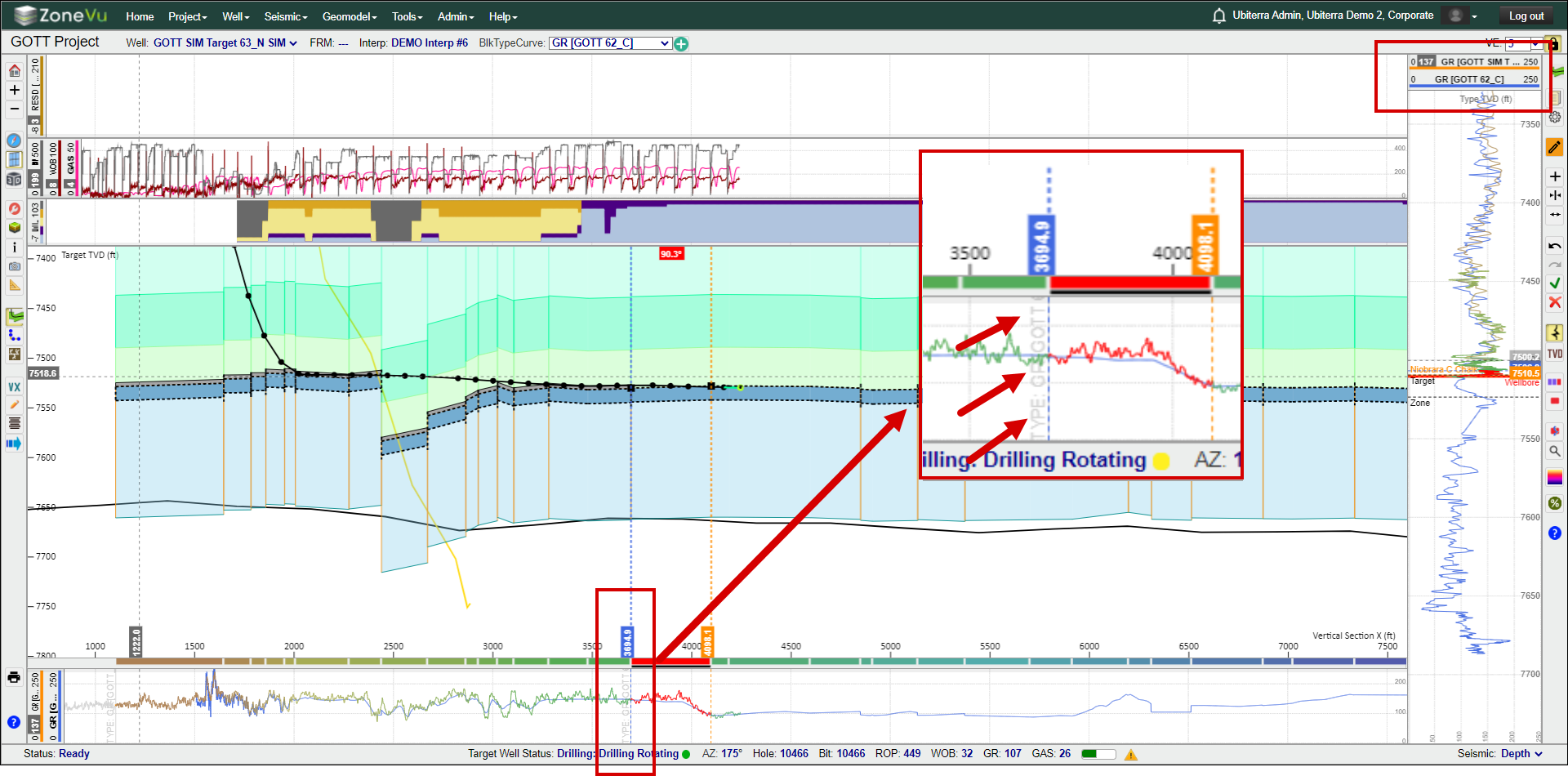
You can steer with multiple Type Wells in ZoneVu. You can assign a specific Type Well to each Geosteering Block. Below is a walkthrough on how to select and steer with multiple Type Wells.
ZoneVu displays the Type Log for the Type Well associated with the Active Geosteering Block in the Vertical & Horizontal Correction Log Tracks. This means you do not need to have multiple vertical tracks with different well logs displayed to steer with multiple Type Wells. If you want to see the other Type Well in separate vertical tracks, you can turn them on in the Scene Control. ZoneVu also uses the Top data from the active Type Well to draw the Geosteering Cross-Section for the related Geosteering Block. If the new Type Well has different formation thicknesses compared to the Original Type Well, you will see these formation thickness variations in the Geosteering Cross-Section.
To drill with multiple Type Wells, the first step is to add the additional Type Wells to the Geosteering Interpretation:
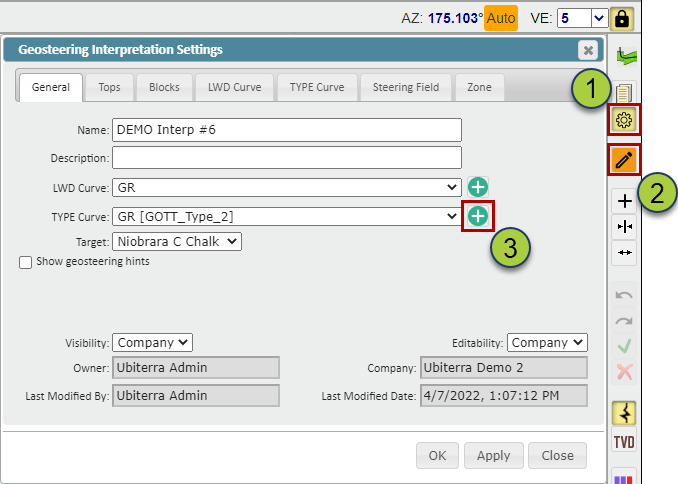
Open the Geosteering Interpretation Setting
Click the "Edit Geosteering" button to activate Edit Geosteering Mode
On the “General” tab, click the green "(+)" button next to the "TYPE Curve" dropdown
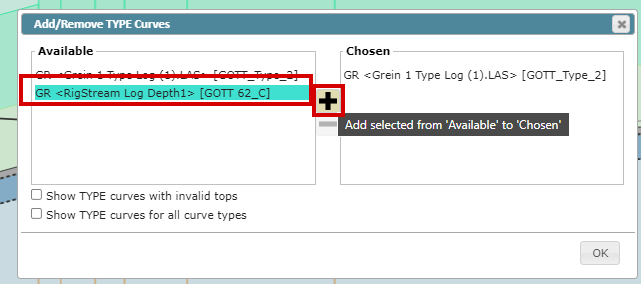
This will open the “Add/Remove TYPE Curves” pop-up:
Select the GR log for the additional Type Well in the "Available" list and use the “(+)” button to move the selected log to the “Chosen” list
Click the “OK” button
Click the “OK” button or "Apply" button in the Geosteering Interpretation Settings pop up to save these changes
Now that you have added all the required Type Logs, in the Cross-Section, select the first geosteering block that you wish to assign to the newly added Type Well. There are two ways you can assign the Type Well to this Geosteering Block
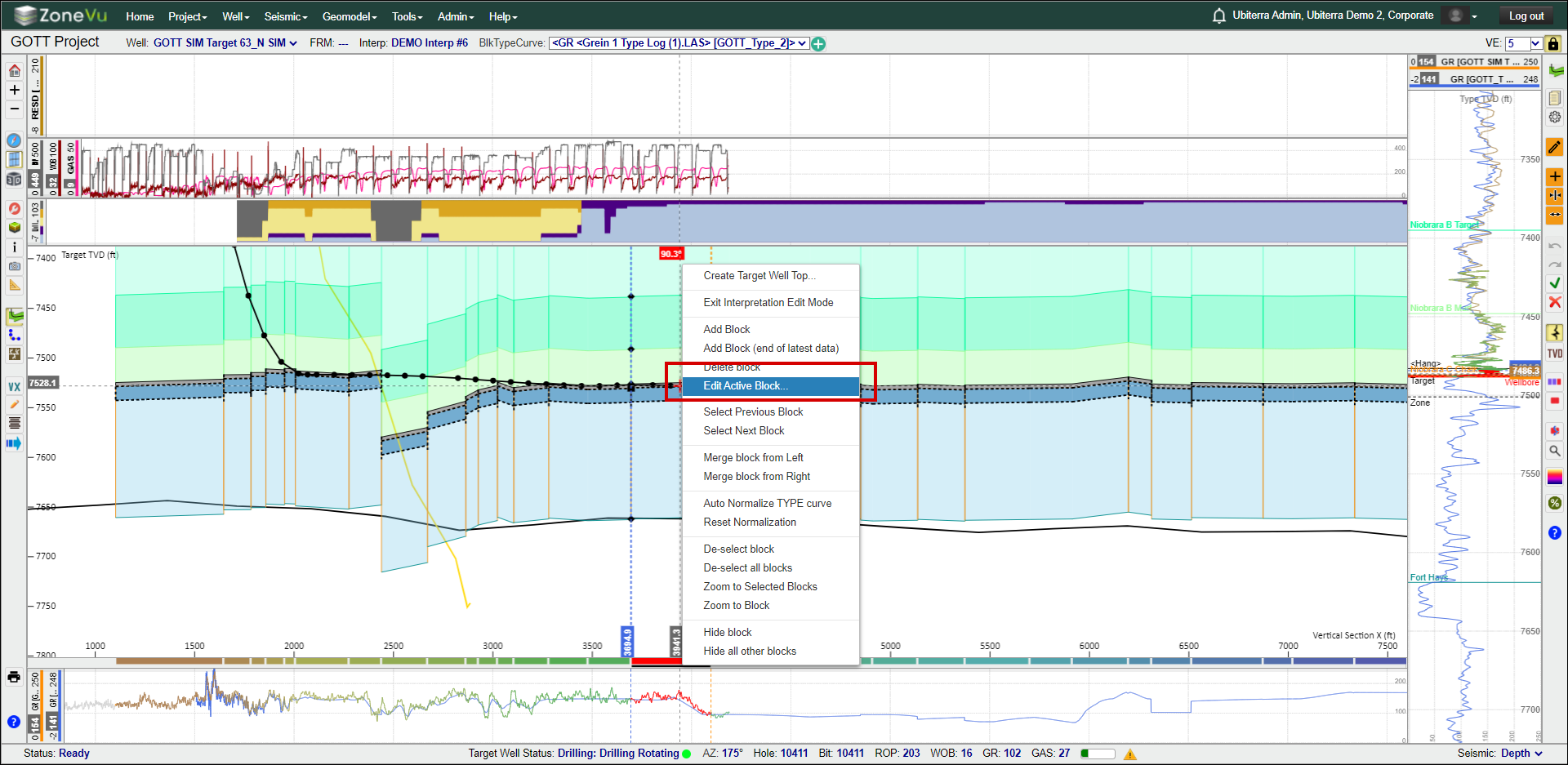
1) Use the “BlkTypeCurve” dropdown in the upper ribbon to select the desired Type Well and Log
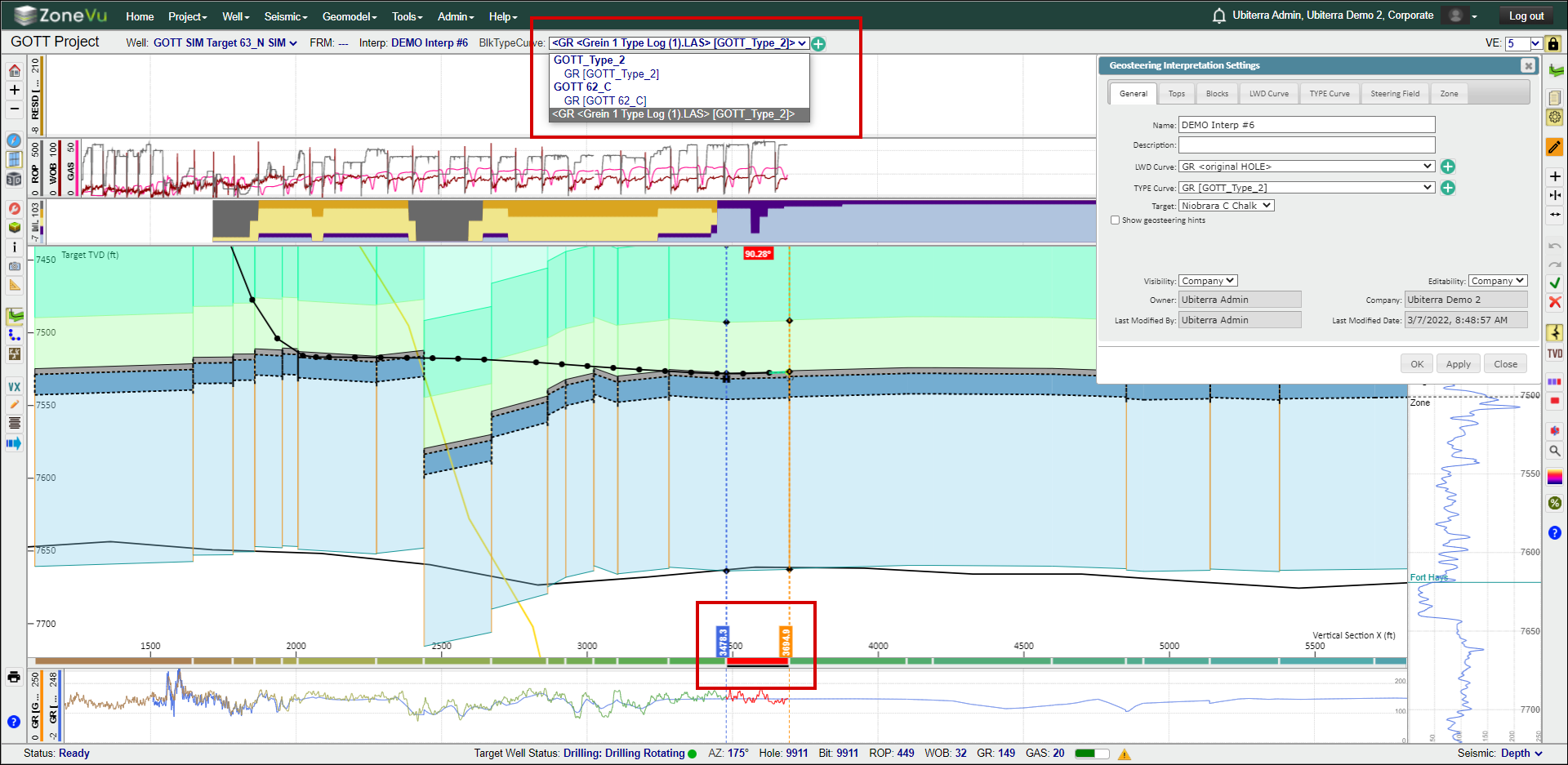
2) Right-click on the Geosteering Block and select “Edit Active Block”
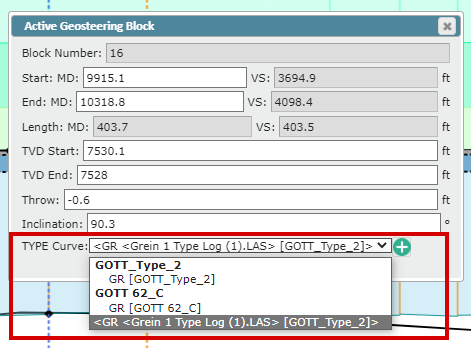
This will open up the “Active Geosteering Block” pop-up. At the bottom of the pop-up use the “TYPE Curve” dropdown to select the desired Type Well and Type Log
You will notice that in the Horizontal Correlation Track there is faint grey text indicating the transition from one Type Well to another. You can change the associated Type Well at any time