

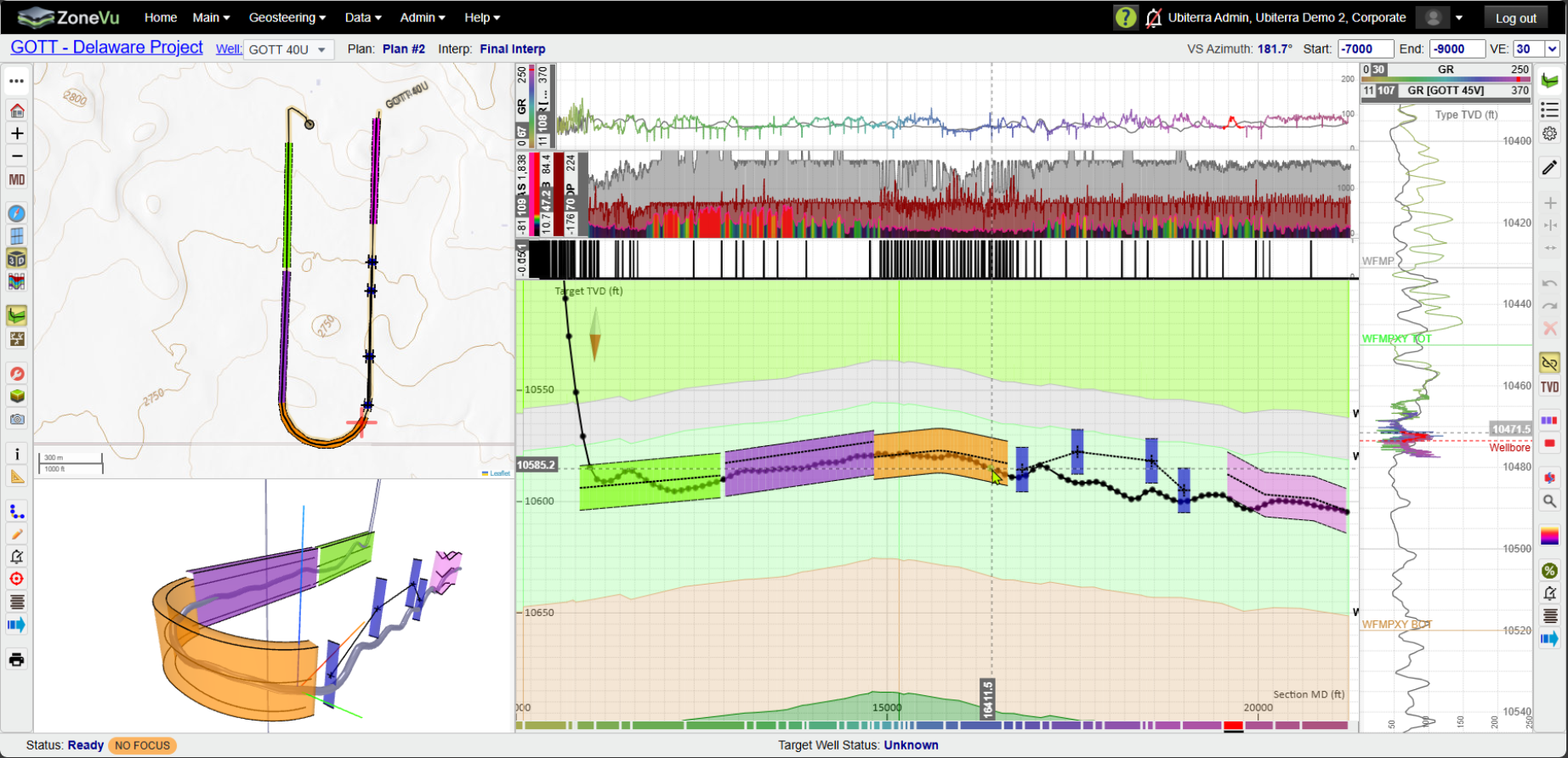
Where Target Lines can be Displayed
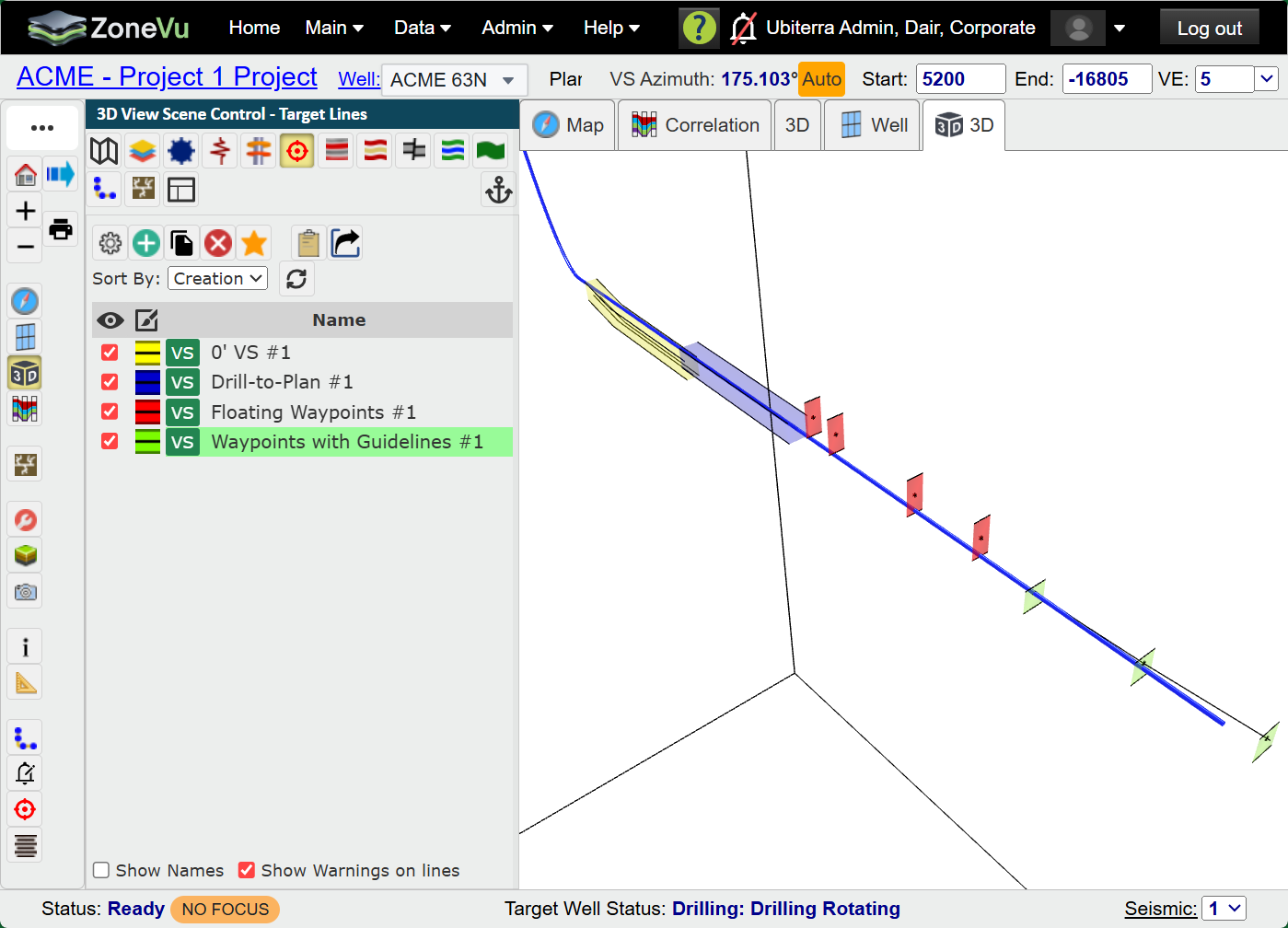
Target Lines can be displayed in three of the four ZoneVu Viewers
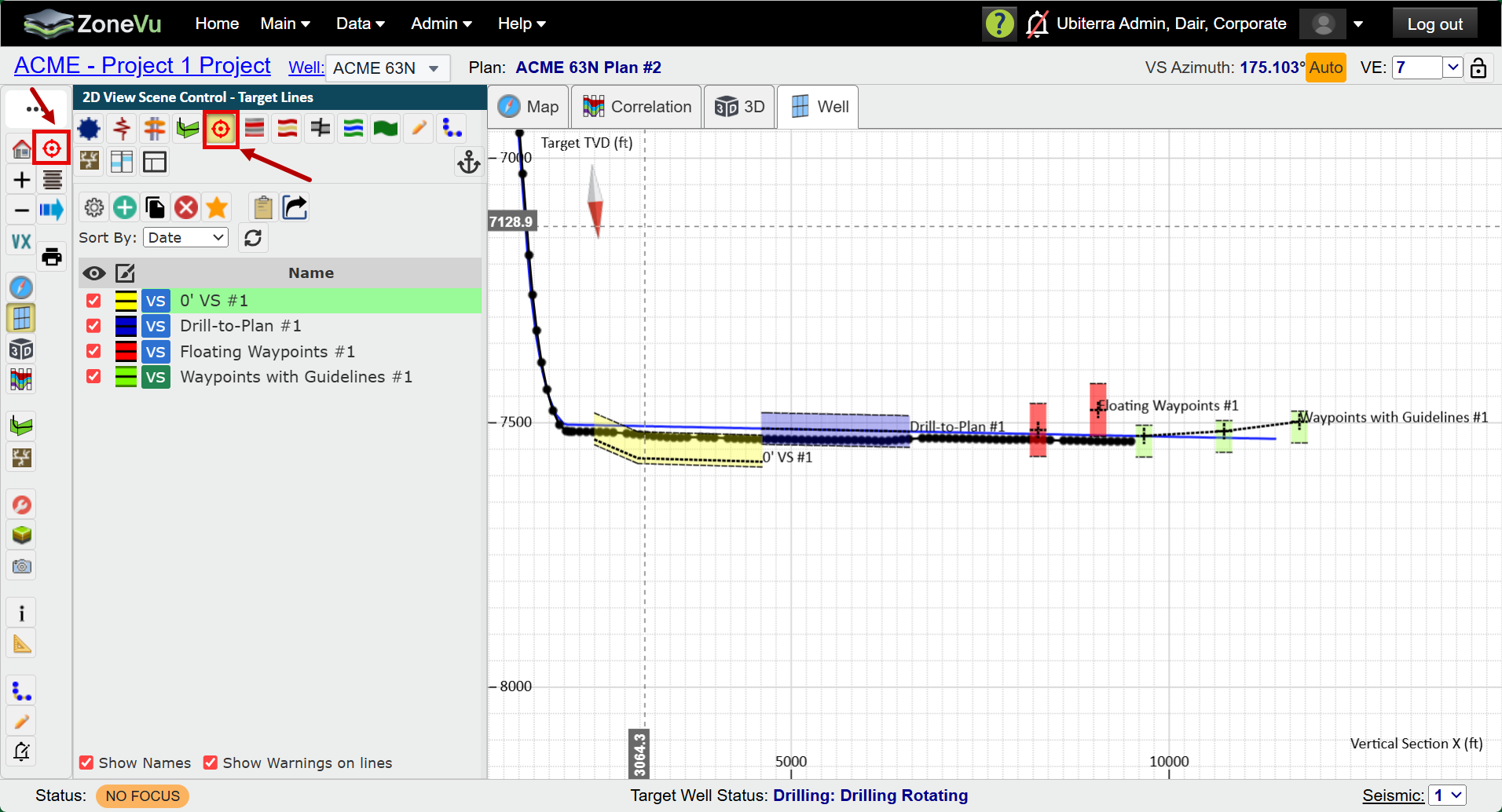
2D Viewer Display
The '2D Viewer' allows you to display the Up-Down bounds of the 'Drilling Window'.
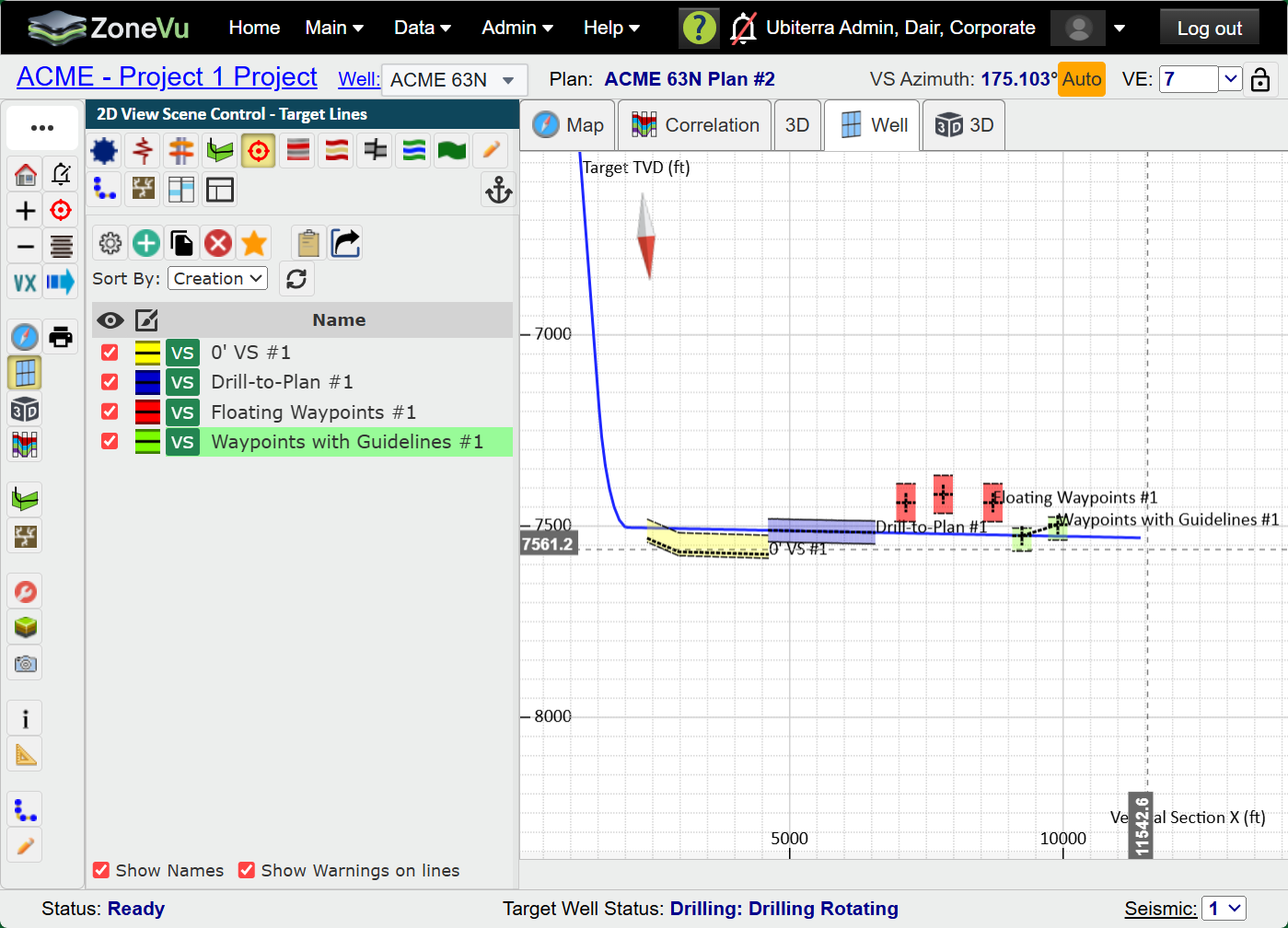
Map Viewer Display
The 'Map Viewer' allows you to view the Left-Right bounds of the 'Drilling Window'.
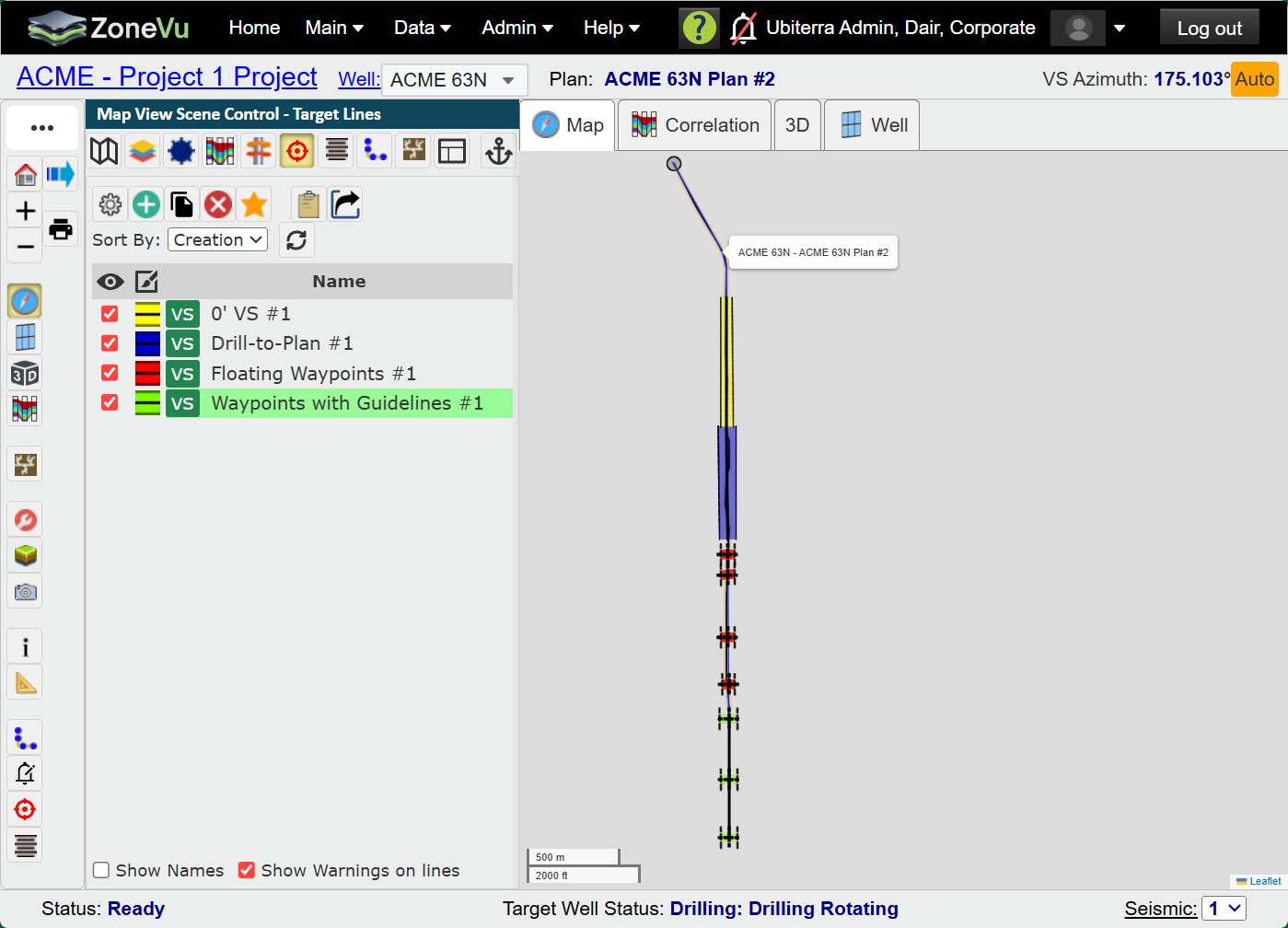
3D Viewer Display
The '3D Viewer' allows you to view both the Up-Down and Left-Right bounds of the 'Drilling Window'.
Target Line Depth Domain Options
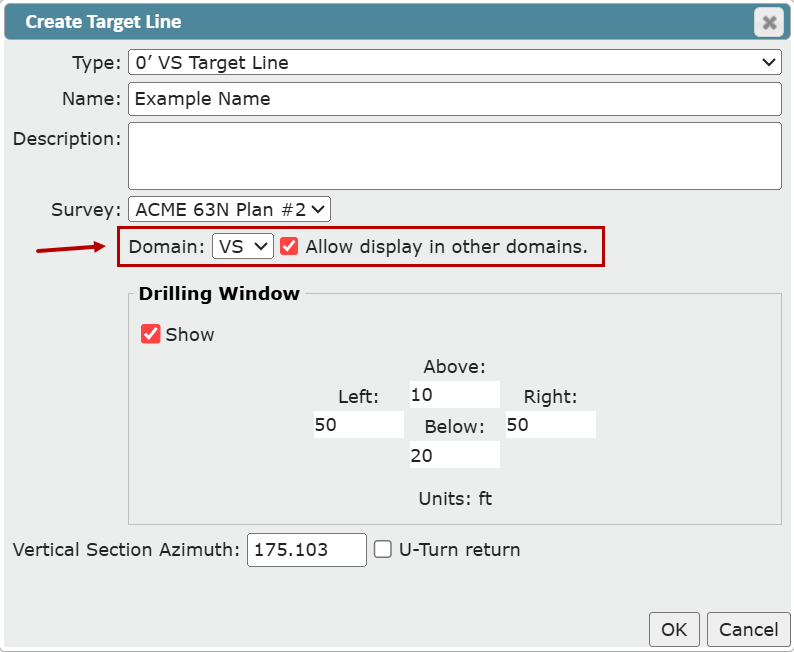
Target lines can be created in one of the two depth domains, 'Vertical Section' and 'Measured Depth'. Selected which domain the target line will be drawn in is done when a target line is created via the 'Create Target Line' dialog. The target line draw domain can be changed at any time via the 'Target Line Settings' dialog.
Note: We recommend that you draw target lines in 'VS' domain unless you are drilling a U-Turn well where the 'MD' domain is more appropriate.
Assigning the Target Line Draw and Display Domains
When creating a target line, there is a 'Domain' drop-down in the 'Create Target Line' dialog that assigns which domain the target line will be drawn, or calculated in. Target lines can be drawn in VS - 'Vertical Section' or MD - 'Measured Depth' domains. There is an option to check 'Allow display in other domains'. This allows the target line to be displayed in both the domain it was drawn in, as well as, in the other domain.
Note: Displaying a target line in a domain it was not drawn in may result is warping or shifting of the Target Line in the secondary domain.
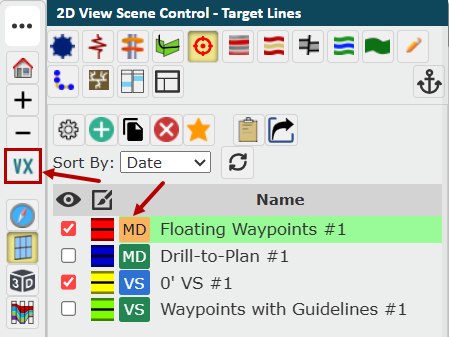
Domain Indication: There is a 'Domian' indicator that appears next to the target line name in 'Scene Control'. It will indicate which domain the target line was drawn in, 'VS' for 'Vertical Section' domain and 'MD' for 'Measured Depth' domain. It will be blue if it is only visible in the domain it was drawn in. It will be green if it is visible in both domains. It will be orange if the target line is not allowed to be displayed in the domain you are currently in.
Editing the Target Line Draw and Display Domains
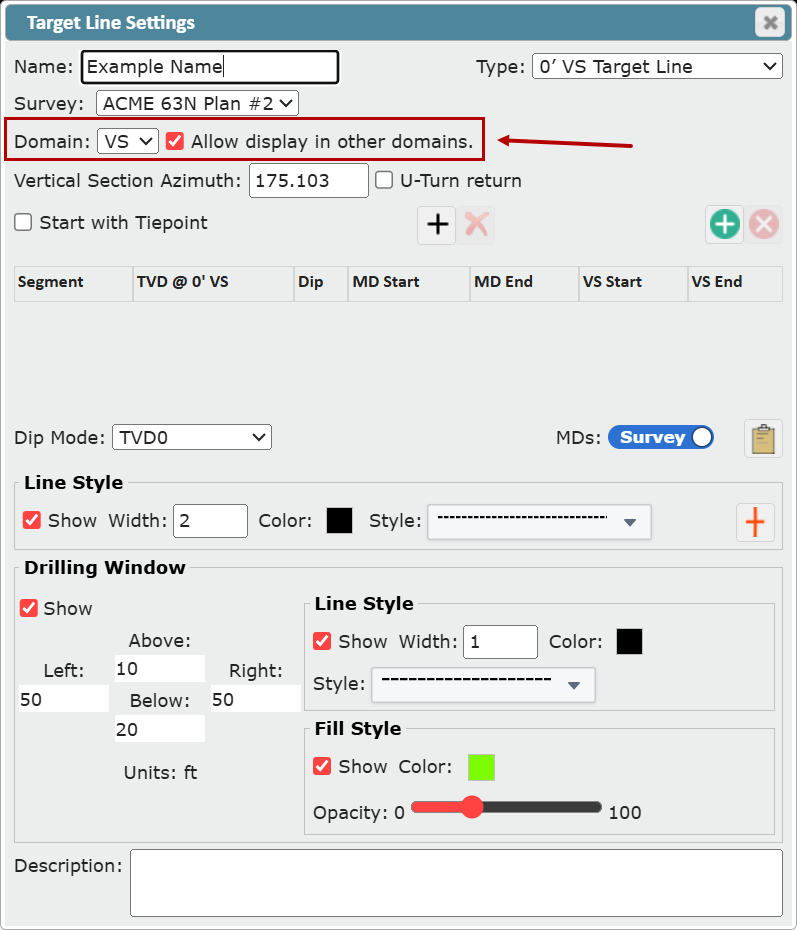
Changing the domain in which a target line is drawn is done via the 'Target Line Settings' dialog.
Note: Changing domains may result is warping or shifting of the target line.
Target Line and Drilling Window Appearance
Target line Style: Use the 'Line Style' section to change the line width, color and style of your target line.
Drilling Window: Use the 'Drilling Window' section to change the line width, color and style of your drilling window, line as well as fill color and opacity, and drilling window size.
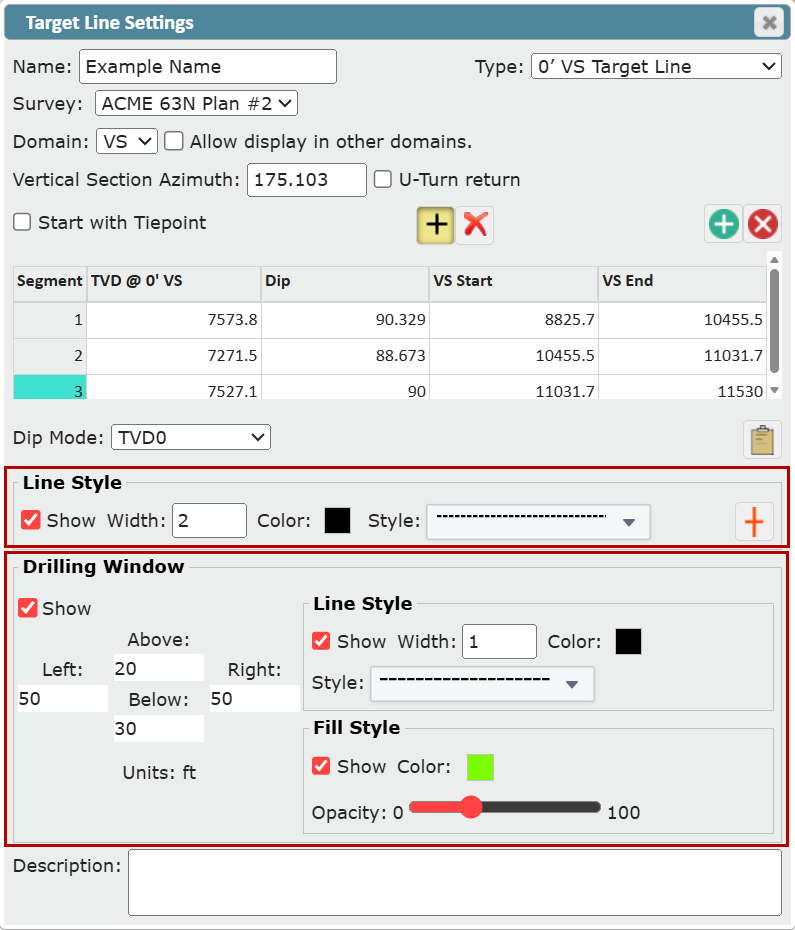
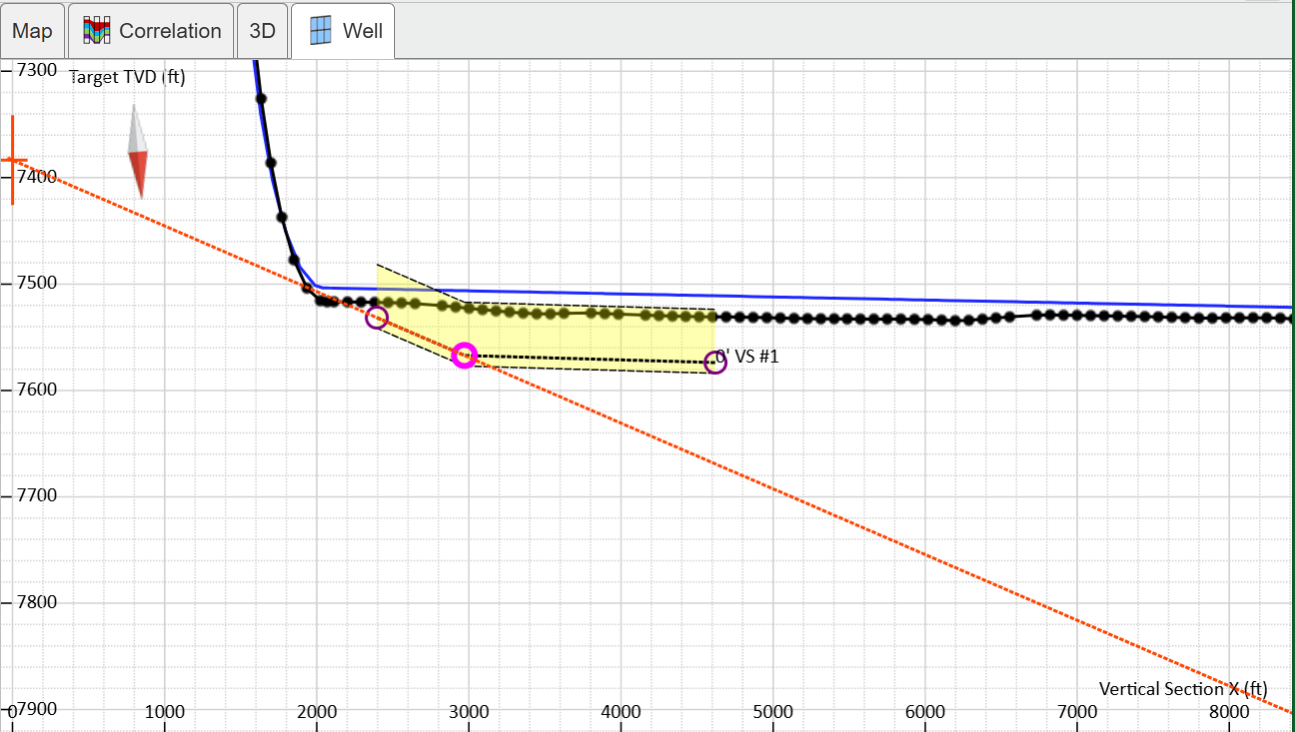
Center Line Graticule: In the 'Line Style' section of the 'Target Line Settings' dialog the center line graticule can be turned on for '0' VS' target lines by clicking the 'Center Line Graticule' button. This will project a red-dotted center line graticule off any selected target line control point.

You can also display target lines on vertical log tracks. See Target Line Displays in Vertical Log Tracks