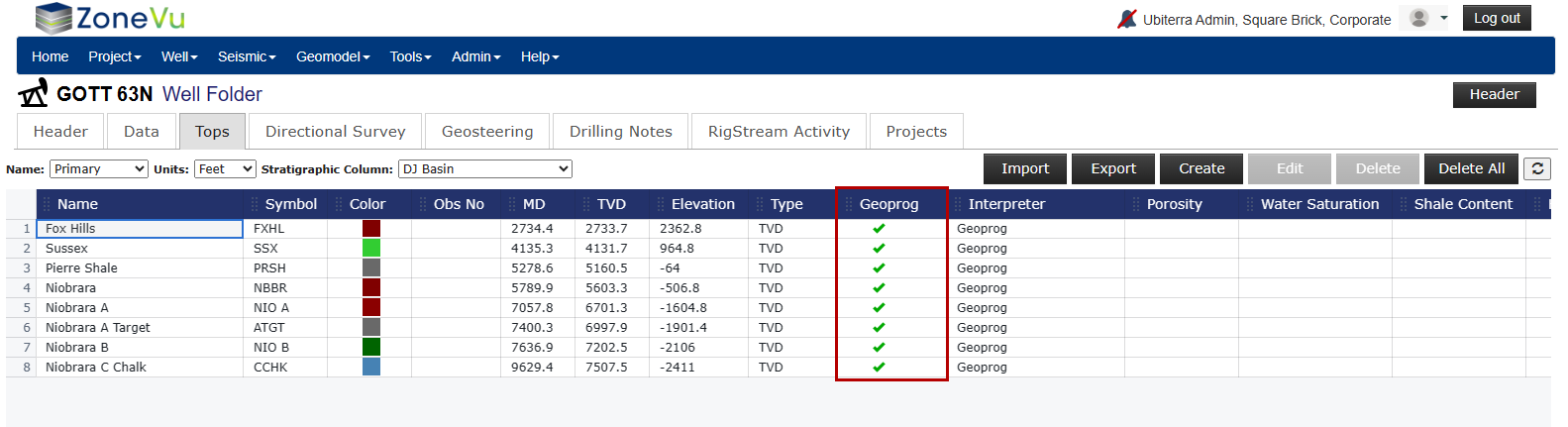
Open Scene Control and navigate to the "Surfaces" tab
Click the "GeoProgs" button to open the Geoprog Generator dialog
Select which Structural Surfaces you want to use
You will see a list at the bottom that will show the displayed Structural Surfaces and their assigned Formations
You can specify the Interpreter input- main Depth unit (TVD, Elevation, MD), choose to create Geoprog tops for all intersections or only the first, and add a description
Click the "Create Tops" button and ZoneVu will sample the intersection points between the "Active Well Plan" and all displayed Structure Grids
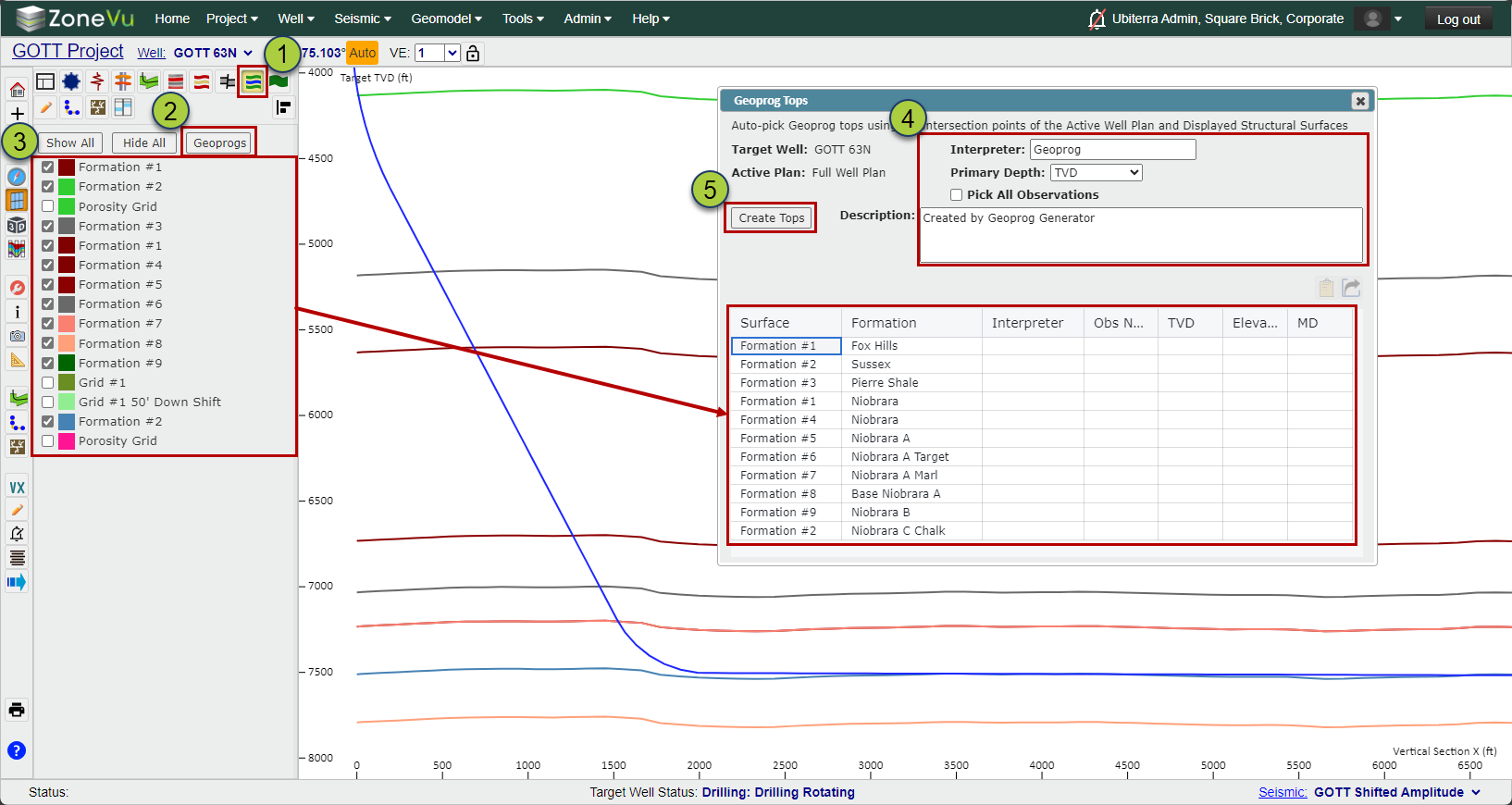
The Geoprog Table will update with the newly created Geoprog Tops. You can select any columns to copy and paste into another destination
The newly created Geoprog Tops will be displayed along the Wellbore
You can export the Geoprog Tops table to your computer's clipboard or as an Excel workbook
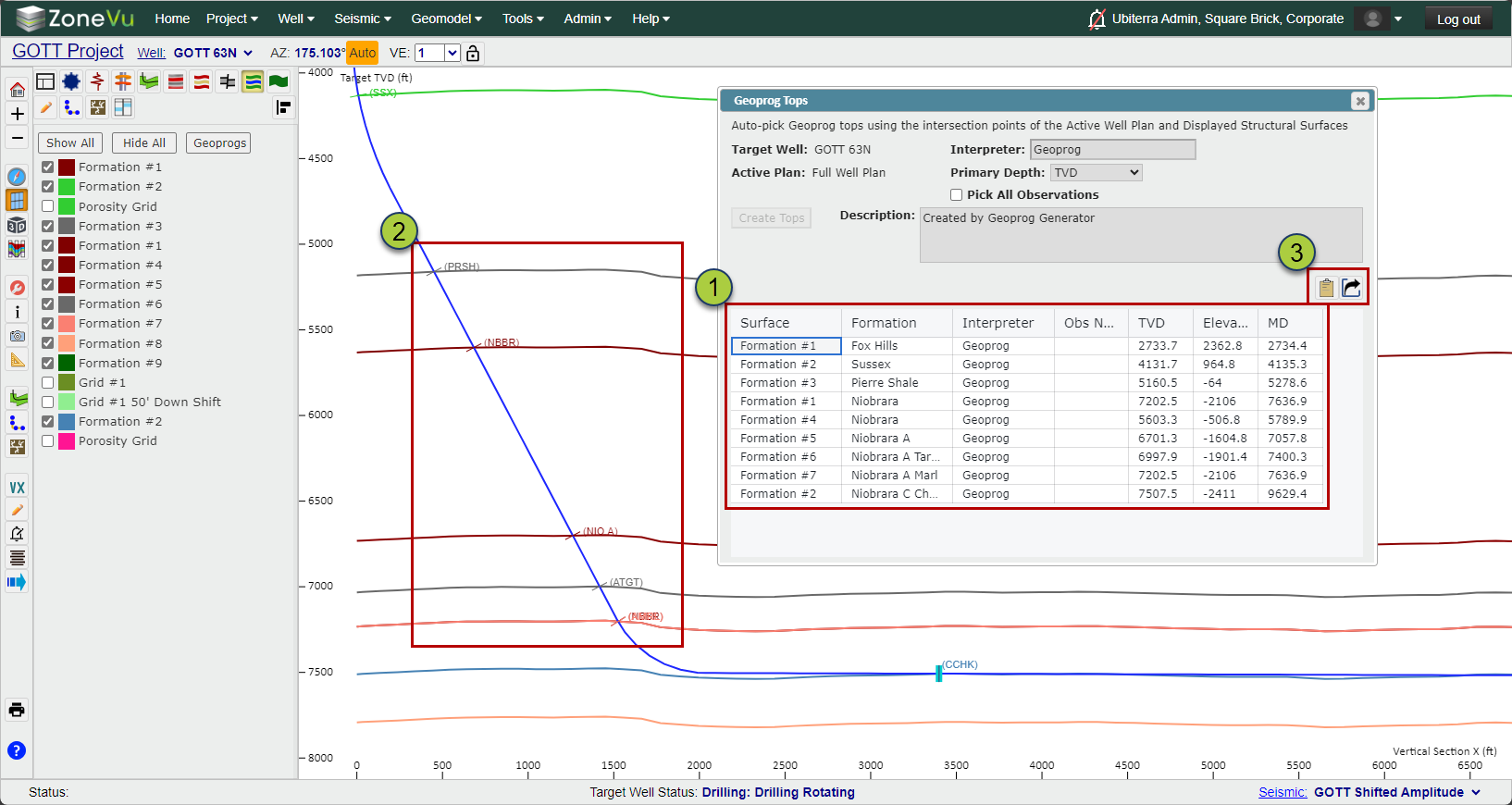
The newly created Geoprog Tops will be available in the "Tops" tab of the Well Folder
Note: When Creating, Editing, or Importing Tops you can add/remove the Geoprog flag
Setting a Top to be a Geoprog Top