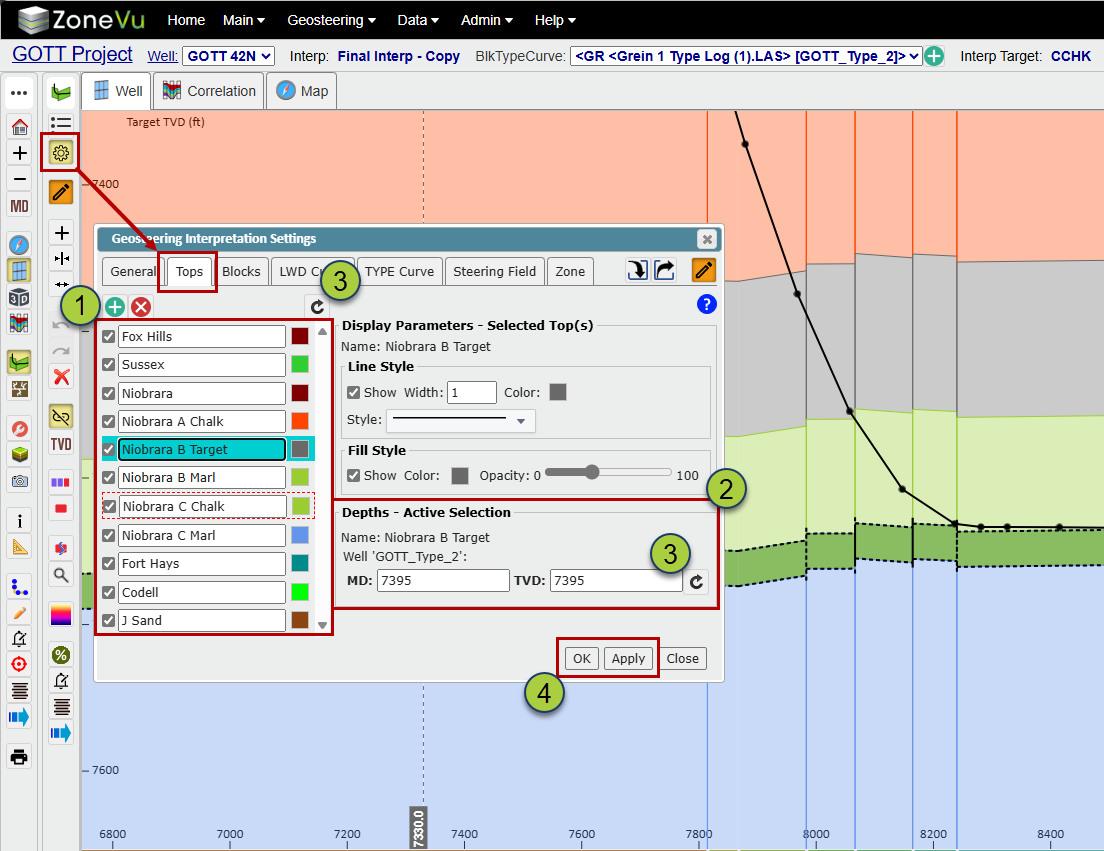
When a Geosteering Interpretation is created, ZoneVu will use the Type Well's Top data to create the Geosteering Horizons and use the Strat Column Formations to set the default line, fill, and Lithology Textures. Below are details on how to change the Horizon line and fill styling, and also how to edit the Geosteering Horizon depths.
Changing the Geosteering Horizon Style:
The Geosteering Horizon styling controls are found in the Geosteering Interpretation Settings dialog under the Tops tab. Please note that you have to be in Active Edit Mode to change the Horizon Style settings.
Select the Horizon(s) you want to edit
Use the line and fill style controls to make the adjustments you need
Lines: Visibility, width, color, & dashing
Fill: Visibility, color, & Opacity
Click 'OK' or 'Apply' to save the changes
Please note: These changes will only affect the selected Geosteering Interpretation, and any change will be applied to every selected Horizon
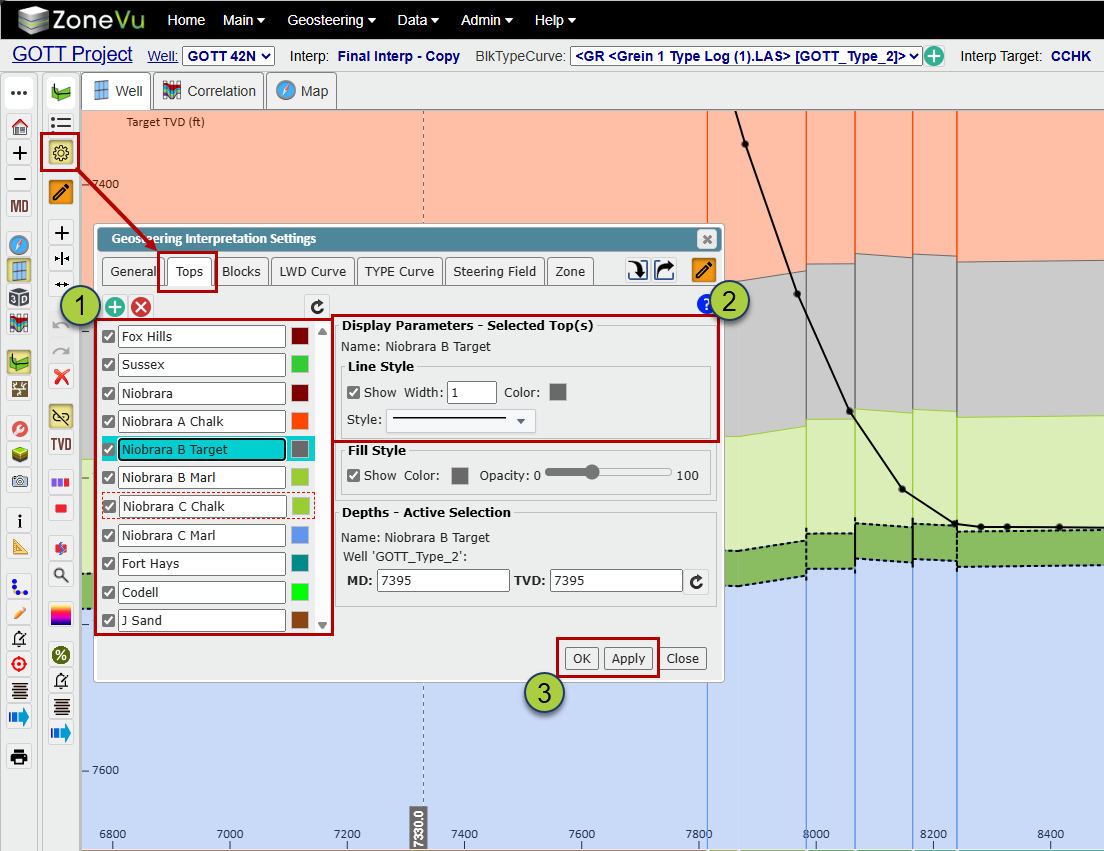
Changing the Horizon Depths:
When a Geosteering Interpretation is created, a copy of the Type Well Top data is copied to the interpretation, and this data is then used to create the Geosteering Horizons. This serves two purposes: 1) The Horizon Depths can be customized on an Interpretation by Interpretation basis. 2) If the Type Well's Top data is changed after the Geosteering Interpretation was created, the Interpretation will maintain the state it was created in.
The Geosteering Horizon depth data is found in the Geosteering Interpretation Settings dialog under the Tops tab. Please note that you have to be in Active Edit Mode to change the Horizon depth data.
Select the Horizon you want to edit
The Horizon depths will be listed under Depths-Active Selection
If the Horizon depth data does not match what is on the Type Well, you can click the 'ReSync' button to update a single (next to the TVD input) or all of the Horizons (above the Horizon list) depth data to match the Type Well
Click 'OK' or 'Apply' to save the changes