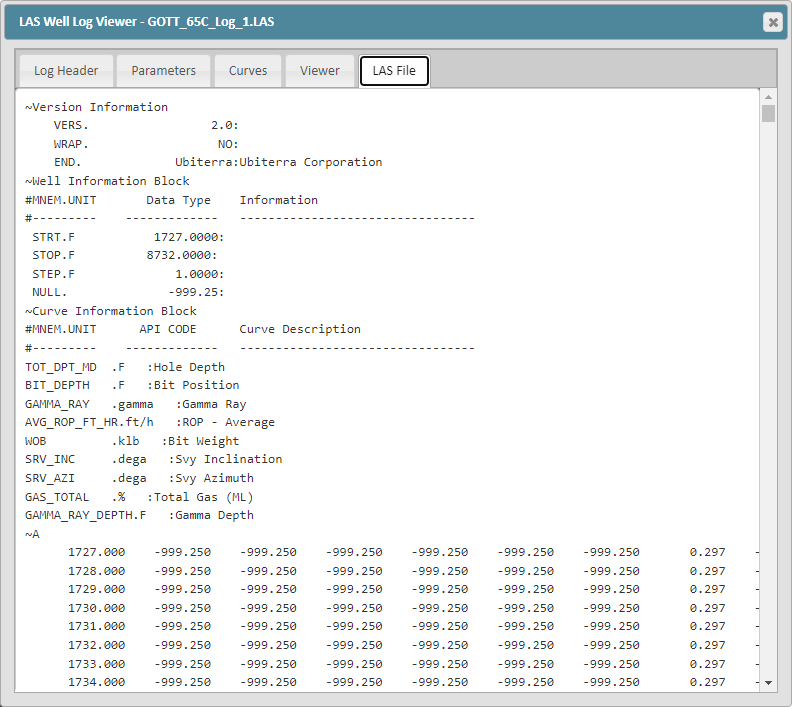
Loading a .las file:
Go to the Data tab for well where you want to upload your log. On the data tree, select the Logs folder, and then select the LAS subfolder
On the right-hand side of the screen, click the Upload button
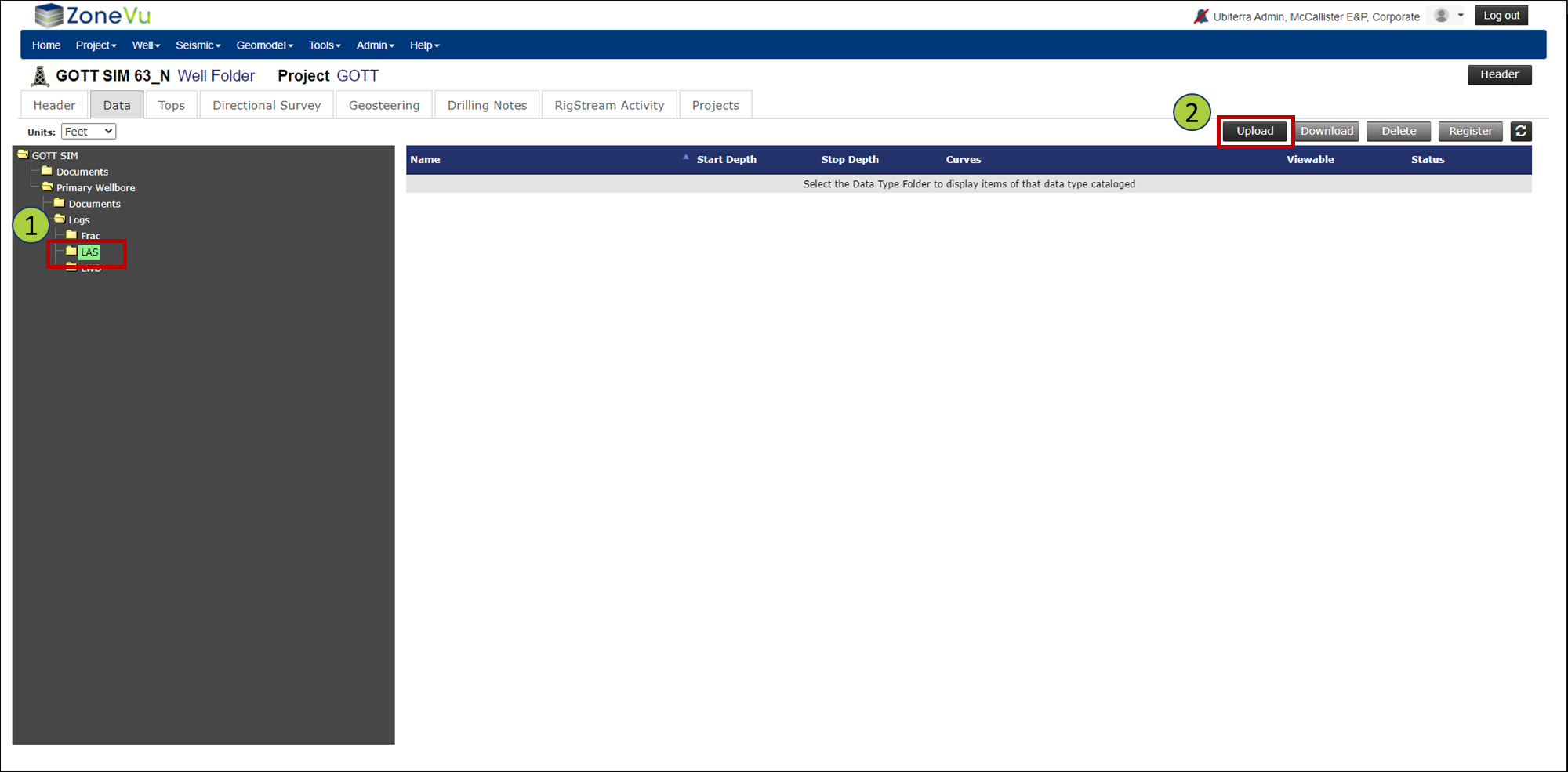
Alternatively, if you are already in the Well folder, under the Well menu select Import Well Log to open the Upload Well Logs pop-up and go to the LAS folder in the Data Tree
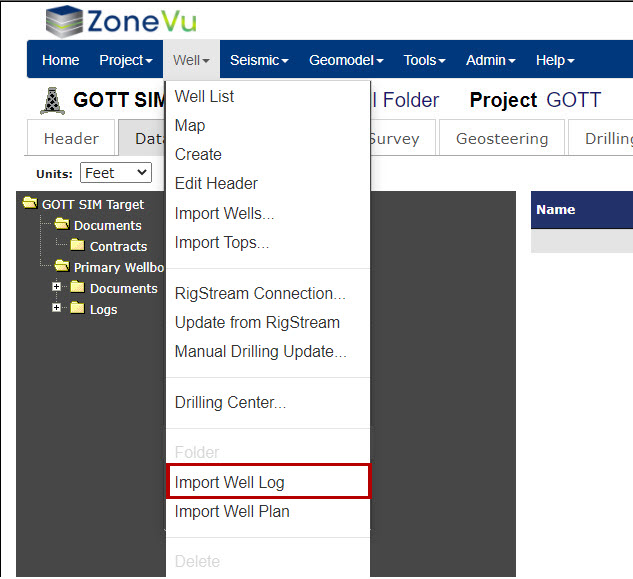
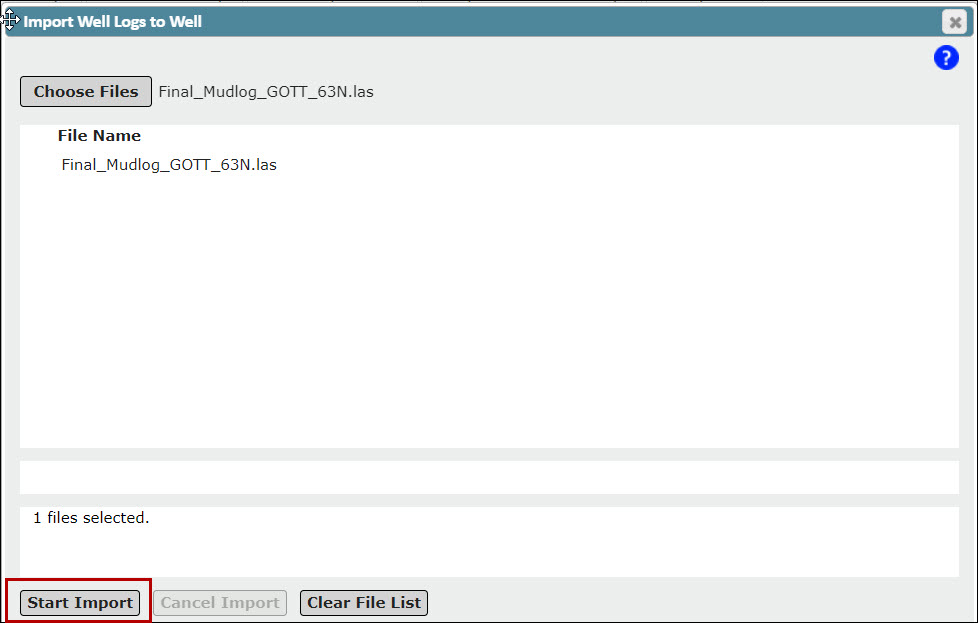
Drag and drop the .las file(s) into the Choose Files drag area or click the Choose File button to open up your computer's file directory and navigate to your file. You may need to uncheck the 'Show large drag area checkbox first.
The file(s) will appear in the File Name List
Click the Start Import button
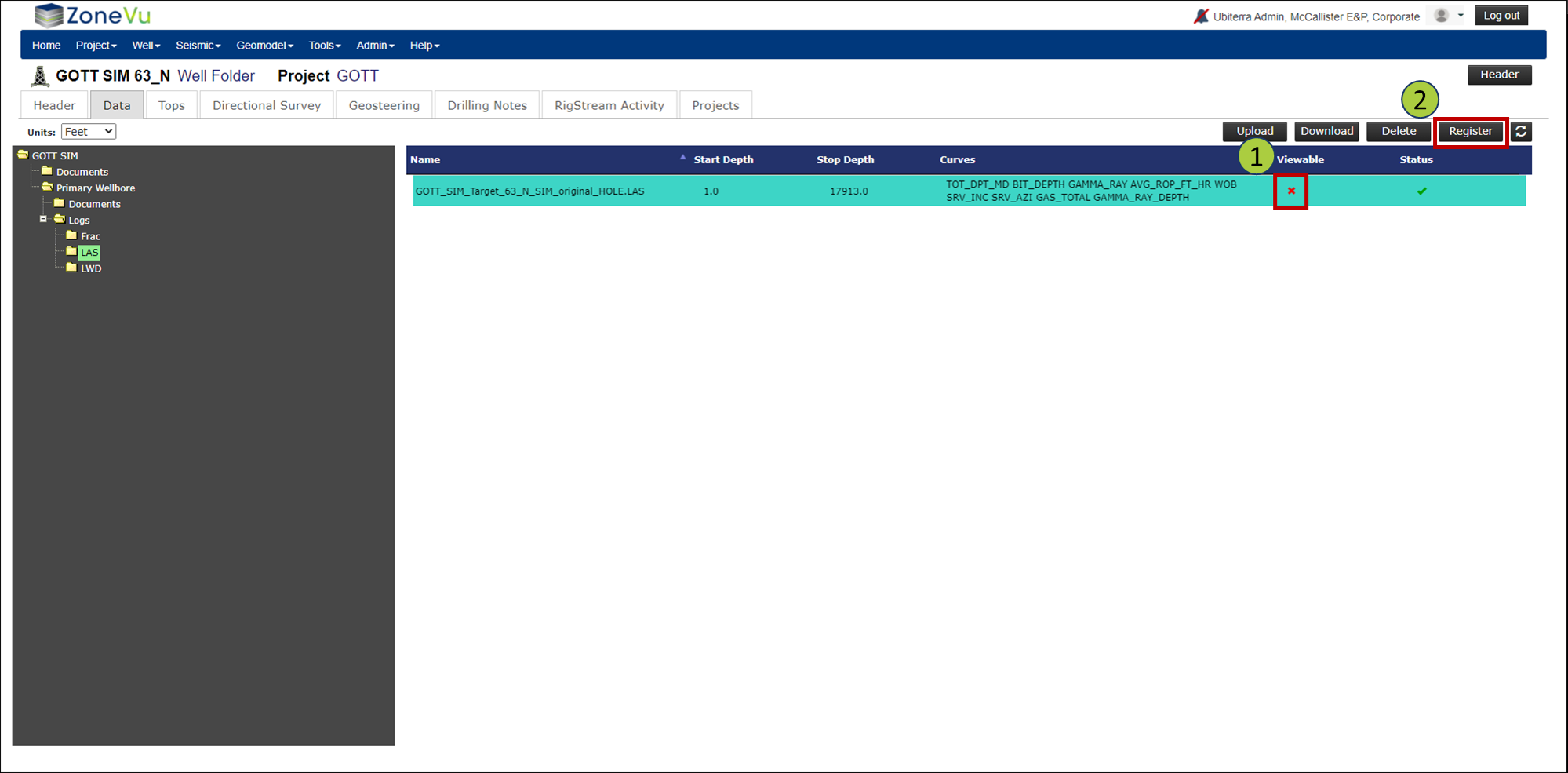
Once the file has been uploaded, close out of the Upload Well Log pop-up. Note how your log is now listed in the LAS list, with a red “X” in the Viewable column
To make this data viewable, select the log and click the Register button
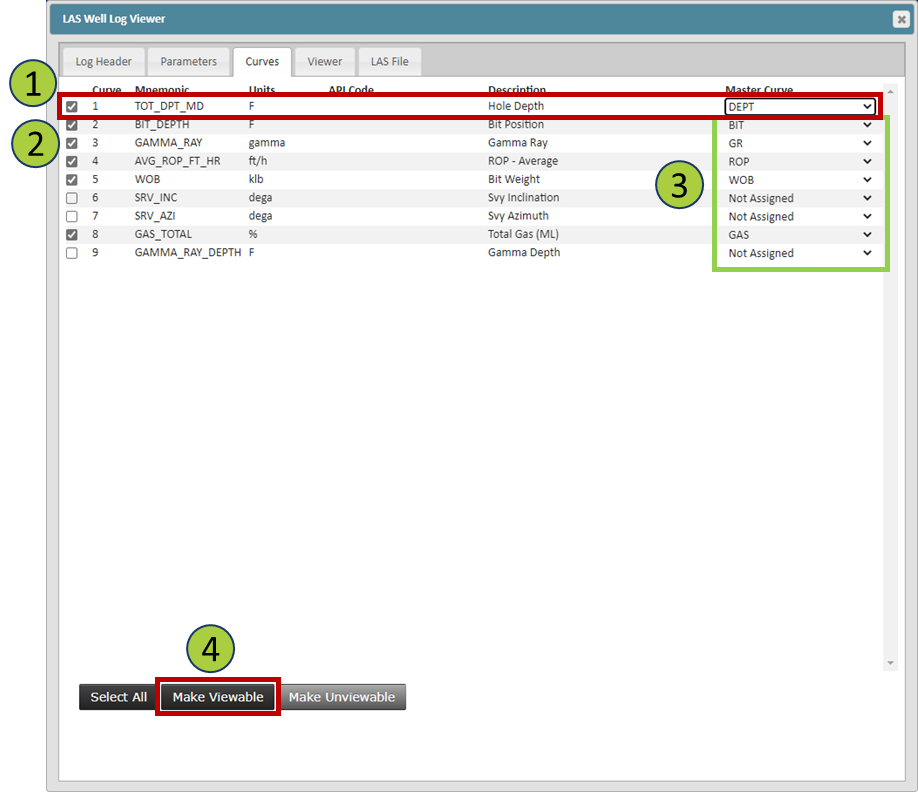
The LAS Well Log Viewer Window will open to the Curves tab. First, select which logs you want to load
The only log you must assign the Master Curve Name to is the Depth curve (DEPT Master Name).
If you wish, you can assign other curves a Master Curve Name from the dropdown list
Note: If you do not assign Master Curve Name, the mnemonic from the .las file will be used to name the log
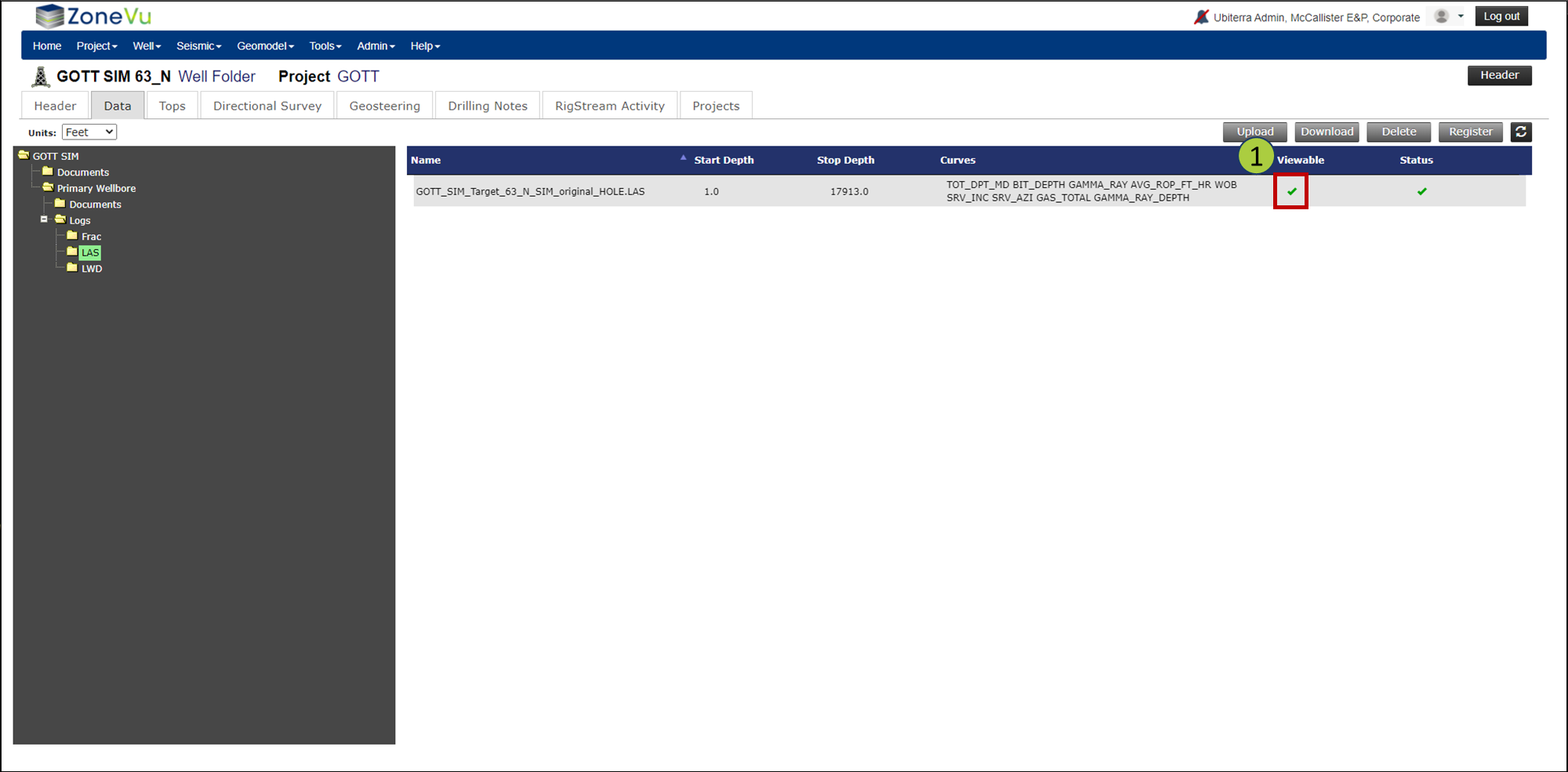
Click the Make Viewable Button when you are finished and the red “X” will now be a green "checkmark".
If a green check appears under Viewable and Status columns, the log .las file has been successfully loaded and registered
This log will now appear in the Scene Control inside the Well's Viewer
If you have the Viewer already open, you will need to refresh your browser to see the new log
Other Tabs in the LAS Well Log Viewer:
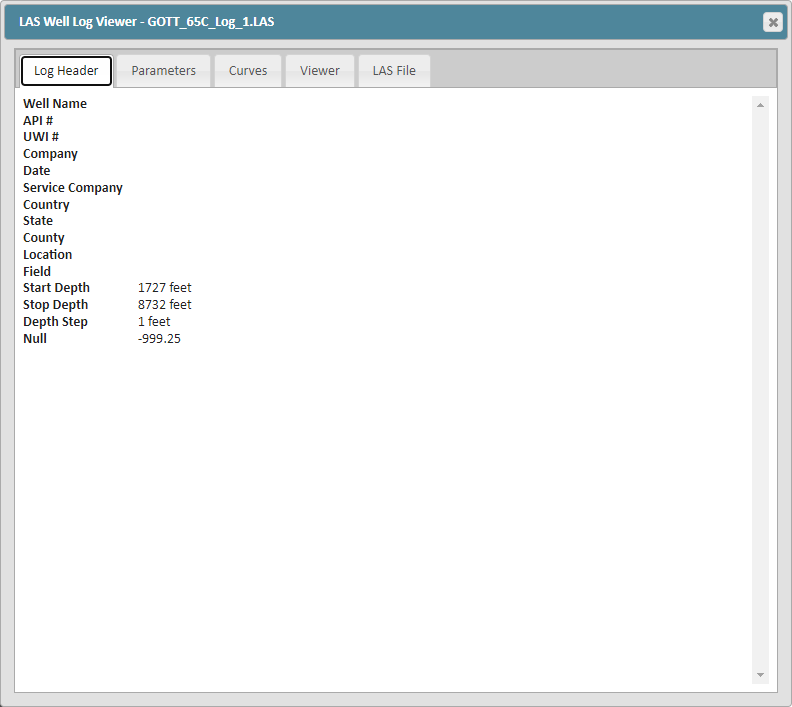
Header tab: Displays information from the file's header
Parameters tab: Displays the Parameters data found in the LAS File Header
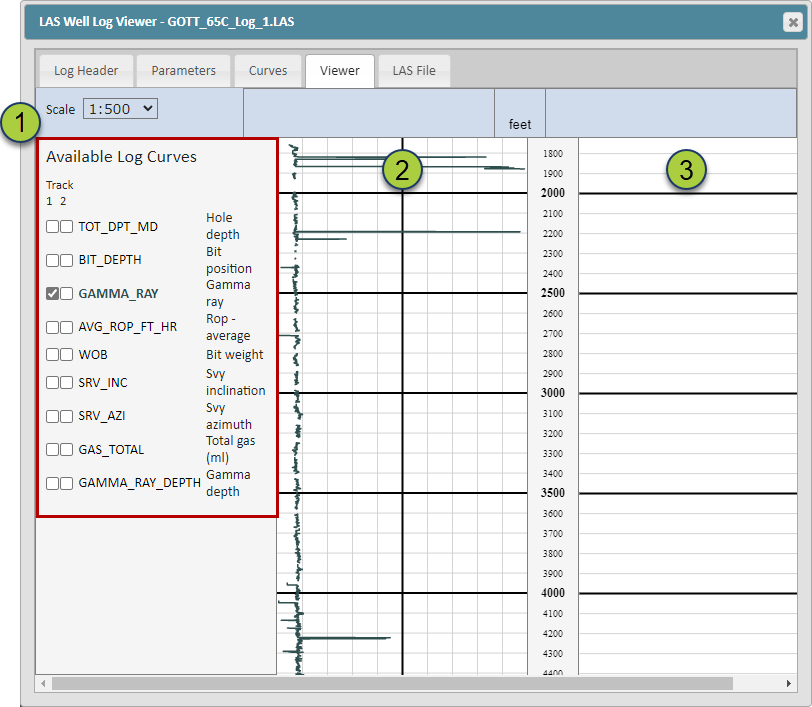
Log Viewer tab: You can plot any available log for preview
Use the checkboxes to turn on available logs
Left Log Track: Linear Scale
Right Log Track: Logarithmic Scale
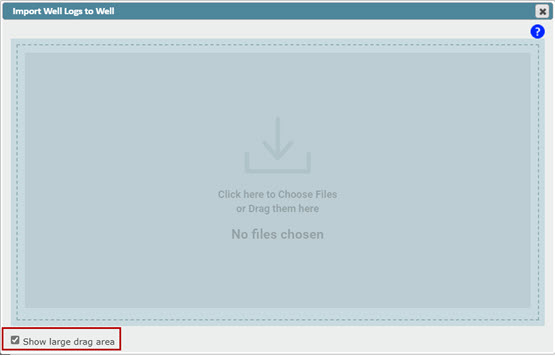
LAS File Viewer tab: View the full .las file