

ZoneVu allows you to create a copy of any existing Well using either the Home Page, the Well Folder, or a Project Folder. The copied Well includes all applicable data from the original, such as Tops, Surveys, Geosteering Interpretations, and more. You may also choose to automatically add the copied Well to every Project that contains the original Well.
Where to Find the 'Copy Well' Option
You can access the 'Copy Well' option from the following locations:
The Home Page
Under the Well menu & in the Right-Click menu
The Well Folder
Under the Well menu
Any Project Folder that contains the Well
Under the Well menu
Using the Copy Well Dialog
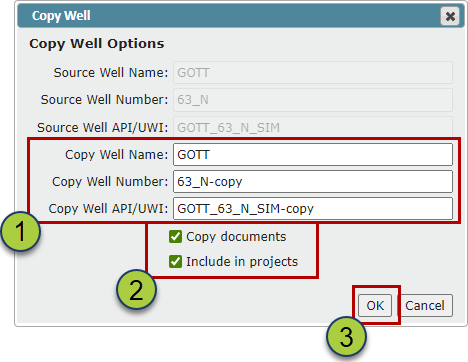
Select a Well and click 'Copy Well', this will open the Well Copy dialog, which provides several customization options:
1. Customize Well Identification
Well Name
Well Number
Well API/UWI
Note: All Wells in ZoneVu must have a unique API/UWI.
2. Choose Additional Copy Options
'Copy Documents' — Copies all Documents from the original Well
'Add to All Projects' — Adds the copied Well to every Project that contains the original Well
3. Create the Copy
Click the 'OK' button to complete the process.
What Data Is Copied?
When you create a Well copy, ZoneVu includes all of the following (when visible to you):
Tops
Surveys
Logs
Geosteering Interpretations
Target Lines
Wellbore Modifications
Fracs
User Notes
Drawings
RigStream Setup
Documents
Scene Snapshot Info
Header data
Note: Only the Geosteering Interpretations you have visibility rights to will be copied. You will be listed as the creator of the copied Interpretations, and their visibility/editability will be set to Company.
Note: Only the Fracs you have visibility rights to will be copied. Frac visibility is controlled by the associated Geosteering Interpretation’s visibility settings.
After the Copy
Once the copy is created:
The new Well will appear in your Well List.
If you selected the option to add the copied Well to the same Projects, it will also appear in every Project that includes the original Well.