

ZoneVu will automatically scale the LWD and Type Logs based on their assigned master mnemonic (0-250 for GR data) or data range. Often, a more refined scale is needed to help highlight the detailed character of the local stratigraphy. In these cases, you may wish to manually normalize the data. Manual normalization is a two-part process:
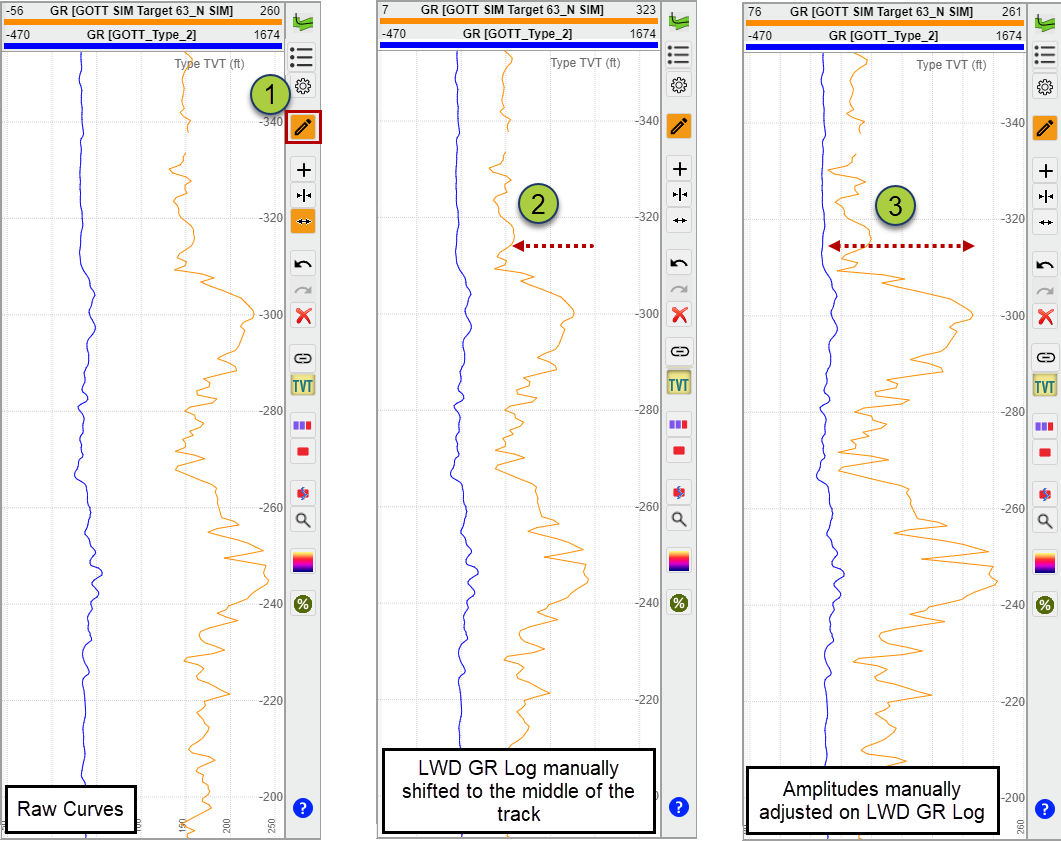
Part #1: Get the LWD Log exactly how you want it in the log track
Make sure the “Edit Geosteering Interpretation” button on the right side of the screen is selected (shaded orange)
Place your cursor over the LWD Log Header “GR [GOTT SIM Target 63_N SIM” (orange line). Click and hold the left mouse button and drag the LWD Log left or right to center it in the track
Place your cursor over the LWD Log Header again. Roll the scroll wheel on your mouse to adjust the amplitude until you get the amplitude of the LWD Log curve exactly how you want it in the vertical log track. After doing this, you may need to repeat the previous step to center your LWD Log in the track (at this stage, ignore the blue GR for the Type Well)
Part #2: Adjust the GR for the Type Log (blue) to match that of the LWD Log (orange)
Place your cursor over the Track header labeled “GR [GOTT_Type_2]” (blue curve). Click and hold the left mouse button and drag the Type Log left or right to center it in the track
Place your cursor over the “GR [GOTT_Type_2]” header again. Roll the scroll wheel on your mouse to adjust the amplitude of the curve until you get the amplitude of the blue curve exactly how you want it in the vertical log track. After doing this, you may need to repeat the previous step to center your Type Log in the track
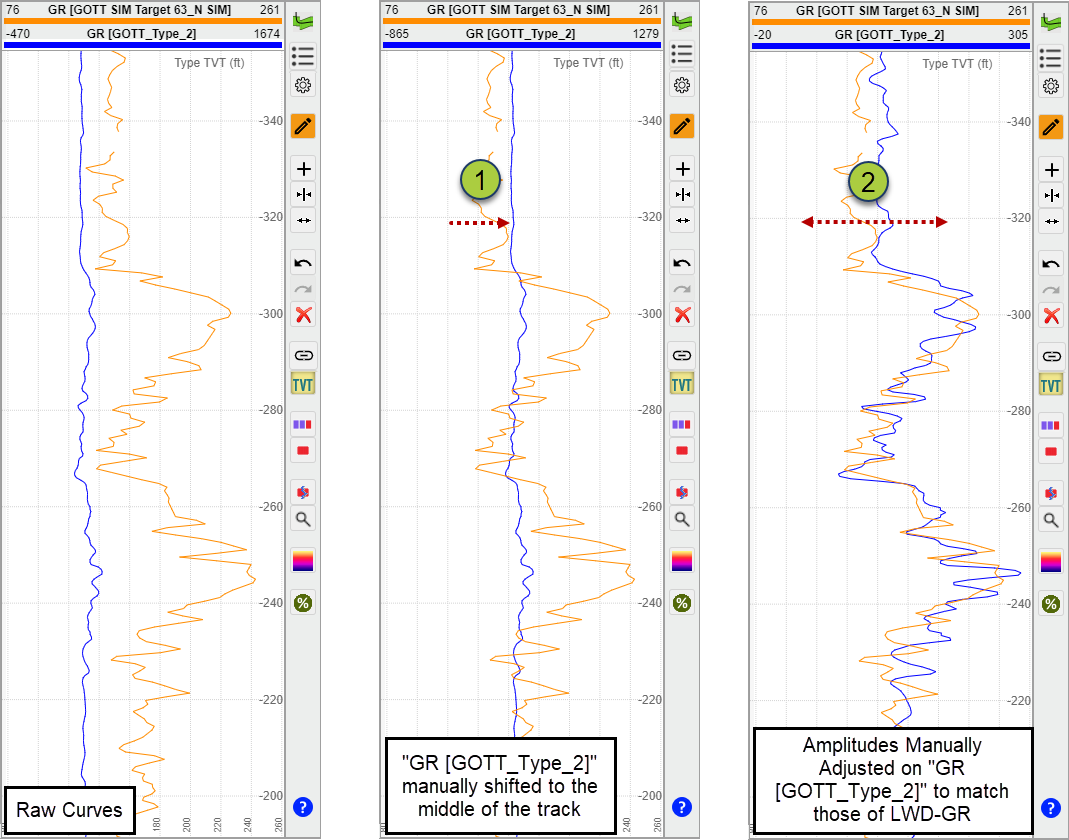
This ends up being an iterative process going back and forth until you get the two curves exactly how you want them. Note: This normalization only applies to your current interpretation. If you wish to repeat the process on other interpretations, you must repeat the steps above.