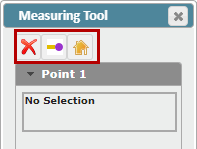
The Measuring Tool in ZoneVu is a Three Dimensional tool that works across all three Viewers (Map, 2D, & 3D). Once two points have been selected, ZoneVu will provide all of the related measurement data. You can place the measurement points on any object in the Viewers (Wells, Well Plans, Seismic Lines, Faults, Structural Surfaces, Layer Features...)
Using the Measuring Tool:
To open the Measuring Tool Dialog Box, click the "Measuring Tool" button on the left-hand button menu
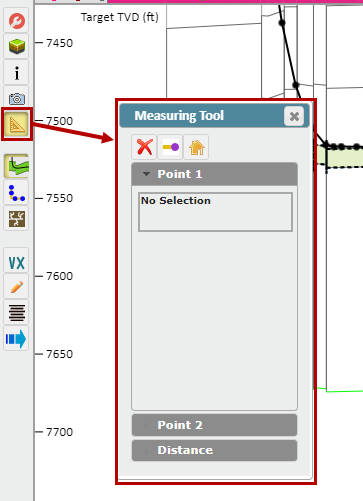
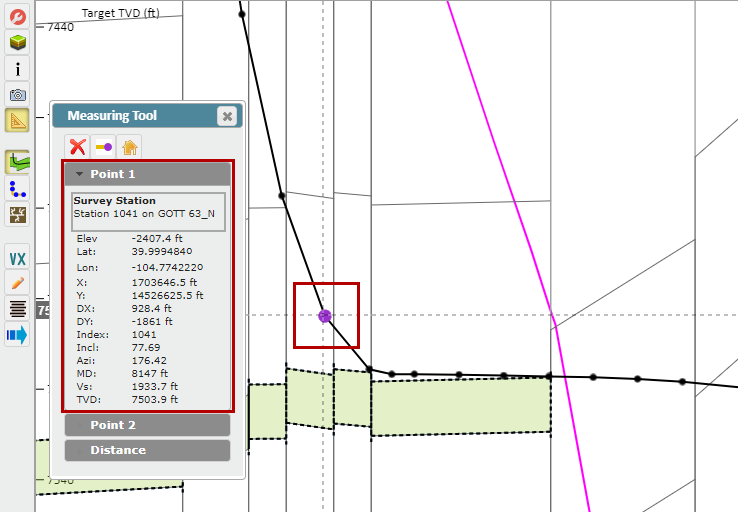
Select Point #1: Make sure the "Point 1" dropdown is selected, then use your mouse to select Point #1 in the Viewer. The Point #1 Info Box will provide all of the relevant information related to this point, including what object the point was picked on
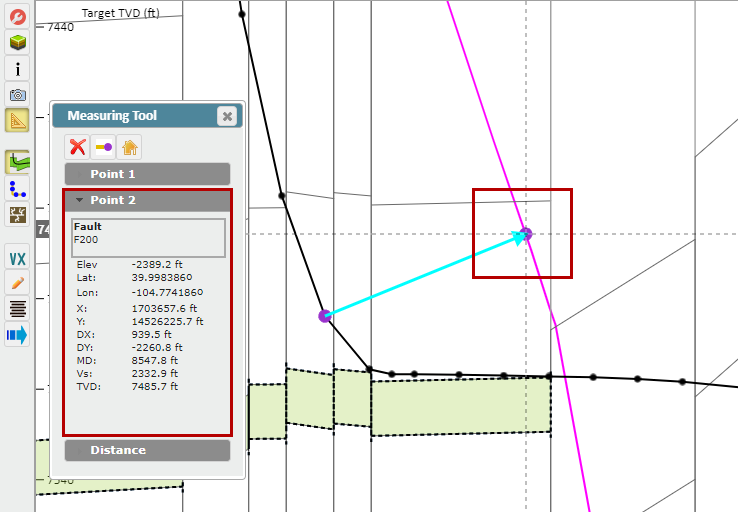
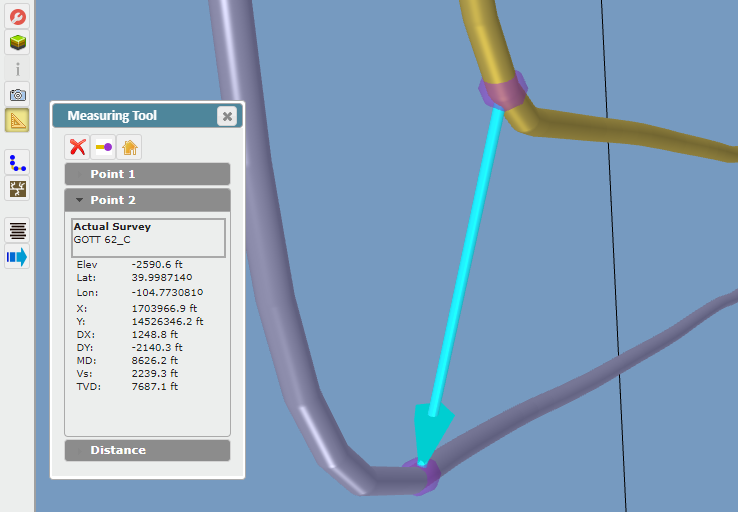
Select Point #2: Make sure the "Point 2" dropdown is selected, then use your mouse to select Point #2 in the Viewer. The Point #2 Info Box will provide all of the relevant information related to this point, including what object the point was picked on
Distance Info Box: Once you have selected a second point, select the "Distance" dropdown. The Distance Info Box will provide all the related measurement data
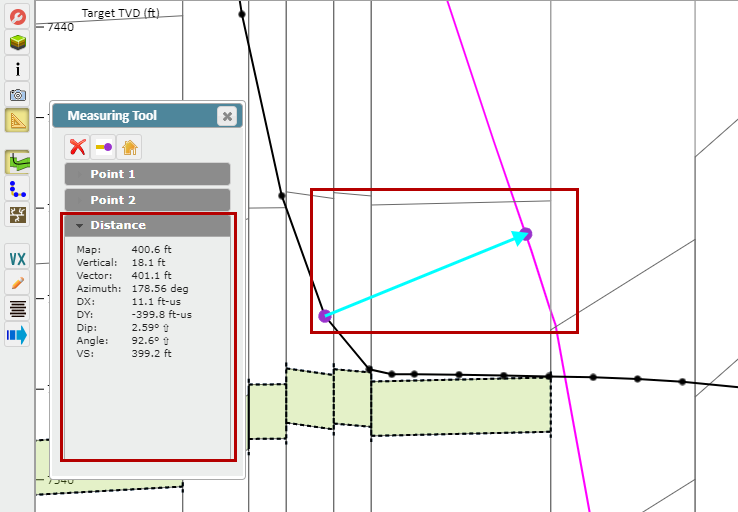
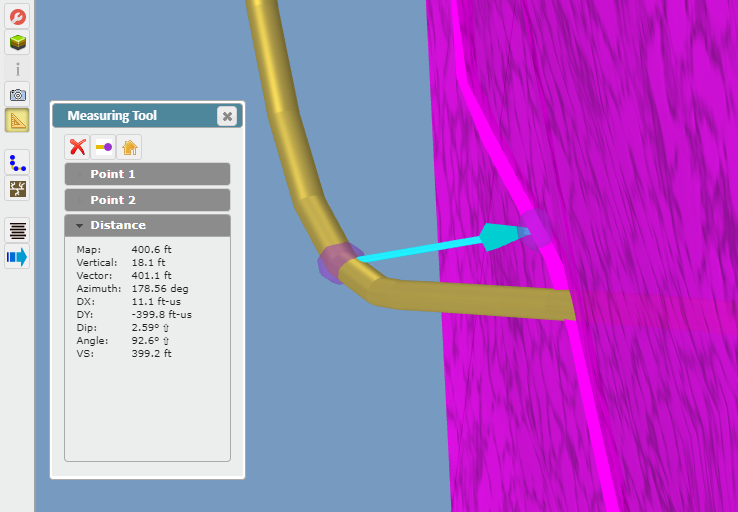
This measurement will translate to the other Viewers. Moving over to the 3D Viewer, we can see what this measurement between the wellbore and Fault Surface looks like in 3-Dimensional Space
Until you Delete the measurement (using the "Red X" button), you can continue to move Points #1 & #2 around in any Viewer. In the image below, we have moved Point #2 off of the Fault and onto a nearby Horizontal Well
Other Controls:
"Delete" button: Deletes the measurement
"End of Well" button: Sets the current Measurement Point at the end of the Target Well
"Center View" button: Centers the Viewer on the Measurement Line