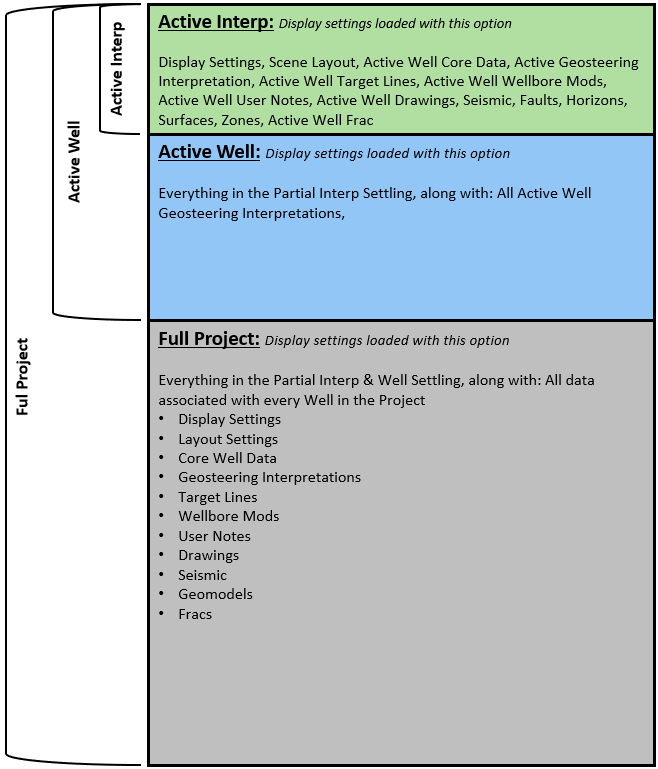
When loading a Scene Snapshot, ZoneVu restores specific parts of your display configuration depending on the loading level selected. These settings can partially or fully overwrite your current project view. The three options control whether the system loads the Full Project, only the Active Well, or the Active Interpretation.
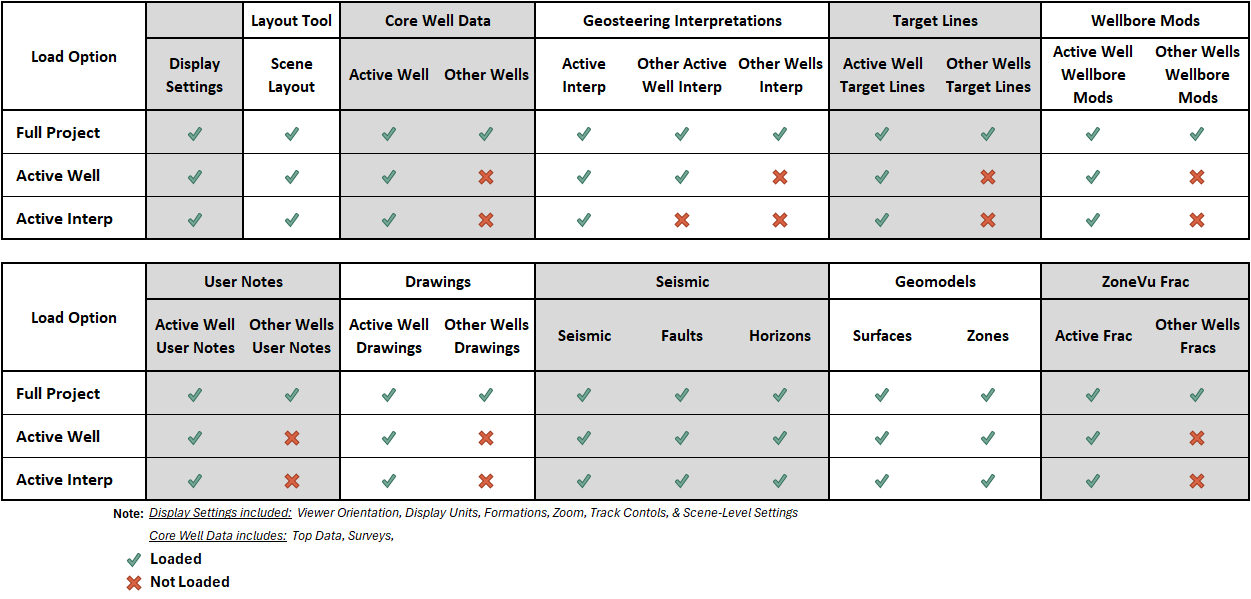
Snapshot Loading Levels
Full Project (formerly Full)
The Full Project option loads all display and interpretation settings stored in the snapshot for every well in the project.
Data Loaded:
All well display settings for all wells
All wellbore and survey settings
All interpretation settings
All curve display settings (log curves, geosteer curves, etc.)
Display window settings (zoom, pan, orientation)
Display units
3D orientation and camera position
View mode settings
Seismic data display settings (if applicable)
Fault display settings
Horizon display settings
Formation display settings
Surface display settings
Zone display settings
Datagrid display settings
Map and map layer settings
Browser sync settings
Frac layout settings
Wellbore notes settings
Stratigraphy correlation settings
Track view and 2D log view layouts
This option fully restores the snapshot’s environment and overwrites your entire scene configuration.
Active Well (formerly Partial Well)
The Active Well option loads all display settings for the Active Well. Display settings for all other wells are preserved.
Data Loaded:
All display settings for the active/target well (the well that was active when the snapshot was saved)
Wellbore display settings
Survey display settings
Curve display settings for all curves on the target well
Survey modification settings
Selected interpretation for the target well
Selected frac layout for the target well
Non-well settings are also loaded from the snapshot:
Display window settings
Display units
3D orientation
View mode settings
Seismic, faults, horizons
Formations, surfaces, zones, datagrids
Map and map layers
Browser sync settings
Track layouts and 2D log view settings
Stratigraphy correlation settings
Preserved:
Display settings for all other wells in your current view
This mode is ideal when you want to switch context to a different well without overwriting your overall multi-well setup.
Active Interp (formerly Partial Interp)
The Active Interp option loads display settings for both the Active Well and the Active Interpretation. Other Wells and Interpretations remain unchanged.
Data Loaded:
All display settings for the active/target well (the well that was active when the snapshot was saved)
Wellbore display settings
Survey display settings
Curve display settings for all curves on the target well
Selected interpretation and frac layout for the target well
Display settings for the selected interpretation that was active in the snapshot
Interpretation display settings
Geosteer result settings
Curve display settings for the interpretation
Non-well and non-interpretation settings are also loaded from the snapshot:
Display window settings
Display units
3D orientation
View mode settings
Seismic, faults, horizons
Formations, surfaces, zones, datagrids
Map and map layers
Browser sync settings
Track layouts and 2D log view settings
Stratigraphy correlation settings
Preserved:
All other wells
All other interpretations
This option is best when focusing on a specific interpretation while retaining the rest of your workspace setup.
Another way to think about the Snapshot loading levels is as different depths of data restoration. Each option progressively loads more information from the snapshot, starting with only the Active Interpretation and expanding outward to the entire project‑wide settings.