

There are two different types of survey datasets that ZoneVu manages: Actual and Plans. You can have only one Actual survey per Well, but you can have as many Plan Surveys as you would like. It’s important to note that there can only be one “Active” Plan; it's this “Active” Plan that ZoneVu will use to map the Well position past the end of the Actual Survey.
Note: ZoneVu can import Survey data using either MD, Inc, & Azi or MD, TVD, Delta X, & Delta Y.
Loading Actual Survey Data:
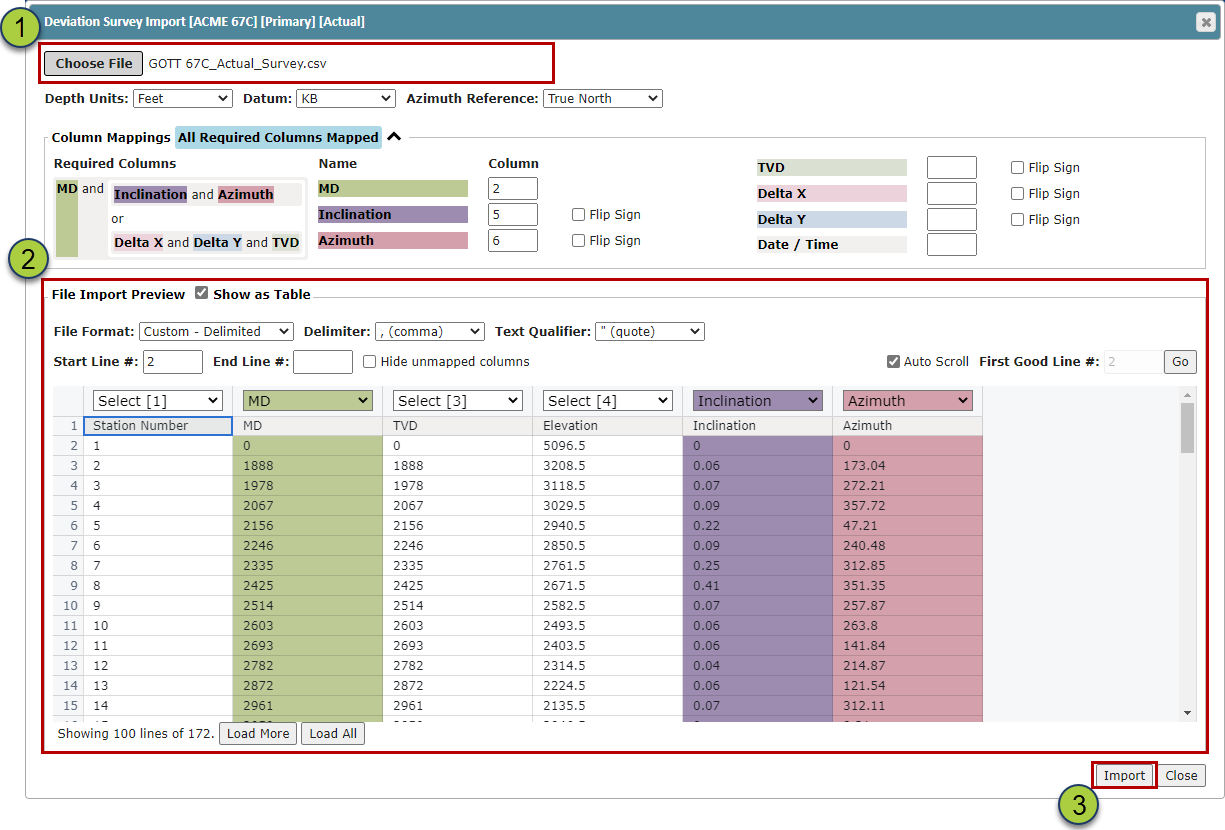
From the Well’s Folder, navigate to the “Directional Survey” tab and click the “Import” button to open the “Deviation Survey Import” pop-up

Drag & Drop or Choose the Survey file
If ZoneVu can auto-identify the required data you will see a blue “All Required Columns Mapped” appear on the Importer, otherwise use the dropdowns on the Column headers to identify the required columns
Note: ZoneVu uses the MD, Inclination, & Azimuth or MD, TVD, Delta X, & Delta Y columns to compute the Well path from the Deviation Survey data
Click the “Import” button to import the Survey data
Once the import is complete, the survey data will be listed in the Survey Data Table.
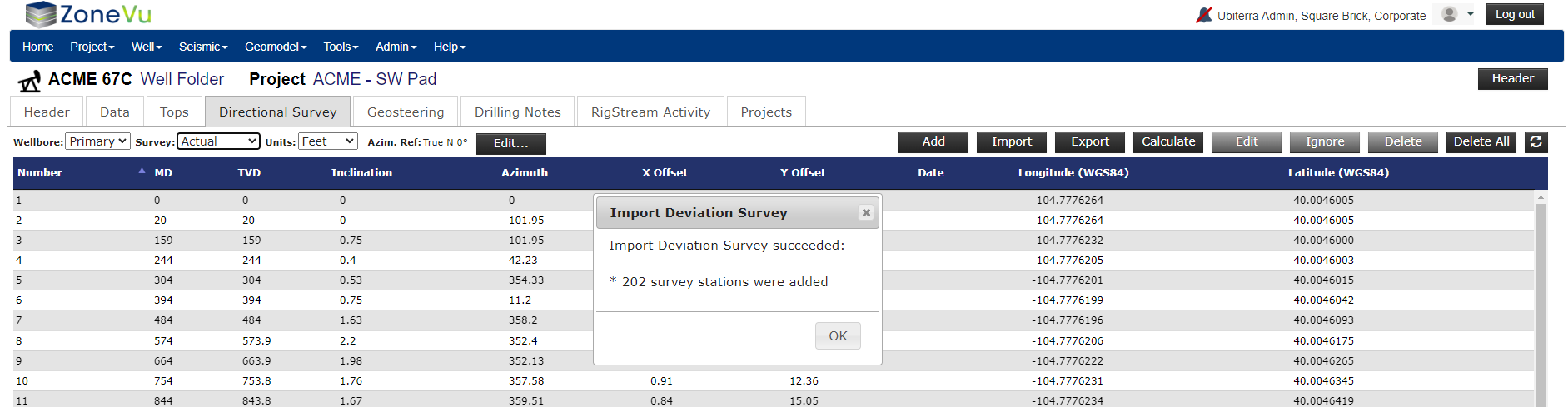
Note: You can Add, Edit, Ignore, Delete, Delete All, Re-Import, and Export your Actual Survey data from this tab
Loading Plan Survey Data:
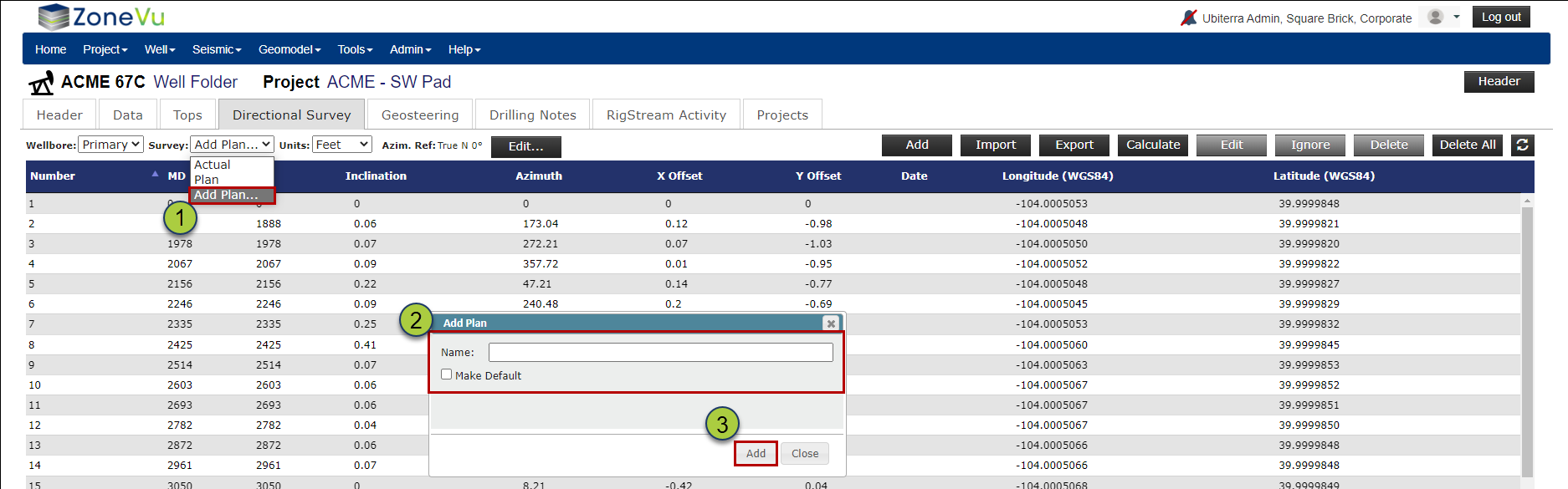
From the Well’s Folder, navigate to the “Direction Survey” tab and on the left-hand side use the “Survey” dropdown to select “Add Plan…”. This will open the “Add Plan” pop-up.
Give the Plan a unique name. If the plan is the “Active” Plan make sure to check the “Make Default” checkbox
Click the “Add” button to import the Plan Survey data
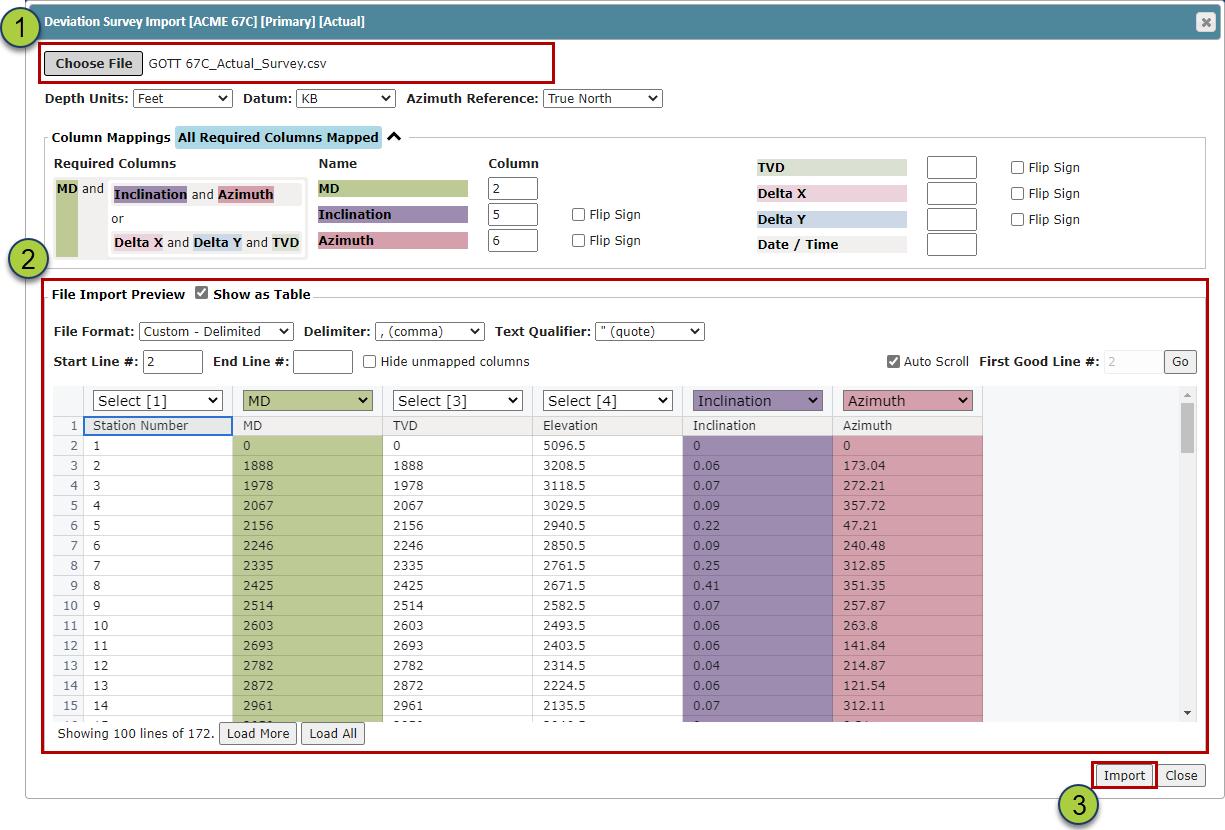
Back on the "Directional Survey" tab, make sure the Plan is selected in the "Survey" dropdown, then click the "Import" button to open the Deviation Survey Import dialog box

Drag & Drop or Choose the Survey file
If ZoneVu can auto-identify the required data you will see a blue “All Required Columns Mapped” appear on the Importer, otherwise use the dropdowns on the Column headers to identify the required columns
Note: ZoneVu uses the MD, Inclination, & Azimuth columns to compute the Well path from the Deviation Survey data
Click the “Import” button to import the Plan Survey data
Once the import is complete, the survey data will be listed in the Survey data Table.
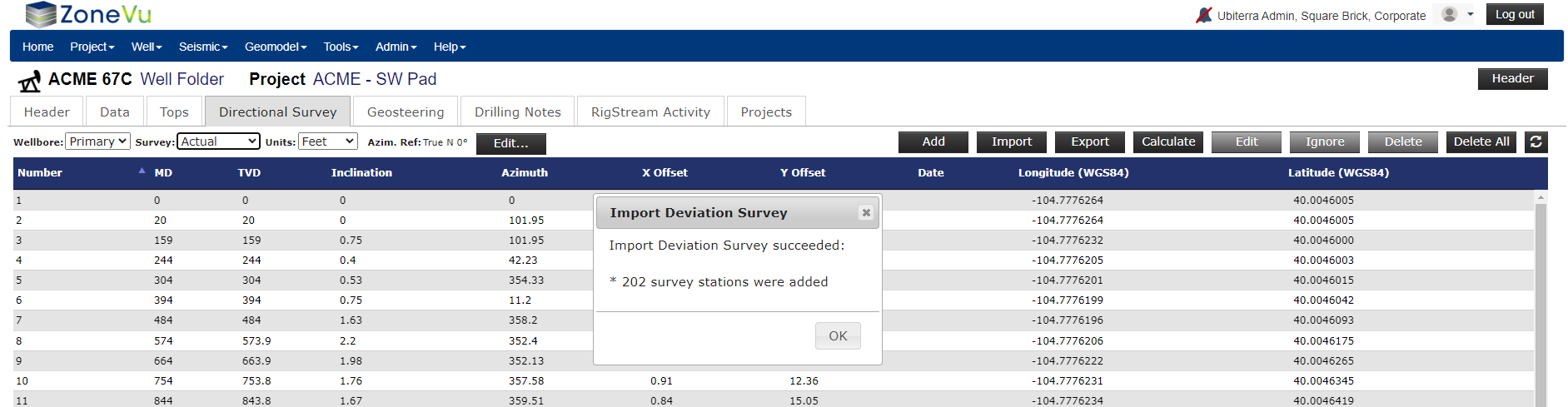
Note: You can Add, Edit, Ignore, Delete, Delete All, Re-Import, and Export your Plan Survey data from this tab
Editing an existing Survey Dataset:
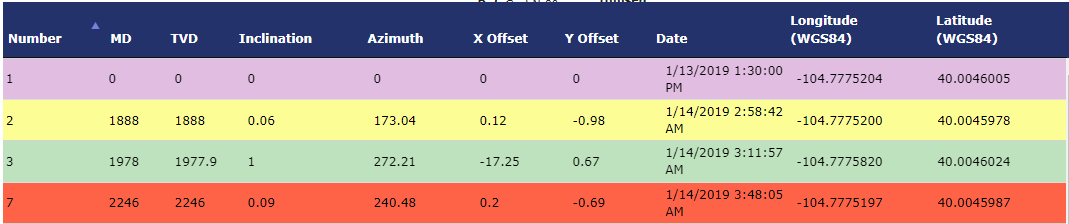
ZoneVu uses color coding to help highlight the stats of each survey station:
Purple: Tie Point
Yellow: Ignored
Green: User Entered
Red: Duplicate - Unused
Once a Directional Survey (Plan or Actual) has been loaded into ZoneVu, you can edit one or all survey points using the buttons above the Survey Data Table

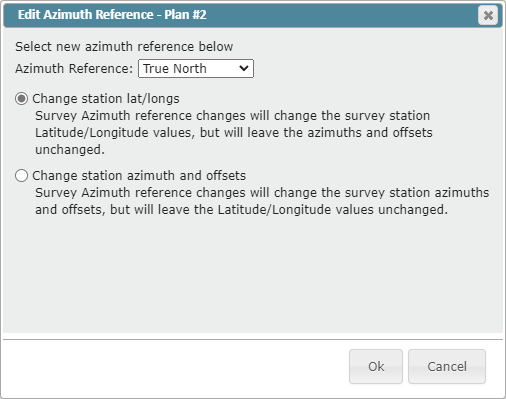
Units dropdown: Choose between "Feet" & "Meters" "Azim Ref Edit" button: Opens the "Edit Azimuthal Reference" dialog box, allowing you to change the Azimuthal Reference setting for the Deviation Survey.
ZoneVu Supported Azimuthal Reference: True North, Magnetic North, Grid North, or Unknown (Defaults to True North)
There are two conversion options:
"Change the Lat/long Values" preserving the Azimuths and offsets
"Change the Azimuths and Offsets" preserving the Lat/Longs
"Show Unused Station" checkbox: Unused or Ignored survey stations are hidden by default. Use this checkbox to display these hidden survey stations
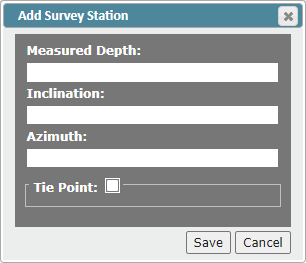
"Add" button: Opens the "Add Survey Station" dialog box. Note: ZoneVu will auto-place this Survey Station in the survey list based on its MD depth
"Import" button: Opens the "Deviation Survey Import" dialog box
"Export" button: Exports the Survey set in an Excel Workbook
"Calculate" button: Recalculates the downhole offsets and locations
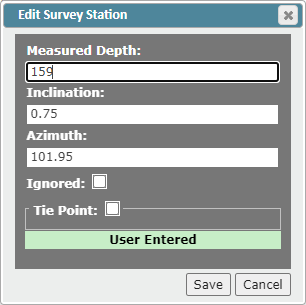
"Edit" button: Opens the Edit Survey Station pop-up, allowing you manually edit the MD, Inclination, or Azimuth, toggle the "Ignored" status, or designate as a Tie Point
"Ignore" button: Use this to remove bad survey stations loaded via WITSML. ZoneVu will ignore this survey station when calculating the wellbore path and will not update this point during the subsequent RigStream updates.
"Delete" button: Will delete all the selected survey points
"Delete All" button: Will delete all the survey points in the selected Survey