

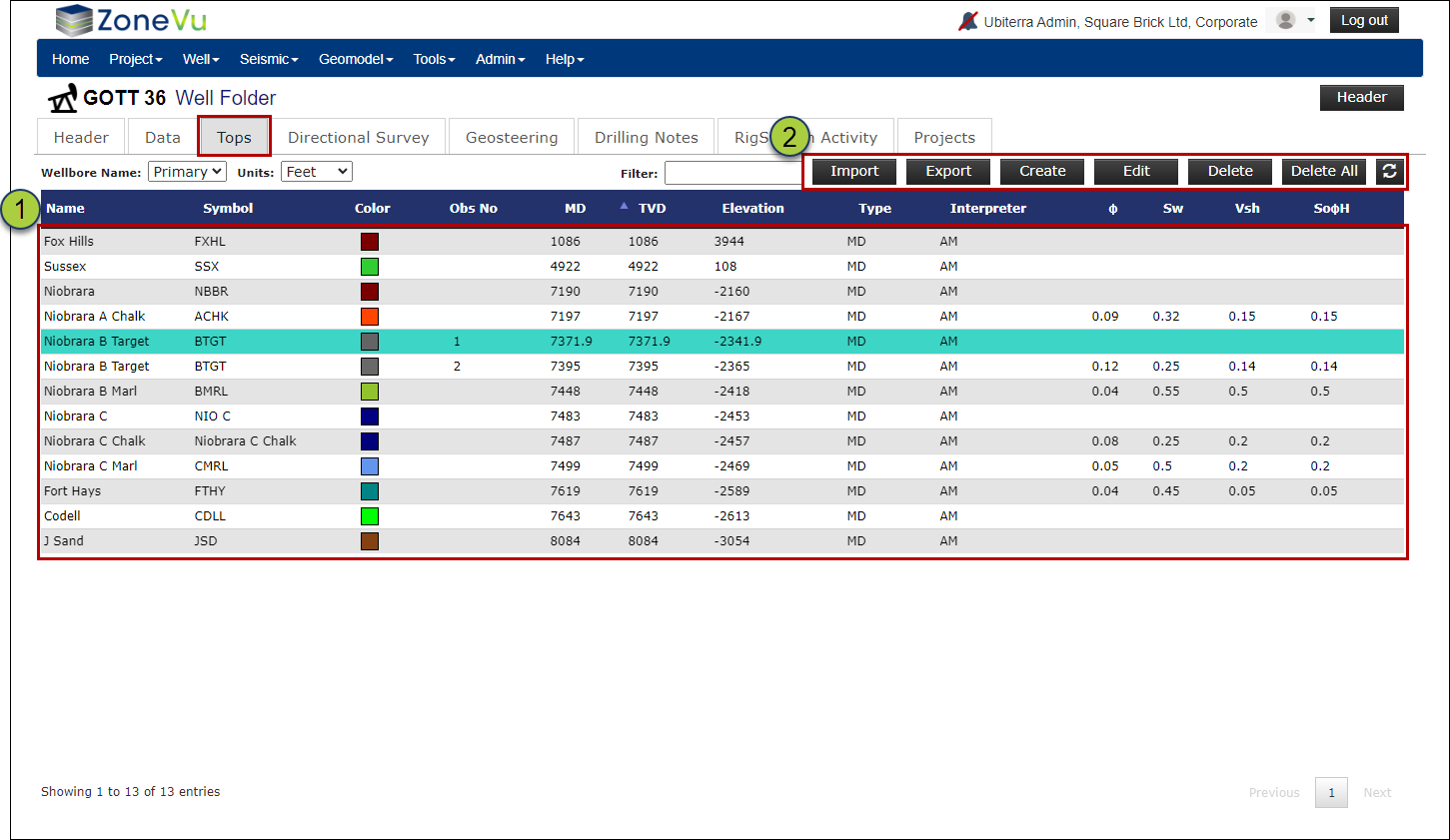
The "Tops" tab in the Well Folder will list all of the Top Picks loaded into or created in ZoneVu for that Well. In this tab, you can import, export, create, edit, and delete the Top Data. This article reviews the different functionality found on this tab.
Please note: You are able to pick Well Tops in the Viewer. Please see the related Articles to learn more
The Tops Tab:
In the Well Folder navigate to the "Tops" tab, where ZoneVu lists all of the Top Picks for the Well
Note: If more than one pick for a Top exists, it will be assigned an observation number based on its depth, increasing from shallowest to deepest. If a new Top pick is added the observation numbers will be reassigned accordingly
From this tab you can import, export, create, edit, or delete the Top data.
Top Data Management Buttons:

"Import" button: Opens the Bulk Importing dialog box allowing you to bulk import Top data for this Well (How to Import Well Tops)
"Export" button: Exports all the Top data in a .txt file
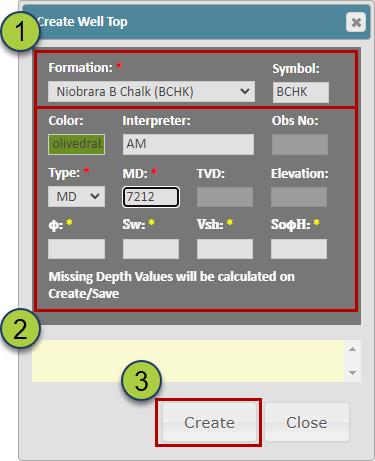
"Create" button: Opens the Create Top dialog box allowing you to add a new Top Pick
Select a Formation from the Formation Dropdown list (populated by the assigned Strat Column)
Fill out the Top Data. At a minimum, a depth (MD, TVD, or Elevation) must be provided
Note: ZoneVu supports the addition of a single Porosity, Water Saturation, V-Shale, and/or SoPhiH value per Top. This data is intended to be the best representation of the formation in this Well or area. If this data is present, it will be utilized by ZoneVu Frac in the Stage Table calculations.
Click the "OK" button to create the new Top Pick
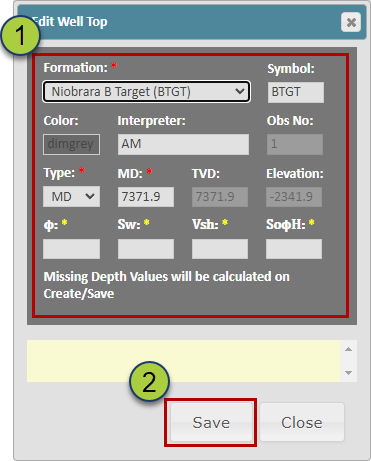
"Edit" Button: Opens the Edit Top dialog box for the selected Top
Edit the Top data
Click the "OK" button to save the edits
"Delete" Button: This will permanently delete the select Top(s). ZoneVu supports "Shift + Select" and "Ctrl + Select" of Tops in the Top List
"Delete All" button: This will permanently delete all the top data for the Well