The Wellbore Modification Tool in ZoneVu allows you to create Well Plan Modification Line that is free floating or anchored off a survey point. This Well Plan Modification Line can then be handed off to a Well Planner for the generation of a new or updated Well Plan. This article walks through creating, editing, and exporting Well Plan Modification data.
Creating a new Well Plan Modification Line:
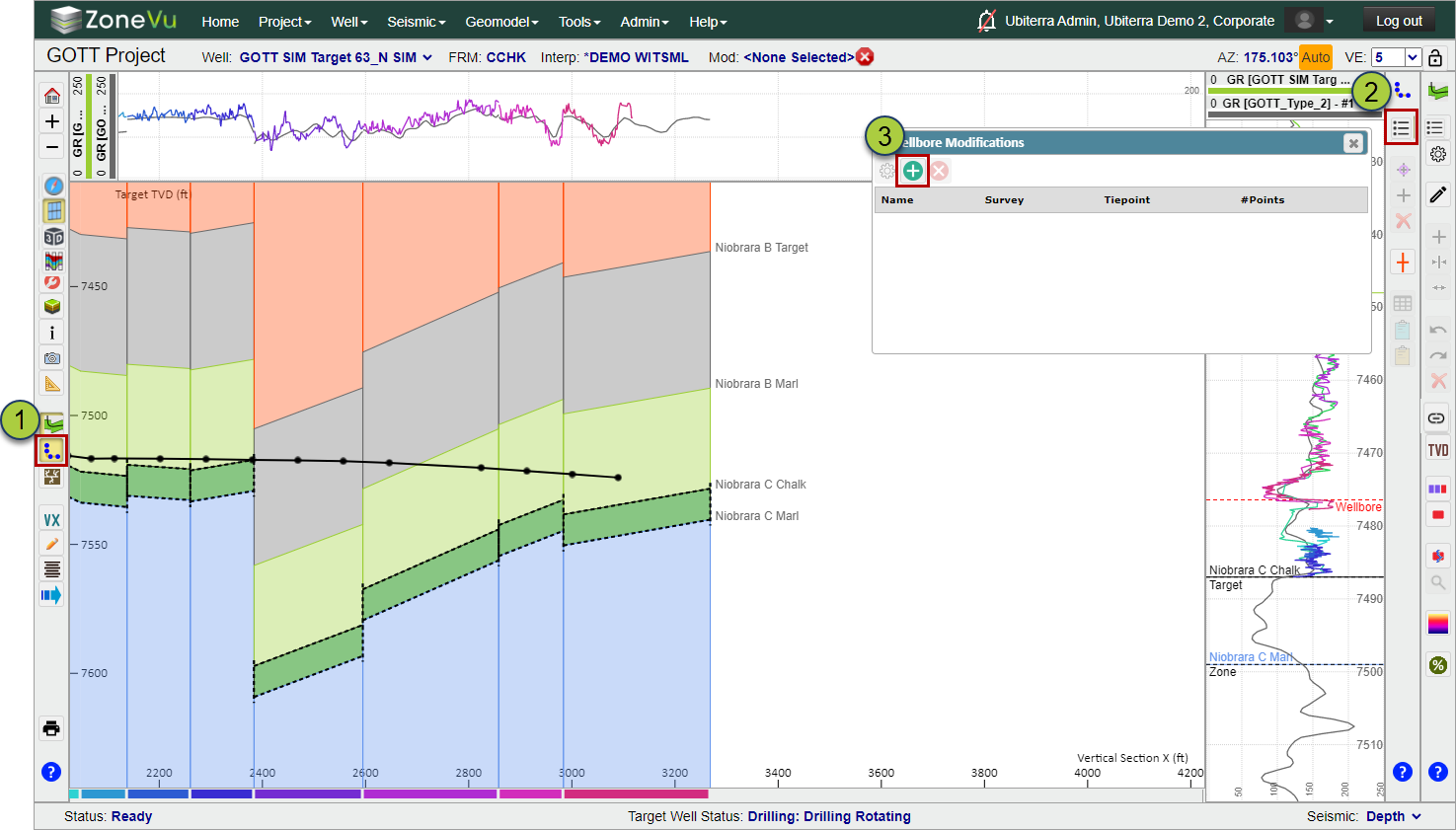
Click the "Wellbore Modification Module" button on the lefthand button menu to active the Wellbore Modification Toolbar
The Wellbore Modification toolbar will open on the right-hand side of your screen
Open the Wellbore Modification List by clicking the "List" button
To create a new Wellbore Modification Line, click the green "(+)" button to open the Wellbore Modification Settings
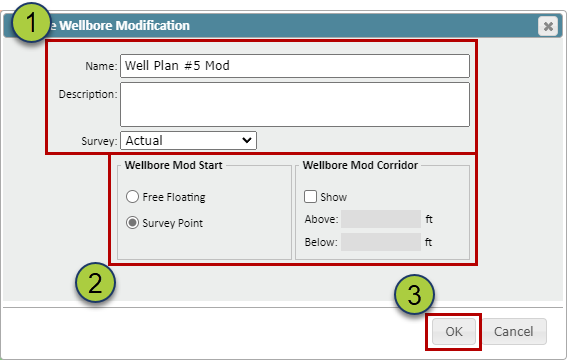
Fill out the Well Plan Modification Line Header Info
Give your Well Plan Modification Line a Name
Add any supporting details in the "Description" input
Use the "Survey" dropdown to choose a Plan or Actual Survey you want to reference or tie into
Specify the Well Plan Modification Line Mods
Choose whether the Well Plan Modification Line will be tied to a Survey Point or a Free Floating Line
Click "OK" to create this new Well Plan Modification Line
Creating a Well Plan Modification Line Tied to a Survey Point:
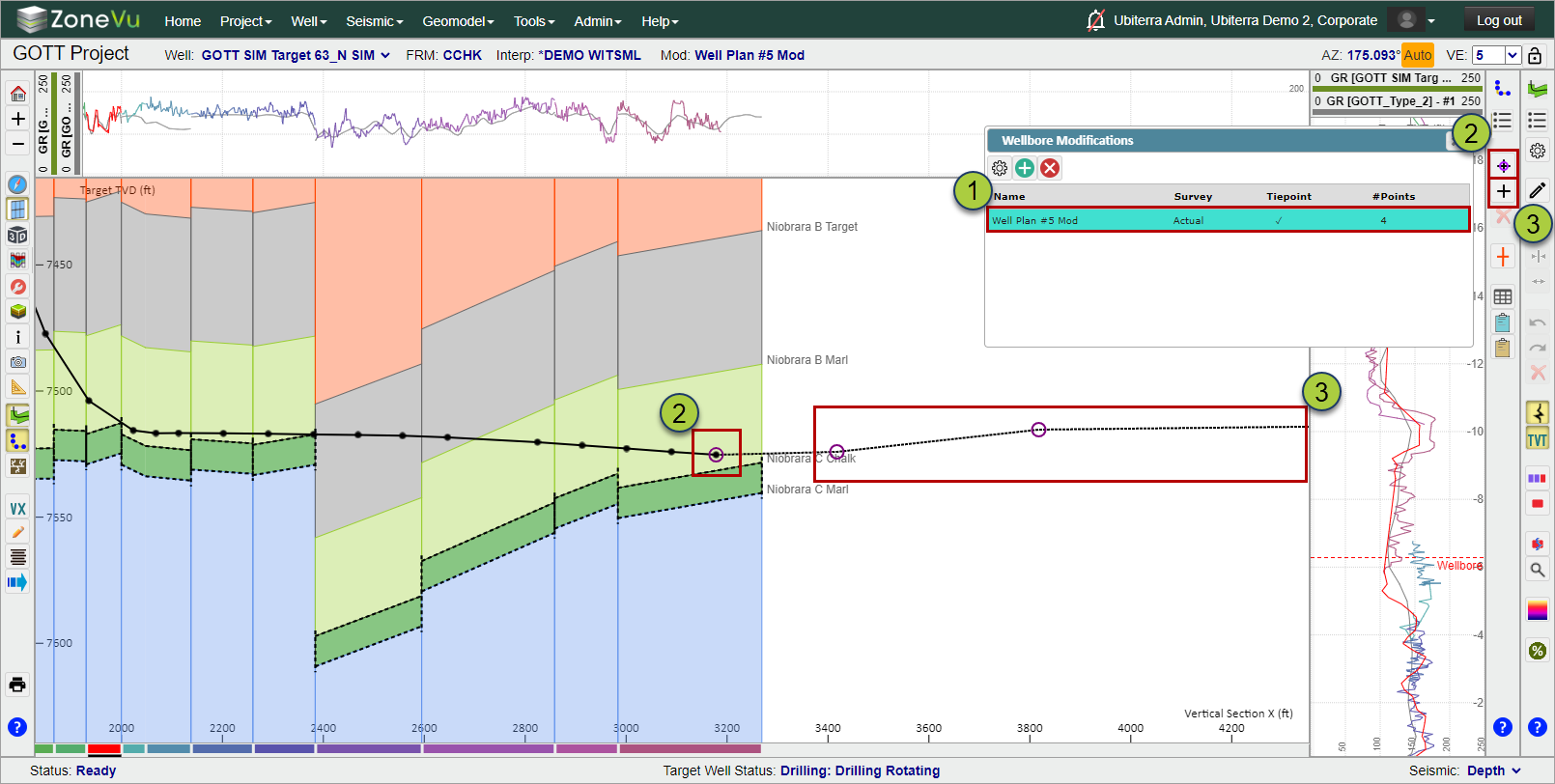
If you selected the "Tie to Survey Points" button when creating your Well Plan Modification Line, you will first anchor your Well Plan Modification Line onto a Survey Point, then draw the rest of the Target Line in the Cross-Section
In the Wellbore Modification List, select the newly created Well Plan Modification Line
Make sure the "Select Survey Station" button is selected (black cross with a purple circle) and select a survey station to anchor your Well Plan Modification Line on
Note: You can only select a Survey Station from the Plan or Actual Survey selected in the "Survey" dropdown in the Wellbore Modification Settings dialog box
Then, select the "Edit Control Points" button and draw at least one point in the Cross-Section to create the Well Plan Modification Line
Modifying a Well Plan Modification Line in the Points Table:
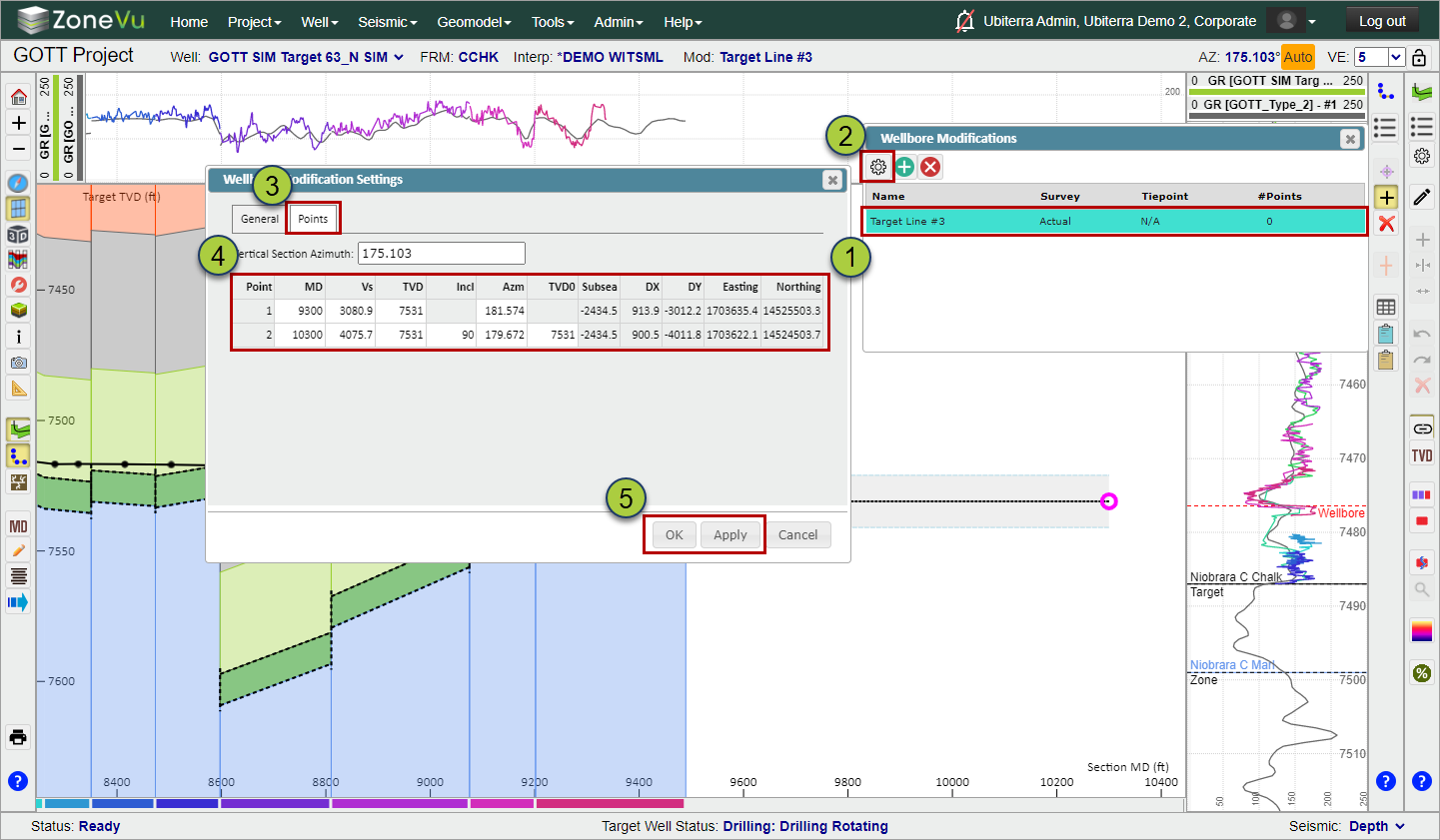
You can modify existing Well Plan Modification Line Points in a table in the Wellbore Modification Settings under the "Points" tab. Please note that you cannot create new points in this dialog box, only edit existing points.
In the Wellbore Modification List, select the newly drawn Well Plan Modification Line
Click the "Wellbore Modification Settings" button
Go to the "Points" tab
Make any edits needed in the Table
The points will be listed from smallest to largest MD values
The "Incl" column reports the dip of the line connecting the current point and the previous point (Points #1 & #2 in the example below)
The "TVD0" column reports the TVD depth of the Line at 0' VS
Click the "OK" or "Apply" button to apply your changes
Creating a Floating Waypoint Well Plan Modification Line:
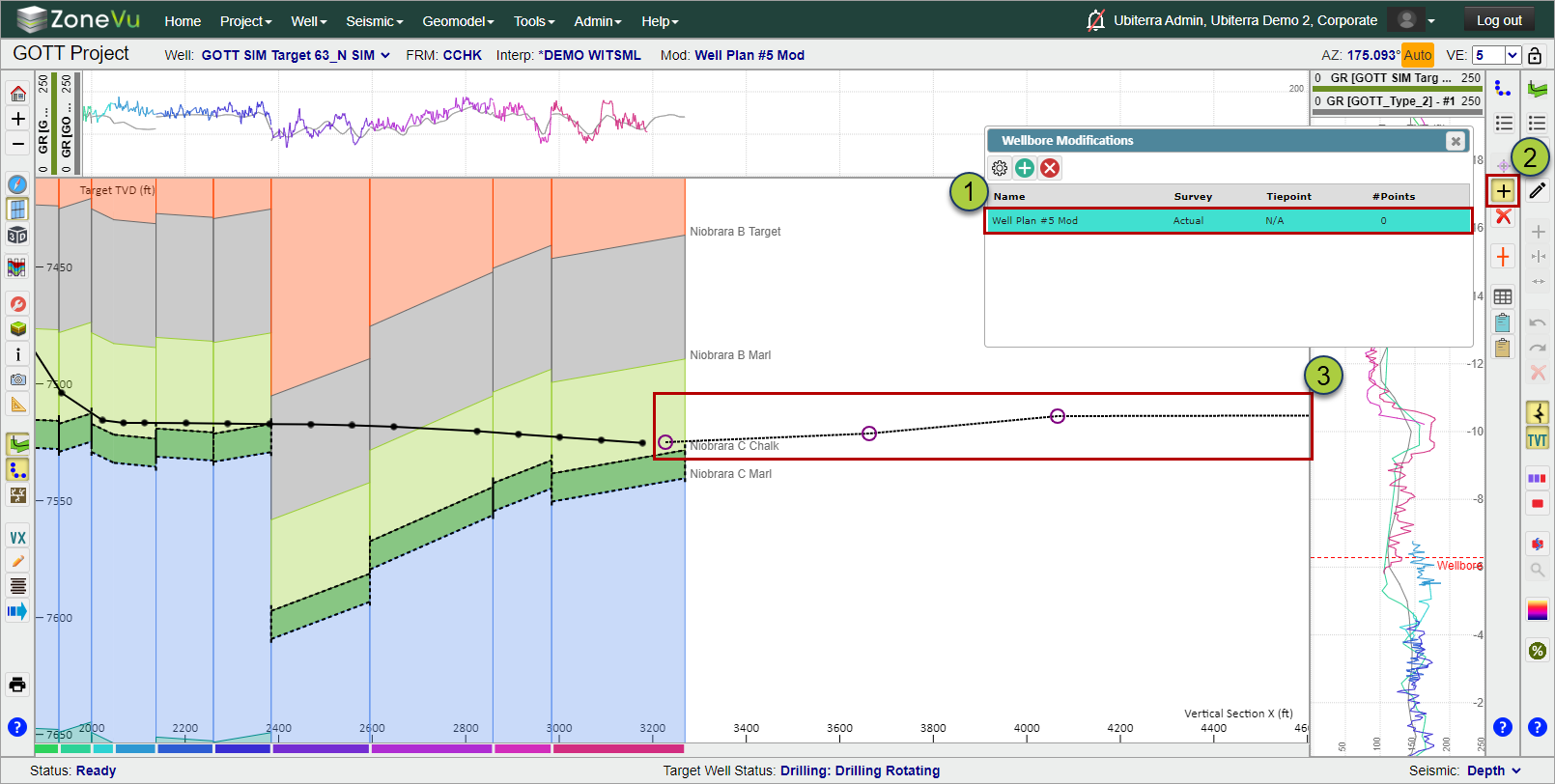
In the Wellbore Modification List, select the newly created Well Plan Modification Line
Make sure the "Edit Control Points" button is selected
Draw your Well Plan Modification Line in the Cross-Section by placing two or more points
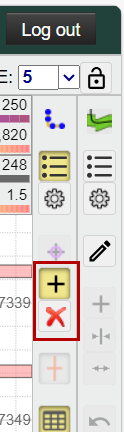
The "Edit Control Points" button allows you to add or edit Well Plan Modification points
The "Delete Control Point" button will delete the currently selected Well Plan Modification point
Well Plan Modification Line Report and Export:
ZoneVu auto creates a Well Plan Modification Line Report displaying all the information related to the currently displayed Well Plan Modification Line
To view this report, click the "Report" button in the left-hand button tree
This will open the Well Plan Modification Line Report
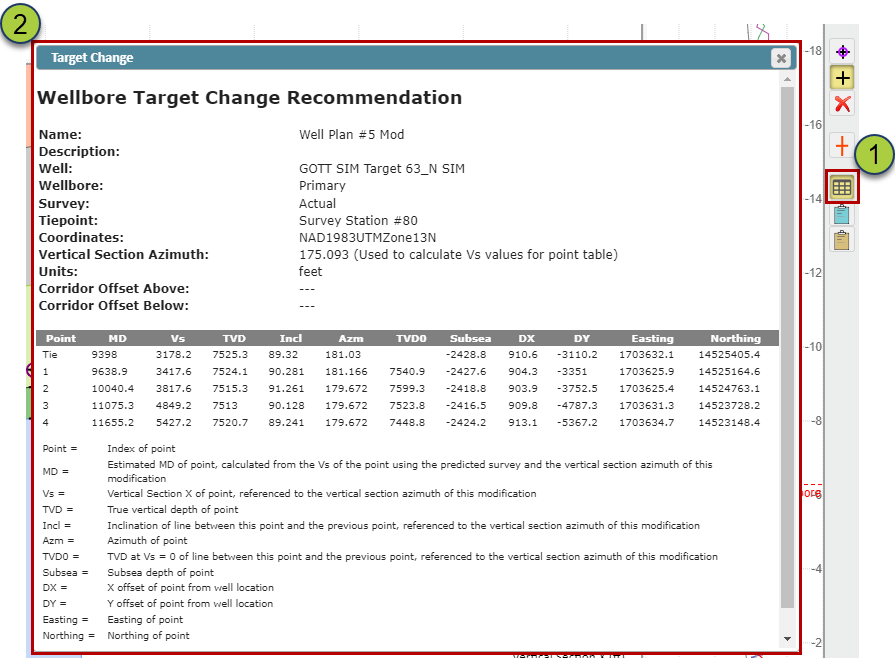
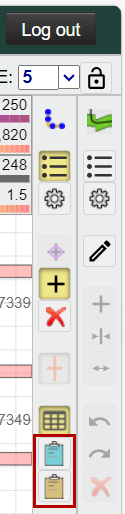
You can copy the entire Well Plan Modification Line report or just the Points Table by clicking either:
"Blue Clipboard" Button: Copies the entire Well Plan Modification Line Report to your computer's clipboard
"Yellow Clipboard" button: Copies just the Points table to your computer's clipboard