Note: Only Ubiterra Admins can give ZoneVu users admin rights.
Creating a New User:
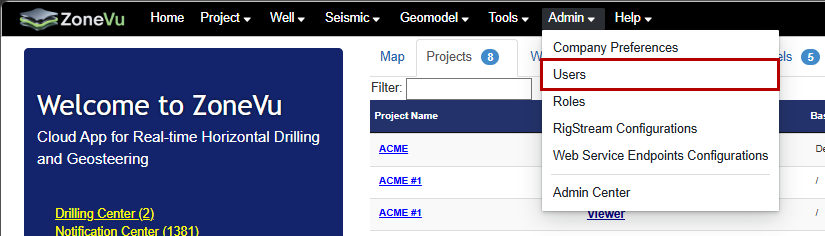
From the ZoneVu Home Page, select Users from the Admin menu
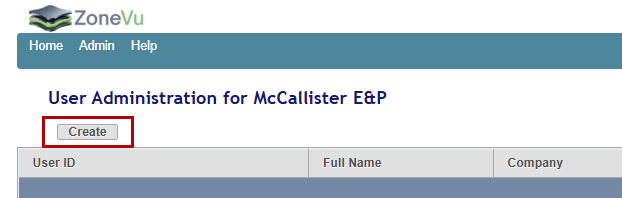
This will open up the list of users in your ZoneVu account, where you can edit or delete current users, or create a new user by selecting the 'Create' button.
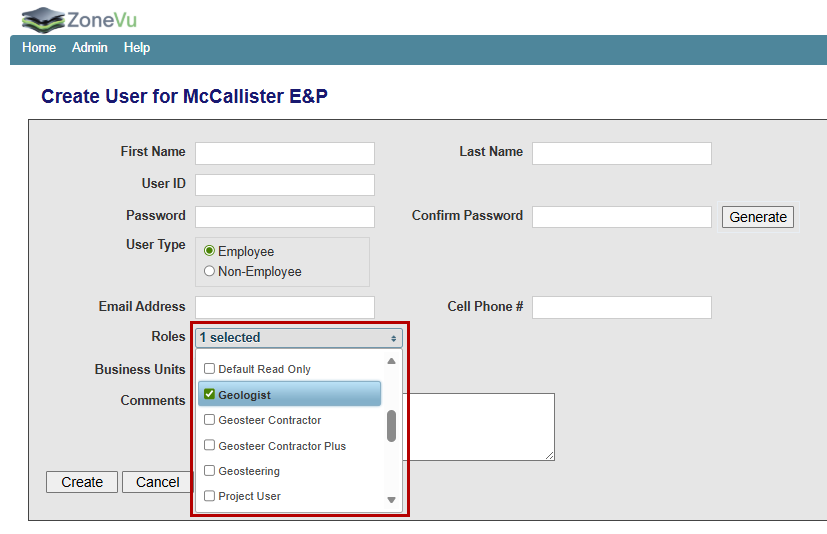
Fill in the required info:
First Name, Last Name, User ID, Password, Email Address
Select all required Roles
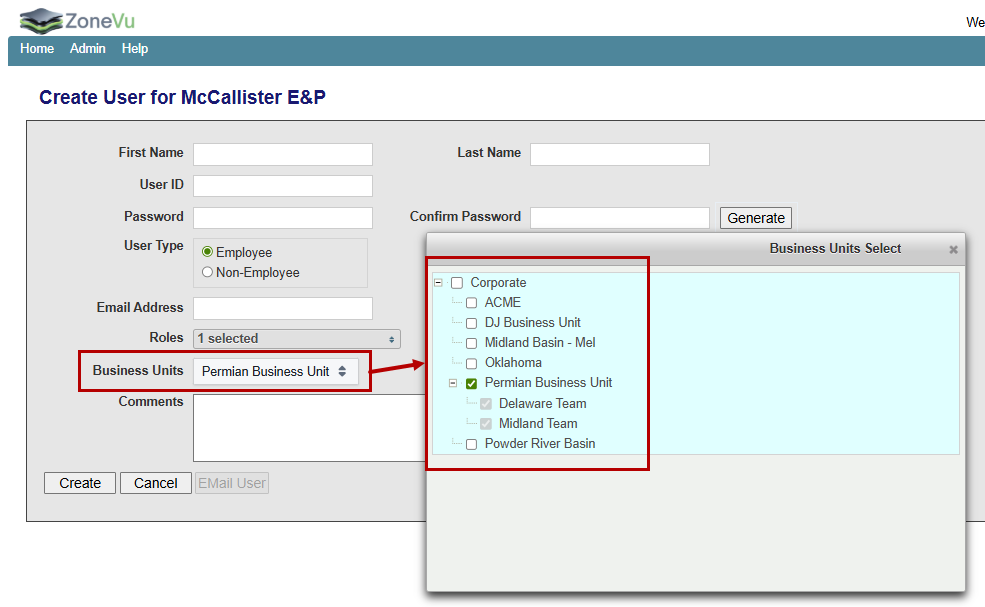
Assign the user to the appropriate Business Unit
Click 'Create'
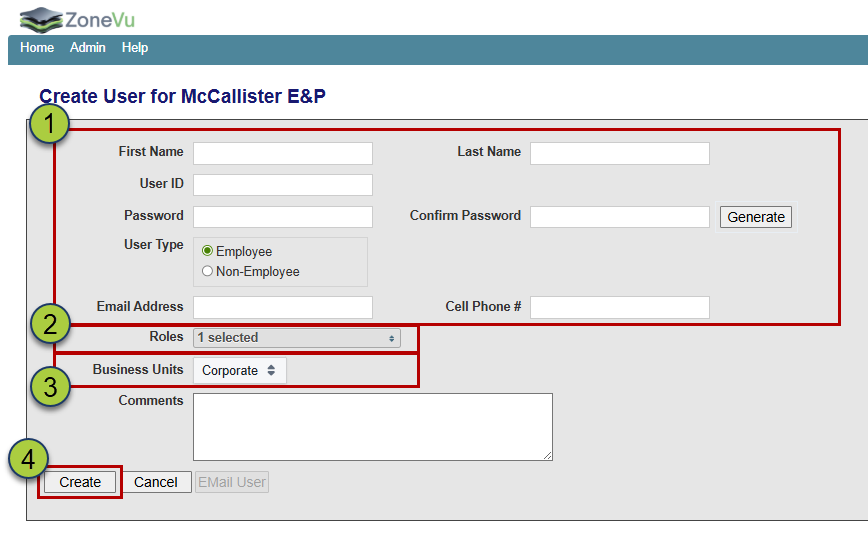
First Name & Last Name: Can be changed by the user or an Admin at any time
User ID: Cannot be changed once a user has been created
Password: You can auto-generate a password by clicking the 'Generate Button', which can be changed by the User at any time
User Type: Select if the User is an 'Employee' or not. This is just for record-keeping
Email Address: This can be changed by the user or an Admin at any time. Every ZoneVu User must have a unique email
Cell Phone #: Not required, can be changed by the user or an Admin at any time
Assigning the Required Roles to the User:
Choose one or more Roles depending on what rights the user needs
Note: You can see the list of Roles and their associated Rights under the 'Roles' option under the Admin menu (Rights and Roles Article & Creating new Roles)
To create a Viewer profile, assign that user the 'Read-Only' role and do not add any other roles
Assigning a user to a Business Unit Level:
You can assign the user as many Business Units as you need. If you assign them to the "Corporate" level, the user will have access to all data in your company's project.
If you assign the user to a "Business Unit" (BU) or Sub-Business Unit"(sBU), the user will have access to all data in the BU or sBU and all sBU's nested under the assigned level
For example, if you assign the user to the Permian BU, the user will only have access to data in the Permian BU, Delaware sBU, & Midland sBU. They will NOT have access to the data in the Corporate Level, DJ Business Unit BU, Powder River Basin BU, or Oklahoma BU
Helpful Articles: Creating a new BU
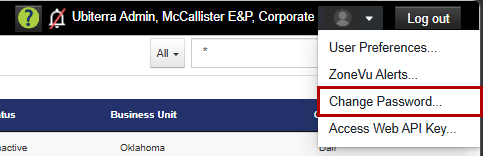
Once you have created a new user, please share their User ID and Password with them. Any user can change their password at any time by going to the User Icon in the upper-right corner of the screen and selecting User Preferences
We recommend all users change their password after they first log in.