

There are two ways to create a Well in ZoneVu. You can create a single Well from the "Wells" drop down, or you can bulk import one or more Wells. Please see your Bulk Importing Well Data article for more details. (How to Bulk Import Well Data).
Creating a Well in ZoneVu:
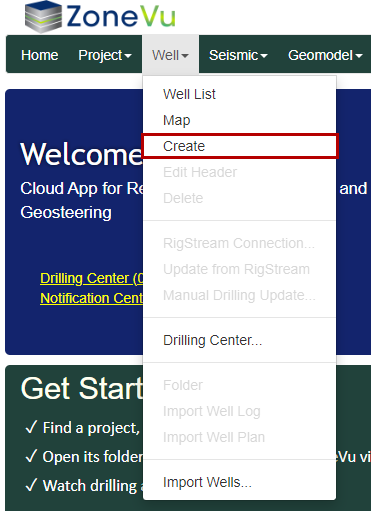
From the Home Page, under the “Well” dropdown select “Create” to open the “Create Well” pop-up
Fill out the required fields, marked with red “*”
The fields marked with a yellow “*” are suggested fields
Click the “Create” Button to create your new Well
Note: If you are in a Project Folder when you create a new Well, this Well will be automatically added to the Project
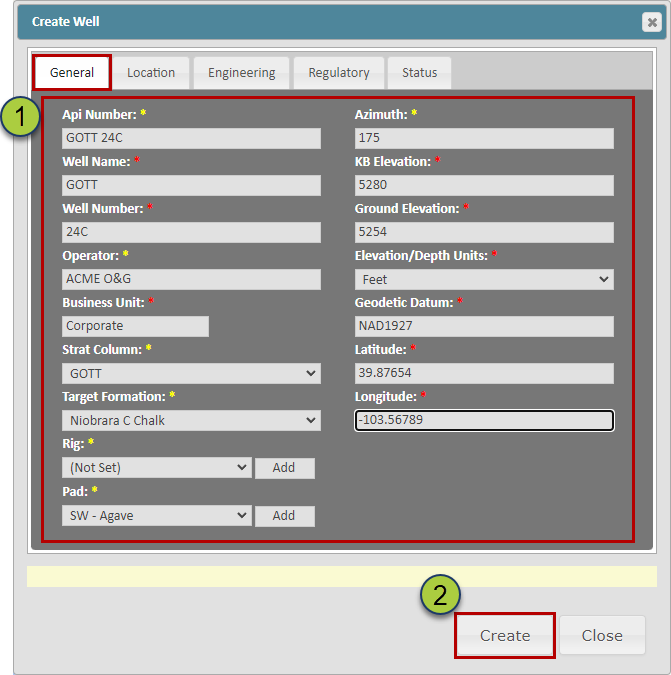
API Number: Must be unique in your ZoneVu Corporate Account. It does not have to be a true API number
Well Name & Number: Name Number pair must be unique in your ZoneVu Corporate Account
Operator: Allows you to sort the Well List by a specific Operator
Business Unit: Assign this Well to the appropriate Business Unit. ZoneVu will default to the Business Unit your user profile is assigned to
Strat Column dropdown: Choose which Strat Column to link this Well to
Target Formation dropdown: Choose the Target Formation from the list of formations from the assigned Strat Column. ZoneVu will link all Wells targeting the same formation and when a Geosteering Interpretation is created for this well. ZoneVu will auto-assign the Wells Target Formation as the Geologic Target for the Geosteering Interpretation
Rig dropdown: Allows you to sort the Well List by specific Rigs
Pad dropdown: Allows you to sort the Well List by a specific Pad
Azimuth: Used to calculate the Vertical Section footage. If no input is provided, ZoneVu will auto-calculate the Wellbore Azimuth from the Well Plan or Actual Deviation Survey set, whichever is longer.
Note: If the Wellbore Azimuth in ZoneVu does not match the Well Plan, the Vertical Section calculations in ZoneVu will differ from the Rig Data
KB & Ground Elevations: Only one elevation is required. If both KB and Ground Elevations are provided, ZoneVu will use the KB Elevation data
Geodetic Datum: ZoneVu supports all Coordinate systems for the Wellbore Surface Location. ZoneVu will convert all data into the Project Coordinate system when you enter the Project's Viewer
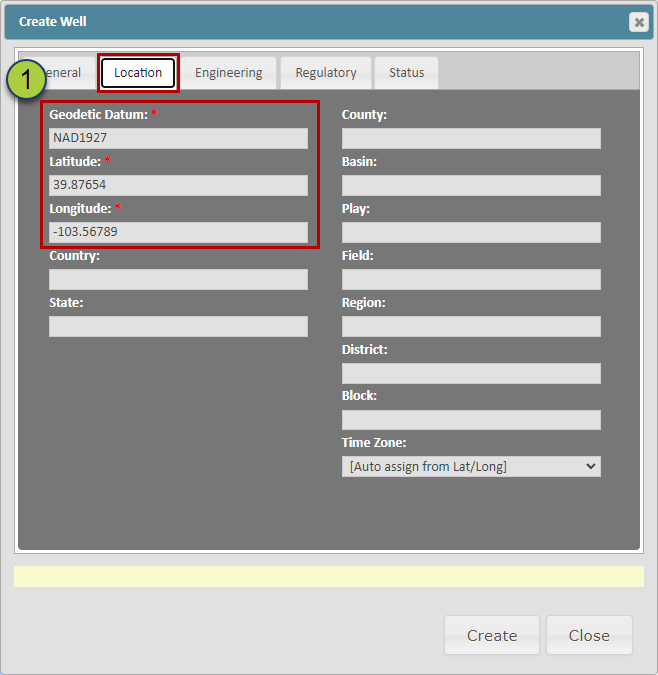
Location Tab:
This tab allows adding more detailed location information about the Well
The Geodetic Datum, Latitude, & Longitude information will be automatically updated with any information provided on the "General" tab
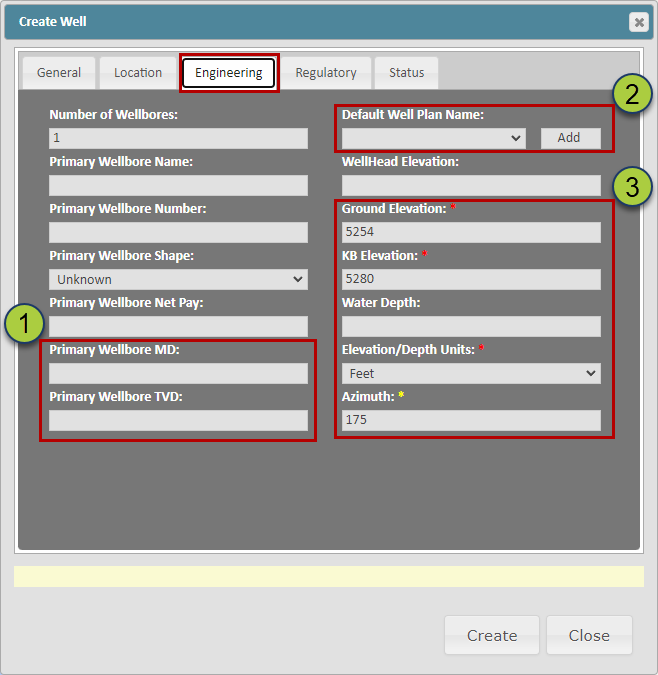
Engineering Tab:
This tab provides the option to add more detailed information about the engineering parameters of the Well
ZoneVu will automatically update the Primary Wellbore MD once Log or Deviation survey data has been added to the Well
The "Default Well Plan Name" dropdown allows you to define the "Active" Well Plan as well as creating a new Well Plan.
Please note you can create new Active Well Plans from the Deviation Survey Tab in the Well Folder and specify the Active Plan using a right-click option in the Viewer's Scene Control under the "Wells" tab
The Ground Elevation, KB Elevation, Water Depth, Elevation/Depth Units, & Azimuth will be automatically updated with any information provided on the "General" tab
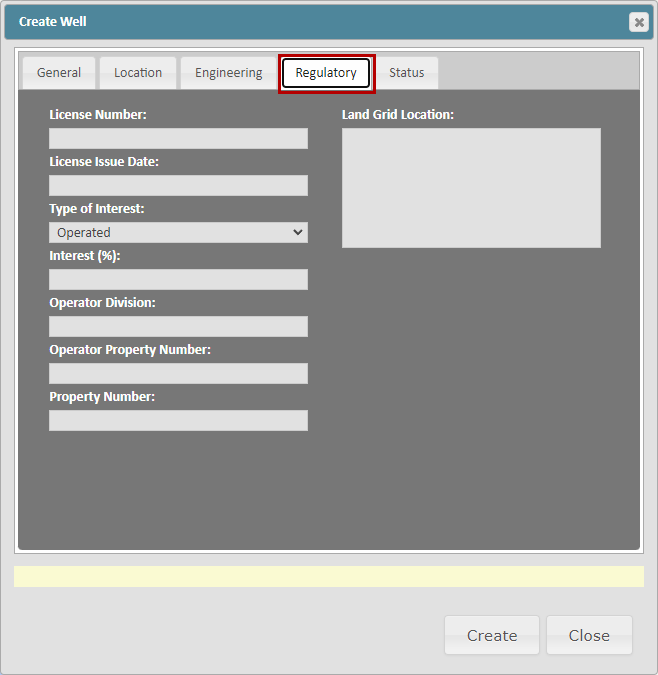
Regulatory Tab:
This tab provides the option to add more detailed information about the Regulatory parameters of the Well
Status Tab:
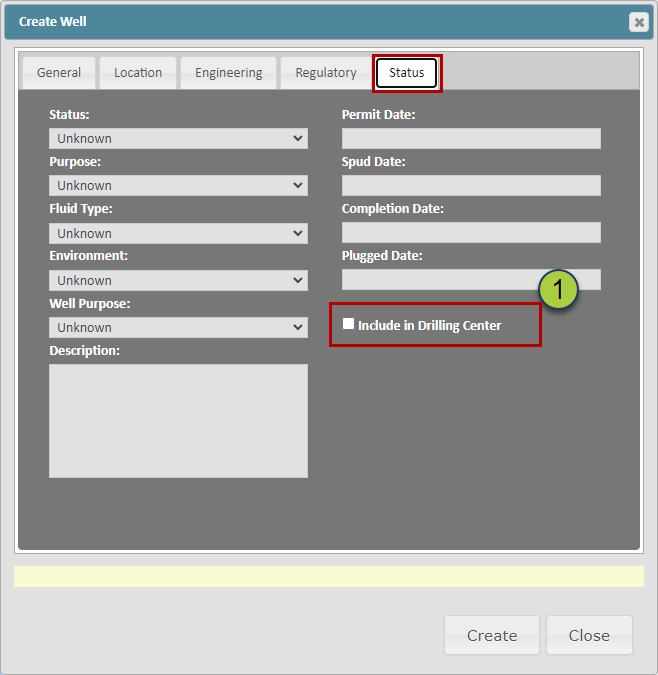
This tab provides the option to add more detailed information about the status, key dates, and a checkbox that will add this Well to the Drilling Center
If the "Include in Drilling Center" checkbox is checked, this Well will appear in the Drilling Center
Please note this checkbox is also loaded in the Viewer on the Manual Drilling Update Dialog box
Related Articles:
Loading Deviation Surveys (Plans & Actuals)