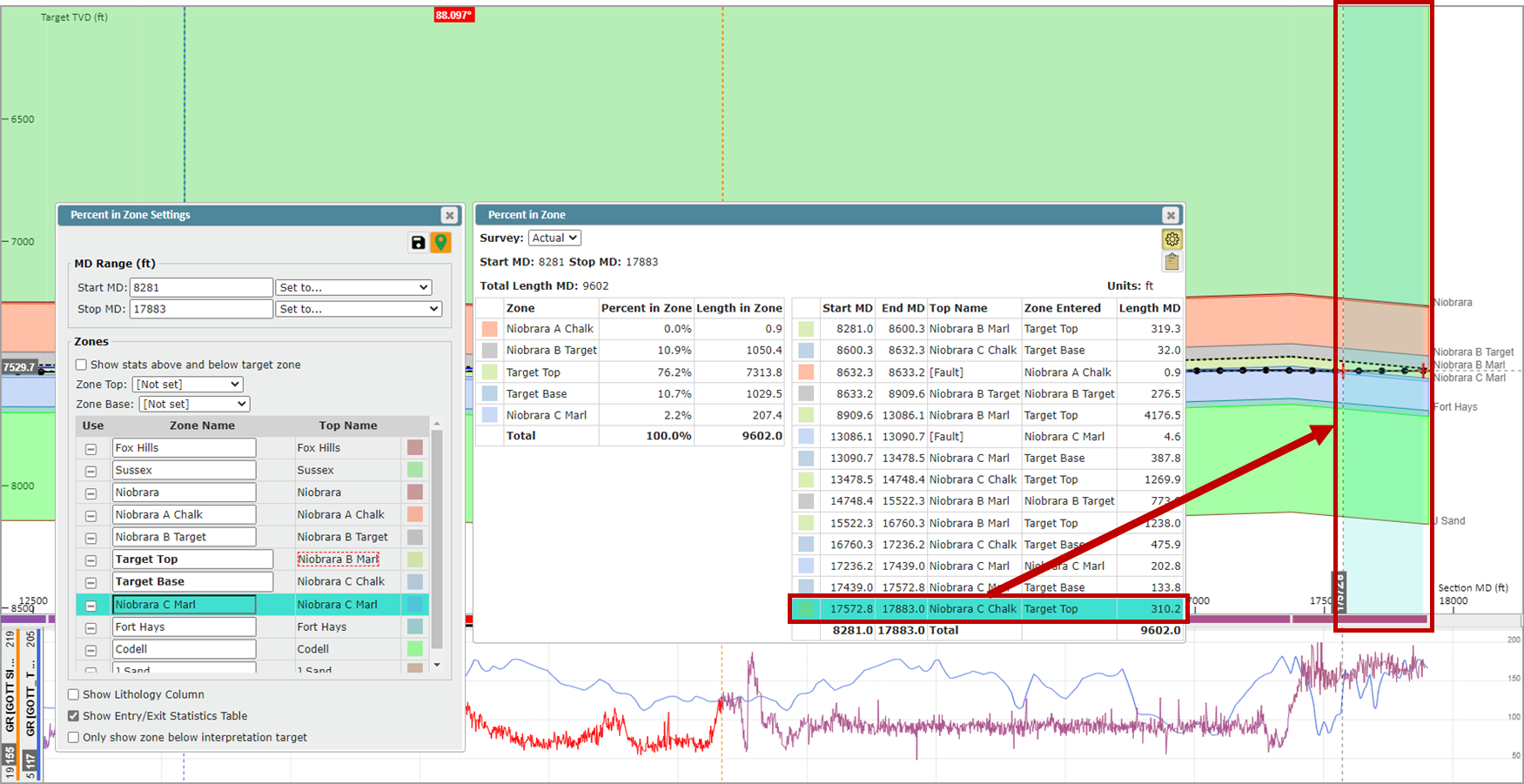
The Percent in Zone Calculator calculates the length and percentage of the wellbore in zones. Zones are defined from some or all of the Tops defined in the Geosteering Interpretation Settings. A zone is the space between two tops.
It's important to note that the Percent in Zone Calculator data is geosteering interpretation-specific.
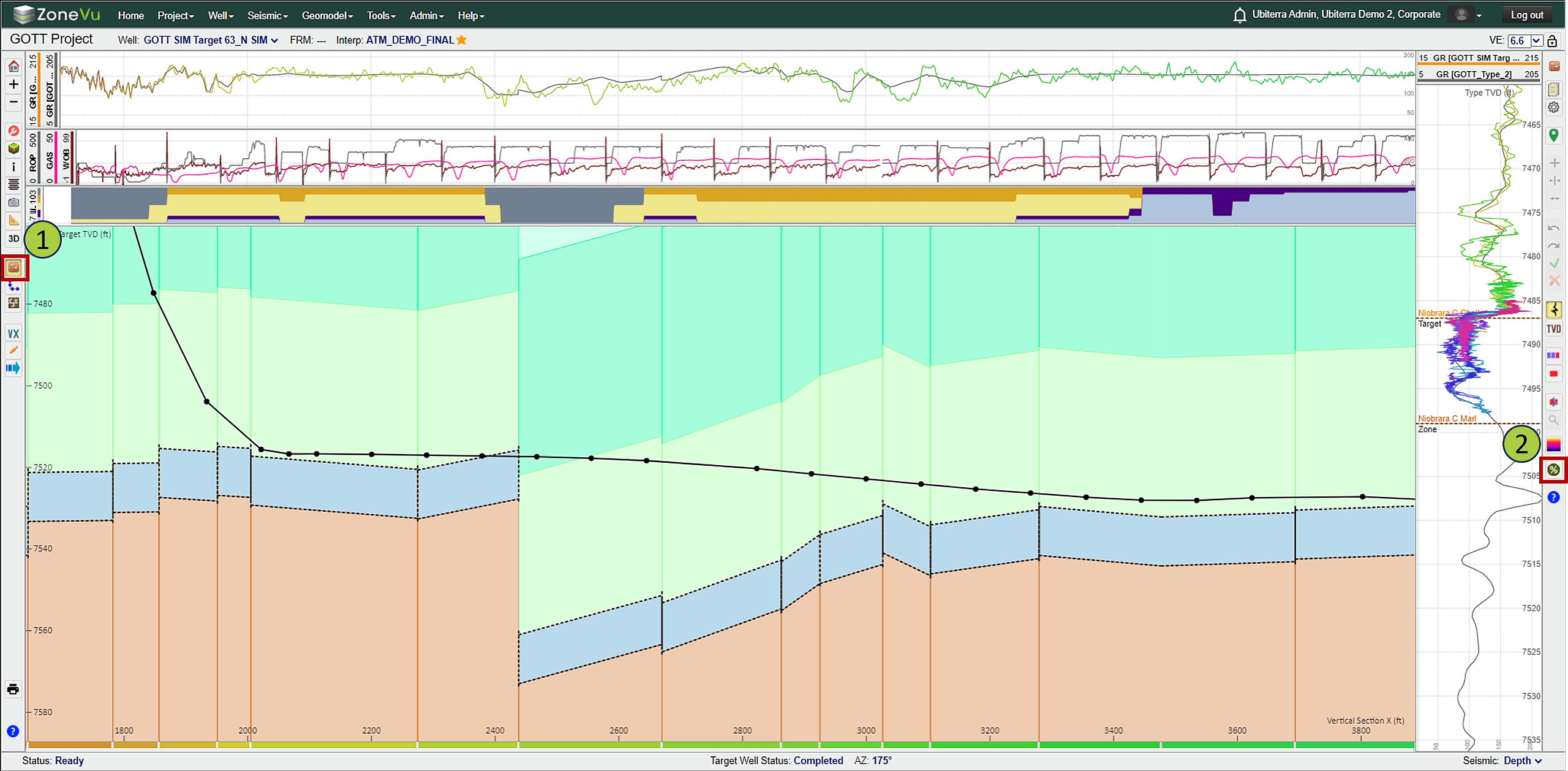
To open the Percent in Zone pop-up, activate the Geosteering Module
Then, select the Percent in Zone button on the right vertical button ribbon
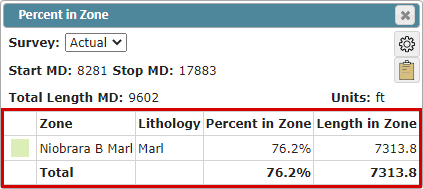
By default, the Percent in Zone pop-up will display the simplified view, showing data only for the Target Zone defined in the Geosteering Interpretation Settings
Survey: Choose which directional plan (Actual or Plan) is used to calculate the Percent in Zone
Start MD: Shallowest MD point
By default, ZoneVu uses the MD depth of the first survey with an inclination > 88°
The Start MD can be defined in the Percent in Zone Settings
Stop MD: Deepest MD point
By default, the Well's Toe MD depth is used (or current bit depth if the Well is actively drilling)
The Stop MD can be defined in the Percent in Zone Settings
Total Length MD: Total MD length defined by the Start MD and Stop MD
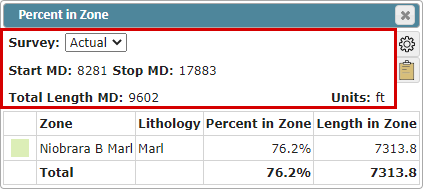
Units: Feet or Meters
The project units are used by default
Percent in Zone Data Table:
Top reference color: Fill color assigned to the specific Top, can be changed in the Geosteering Interpretation Settings under the Top tab
Zone:
By default, the Target defined in the Geosteering Interpretation Settings is used
The default zone is defined by the Geosteering Target and the next formation top
Lithology: The Lithology as defined in the Formation Info in the assigned Strat Column
Percent in Zone: The percent the wellbore is in the Zone within the defined MD range (Start MD to Stop MD)
Length in Zone: Total MD footage the wellbore is in the Zone within the defined MD range (Start MD to Stop MD)
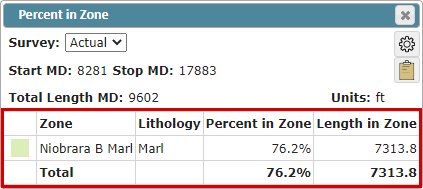
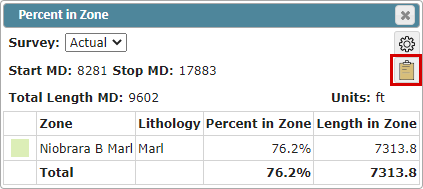
To export the Percent in Zone table, click the “Copy to Clipboard” button and paste the data into a Spreadsheet
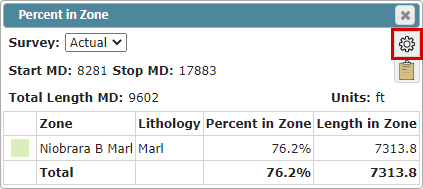
Select the "Cog" button to open the Percent in Zone Settings pop-up:
In the Percent in Zone Settings, you can access the Percent In Zone advanced functionality
Note:
You must have Edit Geosteering active to edit the Percent in Zone Settings. The Edit Geosteering button can be found in the Geosteering button tree on the right-hand side of the Viewer or in the upper-right corner of the Percent in Zone Settings pop-up.
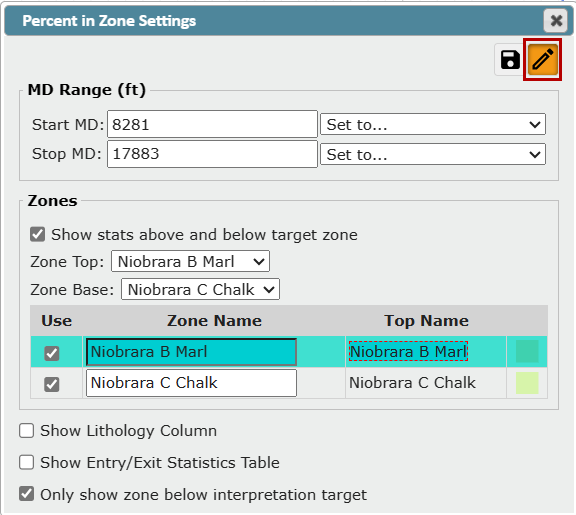
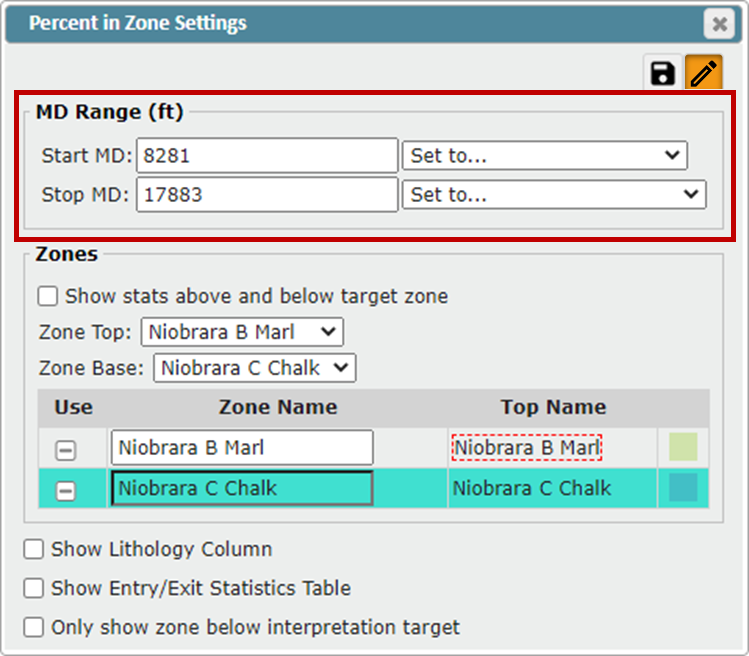
MD Range:
In the MD Range, you can define the Start MD and Stop MD depths, or use the drop-down list to select a pre-defined option
Start MD: Shallowest MD point
Interpretation Start: Start MD of the first Geosteering Block
Landing MD: Uses the MD depth of the first survey with an inclination > 88°
Stop MD: Deepest MD point
Interpretation End: Ending MD for the last Geosteering Block
Last Survey: MD depth of the last survey received
Zones:
In the Zones section, you can define the top and base of your Target Zone, what tops are available in the Zone List, and turn on Above/Below Stats
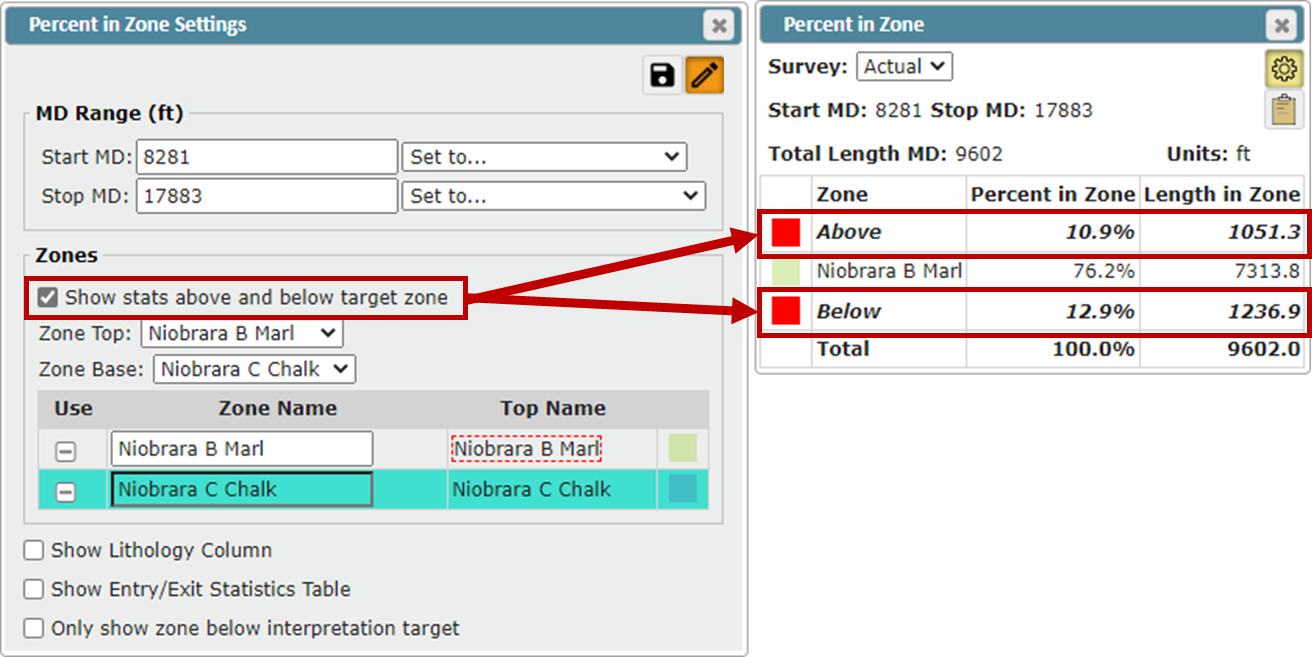
"Show stats above and below target zone" checkbox: If toggled on, stats for Above/Below the Target Zone will be displayed in the Percent in Zone Data Table
This will show the percentage and length MD that the wellbore is above and/or below the defined Target Zone
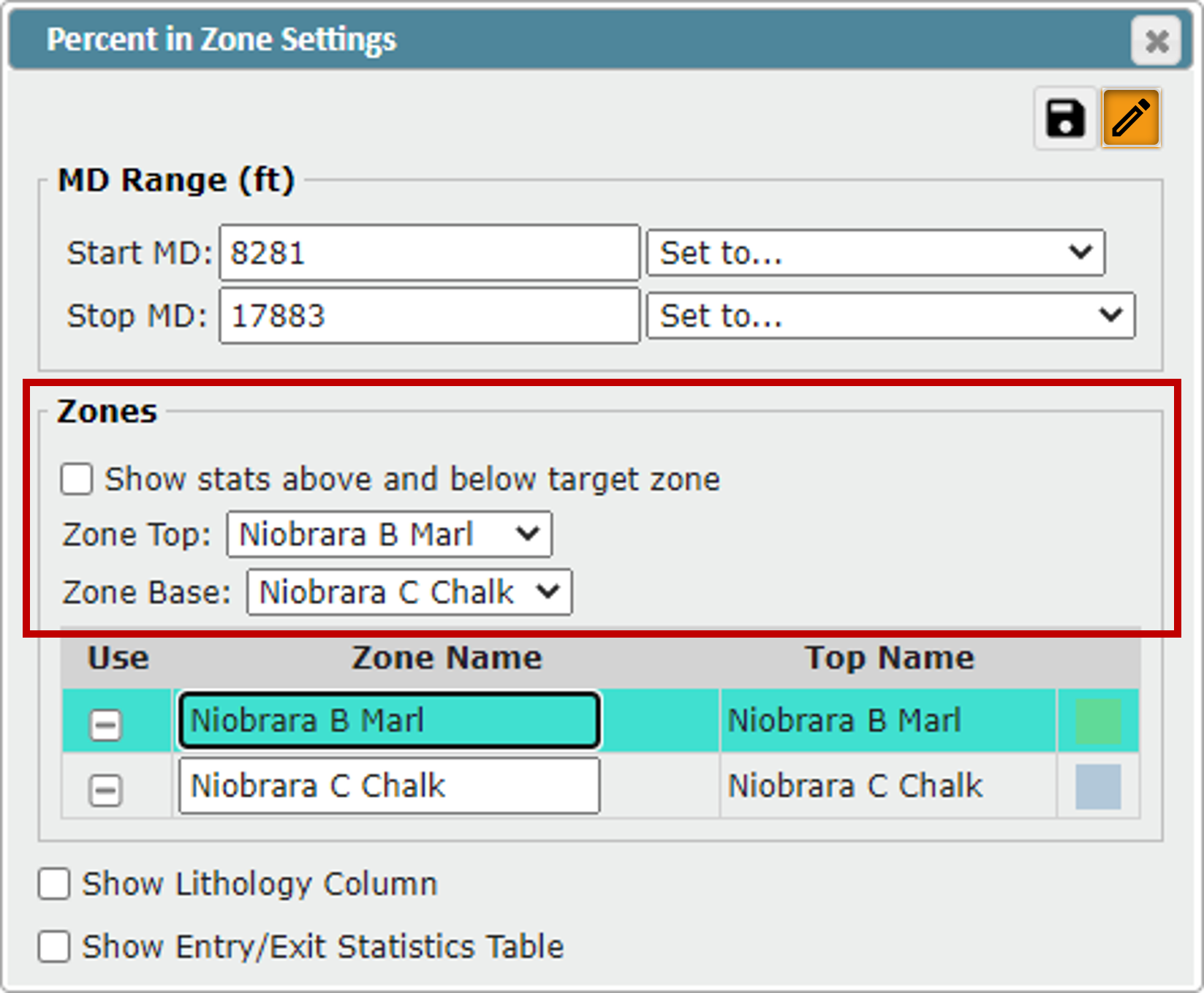
Zone Top: Here you can assign what Top represents the top of the Target Zone
By default, the Target defined in the Geosteering Interpretation Settings is used
All Tops below the Zone Top will also be displayed in the Zone List unless a Zone Base is defined, then no Tops below the Zone Base will be displayed in the Zone List
Zone Base: Here you can assign what Top represents the base of the Target Zone
By default, the top directly below the Target defined in the Geosteering Interpretation Settings is used
All Tops above the Zone Base will also be displayed in the Zone List unless a Zone Base is defined, then no Tops above the Zone Top will be displayed in the Zone List
Note:
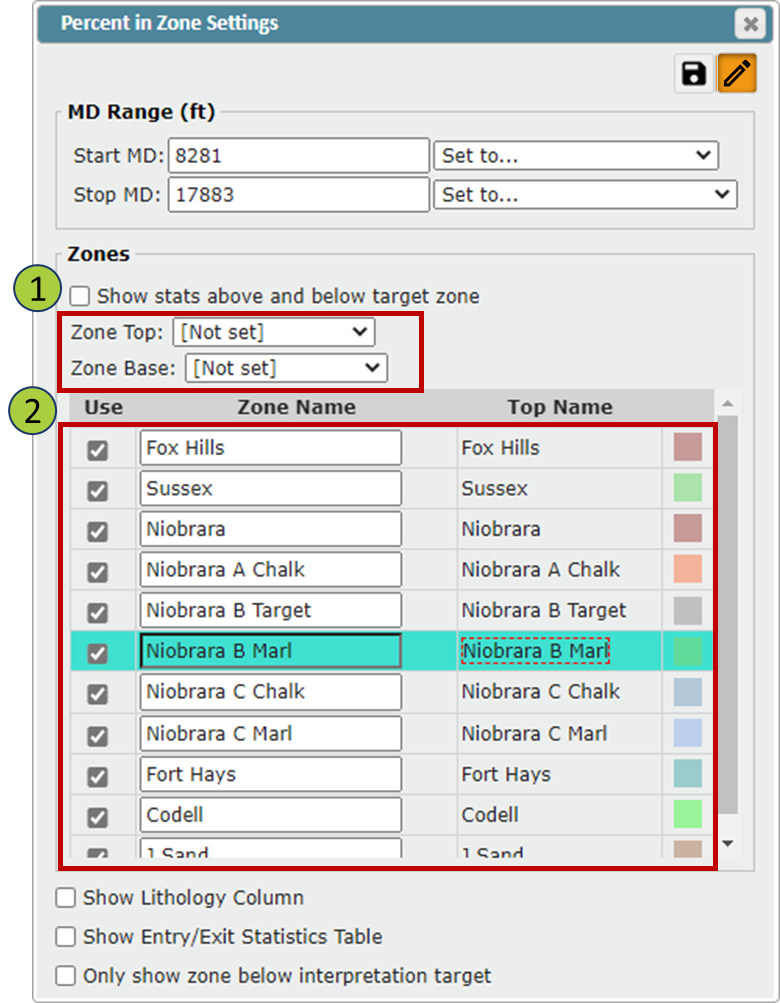
If no tops are assigned in the Zone Top and Zone Base dropdowns,
...then all tops turned on in the Geosteering Interpretation Settings will be displayed in the Zone List
Zone list:
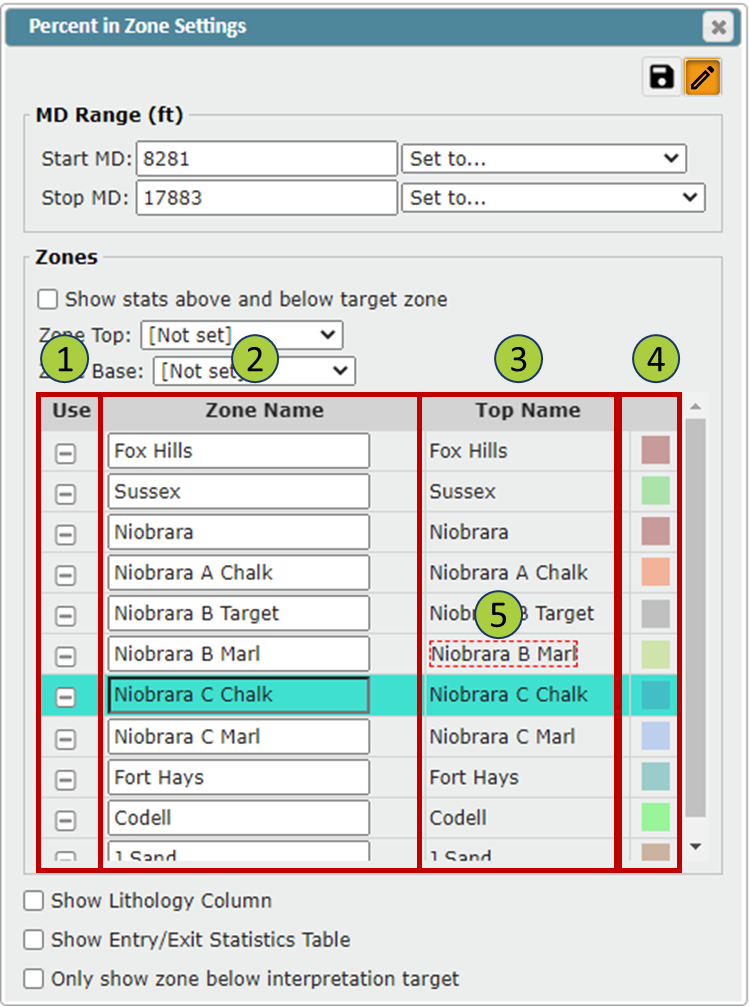
List of all tops that are available for display in the Percent in Zone Data Table
Use Checkbox: Toggle zones On/Off in the Percent in Zone Data Table
Zone Name: You can change the name displayed in the Percent in Zone Data Table by editing the name in the Zone Name Column
Note: This will not change the Top’s Name, just what is displayed in the Percent in Zone Data Table
Top Name: The original name for the top
The final column displays the designated color for each Top. This designated color can be changed in the Geosteering Interpretation Settings under the Top tab
A red-dashed rectangle will be used to denote the Top defined as the Target in the Geosteering Interpretation Settings
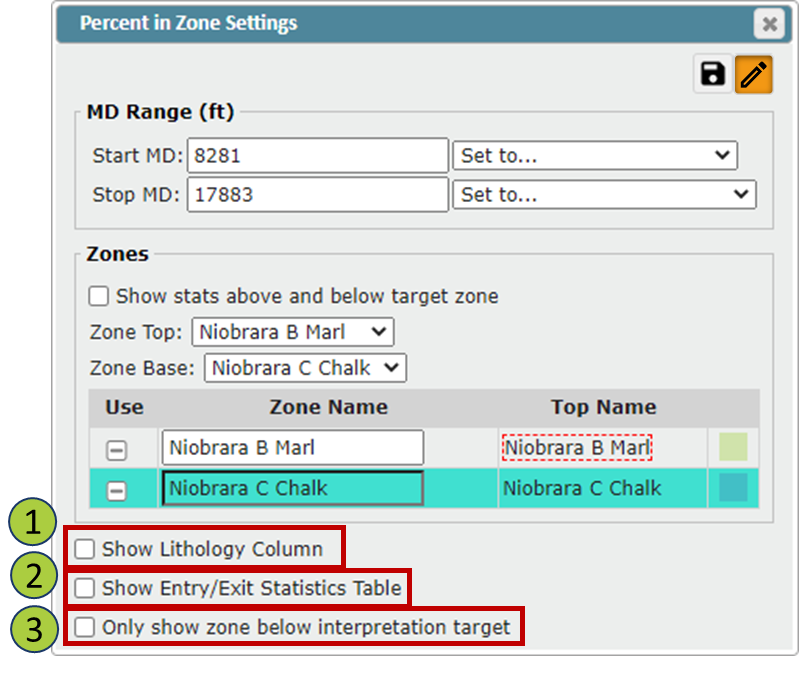
"Show Lithology Column" checkbox: Toggle the Lithology Column On/Off in the Percent in Zone Data Table
The Lithology information is taken from the Formation Info in the assigned Strat Column
If no Lithology information is present, the Lithology Column will be hidden by default
"Show Entry/Exit Statistics Table" checkbox: Toggle the Entry/Exit Statistics Table On/Off in the Percent in Zone Data Table
"Only show zone below Interpretation target" checkbox: This will set the Zone Top to the Target that's defined in the Geosteering Interpretation Settings and the Zone Base to the top below the Geosteering Target
Entry/Exit Statistics Table:
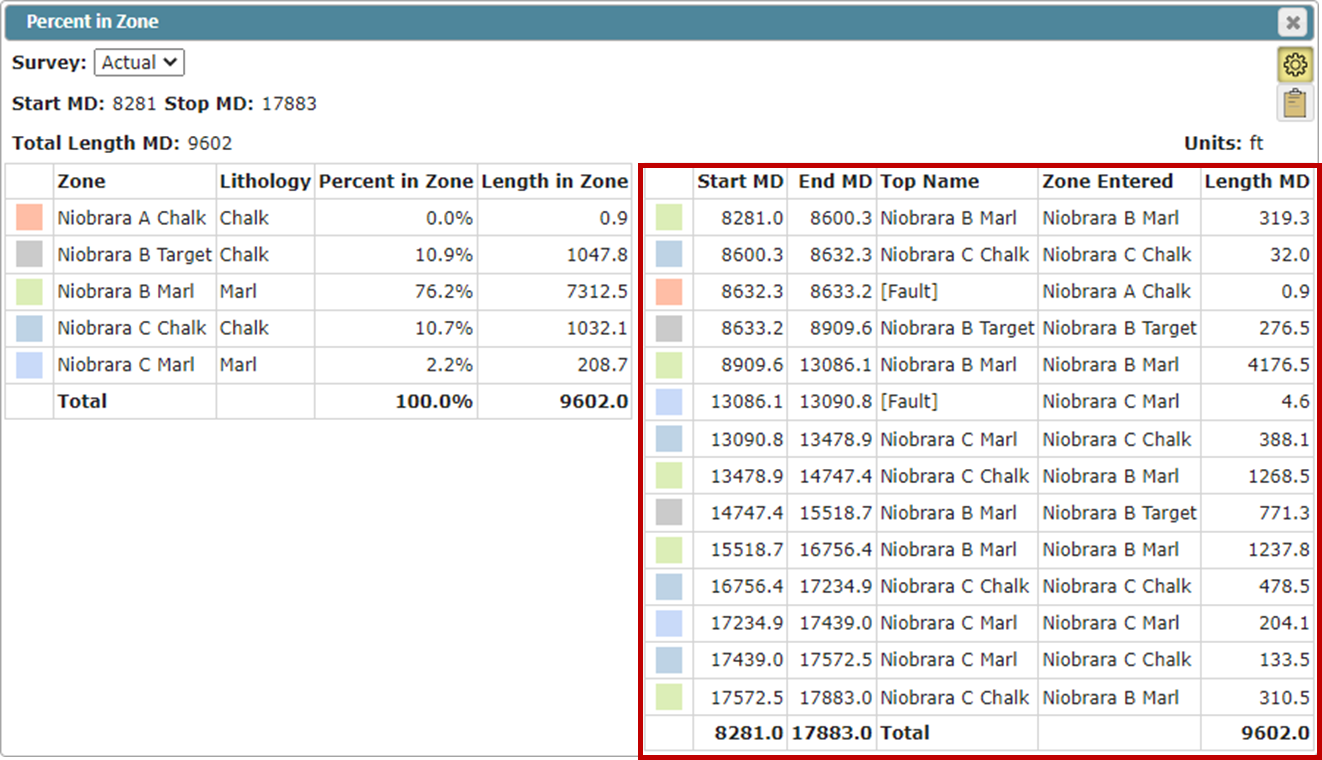
This table shows every time the wellbore enters and exits a formation within the defined Start MD and Stop MD depths
Start MD: MD depth where the wellbore enters the zone
End MD: MD depth where the wellbore exits the zone
Top Name: Name of the top the wellbore intersected to enter the zone
If the wellbore intersects a fault to enter the zone, the Top Name will be "[Fault]"
Zone Entered: Name of the zone the wellbore enters at the Start MD
If the Zone Name has been changed in the Percent in Zone Settings this updated name will appear in the table
Length MD: Total MD of the wellbore inside the Zone (Start MD to End MD)
Note:
When you hover/select over a row in the Entry/Exit Statistics Table, that section of the cross-section will be highlighted in blue