

Key Updated Features:
Target Line Tool: (NEW)
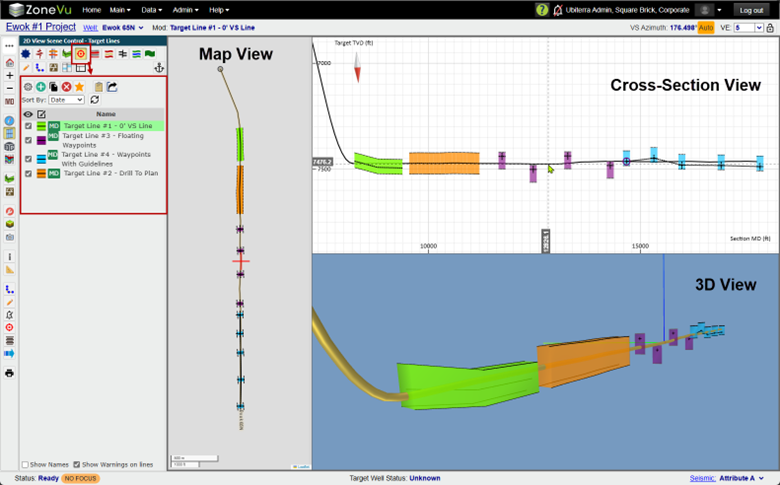
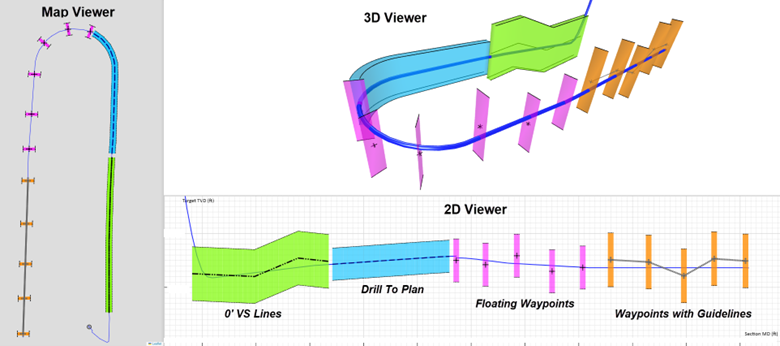
The new Target Line tool will allow users to create 4 specific Target Lines (0’ VS Lines, Drill to Plan, Floating Waypoints, and Floating Waypoints with Guidelines). Each of these Target Lines can be drawn on the Cross-Section and/or created in a table, with the ability to customize the Line and Drilling Window styling.
4 Specific Target Line Types
Customized Line and Drilling Window Styling
Controlled from Scene Control
Can be displayed in 2D, 3D, and the Map Viewer
Can be created in MD and VS Space
Support for U-Turn Wells in VS & MD!
Wellbore Modification Tool: (UPGRADED)
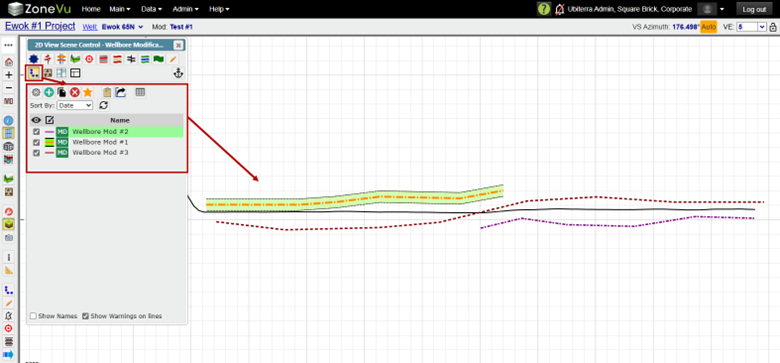
The Wellbore Modification Tool has been upgraded to allow greater customization and styling while improving usability.
Customize Wellbore Mod Line style
Customize Wellbore Mod Drilling Window style
Added a sorting option: Name, Date, or Creation
Added a ‘Star’ button
Added a ‘Copy’ button
Added a ‘Copy To Clipboard’ and ‘Export’ buttons
Define Right/Left on Drilling Windows
Can now change a Wellbore Mod’s associated Survey after creation
Can now change a Wellbore Mod from ‘Free Floating’ to ‘Survey Point’ after creation
Can now multi-select Wellbore Mods in the list
Wellbore Mods can now be created solely from the Points table (no longer require the creation of points on the Cross-Section to edit them in the Points table)
Enhanced Wellbore Mod to better support U-Turn Wells
Wellbore Mods can be displayed in the 3D and Map Viewers
Removed the Wellbore Mod Button tree and moved all functionality into Scene Control
By default, Wellbore Mods will only display in the horizontal scale (MD/VS) they are drawn in (released mid-build cycle)
Curve Mnemonic Auto-Assignment Tool: (New)
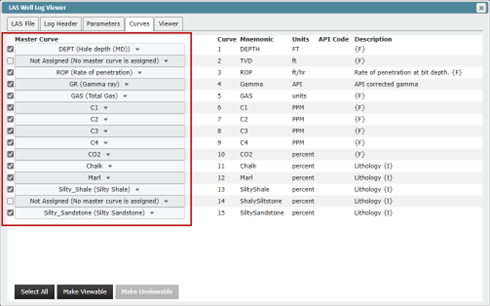
While registering an LAS file, ZoneVu will now auto-assign master mnemonics. We have also expanded our Mnemonic list to include more drilling, geosteering, mudlogs, XRD, and XRF logs (176 in total). We have also upgraded our curve list and Curve Registration GUI.
Well Copy: (NEW)
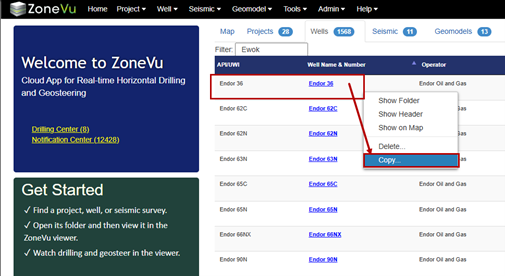
You can now right-click on a Well in the Well List and make an exact copy of it.
Dropdown Menus: (UPGRADED)
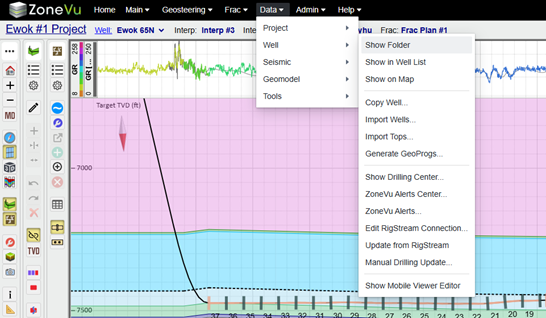
We have upgraded our dropdown menu system to support flyouts and added several new dropdown options and menu items.
Added new main menus
Support nested menus
Main, Geosteering, Frac, & Data
Numerous menu options have been added
Color changed to black
Added option to access the Mobile Viewer Editor
Knowledgebase Widget: (NEW)
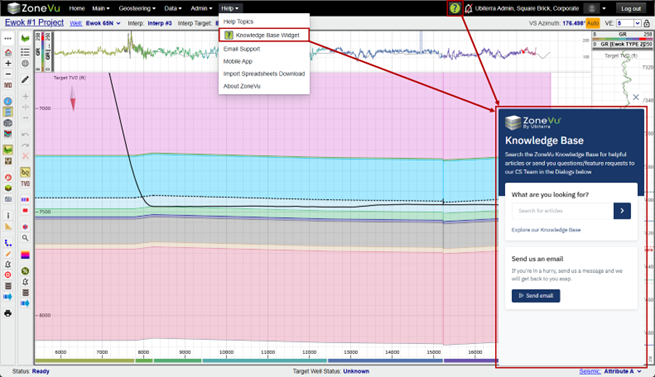
We have added the ZoneVu Knowledge Base Widget. Allowing you to access every article in our Knowledgebase and send out support team an email, all without leaving ZoneVu.
Dynamic Button Trees: (New)
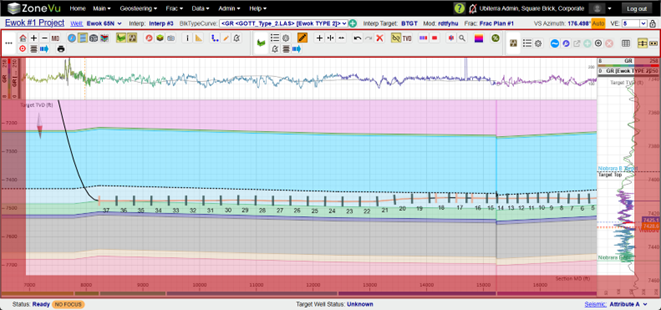
Button trees can be placed on all 4 sides of the Viewer (Top, Bottom, Right, Left) and stacked together or in separate rows/columns. Also, the Button Trees will now wrap when necessary.
ZoneVu Frac: (UPGRADED)
Full support for Metric units – Display, Import, & Export
Units’ selection dropdowns added to Frac Import and export dialogs
Import options upgraded and fixed
Water/Length column is now supported for import
Added Frac Copy button
Stage Table – GUI upgraded
Stage Table - Prop/Ft column is not editable
Stage Table - Renamed "ProppantWeight" column to "ProppantWeightPerLength"
Stage Table - GUI update
Stage Table – Treatment Detail & User Defined Columns sections checked on by default
Stage Table – Improved auto decimal digit selection
Frac Export dialog has been simplified
Clusters Columns is no longer editable
Better auto decimal selection
Updated Frac Import Spreadsheet (Attached)
New Styling
New Columns: ProppantPerLength & WaterPerLength
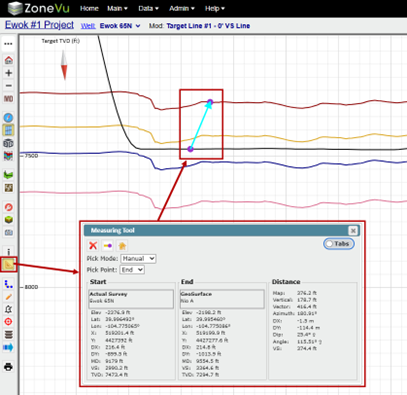
Measuring Tool: (UPGRADED)
GUI updated
Auto-transitions between points
Can display both points and distances section at the same time
Better object snapping
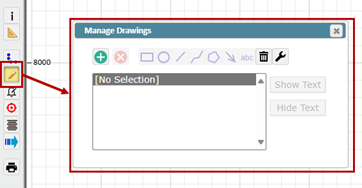
Drawing Tool: (UPGRADED)
GUI updated
API: (UPGRADED)
New supported dataset
Seismic Faults
Seismic Horizons
Survey Header Data
Python SDK: (UPGRADED)
SDK is now 2.0.2
Requirements downgraded to support Python 3.10
Example scripts have been moved into their own package
Now support Seismic Fault, Horizons, and Survey Header data
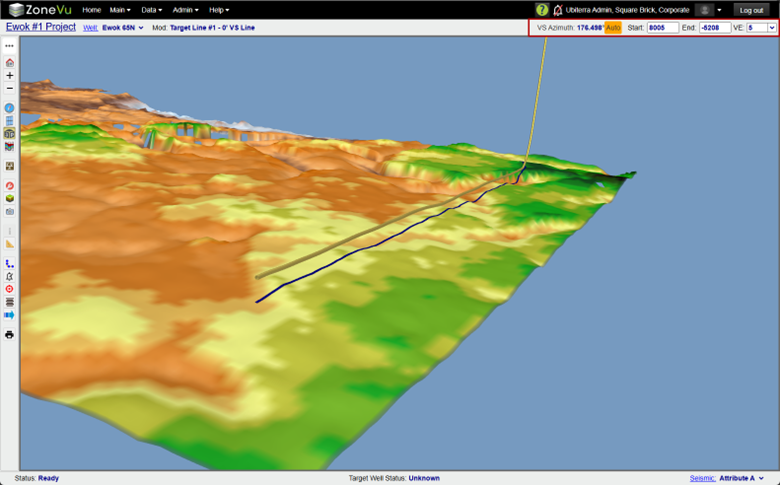
3D Viewer VE and Elevation Controls: (NEW)
The Vertical Exaggeration and Elevation controls have been added to the upper right corner of the 3D Viewer
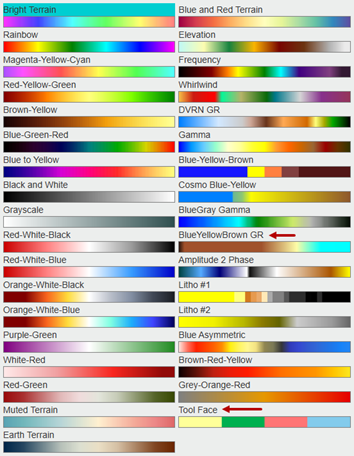
Color Tables: (UPDATED)
2 new Color tables
Tool Face & BlueYellowBrown GR
Litho Textures: (UPDATED)
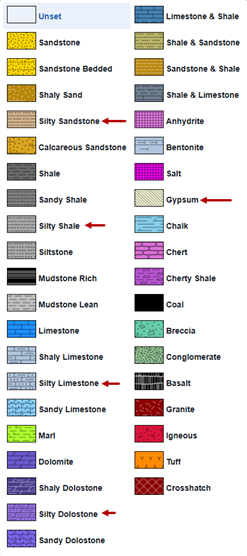
5 new Litho Textures are now supported
Gypsum, Silty Sandstone, Silty Shale, Silty Limestone, Silty Dolomite
Geosteering: (UPDATED)
Add ‘Import’, ‘Export’, & ‘Edit Mode’ buttons to the Geosteering Interpretation Settings dialog
Geosteering list can be sorted by: Name, Date, or Creation
Can now select a Geosteering block with a single-click (instead of a double-click)
Have 'Export all Displayed Tops" and "Export all Displayed Logs" checked on by default in the Geosteering Export dialog
Option to select the left or right block when a Geosteering Block is broken added to the Geosteering tab of Scene Control
Better support for Wellbore Mods on U-Turn Wells
Grey Cursor Tracking Lines can be turned off in Display Settings under the 2D Scene Tab
The last Geosteering Block is selected by default when no other blocks are currently selected
Scene Snapshot Tool: (released mid-build cycle)
New Load Type added: Partial – Well
Added sorting feature: Name, Date, or Creation
Redesigned Snapshot dialog to improve usability
Snapshot URL now honors Load Type settings
When loading a Snapshot from a URL, users are presented a dialog allowing them to choose what Load Type they want to use and backup their current Snapshot
Metric Units: (UPDATED)
Metric Units are now formally supported across the system
All dialogs honor the Units setting found in the General tab of Display Settings
Home Pages now honor the units settings, specified in the Header dialog(s)
Minor Updates:
3D Viewer: Background color can be changed to White in Display Settings on the 3D Scene tab
Curve Histograms: LAS Exported added to Curve Histograms (released mid-build cycle)
Correlation Panel: Pressing ‘Enter’ will select OK on the Delete Top dialog
Composite Logs: Shifting Image Logs
Correlation Panel: Added ‘Select Wells’ button when the Correlation Panel is blank
Correlation Panel: Added ‘Add Interpretation Wells’ to the Correlation Panel tab in the Map Viewer’s Scene Control and the Well tab of the Correlation Panel’s Scene Control
Correlation Panel: You can now hit ‘ENTER’ to confirm a Top deletion
Drilling Center: Filtering Option has been added
Geomodels: Added an option to flip the sign of the ‘Z’ Values (released mid-build cycle)
LAS Data: Export honors the tab units
Layout Tool: Can drag Viewer Buttons from the Main Button Tree and drop them onto the Viewer
Map Viewer: Improved map panning and navigation with the mouse
Map Viewer: Add 'Zoom to Active Target Well' right-click menu
Map Viewer: Show correlation Panel line checked off by default
Performance Upgrade: Increased speed for displaying Top data in the 3D Viewer
Performance Upgrade: Increased Project loading speed, especially for larger Projects
Performance Upgrade: Improved Folder loading time on the Home Pages
Performance Upgrade: Increased speed for ‘Show All’ & ‘Hide All’ formations
Project Folder: Create Project Dialog - Coordinate System settings duplicated on the 'General' tab
Report Generator: Added ‘ALT+R’ as the hotkey
Report Generator: Added ‘Move Page Up/Down’ buttons (released mid-build cycle)
Right-Click Menus: Numerous right-click menu items added
RigStream: Added Curve List Refresh button
RigStream: Add right-click ‘Edit RigStream Log’ option
Scene Control: Automatically transitions when a new Viewer is selected
Scene Control: Added hyperlink to Seismic Horizons and Fault tabs
Scene Control: Geosteering Interpretation List is not auto-updating when a new Geo Interp is created
Seismic: Horizon Importer remembers column settings until tab refresh
Top Importing: Users can now specify Geoprog Tops using the importer
Viewer: Refresh List button has been added to the Geo Interp, Frac, and Wellbore Mod lists
Viewer: Geo Interp, Frac, and Wellbore Mod List automatically update when a new object has been created by another user
Viewer: Renamed ‘Geosteering Interpretation Management’ dialog to ‘Geosteering Interpretations’
Viewer: Toast Notification GUI has been updated and a Close button has been added
Viewer: improved touchscreen performance
Bug Fixes:
2D Viewer: Vertical Log Track jumping around when other Geosteering Bocks are selected (released mid-build cycle)
2D Viewer: Creation of random unused Log Tracks (released mid-build cycle)
2D Viewer: Plans misdrawn in MD mode
3D Viewer: Log Curve Selection bug
Curve Histograms: Too many decimals in LAS (released mid-build cycle)
Geomodels: Min/Max values getting blown out
Geomodels: Zones not recalculating correctly when grid data is updated
Geosteering: Geosteering in a Shared Project is causing a display lag (released mid-build cycle)
Geosteering: Dialog displaying off-screen
Geosteering: Geosteering List dialog displaying off-screen
LAS Loading: Error thrown when the date is out of range (released mid-build cycle)
Measure Tool: displaying off screen
Report Generator: Grids are not displaying in the Map Viewer (released mid-build cycle)
Report Generator: Map Viewer is jumping around when resizing Widgets (released mid-build cycle)
Report Generator: The wrong geosteering block is getting selected (released mid-build cycle)
RigStream: Mast Curve Mnemonics cannot be unassigned
Scene Control: 3D Viewer Logs tab - Select Star/LWD/LAS log curves selection is not getting auto-applied
Snapshot: Show Empty Tracks Checkbox State is not saved
Survey Data: Importing Surveys with Delta-X/Delta-Y causes the system to ignore the azimuth reference convergence angle
Top Data: Depth inputs restricting the use of ‘.’
Viewers: Top data not displaying on the Plan they were created on
Viewer: Plans are turning back on when switching between Wells
ZoneVu Frac: Stage Table cells cannot be Nulled out
ZoneVu Frac: Export column ordering does not match the import spreadsheet