

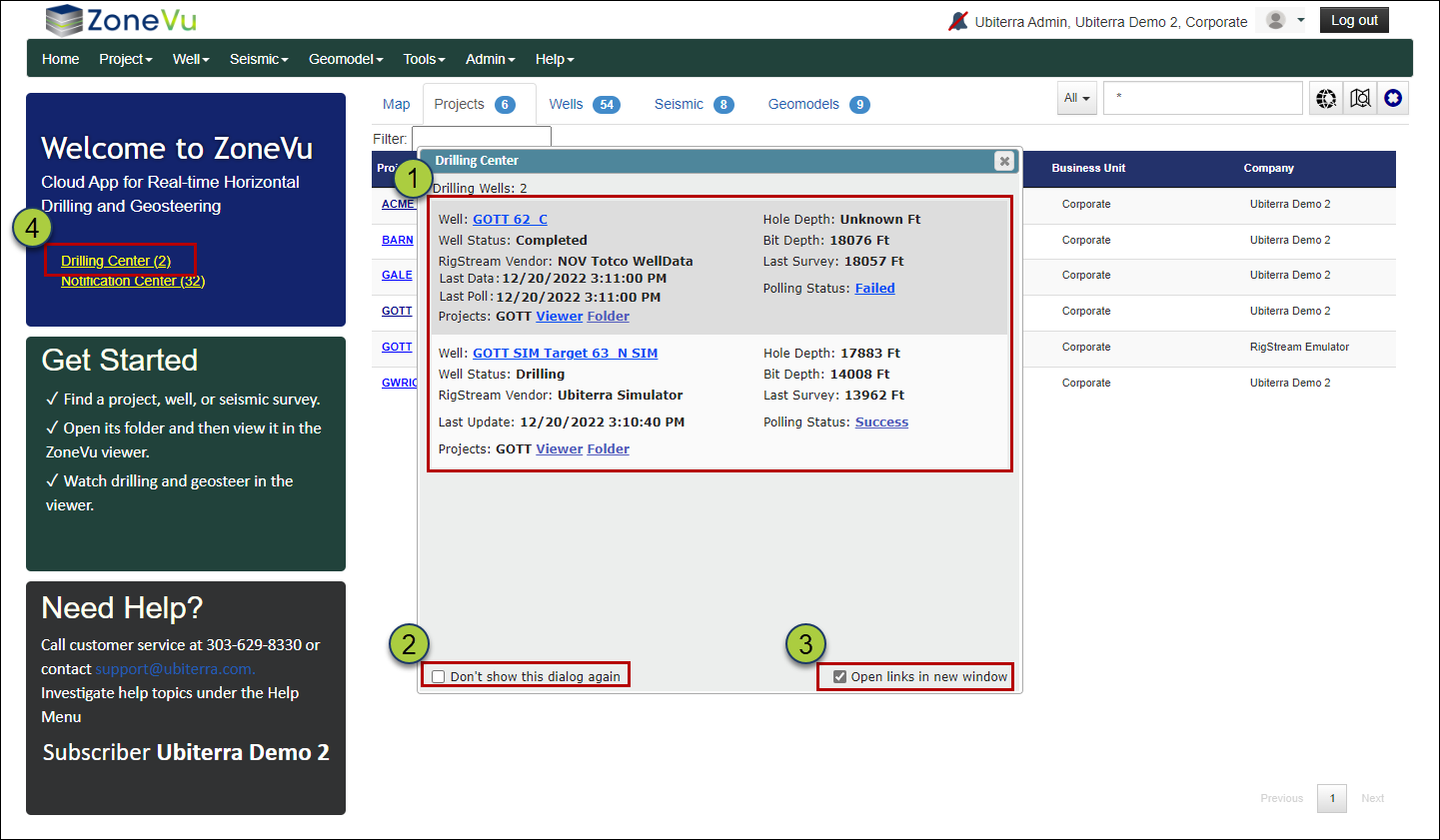
ZoneVu will display Wells actively pulling data from RigStream. Also, you can manually set a Well as active in the Drilling Center. This allows the Drilling Center to provide you with a quick list of all currently drilling Wells and quick access to the related Well Folders, Project Folders, and Viewers.
Drilling Center:
Each Well lists the current Well Status from RigStream, RigStream Vendor (Data Provider), Last Data, Last Poll, Hole Depth, Bit Depth, Last Survey, Polling Status, and hyperlinks to the Well Folder, the Viewer, the Project Folder, and the Polling Status (RigStream Activity Log).
A checkbox to hide the Drilling Center
A checkbox to open the hyperlinks in a separate browser tab
If you have closed the Drilling Center, you can reopen it by clicking the "Drilling Center" button on the left-hand side of the screen
Manually Add a Well to the Drilling Center:
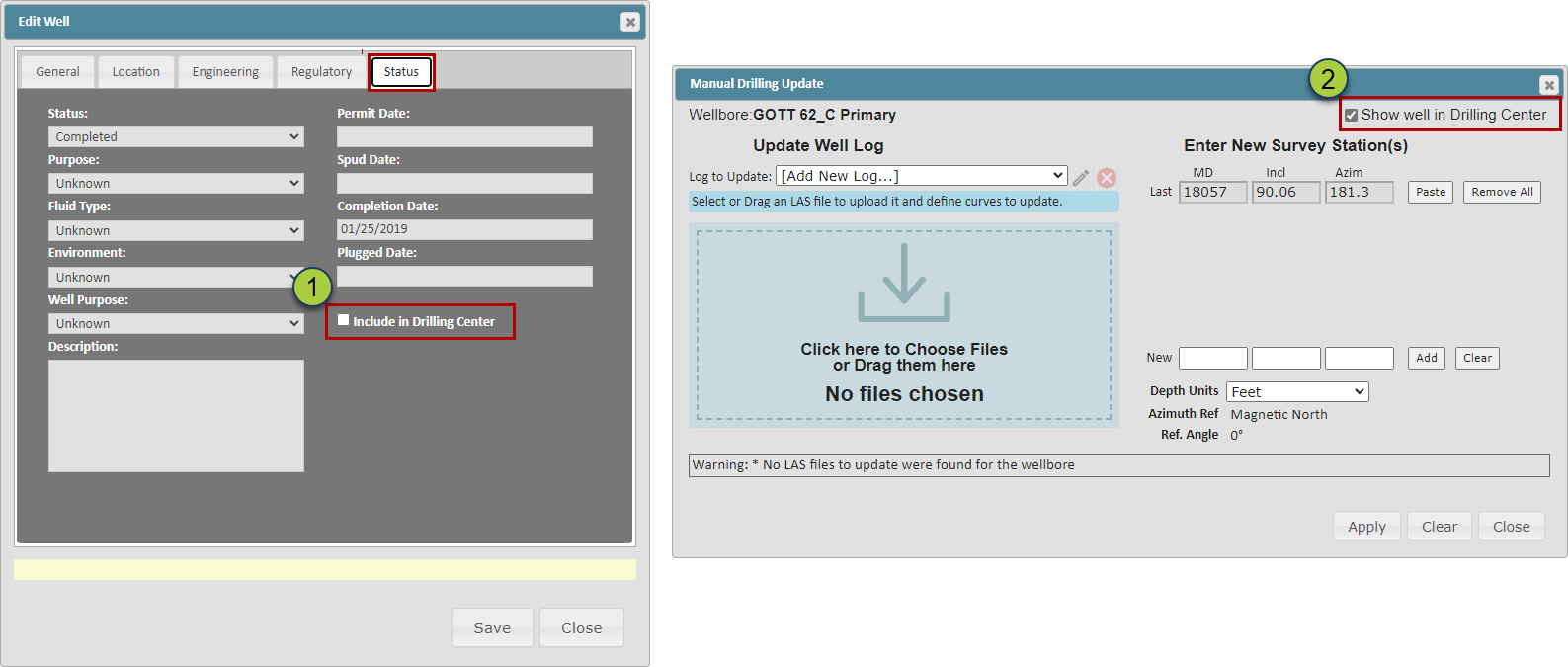
There are two places you can manually add a Well to the Drilling Center by checking the "Include in Drilling Center" checkbox
In the Well Header on the "Status" tab
In the Manual Drilling Updates dialog box in the Viewer
Removing Wells from the Drilling Center:
If the Well is connected up to RigStream, the Well will be automatically removed from the Drilling Center when RigStream receives a "Completed" Well Status from the EDR provider or if RigStream has not received new data for three consecutive days
If the Well has been manually added to the Drilling Center or you want to remove a well connected up to RigStream, you must uncheck the "Show well in Drilling Center" checkbox in either the "Status" tab in the Well header or the Manual Drilling Update dialog box