

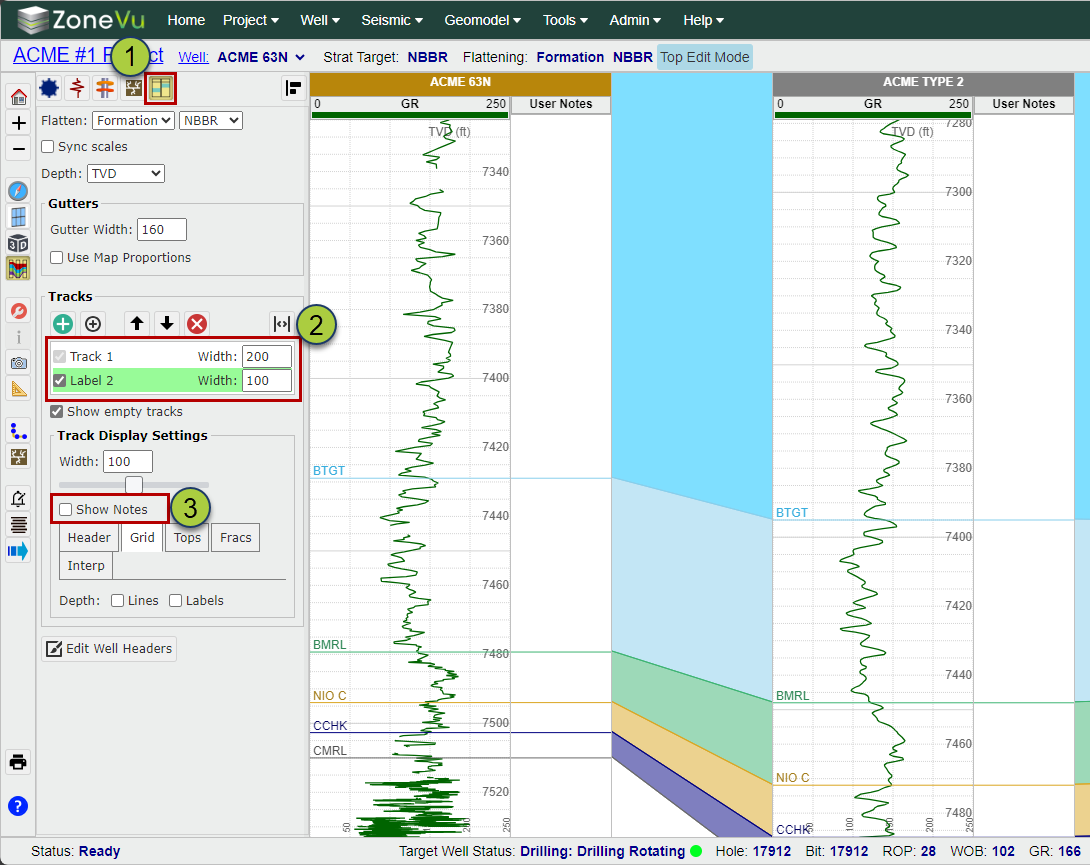
Setting which Tracks you want User Notes Displayed On:
Open Scene Control and navigate to the Tracks Tab
Select the Track(s) you want the User notes to show up in
Check on the “Show Notes’ checkbox
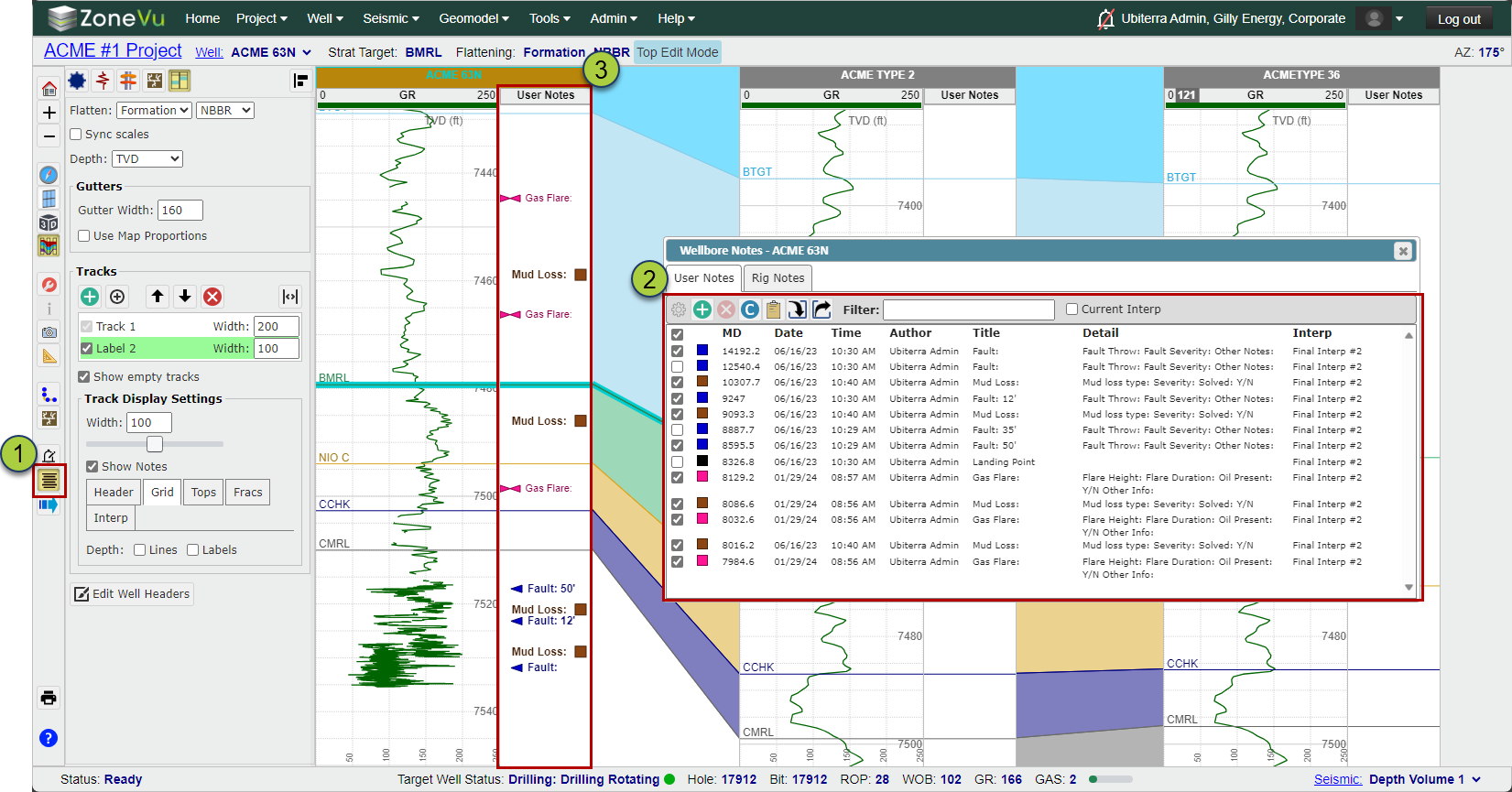
Select which User Notes you want displayed:
Open the Wellbore Notes Dialog Box
Use the checkboxes to turn on some or all of the User Notes for the Target Well
The selected User Notes will be displayed in the selected Track(s)
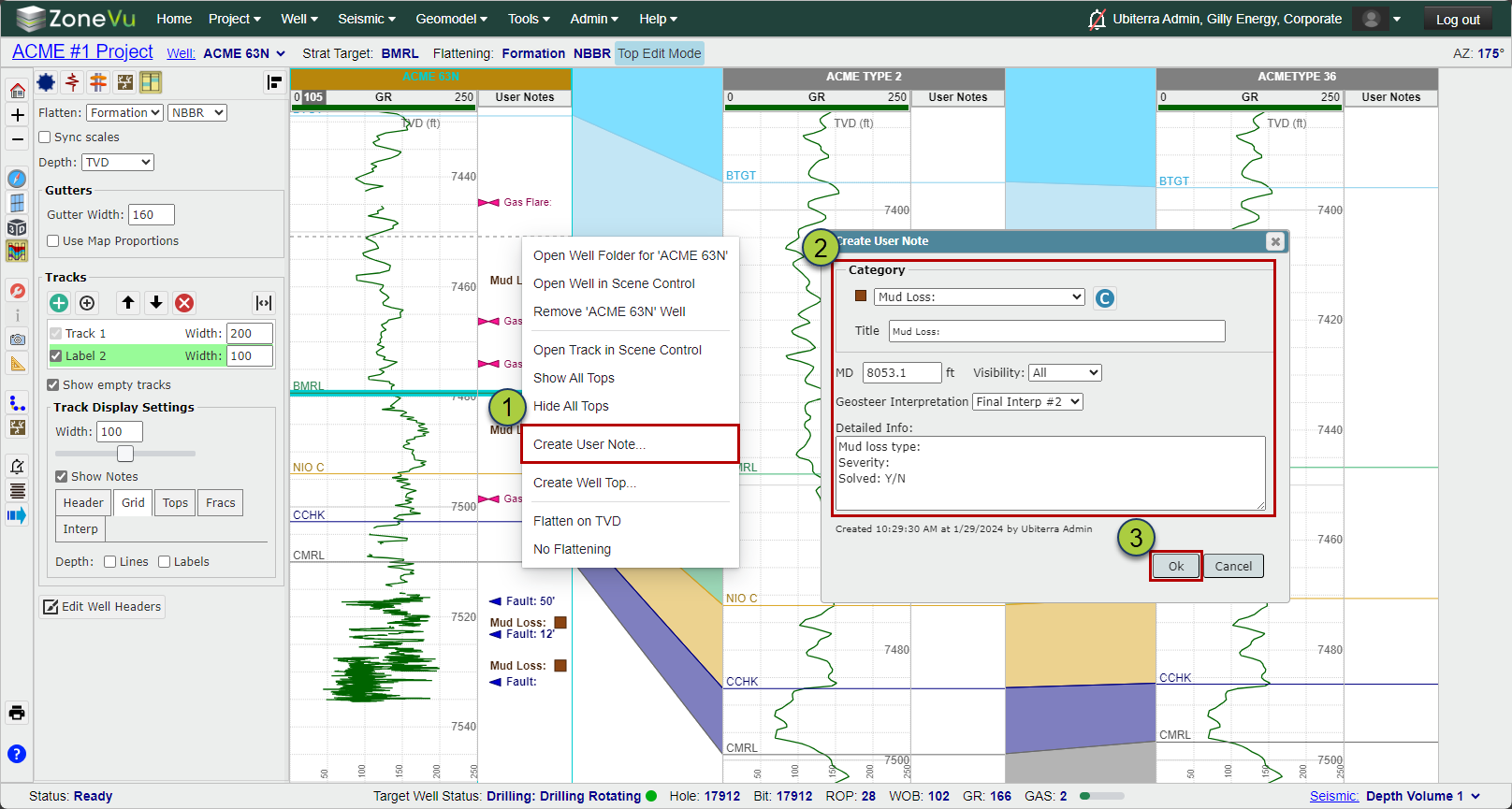
Creating a new User Note:
To create a new User Note on the Target Well, right-click at the MD depth and select "Create User Note"
Fill out the User Note info manually or select a Category
Click "OK" to create the new User Note
For more info on User Notes, please see this article: Creating User Notes in ZoneVu