

ZoneVu can import and reconstruct a Geosteering Interpretation if the following requirements are met:
File Format: Text, CSV, Excel Workbook (.xlsx)
Required Information: MD depths with associated formation depths (TVD or TVT)
TVD is preferred
If TVT is provided the 0' TVT formation must be known, and we recommend that the 0' TVT formation correlates with the Geologic Target Top
Optional Information: Fault Flag Column & Fault Block Column
Importing A Geosteering Interpretation:
You first must create a Geosteering Interpretation to load the data into or you can overwrite an existing Geosteering Interpretation
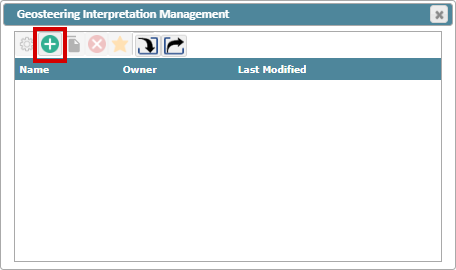
To create a new Geosteering Interpretation, click the green "(+)" button
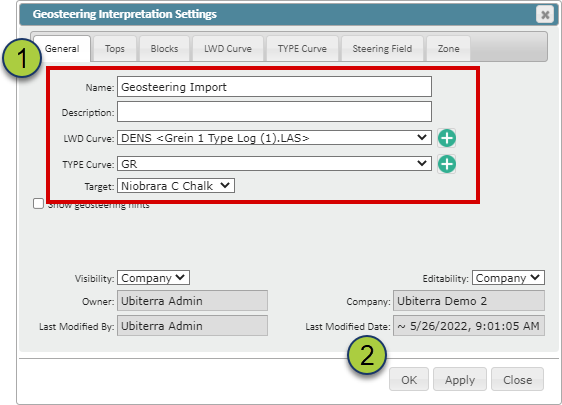
Fill out the required fields in the Geosteering Interpretation Settings pop-up
Click "OK" to create the new Geosteering Interpretation
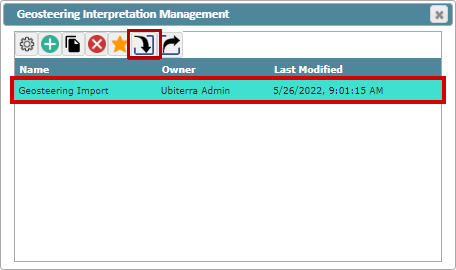
Select your newly created Geosteering Interpretation and click the "Import" Button
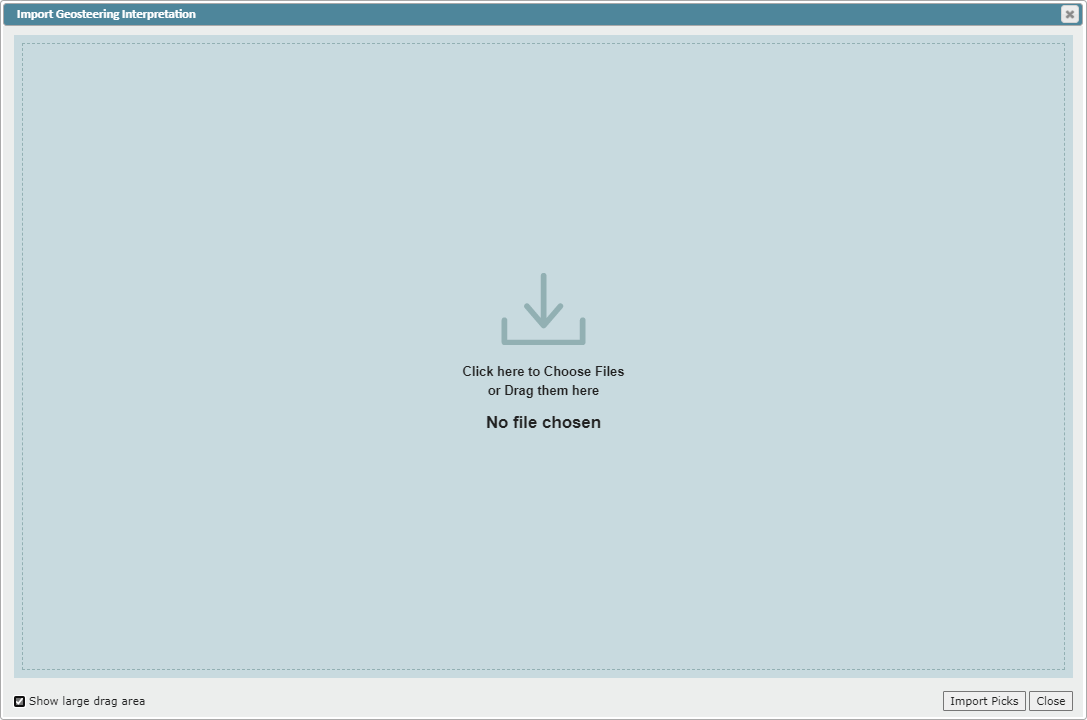
Drag and drop your geosteering file or click on the Drop Zone to select a file from your computer
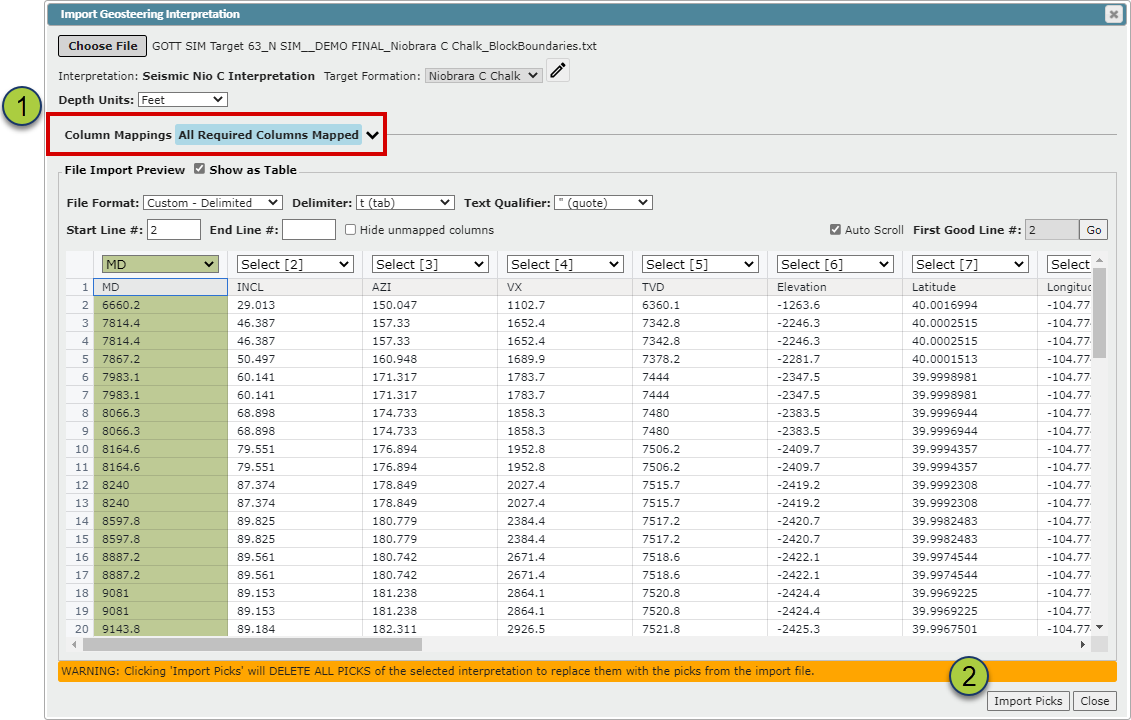
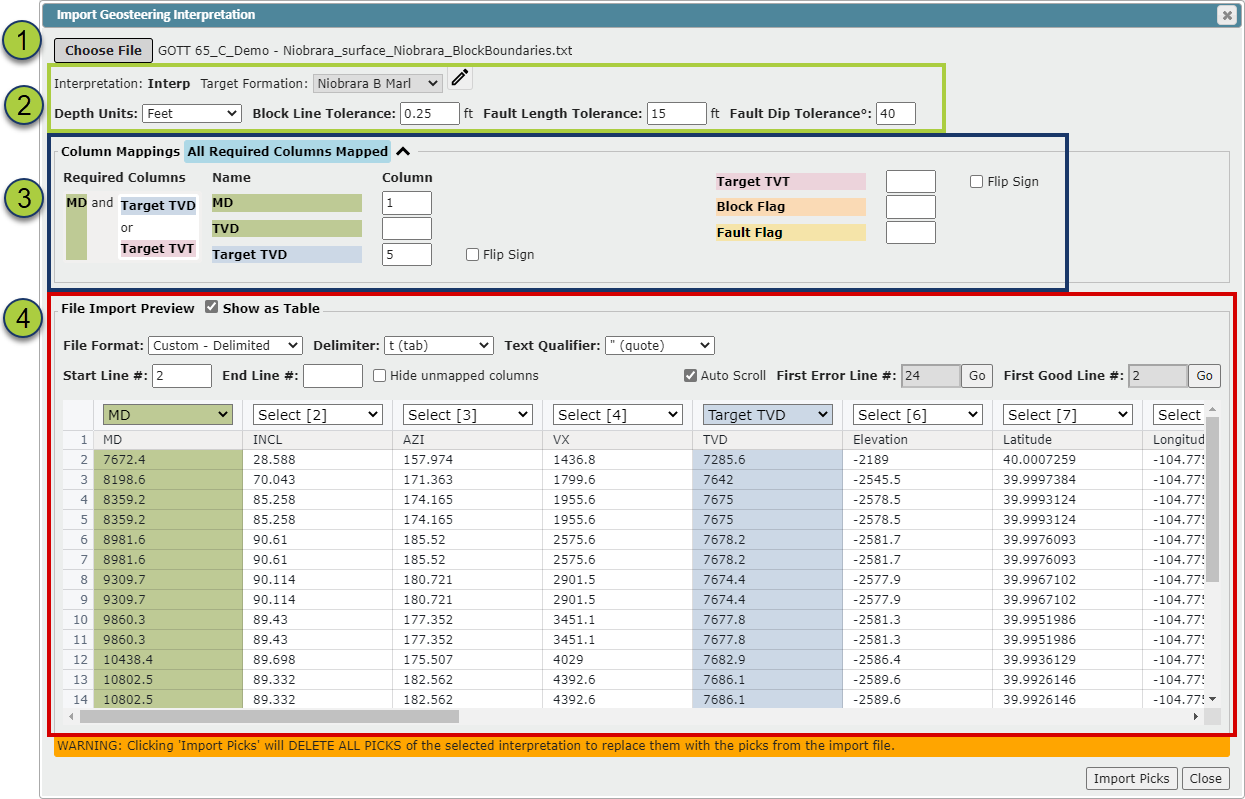
ZoneVu will load the file and then search for the required data. If the required data is found, "All Required Columns Mapped" will appear with blue highlighting. Otherwise "Missing Required Columns:" will appear with orange highlighting indicating what columns were not identified.


If all required data is found the "All Required Columns Mapped" text will be displayed
Click the "Import Picks" button to load your geosteering interpretation.
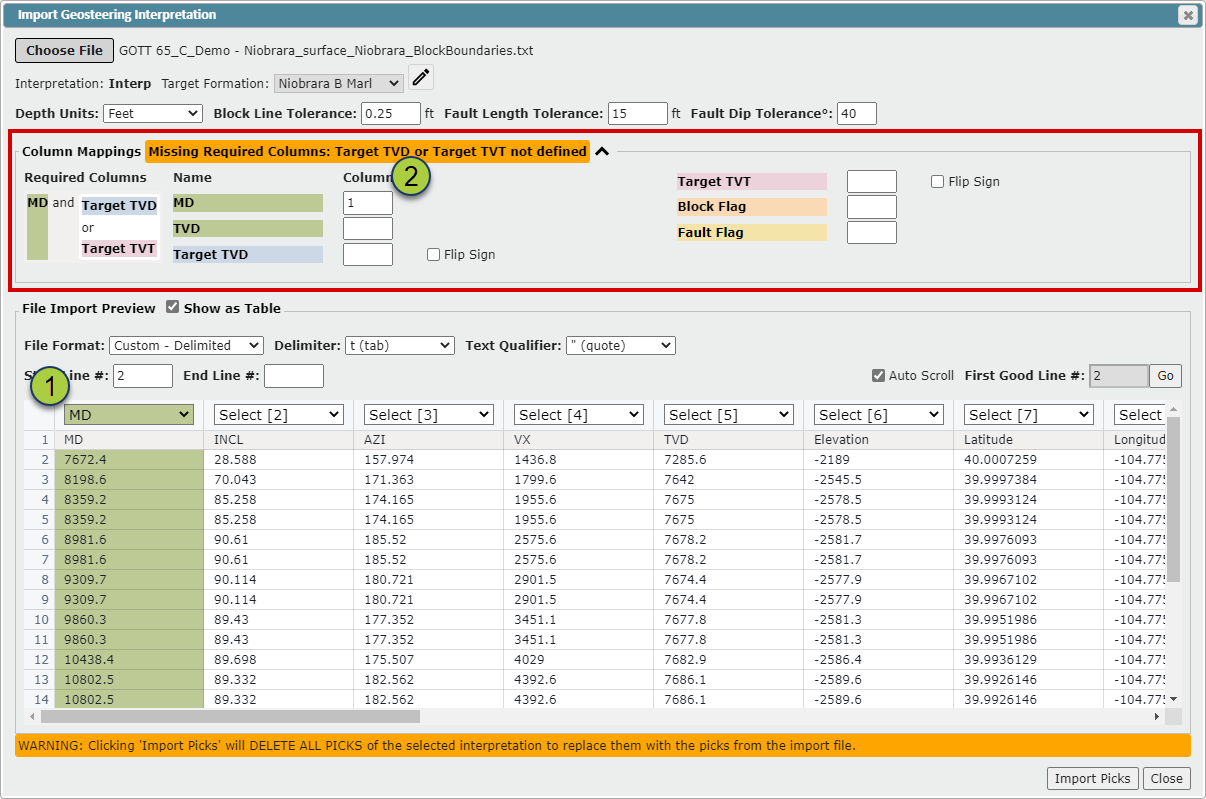
If ZoneVu was unable to find all the required data, click the caret (^) next to expand the "Column Mapping" section to see what data ZoneVu needs to be mapped.
Use the Dropdowns at the top of each column to select the required data
Or type the column number in the associated field
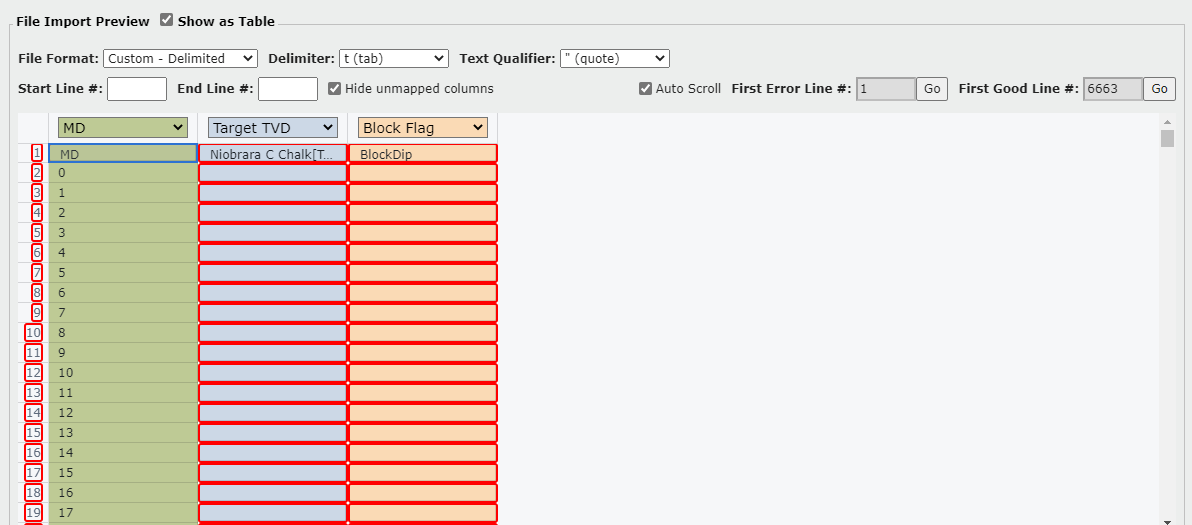
If there are errors found in the spreadsheet, ZoneVu will highlight the row numbers and the problematic cells in a red outline
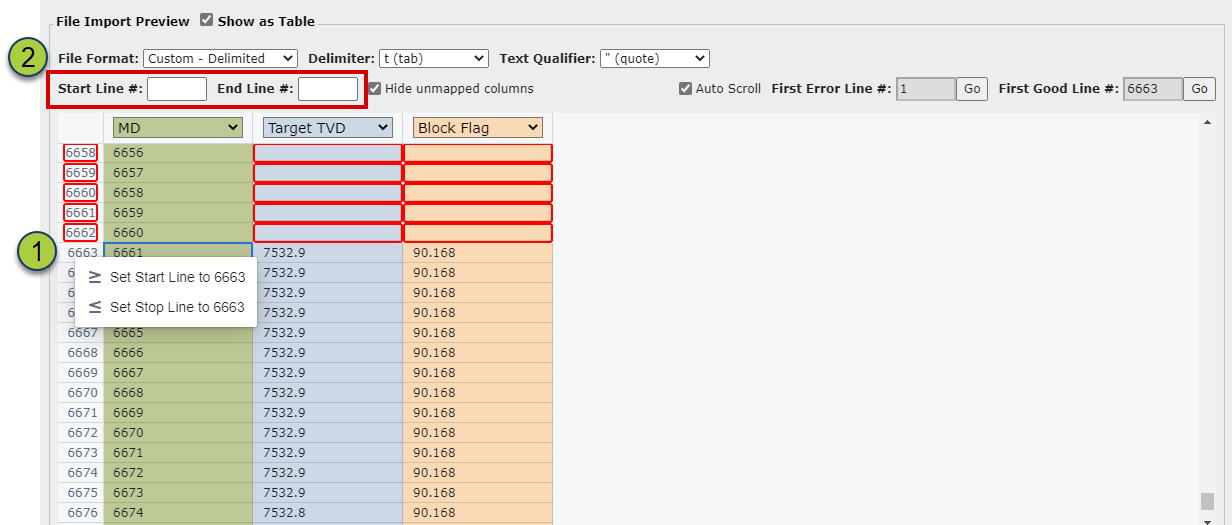
If you need to select a different Start/End Line than what ZoneVu chose, or if ZoneVu was not able to identify the Start/End Lines, you can either:
Right-Click on the Line and set that Line's the Start/Stop Line
Type the Line number in the Start/End Line field
After the required data has been mapped and the error rows have been corrected, click the "Import Picks" button to import your Geosteering Interpretation.
All Data Fields on the Geosteering Interpretation Importer:
"Choose File" button: If a file has been loaded, that file name will be listed next to the button
Import parameters
Target Formation: Use the dropdown to change the Target Formation ("Edit Geosteering Interpretation" mode must be active to change the Target Formation)
Depth Unit: Use the dropdown to select the correct depth unit
If you are importing a Geosteering Interpretation that does not have a "Block Flag" and "Fault Flag" Column, ZoneVu will use three parameters to determine if a block should be faulted
Block Line Tolerance input: Distance tolerance for creating blocks from picks. If a point is further than this distance from the edge of a current block a new block will be created
Fault Length Tolerance input: Block length tolerance for creating faults. A block must be smaller or equal to this length to be considered for faulting
Fault Dip Tolerance° input: Dip tolerance for creating faults. If a block has an absolute dip larger than this, it will be merged with the previous block (using the previous dip) and a fault will be inserted at the end
Column Mapping
Blue Highlighted Text indicates all required data has been identified, and orange highlighting will list what required data has not been mapped
Required Data: MD and Target TVD or Target TVT
Optional Data: Block Flag & Fault Flag
Select the Column for each data set in the "File Import Preview" or type the column name into the appropriate field
"Flip Sign" checkbox: Will flip the sign of the data in that column
File Import Preview
"Show as Table" checkbox: Toggle data table on/off
File Format dropdown: Select between Delimited, Excel, and Fixed Width (ZoneVu will auto-select the file format type if it can identify the format)
Start/End Line #: Indicates which rows contain the interpretation data (ZoneVu will auto-populate these fields if it can identify the data)
"Hide unmapped columns" checkbox: When checked on, ZoneVu will hide all unmapped columns in the File Preview Table
"Auto Scroll" checkbox: ZoneVu will auto-scroll the data table to the start of the mapped data
First Error Line #: Identifies the first line where a data error has occurred; Use the "Go" button to auto-scroll to that line
First Good Line #: Identifies the first line where data error has occurred; Use the "Go" button to auto-scroll to that line
Notes:
Exporting a Geosteering Interpretation from ZoneVu:
(Related Article: Exporting a Geosteering Interpretation)
ZoneVu's default geosteering export samples the Geosteering Interpretation at the Block Boundaries and will provide the TVD, TVT, and Elevation depths for the Geologic Target. This default export contains the ideal information for ZoneVu to import and reconstruct a Geosteering Interpretation.
Exporting requirements for a Geosteering Interpretation from Other Software:
(Related Article: Exporting Requirements from other Software)