Prerequisite: How to Import LAS file
How to create a Litho Log in the Viewer:
Once your Mudlog .las file has been loaded and registered in the wells LAS folder, open up the Viewer and navigate to the 2D Viewer
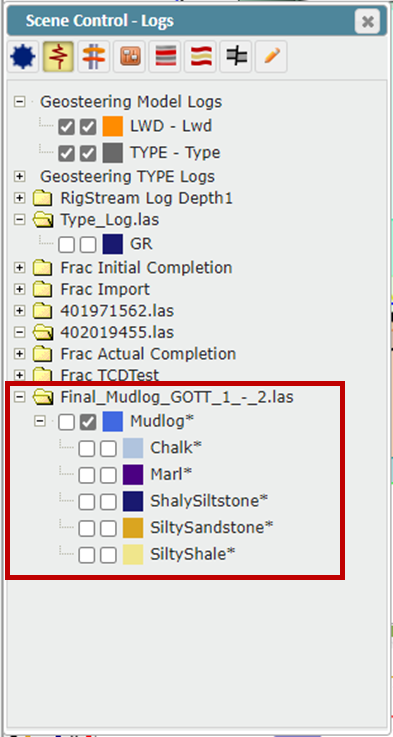
Open the Scene Control and select the Logs button. At the very bottom of the list, you should find the newly loaded Mudlog data
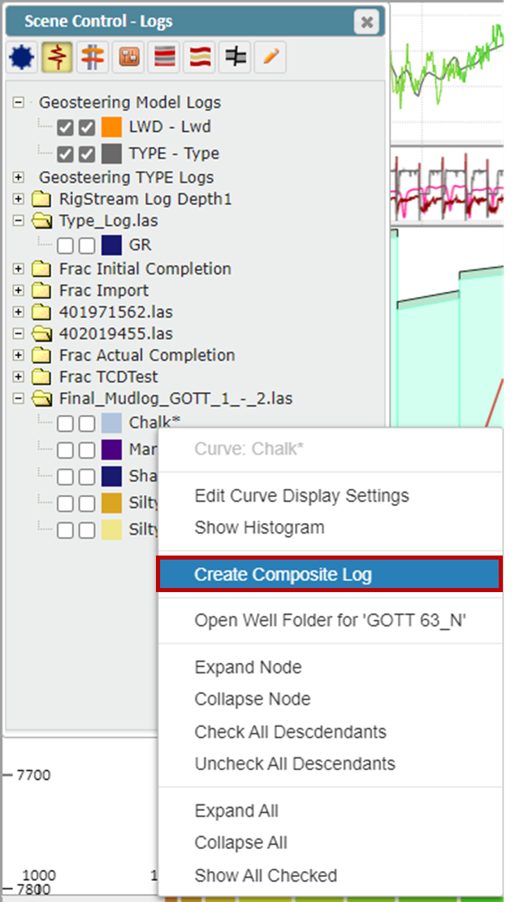
To create a Litho Log from the uploaded mudlog data, right-click on the first log and select Create Composite Log
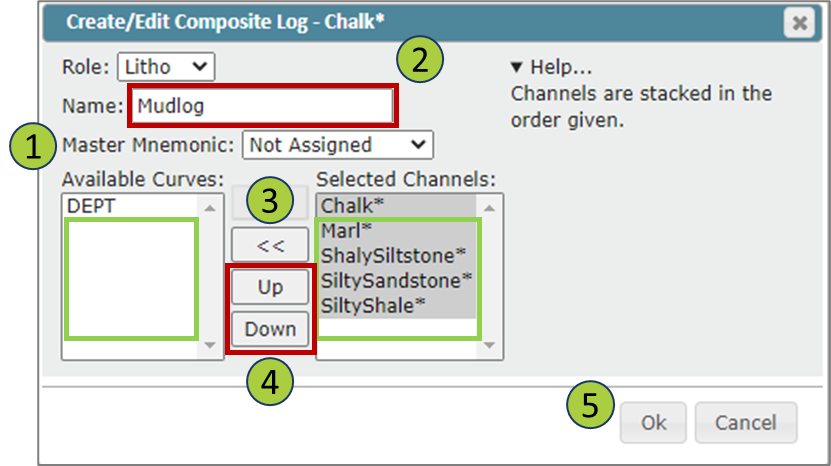
This will open up the Composite Log pop-up
Under the Role dropdown, select Litho
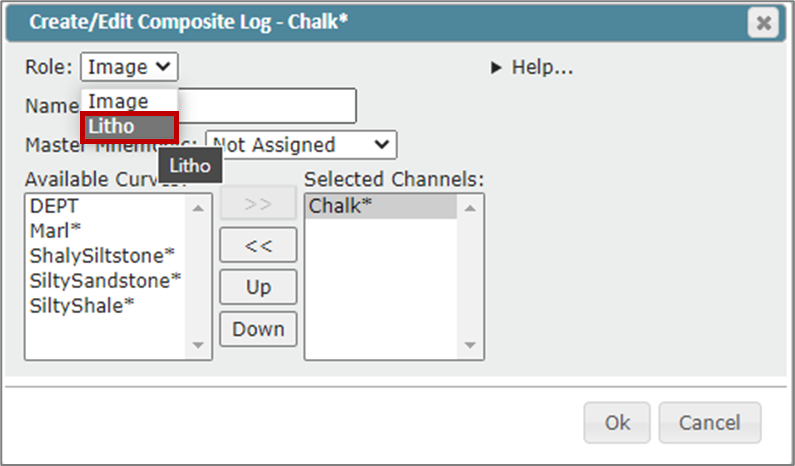
If a Master Mnemonic is selected, this will be the name assigned to the Composite Log
If you want to assign a different name, change the Master Mnemonic to Not Assigned and type in your desired name in the Name input field
Next, select the curves you want to include in your Composite Log under the Available Curves and use the Right double arrow button to move them to the Selected Channels
Once all the desired logs are in the Selected Channels List, you can use the Up and Down button to set the stacking order
Click "Ok" to create your Composite Log
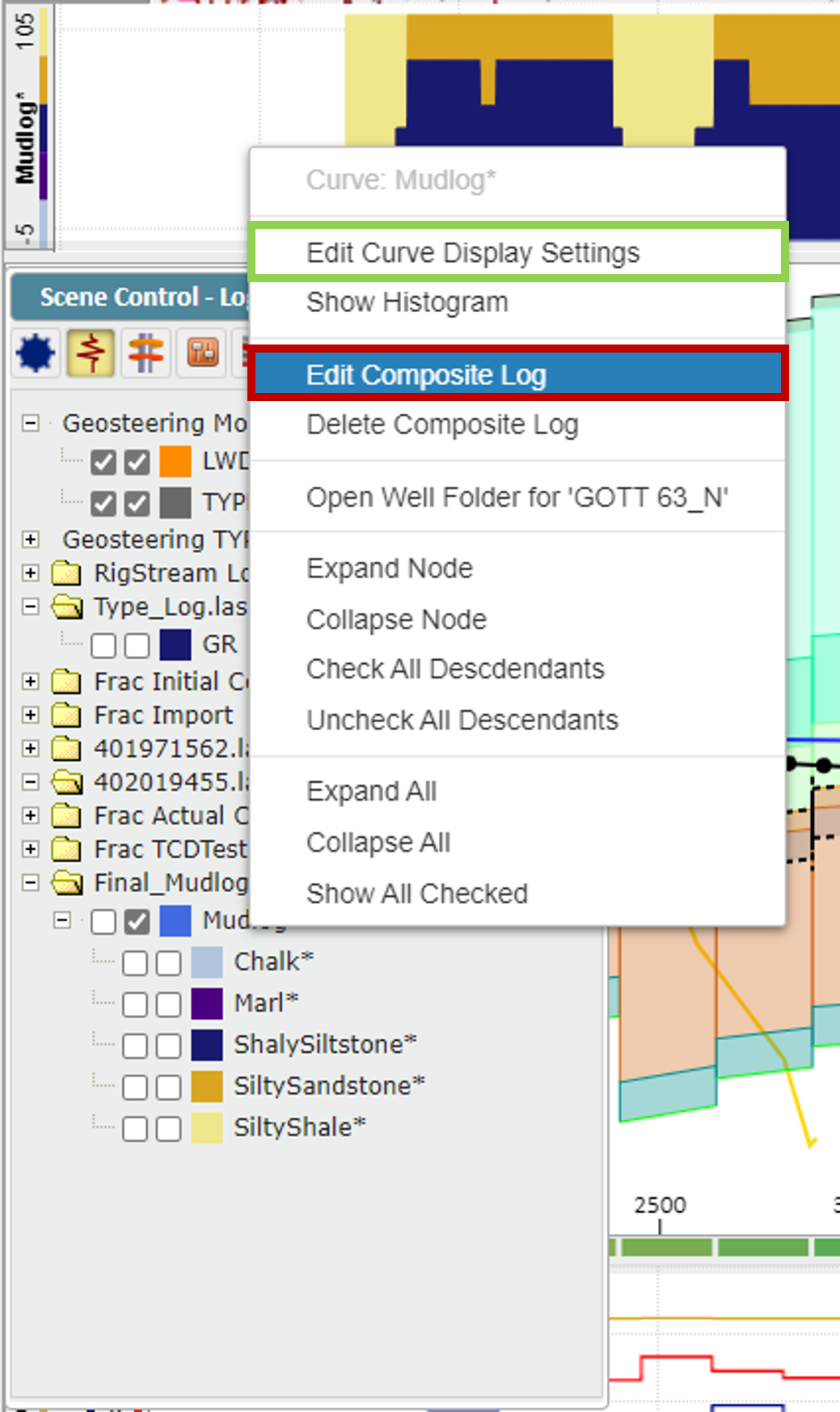
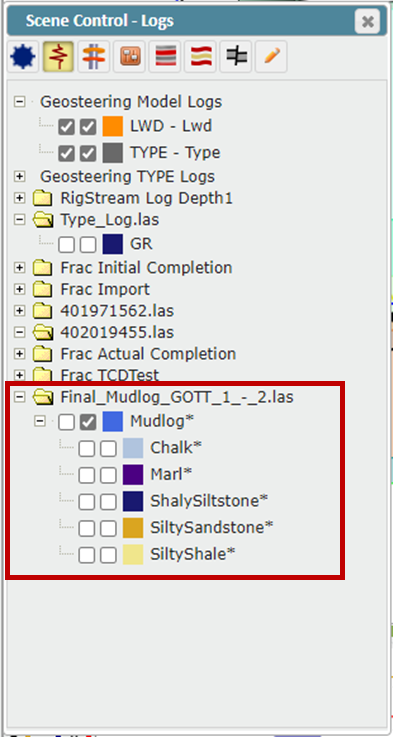
The newly created Composite Log will now appear in your Scene Control with the logs making up the Composite Log nested underneath
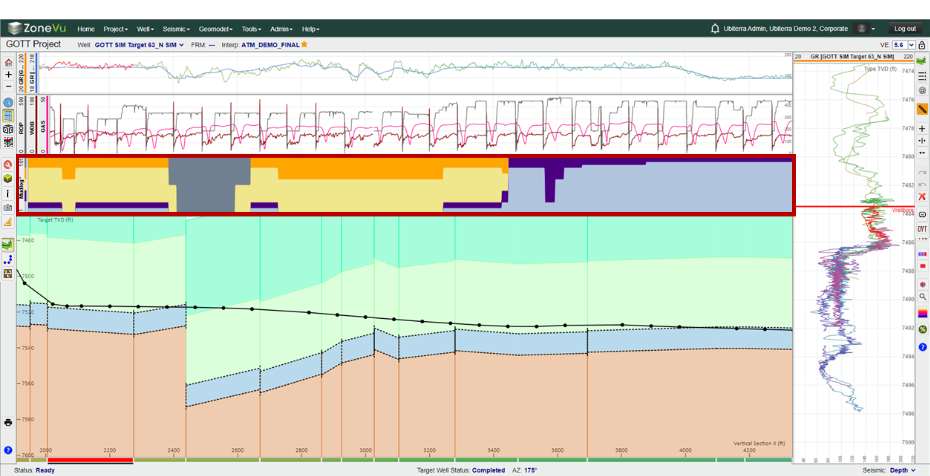
Turn on this Composite log to display it in the Viewer
To edit the scale of the Composite Log, right-click on the log name in the Scene Control and select Edit Curve Display Settings (Green Box). Select Edit Composite Log to open up the Create Composite Log pop-up (Red Box)
Note: the color of the logs nested under the new Composite Log is the coloring used to fill that data in the displayed log