
Survey QC Rules
When a new survey station is downloaded from the WITSML vender via RigStream, a number of filters are run:
Does the new survey station MD duplicate the MD of previous survey stations?
Does the new survey station's MD place it within 15 feet of a previous survey station?
Does the new survey station cause a dogleg severity > 15°/100ft?
New survey station MD duplicates the MD of previous survey stations.
If the existing survey station was manually loaded, RigStream will continue to use the manually loaded station. The station loaded from the WITSML feed with the duplicate MD will be marked as 'Invalid' and made red in the 'Deviation Survey' tab of the 'Well Folder'. The invalid station will remain in the 'Deviation Survey' tab list but will not be included in the wellbore trajectory calculations.
See Filtering Deviation Survey Stations
If the existing survey station was not loaded manually then the new survey station will take its place and the old survey station will be removed.

New survey station's MD places it within 15 feet of a previous survey station
If a new survey is closer then 15 ft from a previously loaded survey, RigStream will flag this station as potentially invalid and add a validation note to the survey station.

New survey station causes a dogleg severity > 15°/100ft
If the inclination of a new survey station is such that the dog leg severity is greater than 15 degrees per 100 ft RigStream will flag this station as potentially invalid and add a validation note to the survey station.

Survey Validation Notes
Survey validation notes will appear in 3 different places:
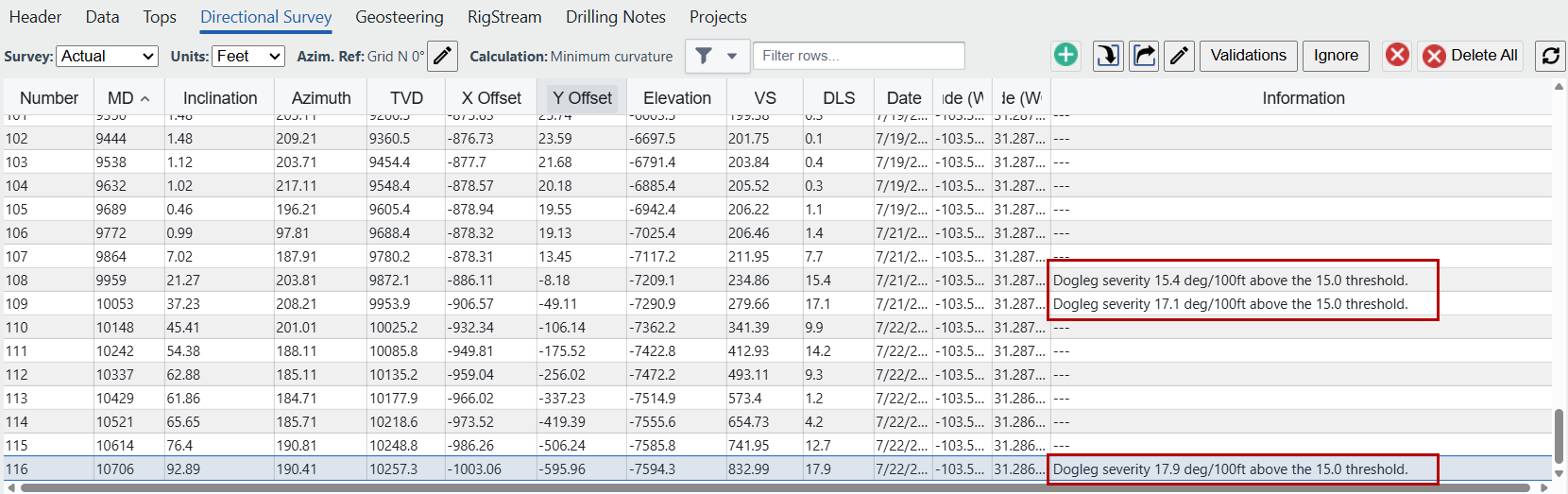
The 'Information' column of the 'Directional Survey' tab. See Loading Deviation Surveys (Plans & Actuals)
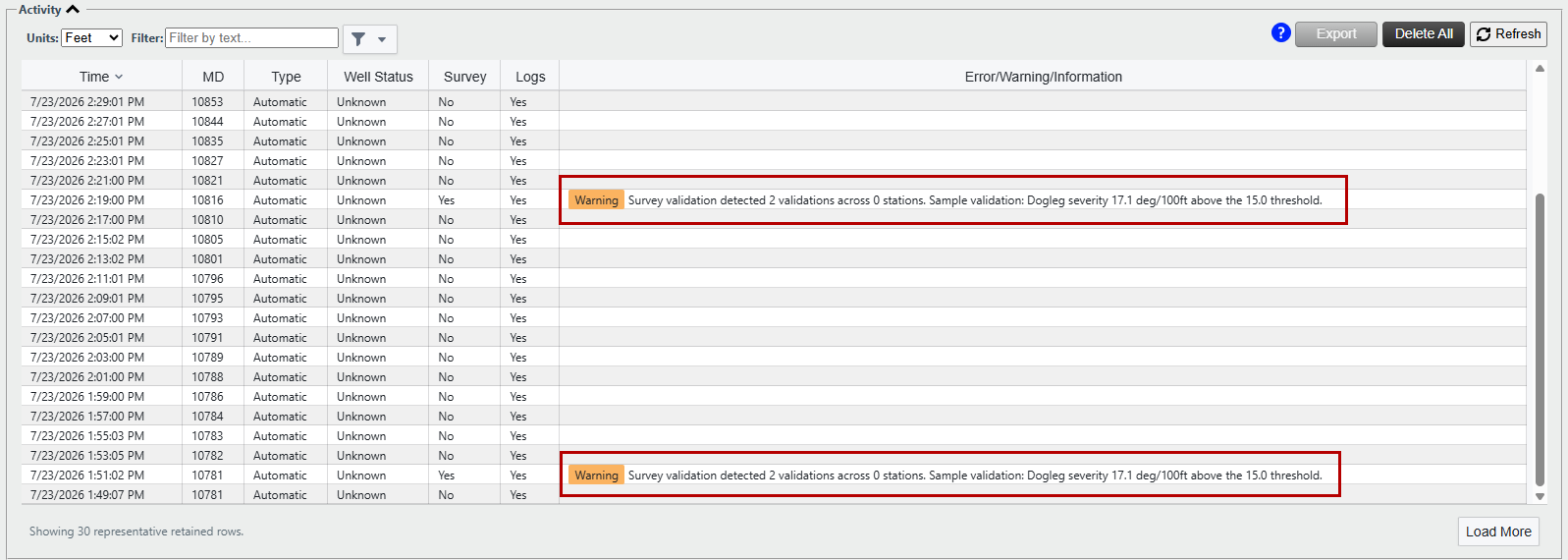
The 'Error/Warning/Information' column of the RigStream 'Activity' Log.
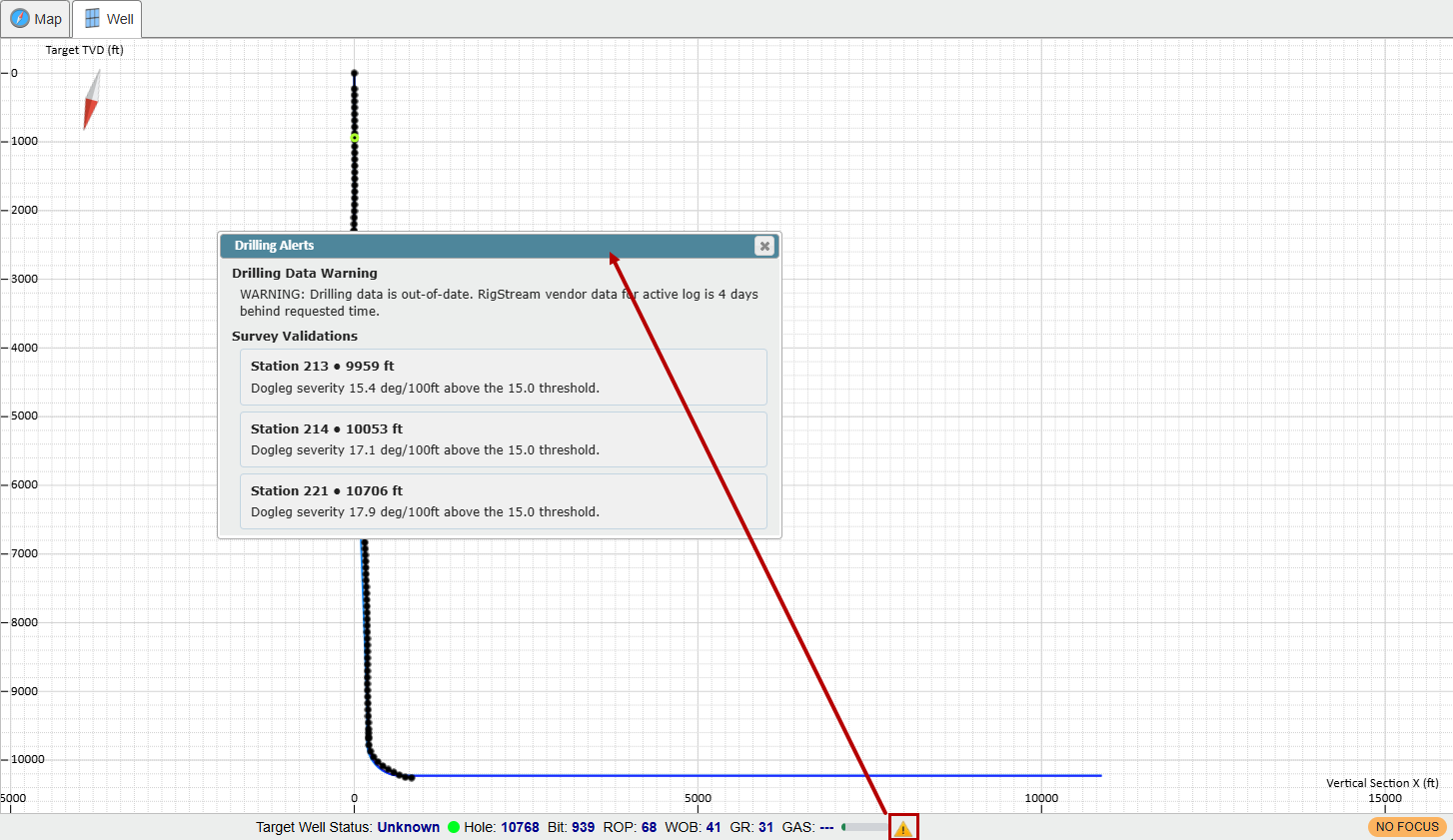
at the bottom of the 2D Viewer.
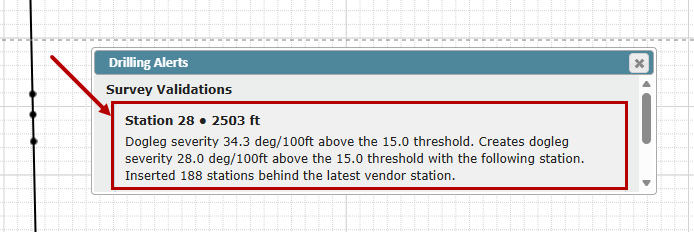
In the 'Drilling Alerts' dialog that opens when you click the 'Warning' icon
 at the bottom of the Viewer.
Note: the warning button will appear if there are validation notes that have not been marked ok or deleted. This is not the only reason the warning icon will appear. It will also appear if there are notes in the error/warnings/information column of the RigStream Activity log to indicate ZoneVu or the EDR provider have identified an issue. This will be listed under Drilling Data Warning in the 'Drilling Alerts' dialog.
Acknowledging or Removing Validation Notes:
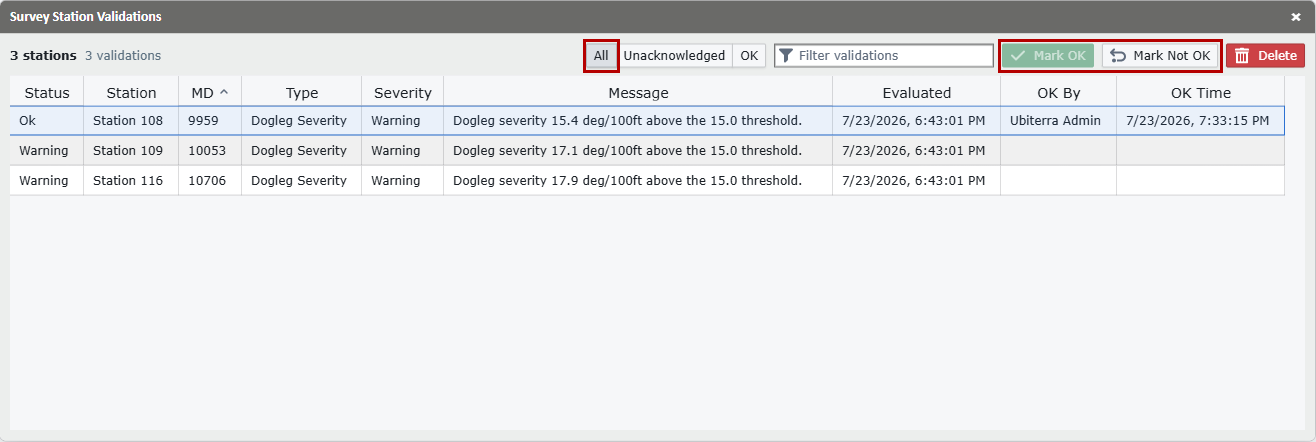
All survey station validation notes can be handled from the 'Survey Station Validations' dialog. This dialog can be accessed through the Validation button in the upper right corner of the Well Folder RigStream or Directional Survey tabs or by clicking a Survey Validation from the Drilling Alerts dialog in the Viewer.

If there is no issue with the validation warning, a user can use the 'Mark OK' button in the 'Survey Validation' dialog to maintain the note in the 'Survey Validations' dialog but remove it from the 'Information' column of the 'Directional Survey' tab. The note will be replaced with 'OK', indicating that RigStream had identified a potential validation issue and that it had been acknowledged by a user.
The 'Mark OK' button will log who acknowledged the validation warning and when it was acknowledged in 'OK By' and 'OK Time' columns, respectively. If a user uses the 'Mark Not OK' button the validation note will again be displayed in the 'Information' column of the 'Directional Survey' tab and the 'RigStream Activity' log. The 'Warning' icon will reappear at the bottom of the Viewer. The "OK By' and 'OK Time' log will also be cleared.