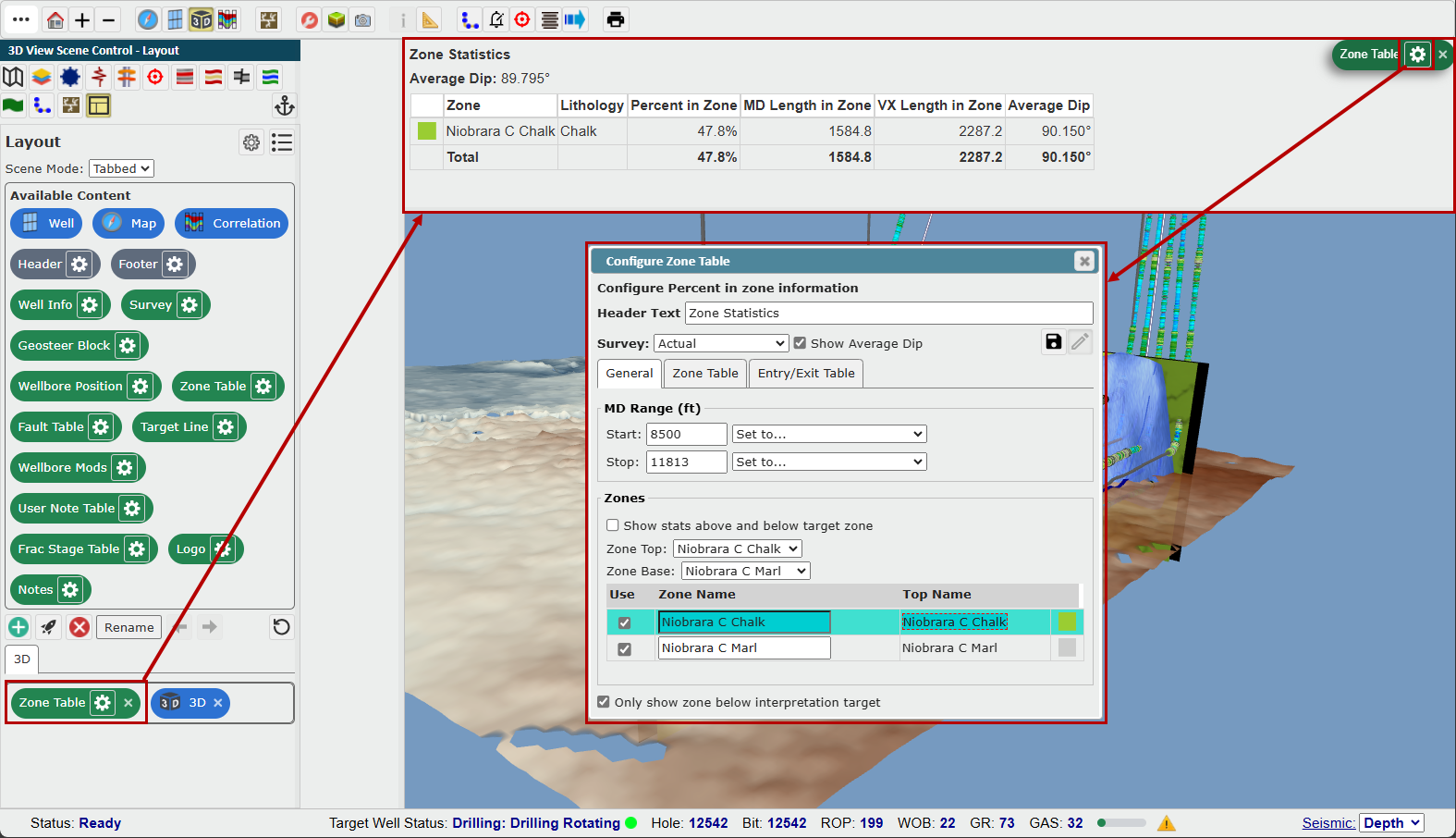
The ZoneVu Layout Tool and Report Generator allow users to drag and drop widgets into the view to create the Layout or Report they need. This article details the different Widget Groups and what each Widget is.
These articles will provide details on the Layout and Report Tools: https://help.ubiterra.com/help/creating-a-custom-viewer-layout & https://help.ubiterra.com/help/creating-a-report-in-zonevu
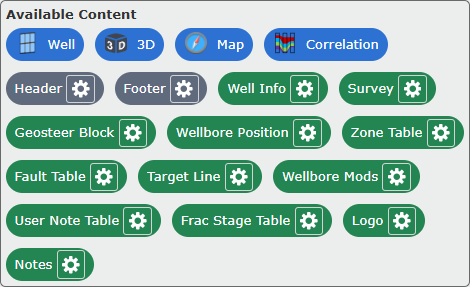
Viewer Widgets:
The blue Widget Pills allow you to drop any of the 4 Viewers (Map, 2D, 3D, & Correlation Panel) in ZoneVu into a Layout or Report Template
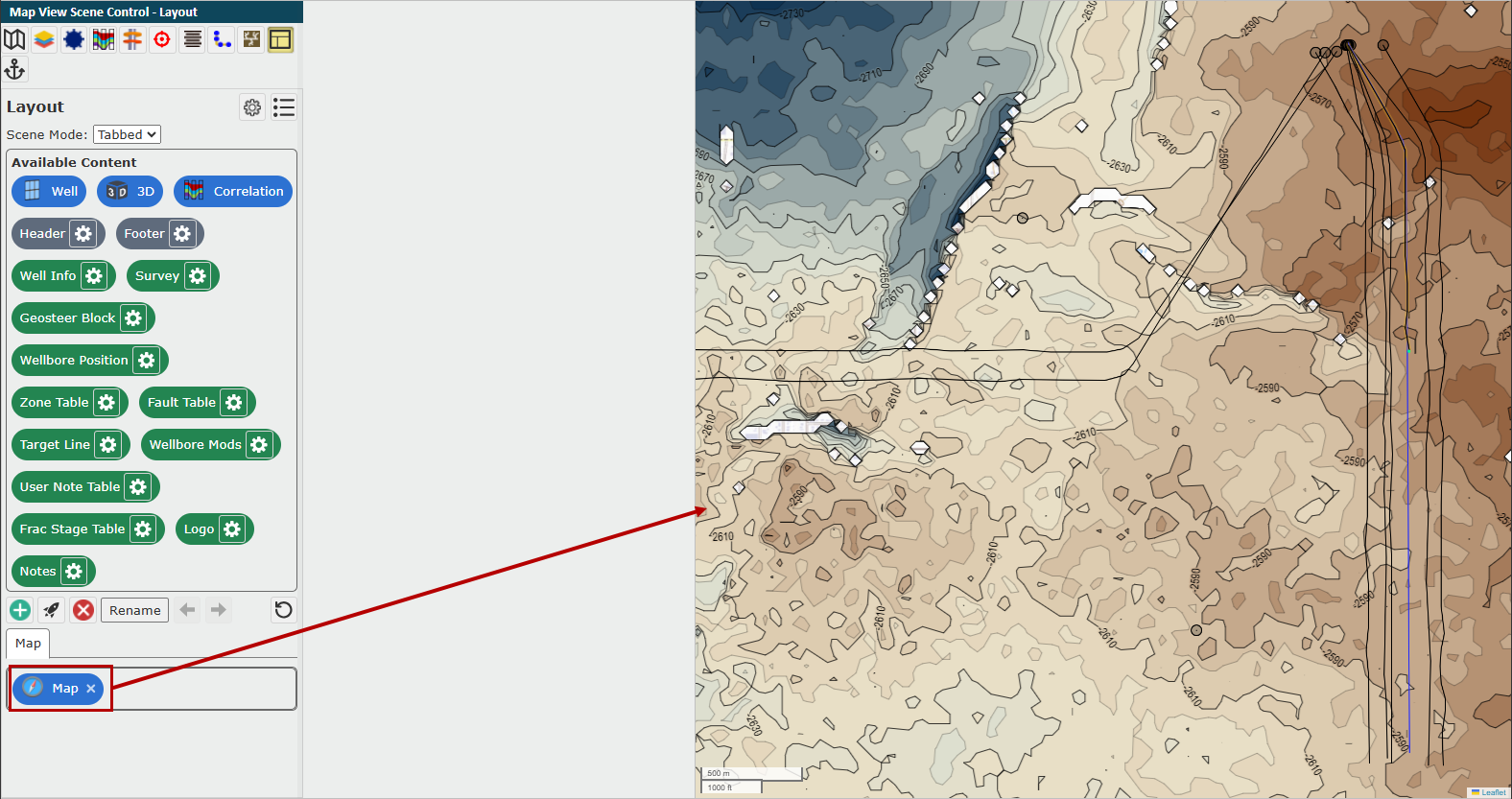
Map Viewer:
Will place the Map Viewer in the dropped location in the Viewer or Report Template
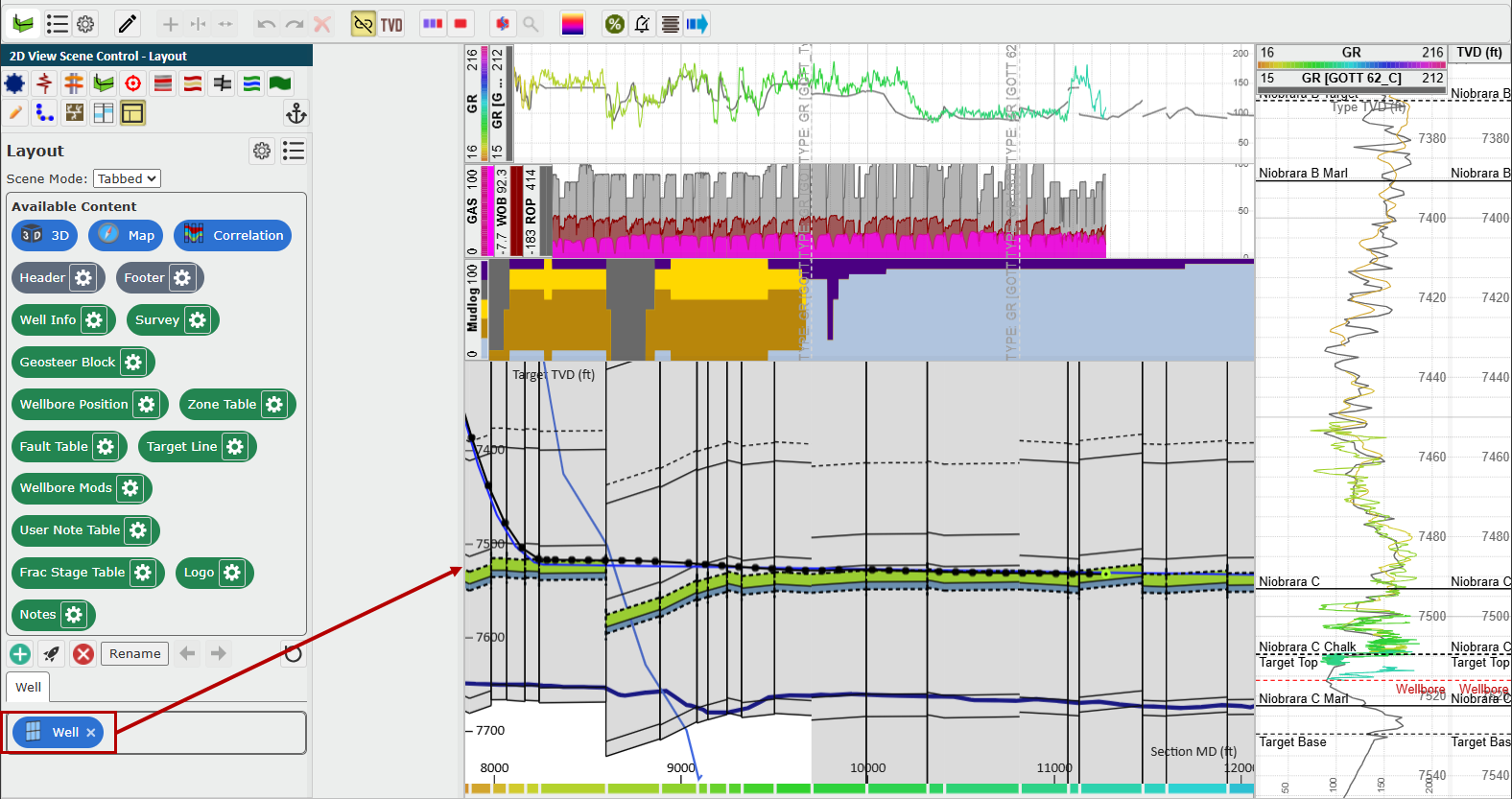
2D Viewer (Well):
Will place the 2D Viewer in the dropped location in the Viewer or Report Template
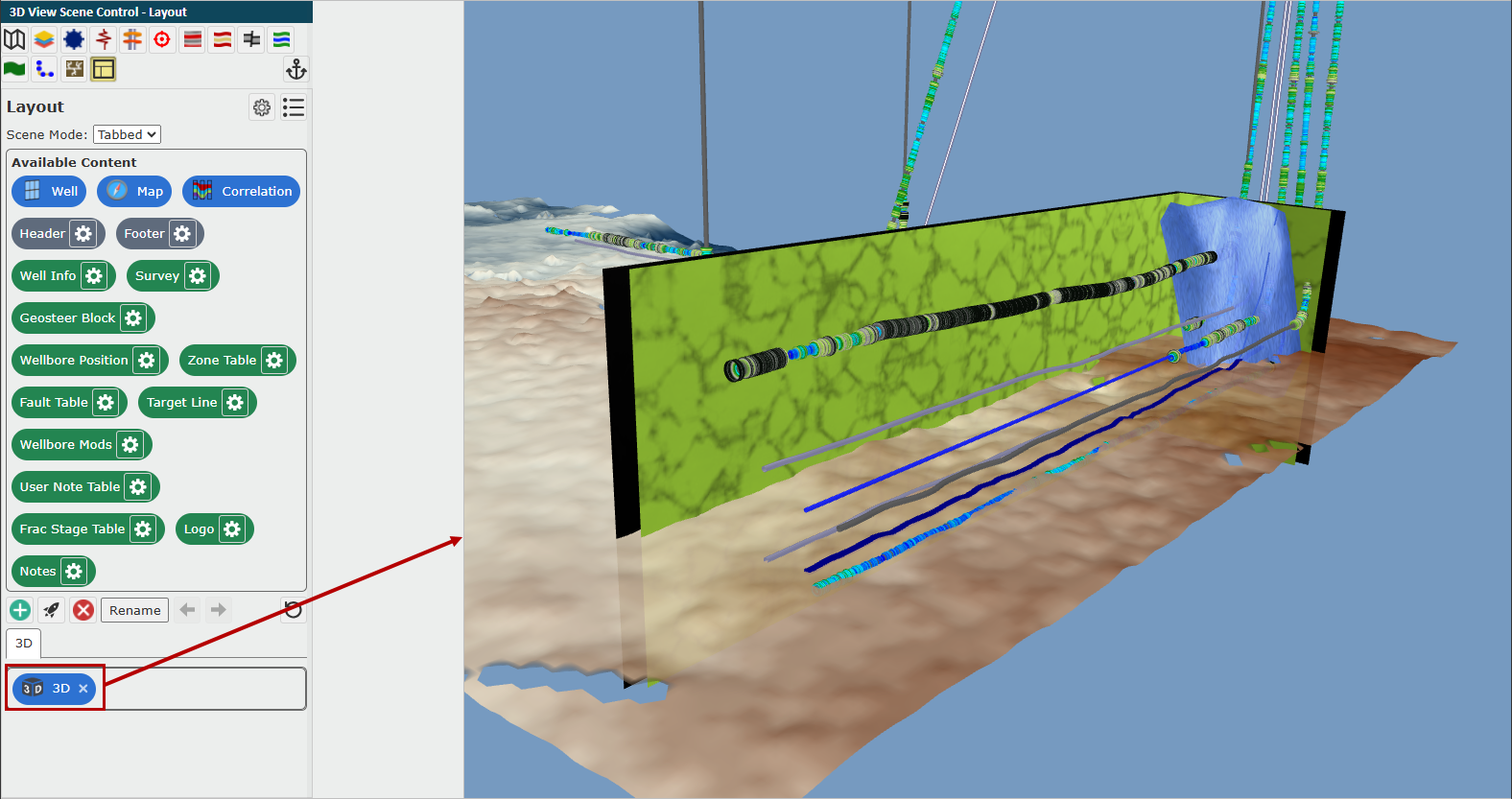
3D Viewer:
Will place the 3D Viewer in the dropped location in the Viewer or Report Template
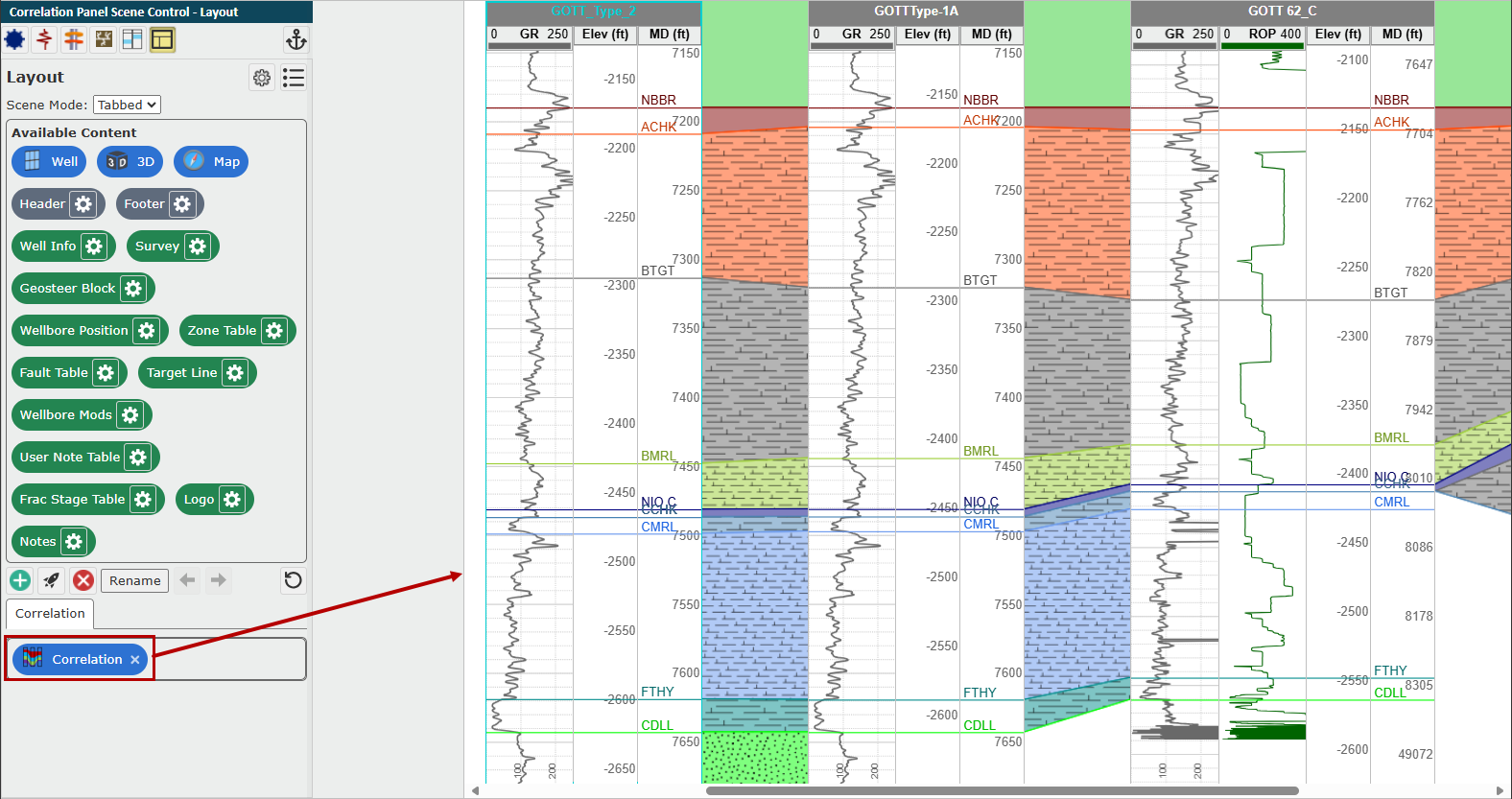
Correlation Panel:
Will place the Correlation Panel in the dropped location in the Viewer or Report Template
Header/Footer Widgets:
The grey Widget Pills allow you to create a Header or Footer Section and drop other Widgets into them to create a consistent page design in the Layout and/or Report Template.
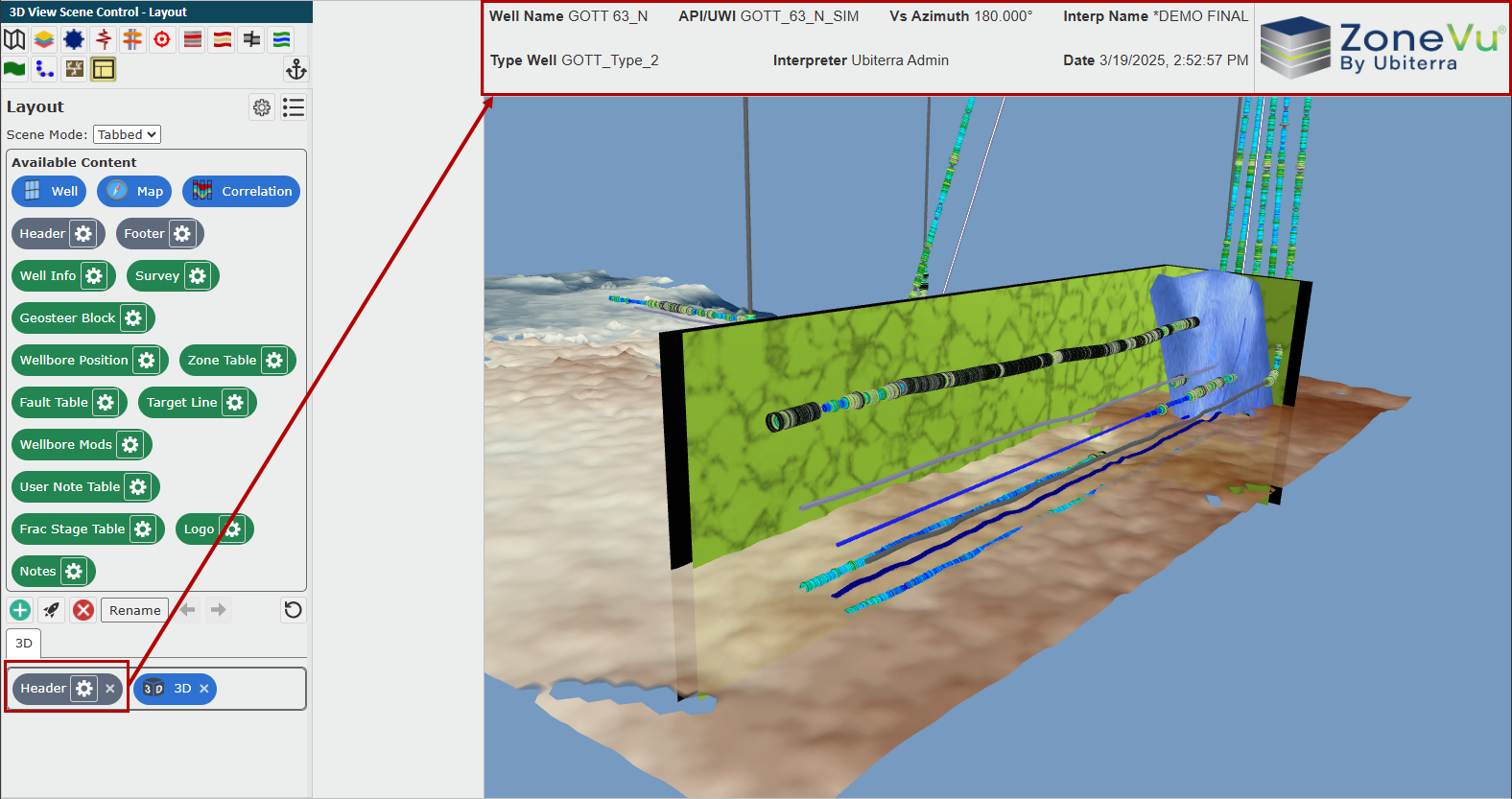
Header:
The Header Widget allows you to drop other Widgets (Viewer & Data) into them. You can then size and orient each Widget to meet your needs. If the Header Widget is dropped into any other Layout tab or Report Page, the Header section will be duplicated providing a consistent view.
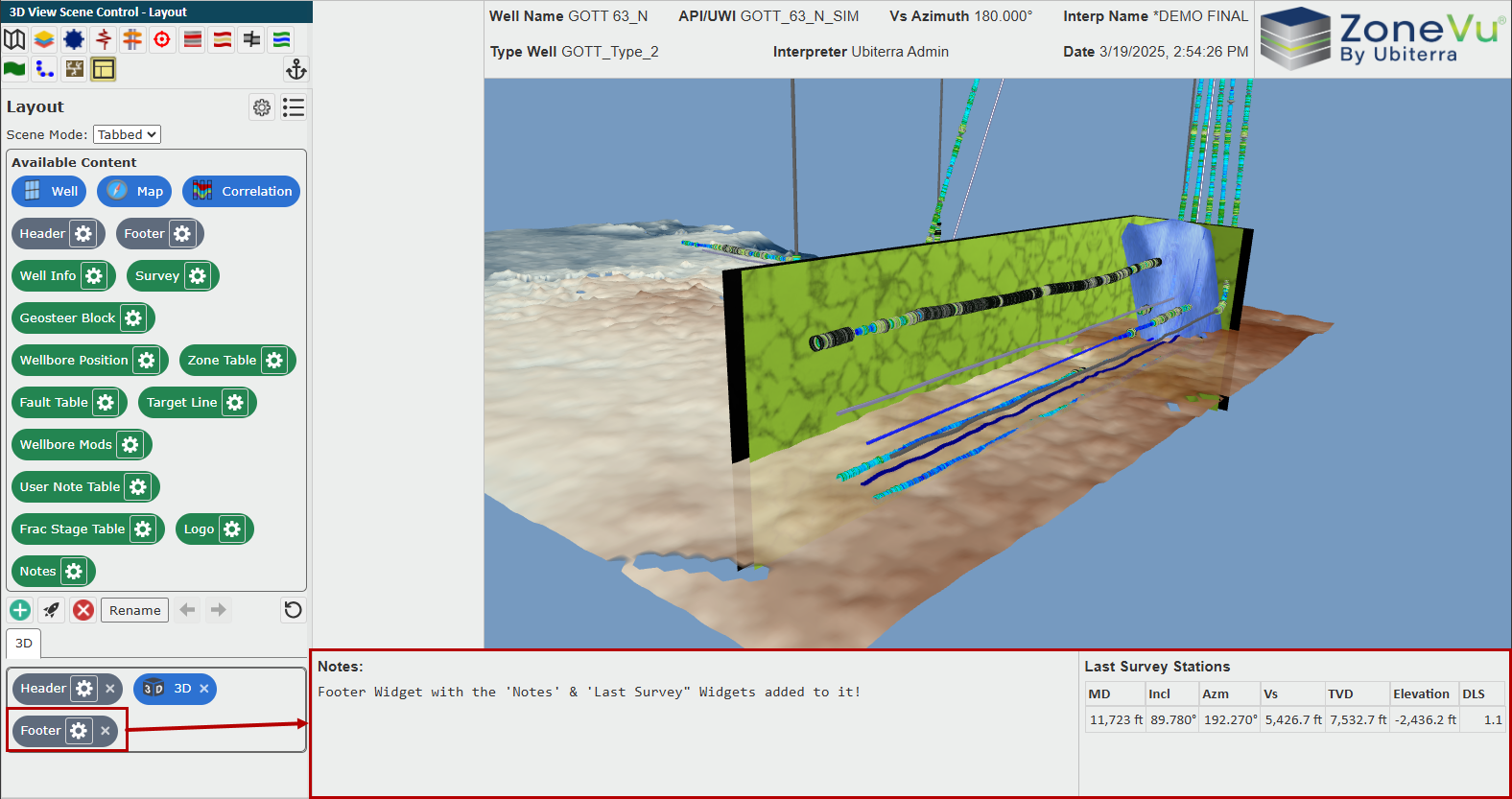
Footer:
The Footer Widget allows you to drop other Widgets (Viewer & Data) into them. You can then size and orient each Widget to meet your needs. If the Footer Widget is dropped into any other Layout tab or Report Page, the Footer section will be duplicated providing a consistent view.
Data Widgets:
The green Widget Pills allow you to display different datasets in the Layout and/or Report Template.
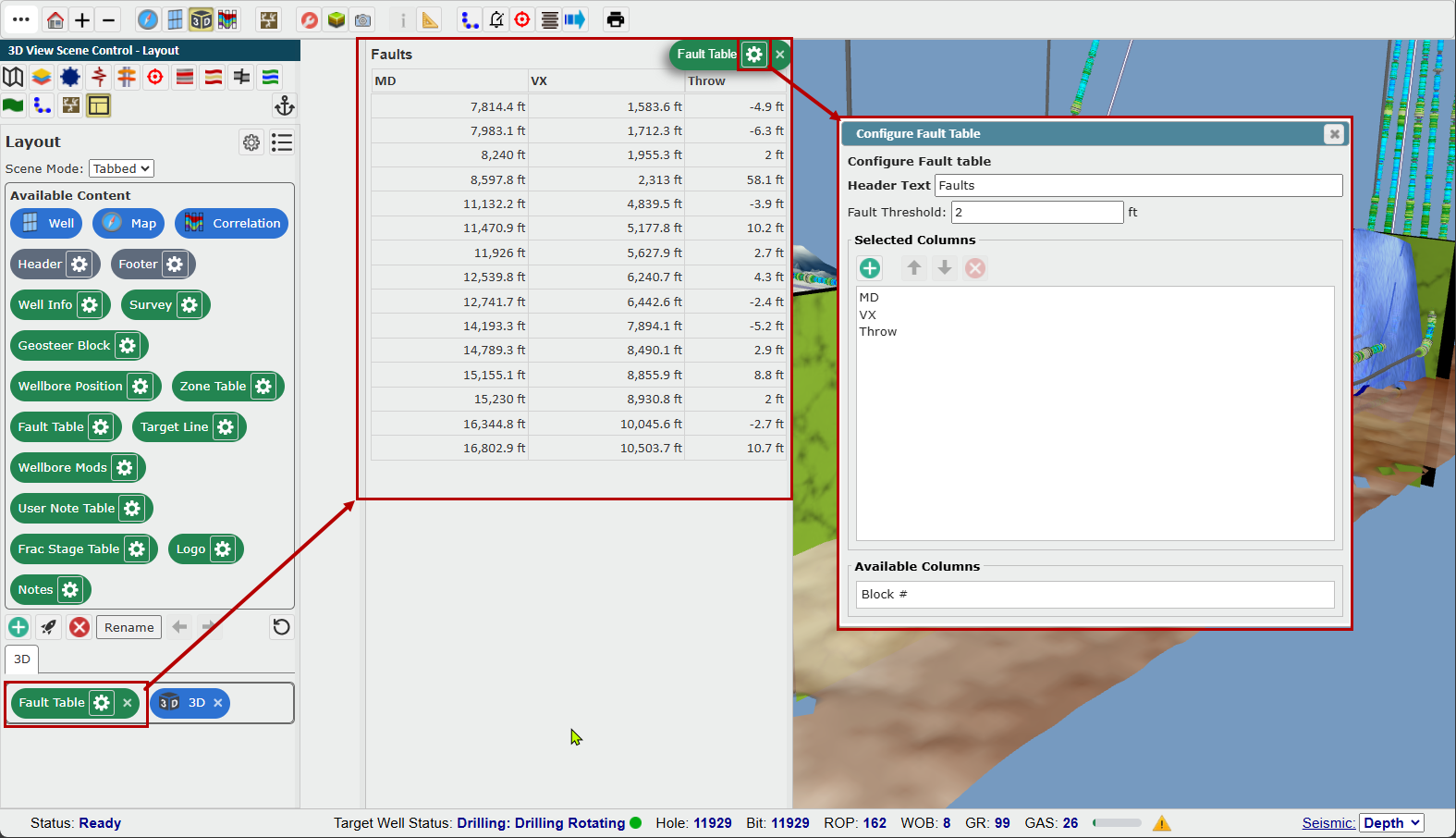
Fault Table:
The Fault Table Widget will display all of the Geosteering Interpretation Faults for the currently displayed Geosteering Interpretation. Clicking on the Settings icon in the Fault Table Widget Pill will open the Widget Settings dialog, allowing you to customize the Header Title, Fault Threshold (minimum required fault throw to show up in the table), Data Ordering, and what data is displayed
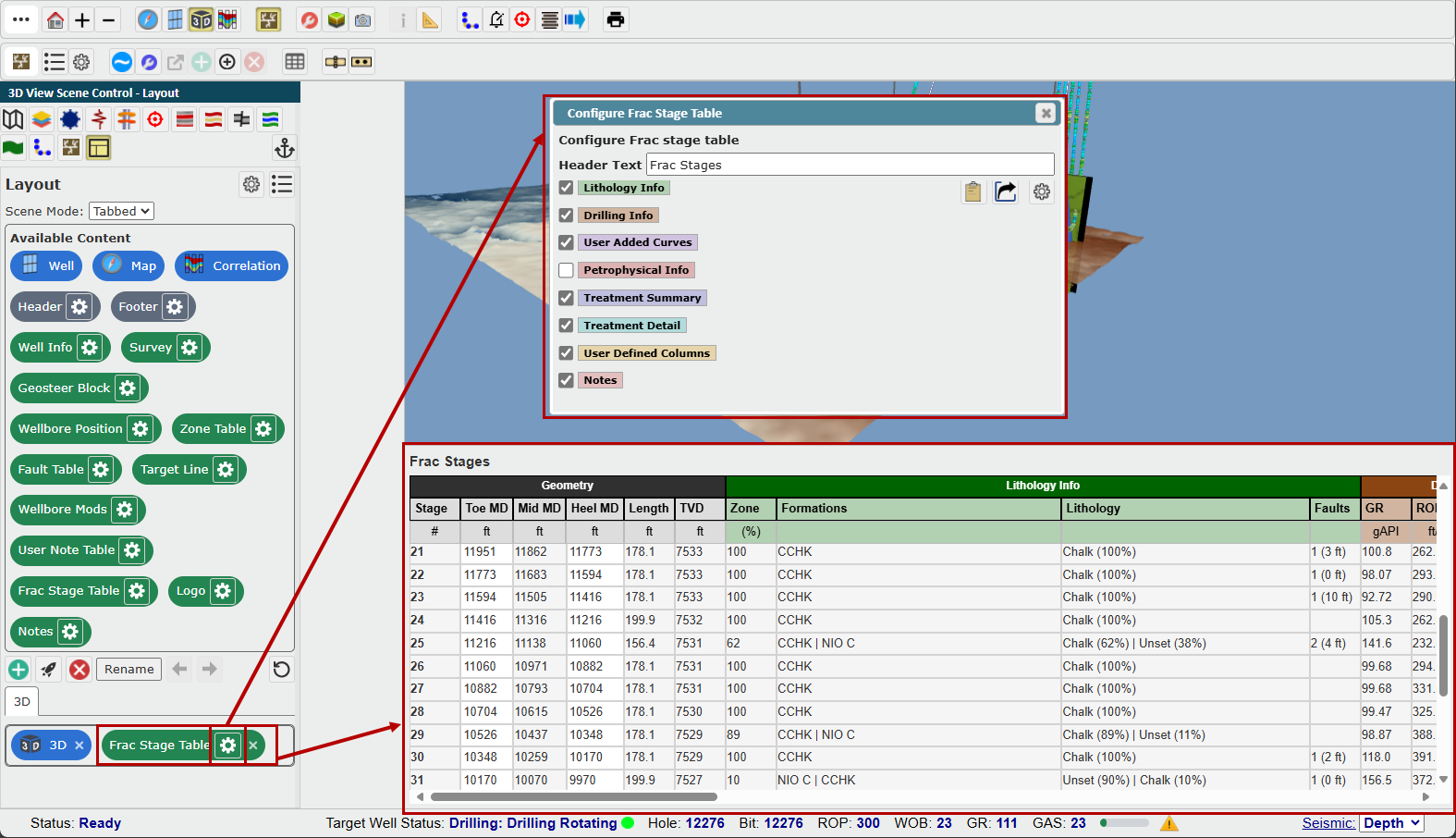
Frac Stage Table:
The Frac Stage Table Widget will display the Stage Table for the Displayed Frac on the Target Well. Clicking on the Settings icon in the Frac Stage Widget Pill will open the Widget Settings dialog, allowing you to customize the Header Label, select which Column Groups are displayed, copy the Stage Table to your computer's clipboard, export the Frac, and open the Frac Settings dialog.
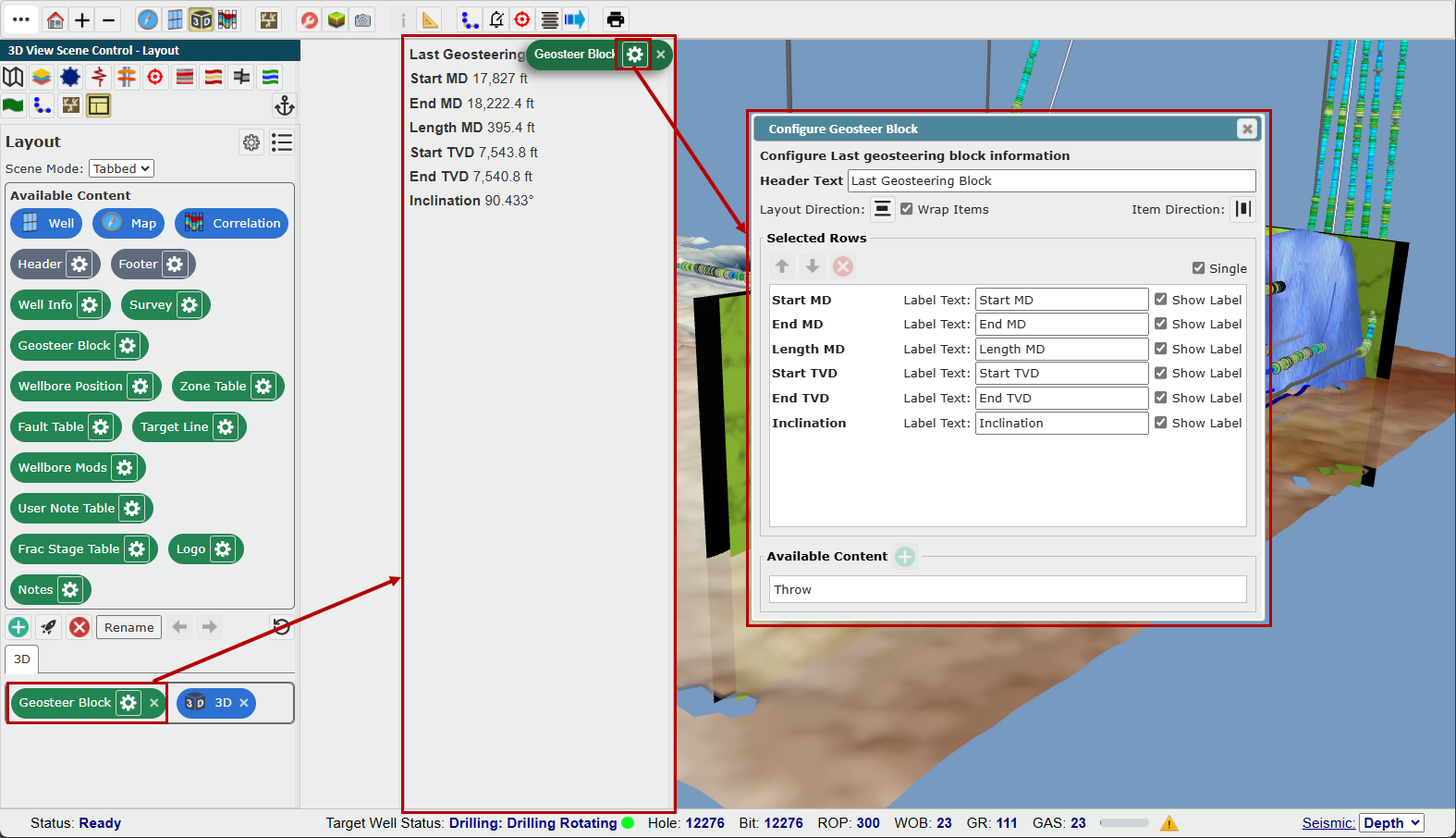
Geosteer Block:
The Geosteering Block Widget will display the table of information related to the last Geosteering Block for the displayed Geosteering Interpretation. Clicking on the Settings icon in the Geosteering Block Widget Pill will open the Widget Settings dialog, allowing you to customize the Header Label, Data Layout Direction and Stacking, Displayed Data, Data Ordering, and Data Label Styling.
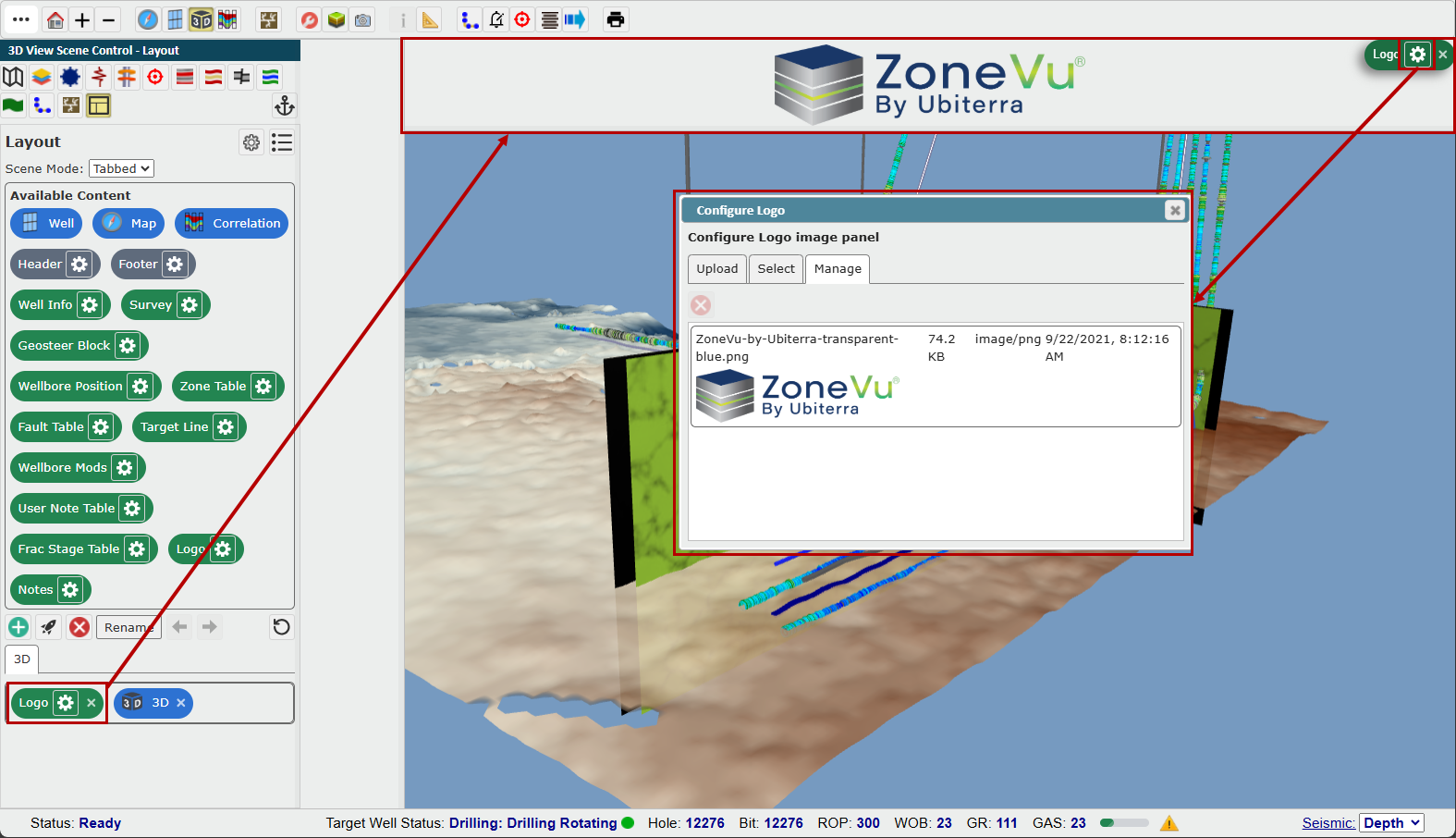
Logo:
The Logo Widget will display a selected Logo. Clicking on the Settings icon in the Logo Widget Pill will open the Widget Settings dialog, allowing you to import a new logo, select a different loaded logo, or manage your loaded logos.
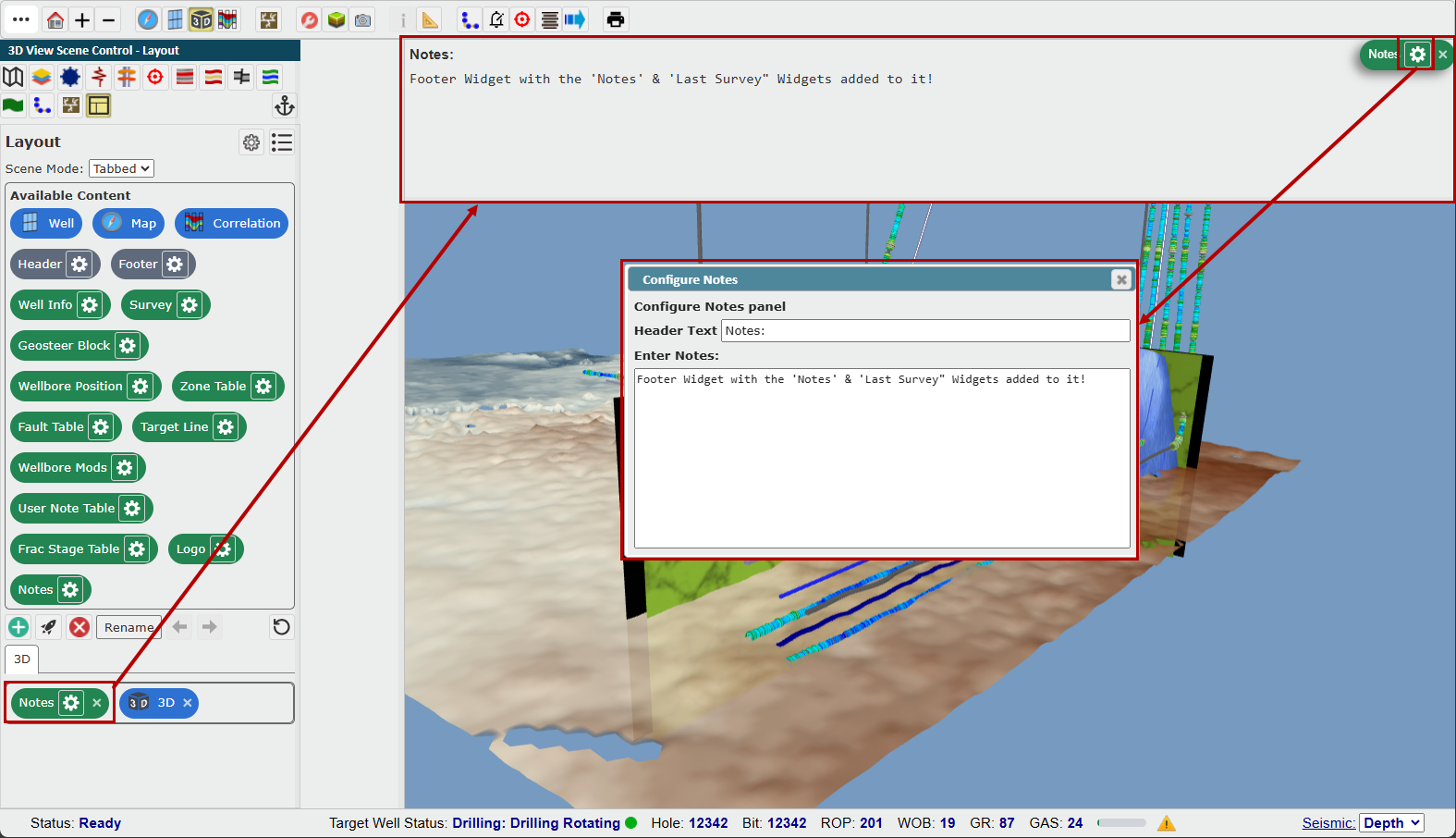
Notes:
The Notes Widget will display a Notes section allowing you to type or paste any information you need or want to be displayed. Clicking on the Settings icon in the Notes Widget Pill will open the Widget Settings dialog, allowing you to customize the header and/or fill out the note field.
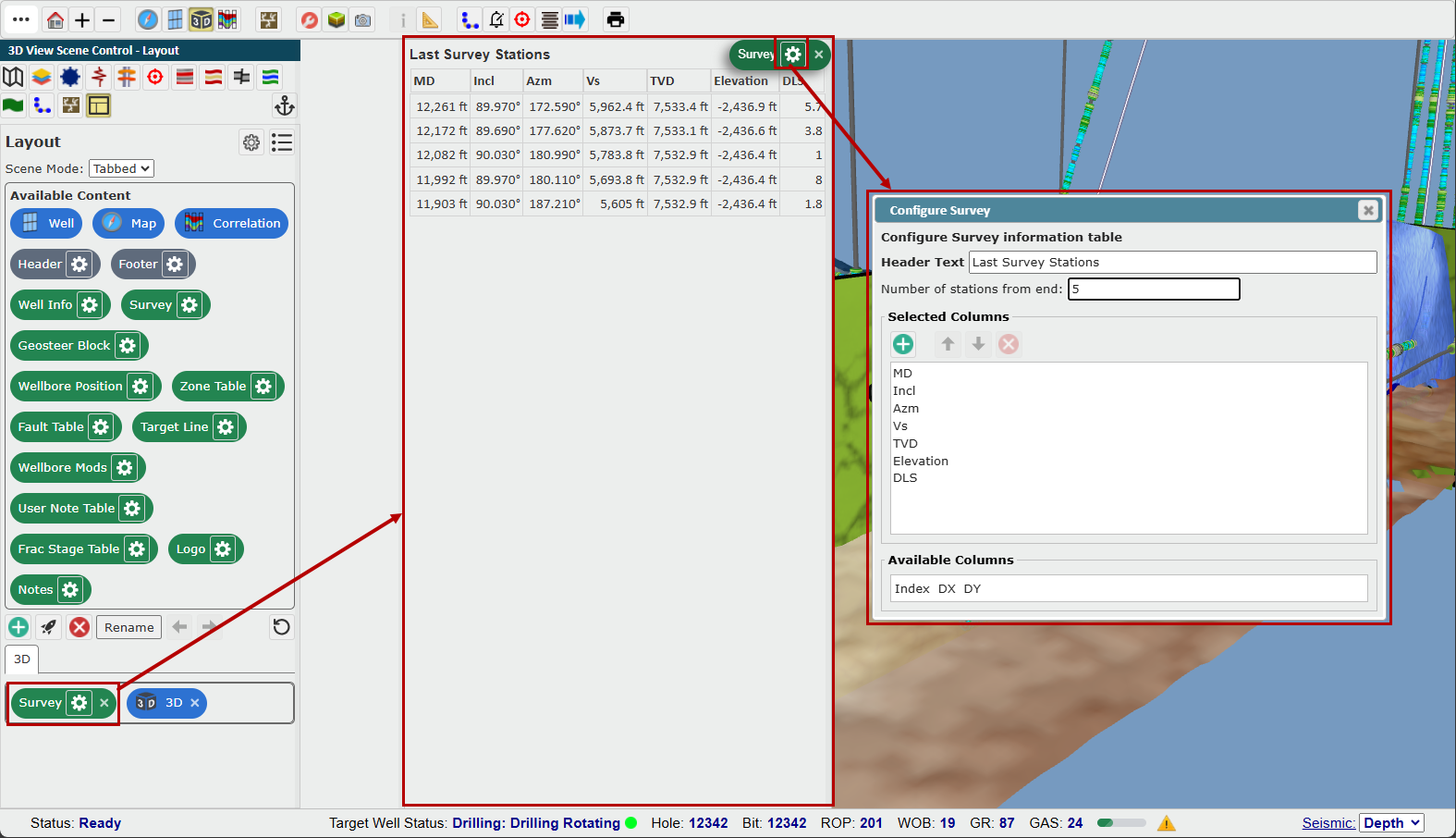
Survey:
The Survey Widget will display the table of information related to the Surveys for the Target Well. Clicking on the Settings icon in the Survey Widget Pill will open the Widget Settings dialog, allowing you to customize the Header Label, Number of Displayed Surveys, Displayed Data, and Data Ordering.
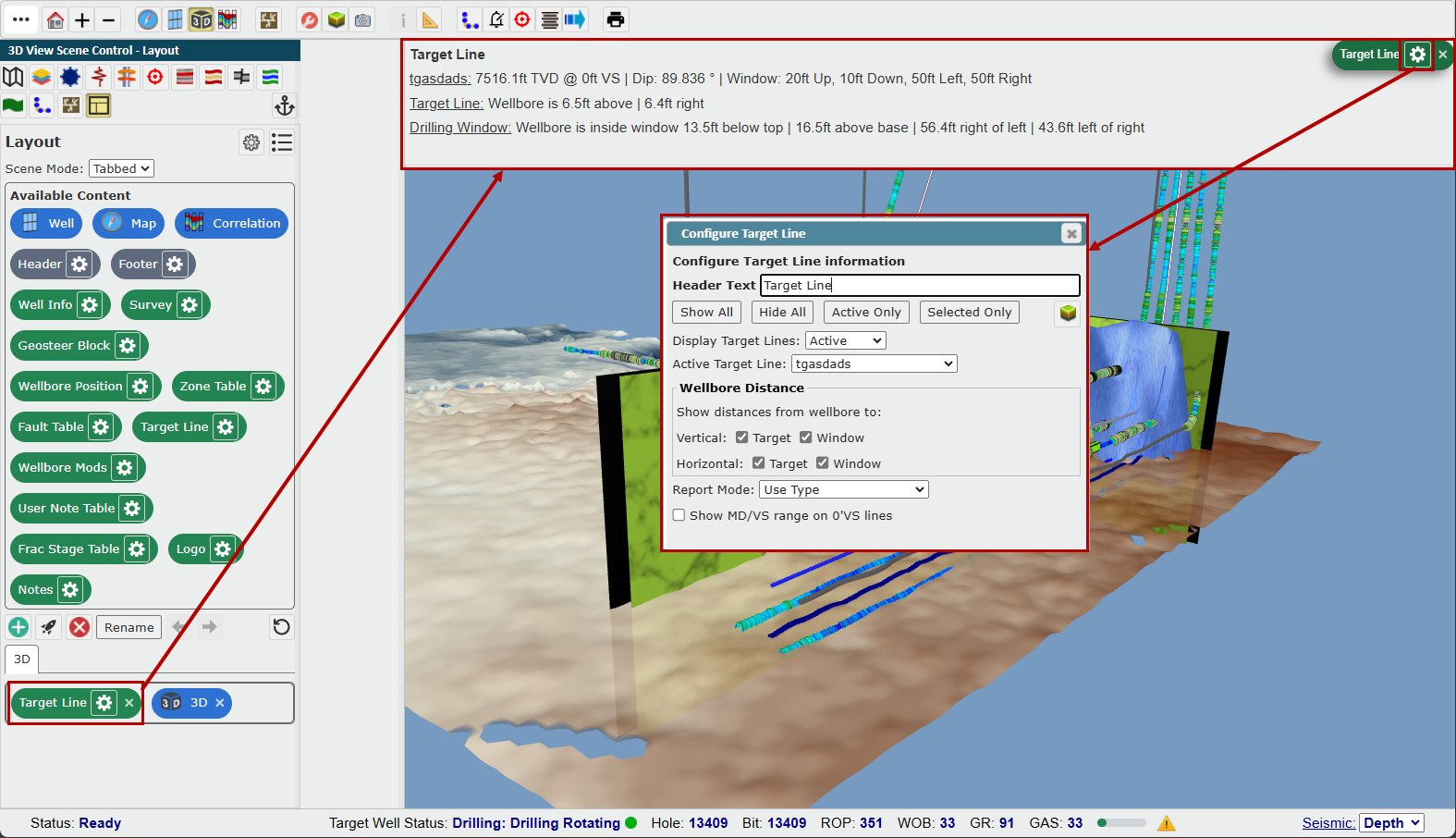
Target Line:
The Target Line Widget will display the table of information related to the Target Lines. Clicking on the Settings icon in the Target Line Widget Pill will open the Widget Settings dialog, allowing you to customize the Header Label, which Target Lines are displayed (All, Active, or Selected), which is the Active Target Line, Wellbore Distances from the Target Line and Drilling Window, Report Type (Target Line Type, 0' VS, Drill-To-Plan, Waypoints, or Waypoints With Guidelines), and Length Ranges.
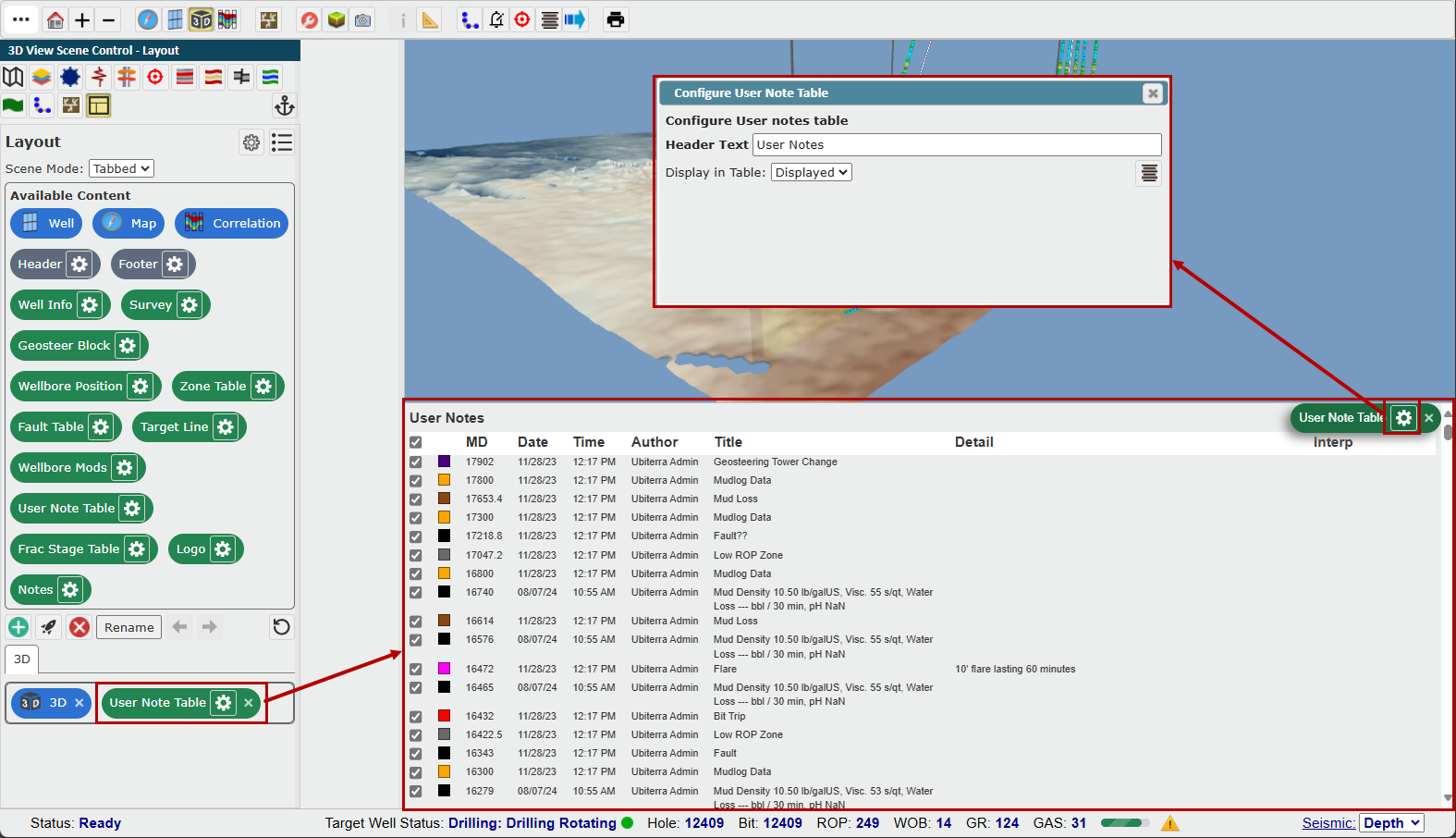
User Notes Table:
The User Notes Widget will display the table of information related to the User Notes for the Target Well. Clicking on the Settings icon in the User Notes Widget Pill will open the Widget Settings dialog, allowing you to customize the Header Label and what Notes are listed (All or Displayed).
Wellbore Mods:
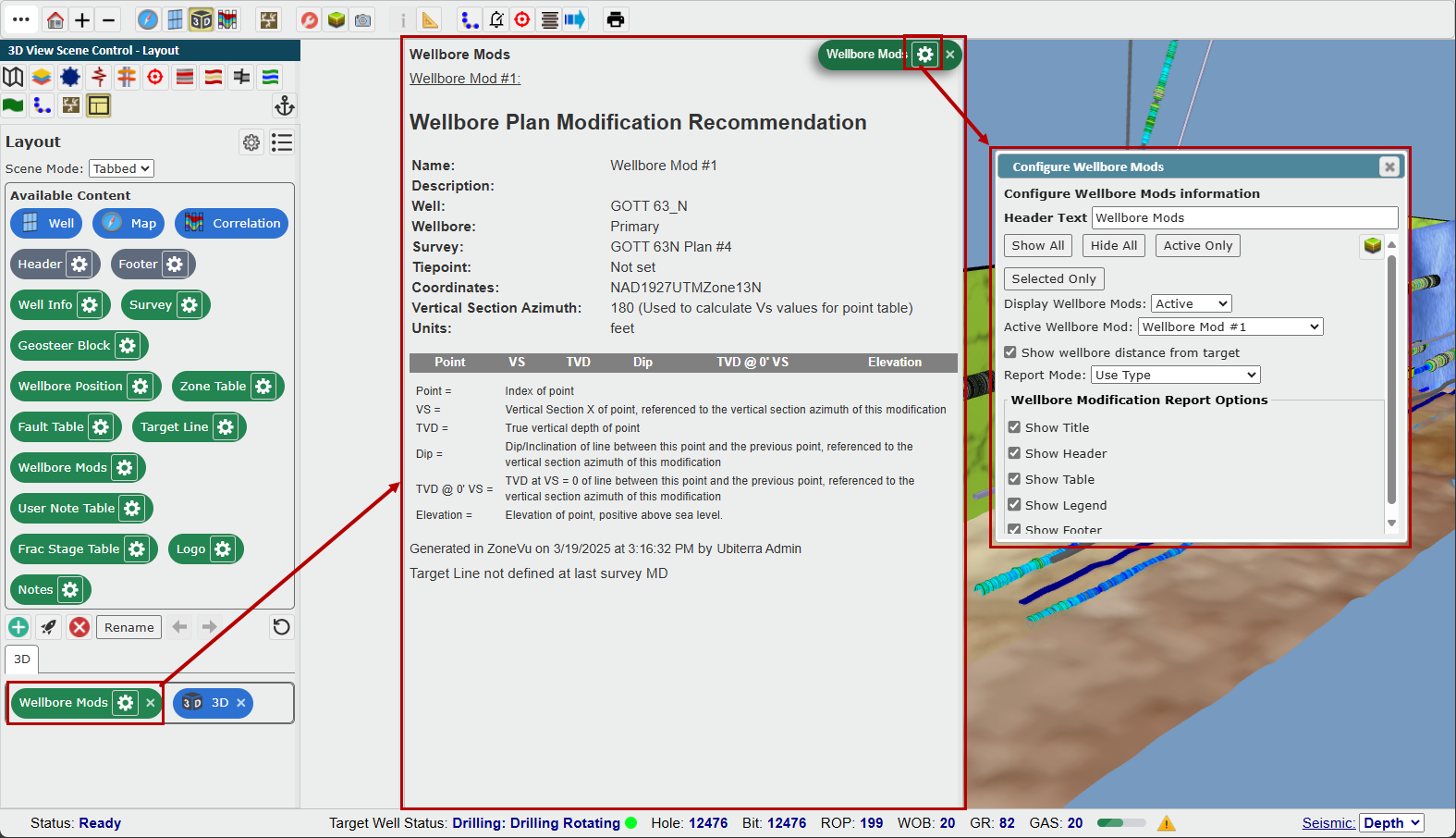
The Wellbore Mods Widget will display the table of information related to the active Wellbore Mod. Clicking on the Settings icon in the Wellbore Mods Widget Pill will open the Widget Settings dialog, allowing you to customize the Header Label, which Mods are listed, toggle 'Distance from Target' data, Report Mode (Wellbore Mod Type, 0' VS, Drill-To-Plan, Waypoints, or Waypoints With Guidelines), Report Options (Title, Header, Table, Legend, & Footer).
Well Info:
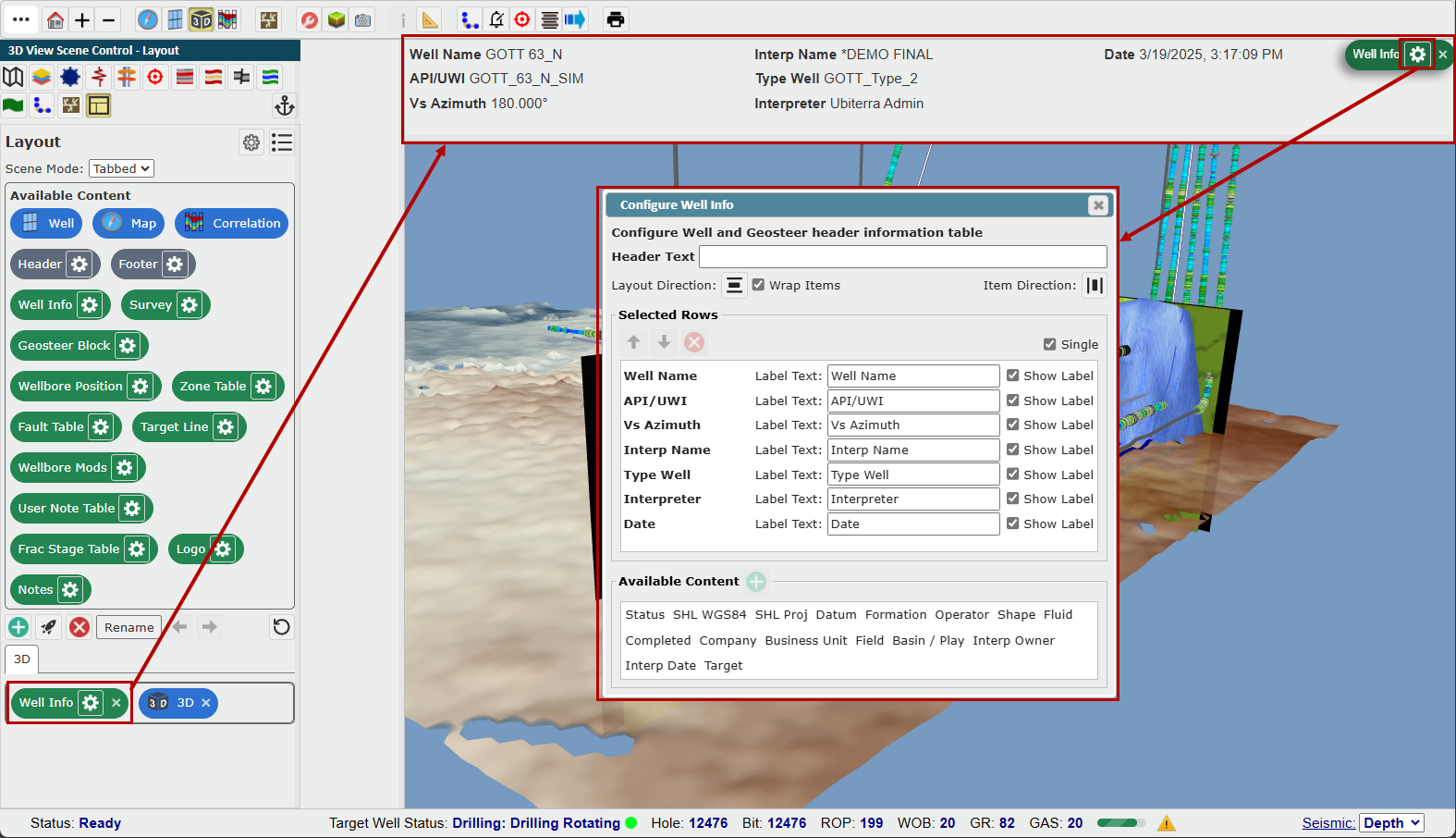
The Well Info Widget will display the Header information for the Target Well. Clicking on the Settings icon in the Well Info Widget Pill will open the Widget Settings dialog, allowing you to customize the Header Label, Data Layout Direction and Stacking, Displayed Data, Data Ordering, and Data Label Styling.
Wellbore Position:
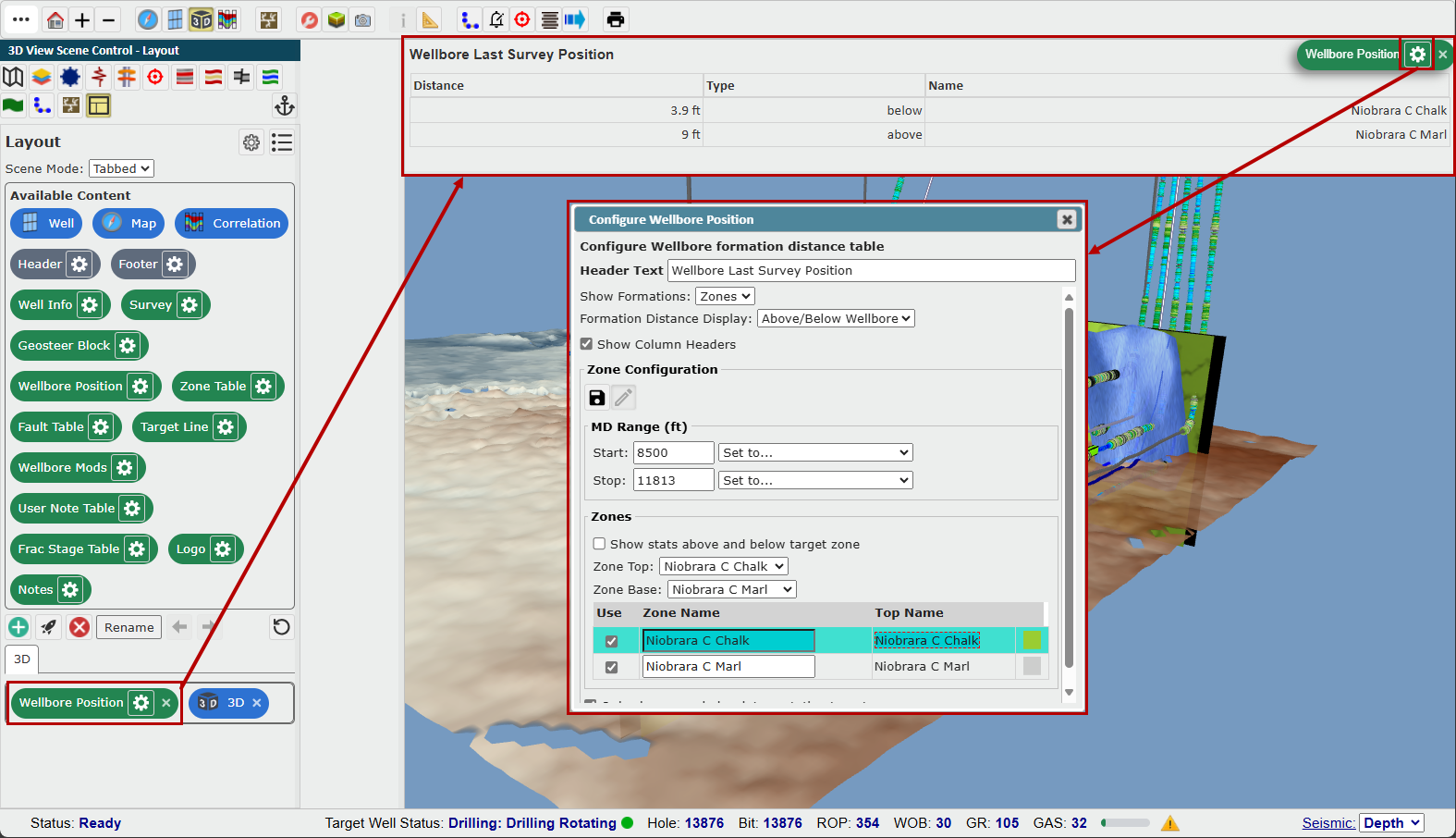
The Wellbore Position Widget will display the distance the Wellbore is at the last Survey station from selected formations based on the displayed Geosteering Interpretation. Clicking on the Settings icon in the Wellbore Position Widget Pill will open the Widget Settings dialog, allowing you to customize the Header Label, Displayed Horizons (All, Zones, Target), Distance Display (Above/Below Wellbore, TVT), Zone MD Range, and Zone Definition.
Zone Table:
The Zone Table Widget will display the Percent-In-Zone data for the displayed Geosteering Interpretation. Clicking on the Settings icon in the Zone Table Widget Pill will open the Widget Settings dialog, allowing you to customize the Header Label, Referenced Survey, Zone Definition, Zone Table Styling, and the Entry/Exit Table.