

Creating a new Top on the Type Well:
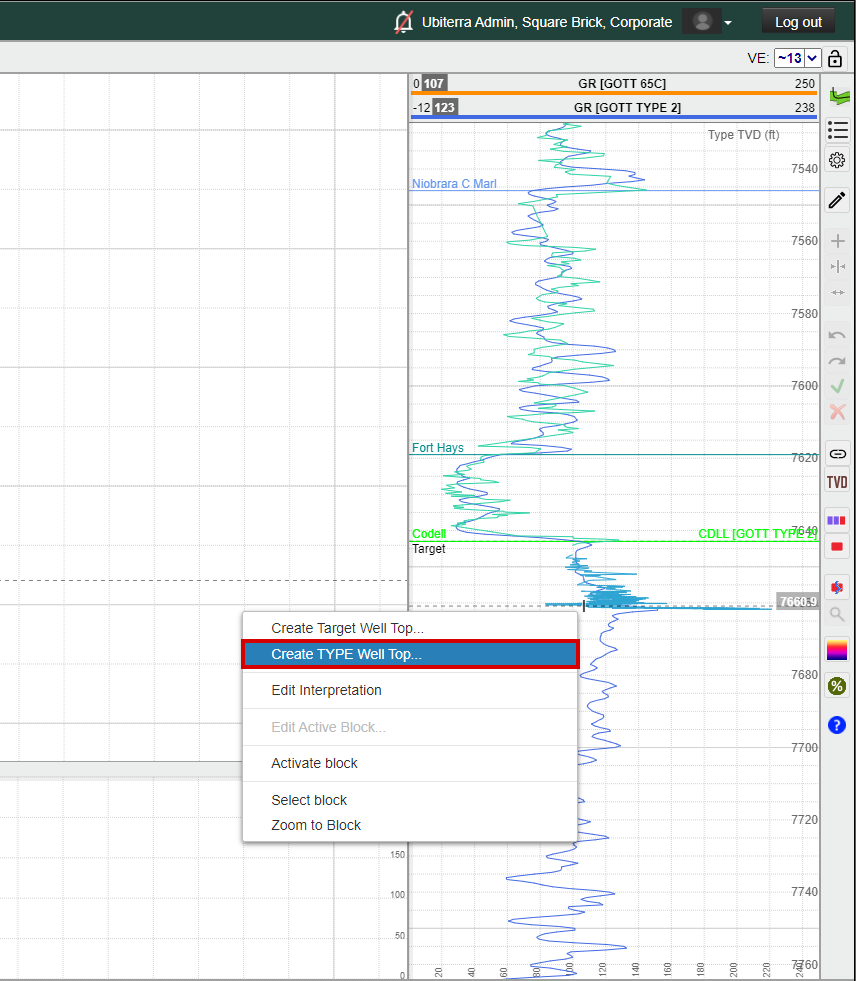
To pick a new Type Well Top, move the cursor over the Top location on the Vertical Track
Right-click and select "Create TYPE Well Top..."
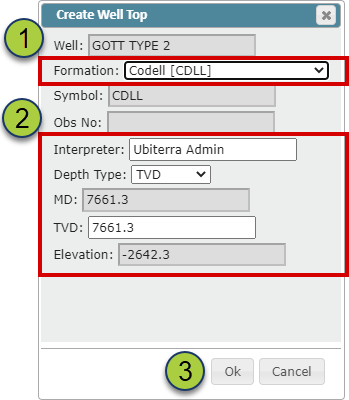
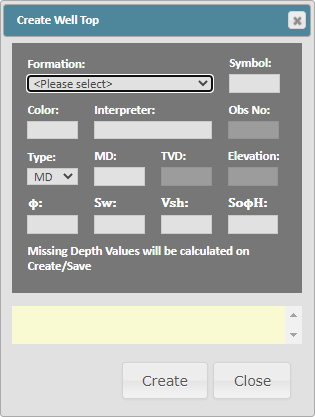
This will bring up the Create Well Top pop-up
Select the Top you wish to create under the "Formation" dropdown
Select the Depth Type and confirm the depth you want the Top placed at
Click "Ok" to place the Top
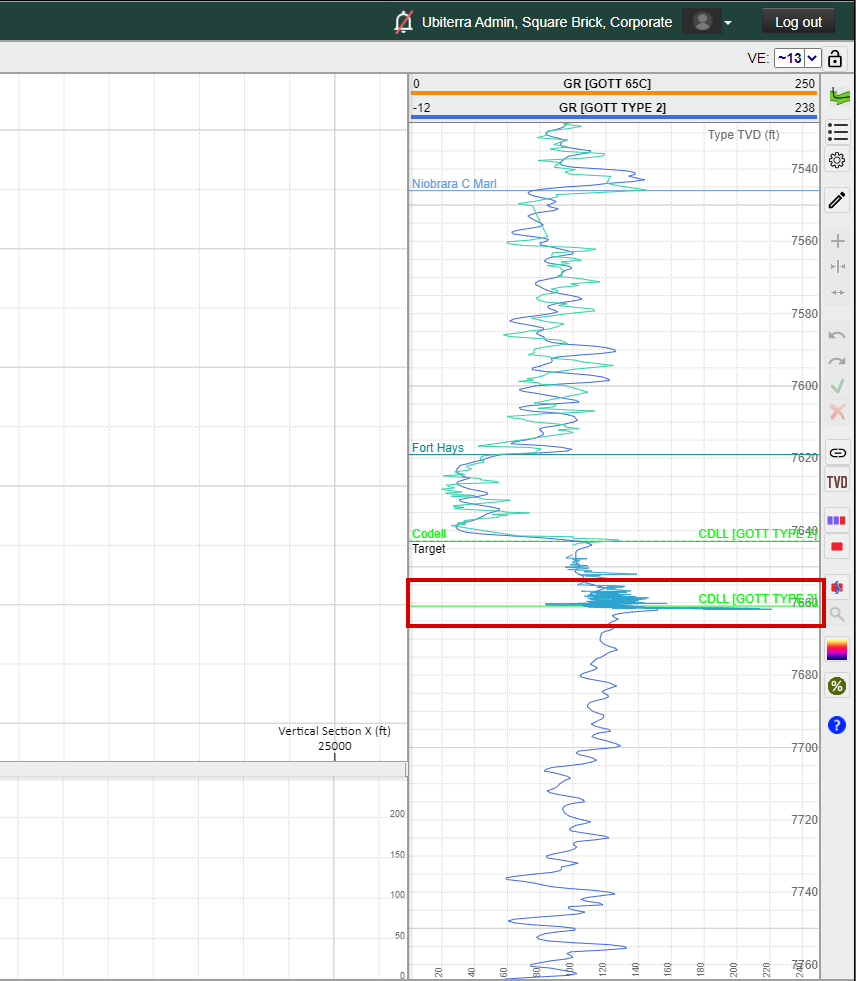
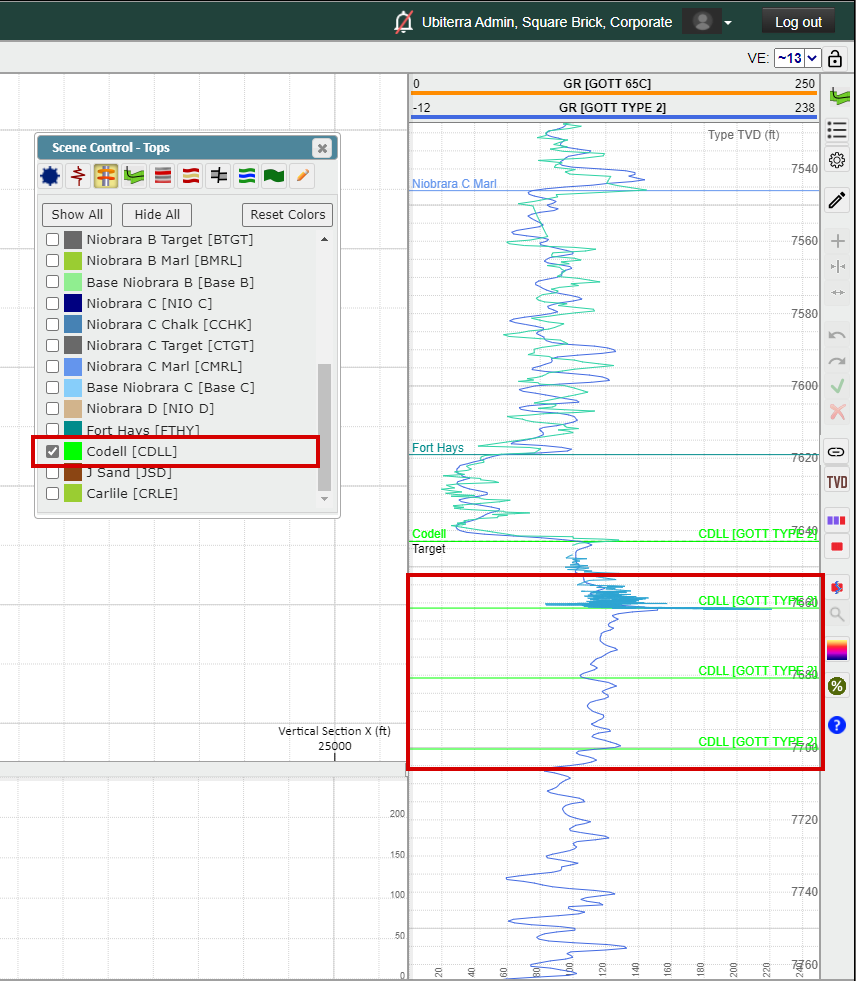
To display one or all Tops for the Type Well: Open up the Scene Control, go to the "Tops" tab, and use the checkboxes to turn on all Tops you wish to see
When a Top is checked on in the Scene Control, ZoneVu will display every pick for every Well displayed in the Cross-Section
Note: Type Well Tops are only displayed on the Vertical Track, unless the Type Well is checked on in the Cross-Section. In that case, the Tops checked on in the Scene Control will also be displayed along the Type Well's wellbore
Editing or Deleting a Type Well Top in the 2D Viewer:
Place the mouse cursor next to the Top in the Vertical Track
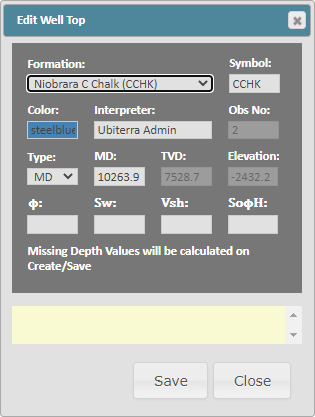
To Edit: Right-click and select "Edit 'Top Name (Symbol)' - 'Observation #' - 'Interpreter' Well Top..."
"Edit 'Niobrara C Chalk (CCHK) -1 -Ubiterra Admin' Well Top..." in the example below
To Delete: Right-click and select "Delete 'Top Name (Symbol)' - 'Observation #' - 'Interpreter' Well Top..."
"Delete 'Niobrara C Chalk (CCHK) -1 -Ubiterra Admin' Well Top..." in the example below
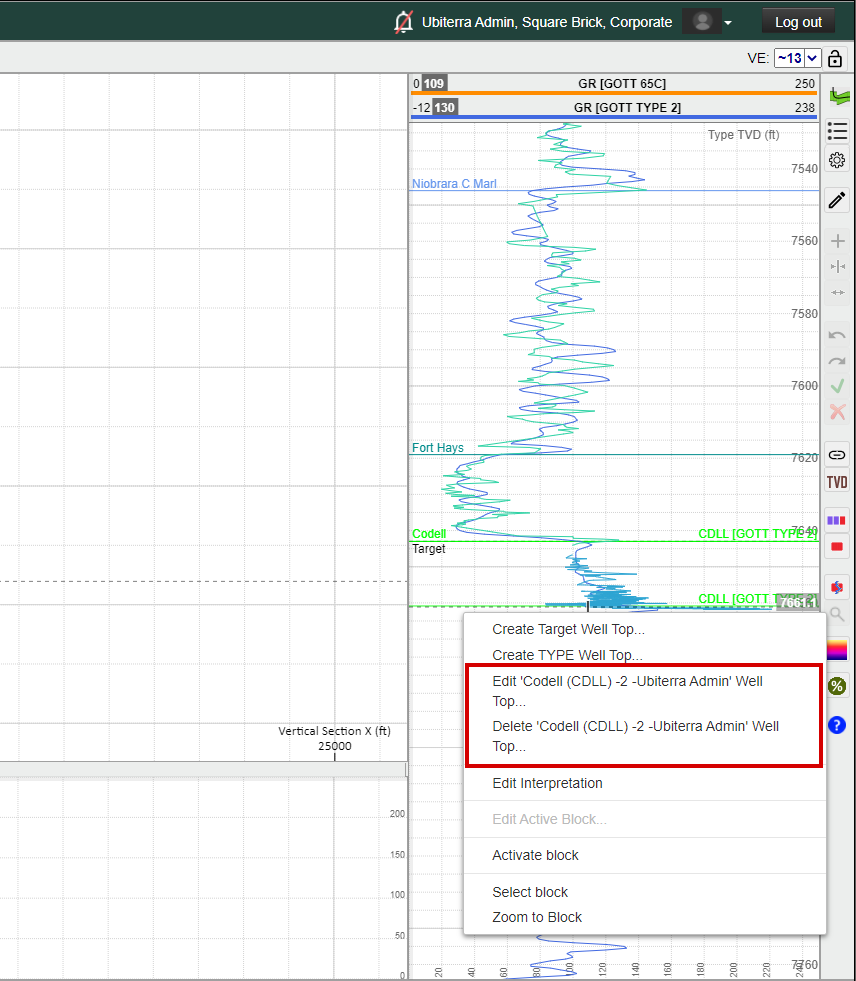
You can create as many picks as needed for the same Top. Each subsequent pick will be given an increasing "Observation Number"
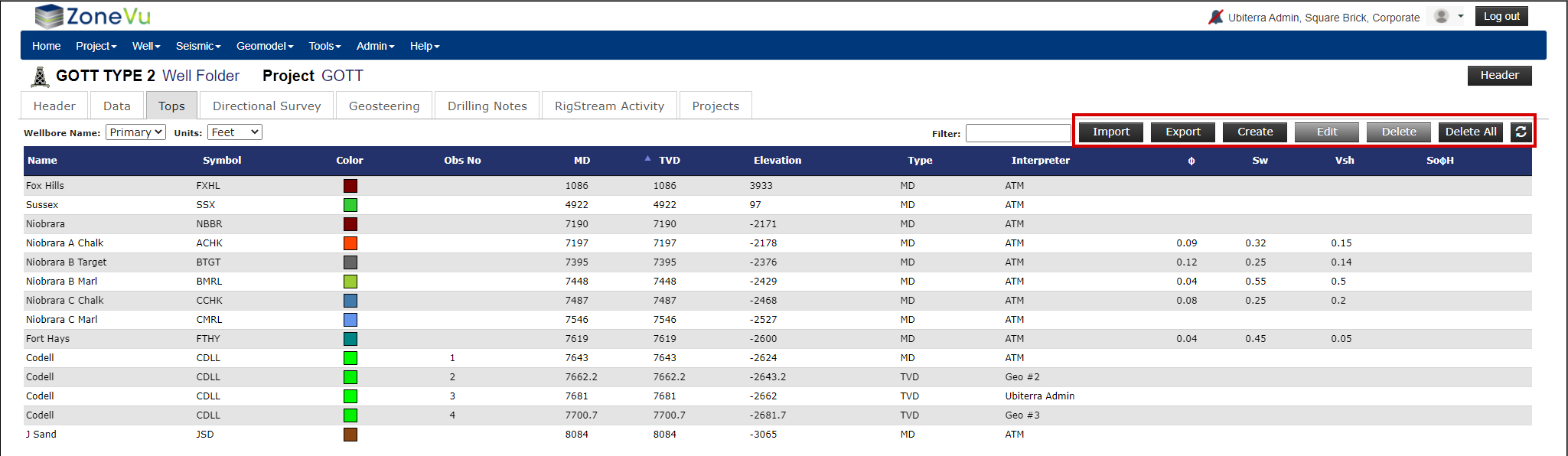
All Tops picked on a Well can be found in the Type Well's Folder under the "Tops" tab
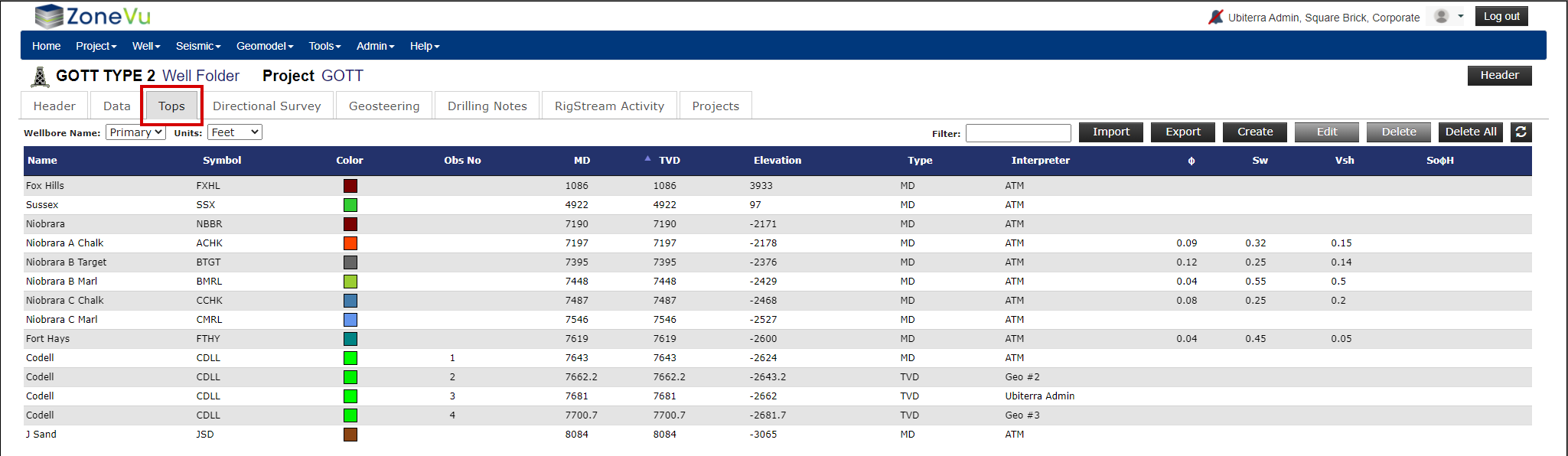
Top Data List:
Name: Top name as defined in the Strat Column
Symbol: Top name shorthand as defined in the Strat Column
Color: Top display color - ZoneVu defaults to the color defined in the Strat Column. The default can be changed locally to override the Strat Column defaults
Obs No: Numerical picking order
MD: MD depth of the Top
TVD: TVD depth of the Top
Elevation: Elevation depth of the Top
Type: Depth type (MD, TVD, Elevation) used to create the Top
Interpreter: Name of the user who picked the Top or interpreter name defined on import/creation
Ф: Porosity value - Used in the Completions Module if no Porosity log exists
Sw: Total Water Saturation value - Used in the Completions Module if no Total WaterSaturation log exists
Vsh: Vshale value- Used in the Completions Module if no Vshale log exists
SoФH: SoPhiH value - Used in the Completions Module if no SoPhiH log exists
Note: See Setting up a Strat Column Video for more info on Strat Columns in ZoneVu
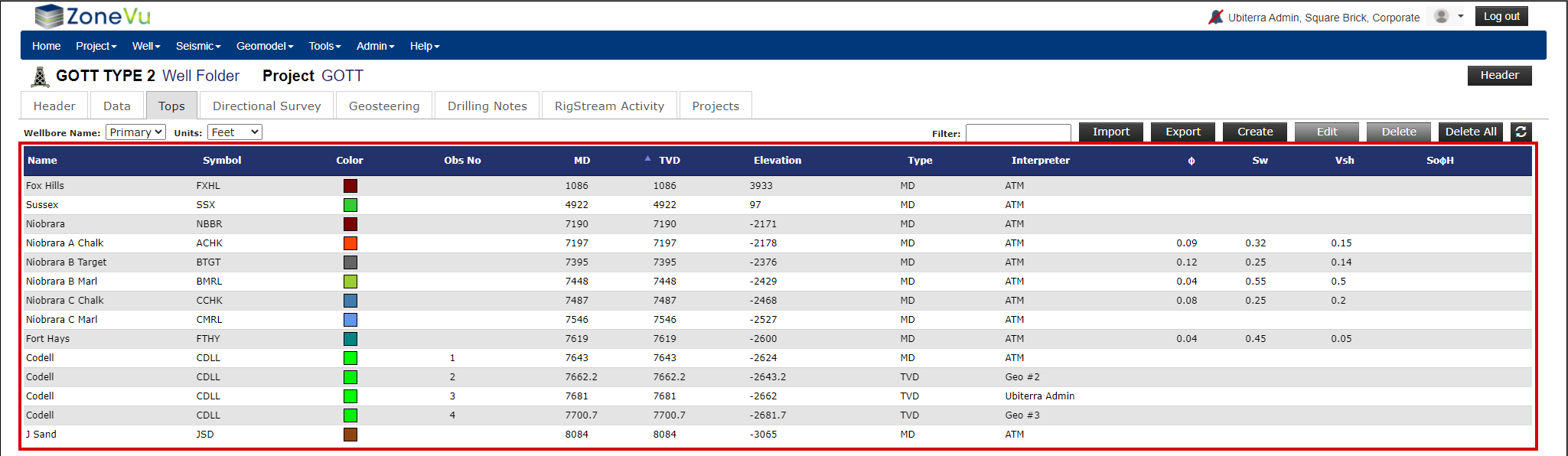
Top Data Buttons:
"Import" button: Opens the Import Well Tops pop-up, allowing you to import a Top Set (Multiple Tops Import Article)
"Export" button: Exports the entire Top Set to a .csv file
"Create" button: Opens the Create Well Top pop-up, allowing you to add a new Top to the current Well
"Edit" button: Opens the Edit Well Top pop-up, allowing you to edit the selected Top
"Delete" button: Deletes the selected Top from the current Well
"Delete All" button: Deletes all Tops from the current Well
See the Difference between Target Well Tops, Type Well Tops, and Interpretation Tops article to learn about the different Tops.
See the Picking Well Tops on the Target Well in the 2D Viewer article to learn how to create Tops for a Target Well while in the 2D Viewer
See Editing Interpretation Tops article to learn how to edit the Type Tops saved with the Geosteering Interpretation