Adding Log Data to your Completions Table:
Once your Target Well (Horizontal Well) and Type Well .las data has been loaded into ZoneVu, navigate to the appropriate 2D Viewer
How-To Article: How to import a .las file
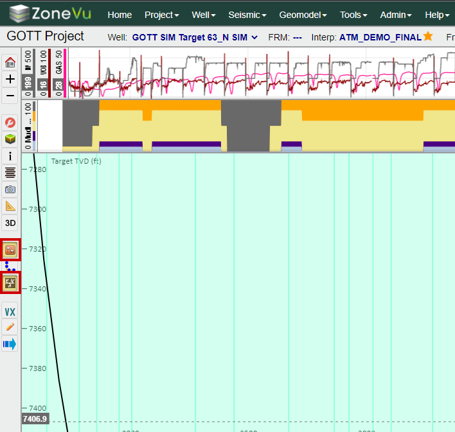
Activate your Geosteering module and Frac Planning module on the Left button tree
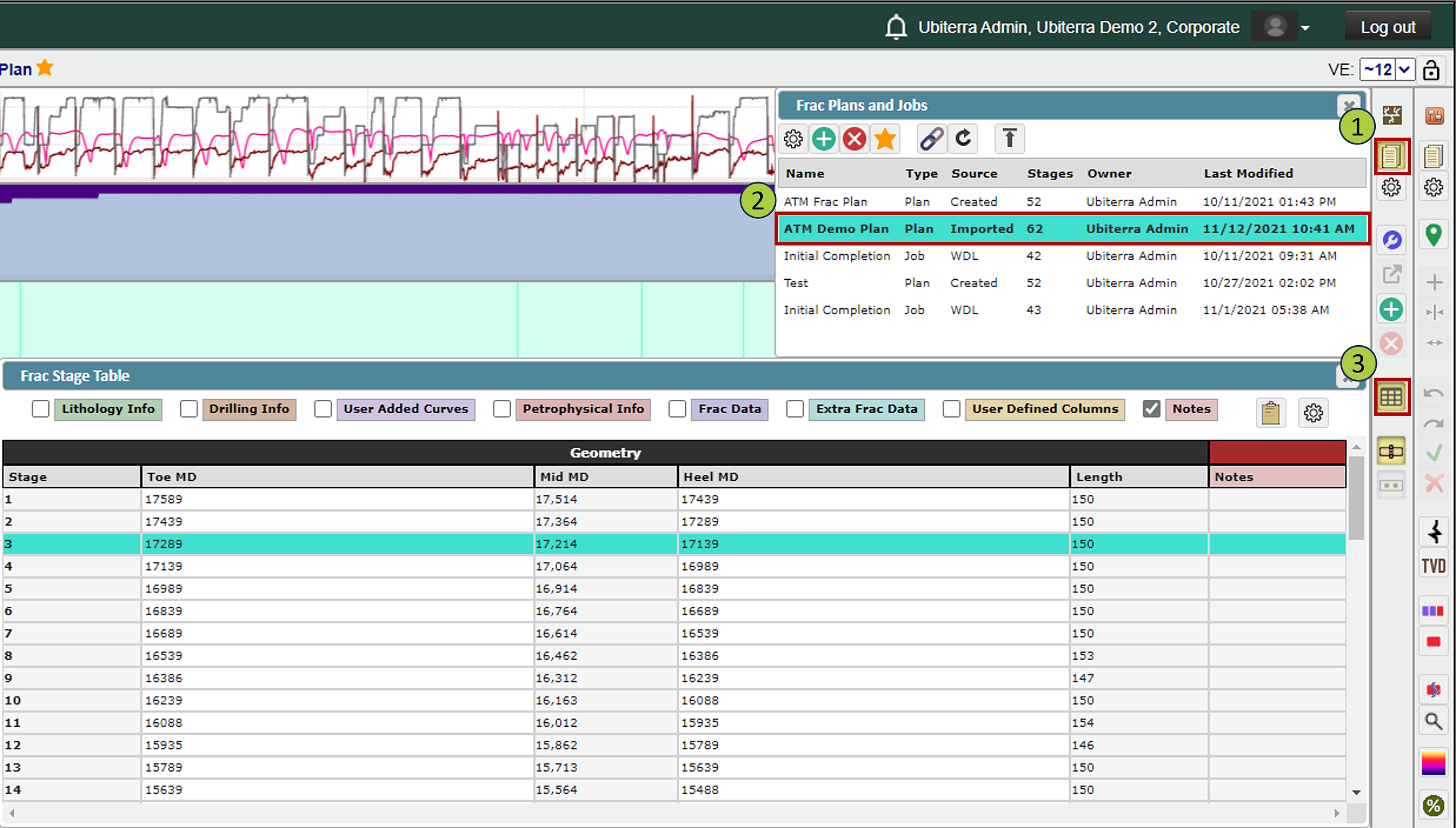
Open the Frac Plan and Jobs pop-up
Select your desired Completions Plan/Job
Then open the Frac Stage Table
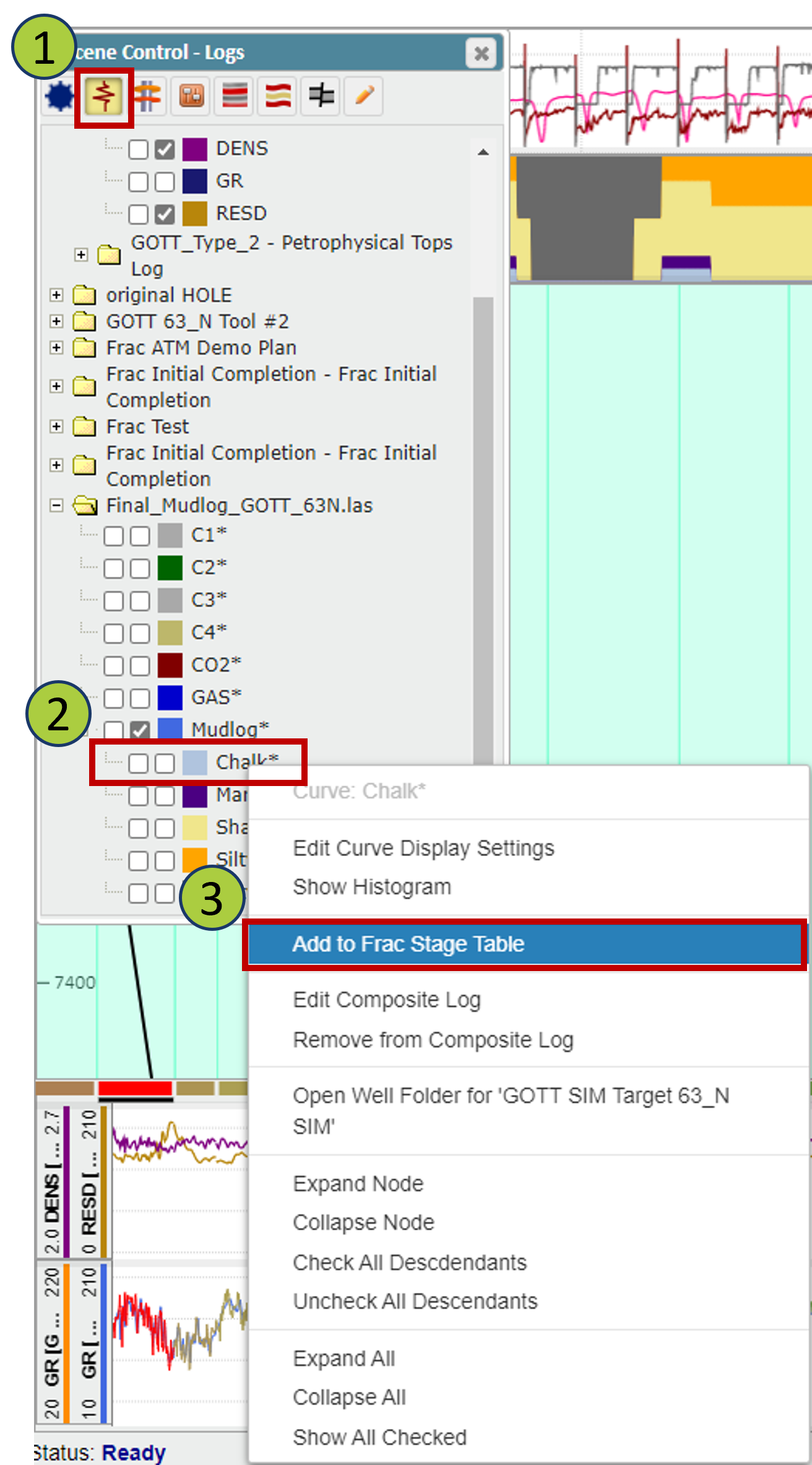
Next, open the Scene Control and go to the Logs
Find the desired log curve (Chalk in this example) in the Scene Control
Right-click on the desired log curve name and select Add to Frac State Table
Note: you can sample log data from both the Horizontal Well (Target Well) as well as the Type Well
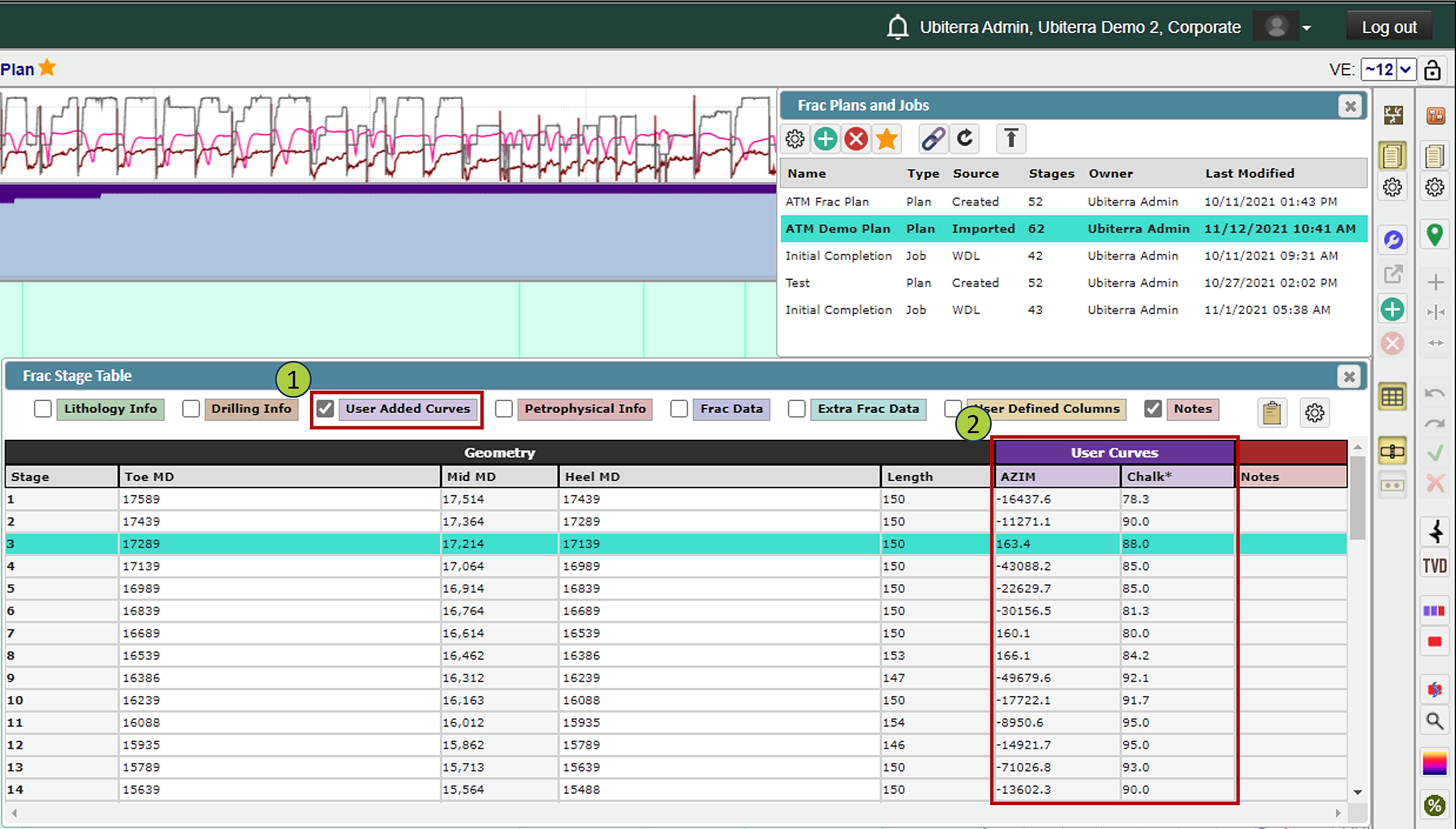
In the Frac State Table, toggle on User Added Curves
You should now see your selected log curve data (averaged across the stage) displayed in the Frac Table under User Curves
Note: The values displayed in the Frac Table is the averaged log values across each Stage's MD depth. The units in the stage table will come from the curves header inforamation.
To remove a User Added Curve from the Frac Table:
Right-click on the log name in the Scene Control and select "Remove Log from Frac Table"
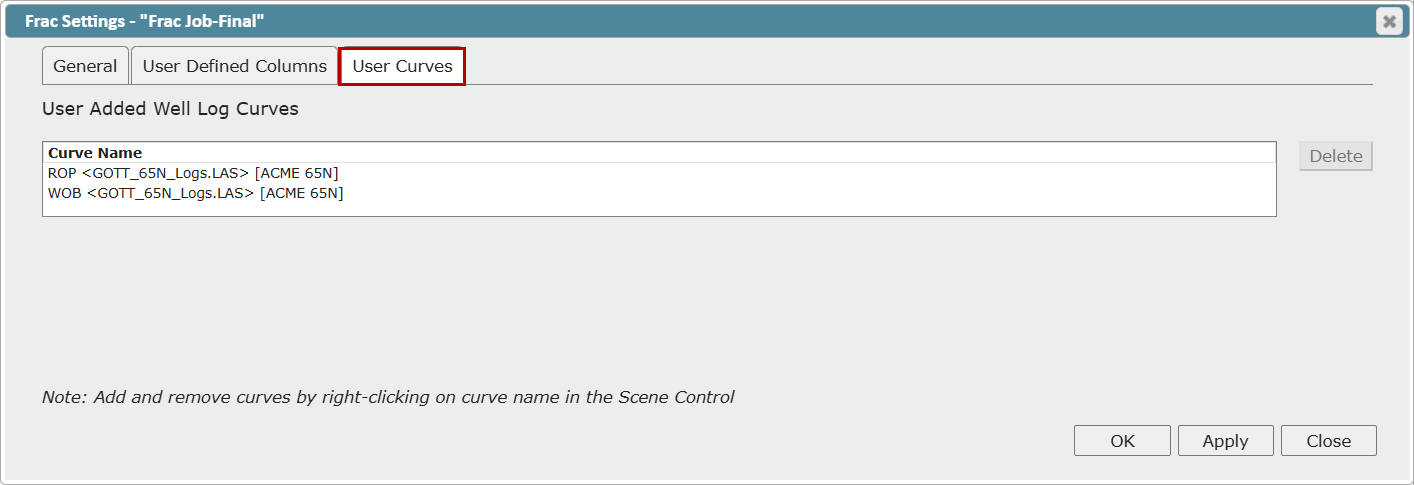
Alternatively, in the Frac Settings dialog, under the User Added Curves tab, select the correct row in the 'User Curve' list and click 'Delete'.
Make sure to click "Ok" to save your changes