How-To Video: Setting up Strat Columns in ZoneVu
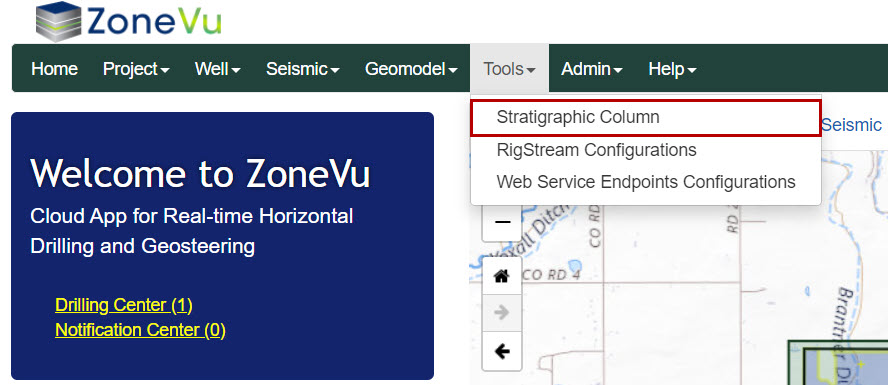
From the Home Page under the Tools dropdown, select Stratigraphic Column
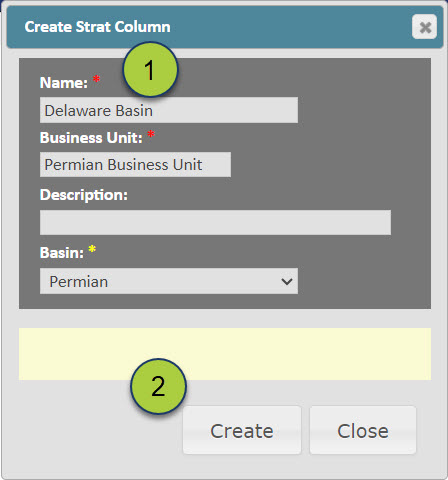
Click the "Create" button on the left-side of the screen to open the Create Strat Column pop-up

Fill out the Strat Columns input fields
Create Strat Column Inputs:
Name: Unique Name for the Strat Column (Required)
Business Unit dropdown: Select the desired Business Unit Level, Corporate by default (Required) [See Adding a new Business Unit to your ZoneVu account]
Description: Strat Column description (Not Required)
Basin dropdown: Select the Basin this Strat Column is associated with from the pre-defined list (Not Required)
Click the "Create" button to create a new Strat Column
The new Strat Column will now be listed in the Strat Column List on the left side of the screen
Strat Column Buttons:
"Create" button: Opens the Create Strat Column pop-up
"Edit" button: Opens the Edit Strat Column pop-up for the selected Strat Column
"Delete" button: Deletes the selected Strat Column
"Refresh" button: Refreshes the Strat Column List

To add formation to a Strat Column, select the Strat Column in the Strat Column List, and then click the "Create" button on the right side of the screen

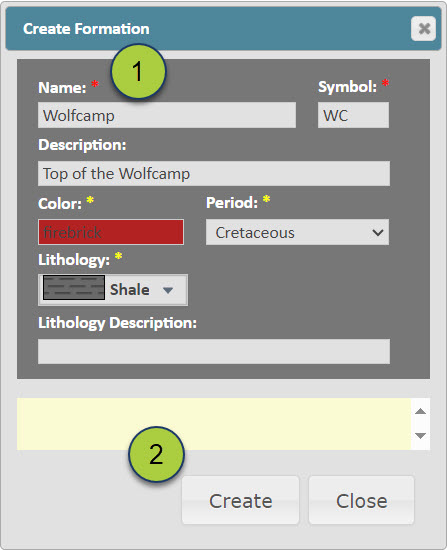
Fill out the Formation information
Create Strat Formation Inputs:
Name: Unique Name for the Formation (Required)
Symbol: Unique Symbol (Shorthand) for the Formation (Required)
Description: Formation description (Not Required)
Color: Select the color assigned to the formation. This will set the default color used by all related Top and Geosteering data. (Not Required)
Period: Use the dropdown to select the Geologic Period for this formation (Not Required)
Lithology: Use the dropdown to select the Lithology for this formation. If set, this lithology information will be incorporated in the Completion Module Frac Table (Not Required)
Lithology Description: Detailed Formation Lithology description input (Not Required)
Click the "Create" button to create the new formation
The newly created Formation will now appear in the Formation List on the right side of the screen
Note: A Strat Column's Formations must be listed in stratigraphic order (Shallow-Deep) for the ZoneVu's functionality to work correctly. ZoneVu uses the Strat Column Formations to link/tie datasets across the database and order imported/created Well Tops.
Formation Buttons:
"Up Arrow" button: Shifts the selected Formation(s) up in the Formation List (multi-select supported)
"Down Arrow" button: Shifts the selected Formation(s) down in the Formation List (multi-select supported)
"Create" button: Opens the Create Formation pop-up
"Edit" button: Opens the Edit Formation pop-up for the selected Formation
"Delete" button: Deletes the selected Formation (multi-select supported)
"Refresh" button: Refreshes the Formation List

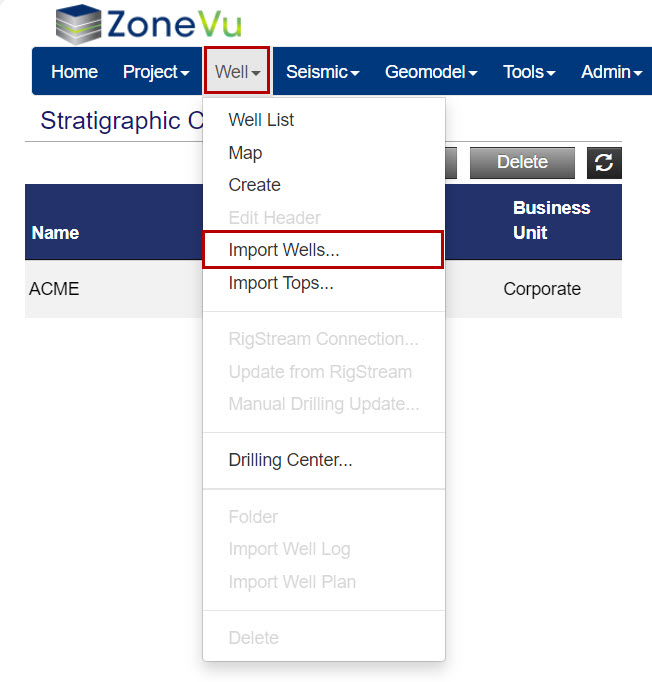
Strat Column Formations can be generated and/or updated automatically when using the Bulk Well Importing Spreadsheet How to Bulk Import Well Data
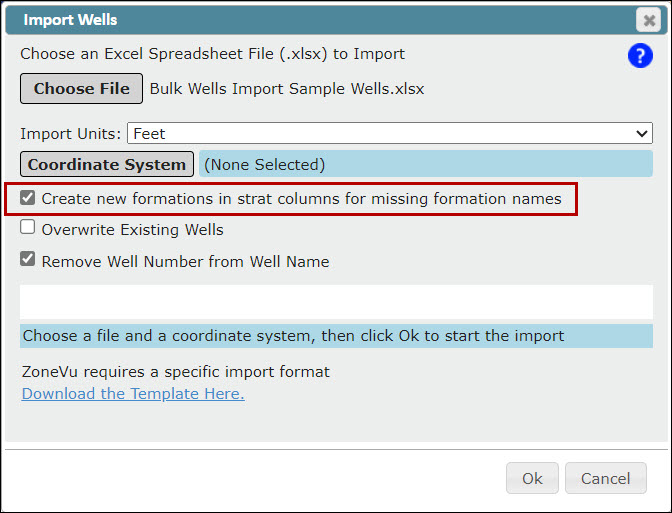
Strat Colum Formations can be generated and/or updated automatically when using the Bulk Top Importing Spreadsheet Multiple Tops Import