

ZoneVu has the ability to load and leverage your 3D Depth seismic data to assist in the Drilling, Geosteering, and Frac'ing of your Well. This article details how to import and register your 3D Seismic Volumes.
Importing a .SEGY File:
Select the Seismic Survey you want to load the .SEGY into
On the “Data” tab, click the “Import” button to open the “Seismic Volume Importer” pop-up.

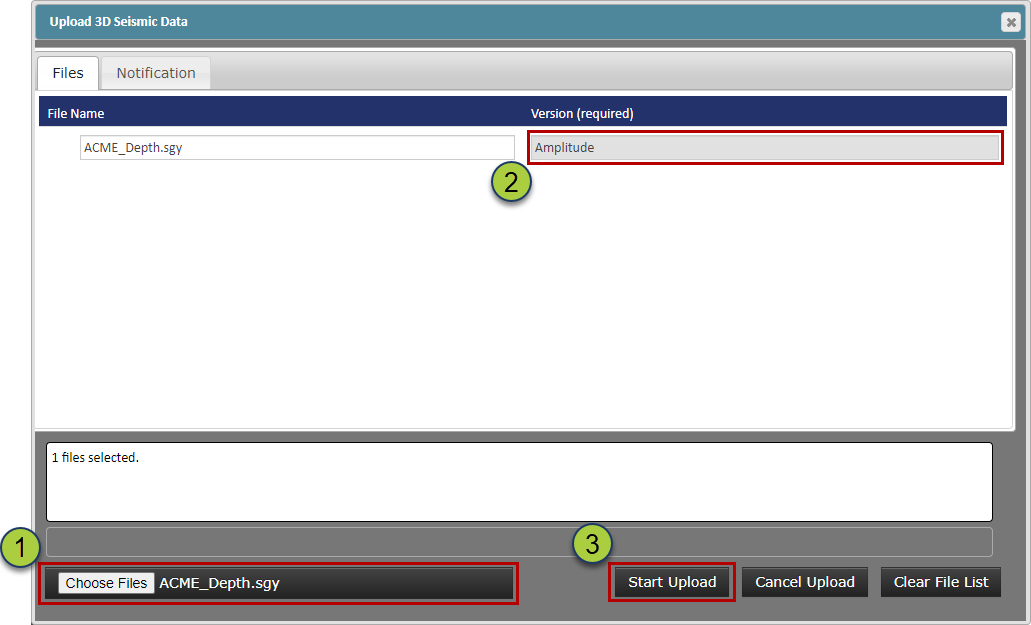
Drag & Drop or choose the SEGY file
Give the Seismic Volume a unique “Version Name”
Click the “Start Upload” button to import the SEGY
Registering your Seismic Survey:
Once the SEGY has finished loading, select the SEGY in the list and click the “Register” button to bring up the “Seismic Registration” tab

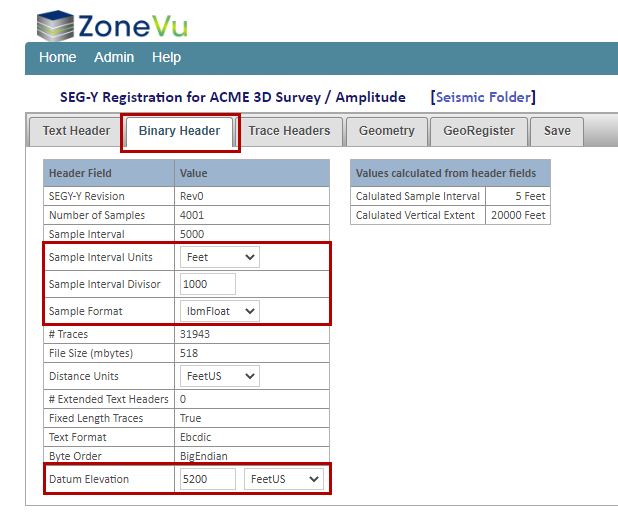
On the “Binary Header” tab, input the Sampling Interval and the Datum Elevation
Note about Kingdom SEGY Export: It’s important to note that when you clip the top of a Seismic Volume while exporting a SEGY, the datum for this “Clipped .SEGY” will become the new Datum for the .SEGY. If you clip the bottom off your Seismic Volume the .SEGY Datum will not change and the .SEGY will use the Kingdom Project Datum.
Ex: if your Kingdom Seismic Project Datum is 7,000’ Elev and you clip the top 3,000’ off the volume on export, the Datum Elevation for this “Clipped .SEGY” will now be 4,000’ Elev.
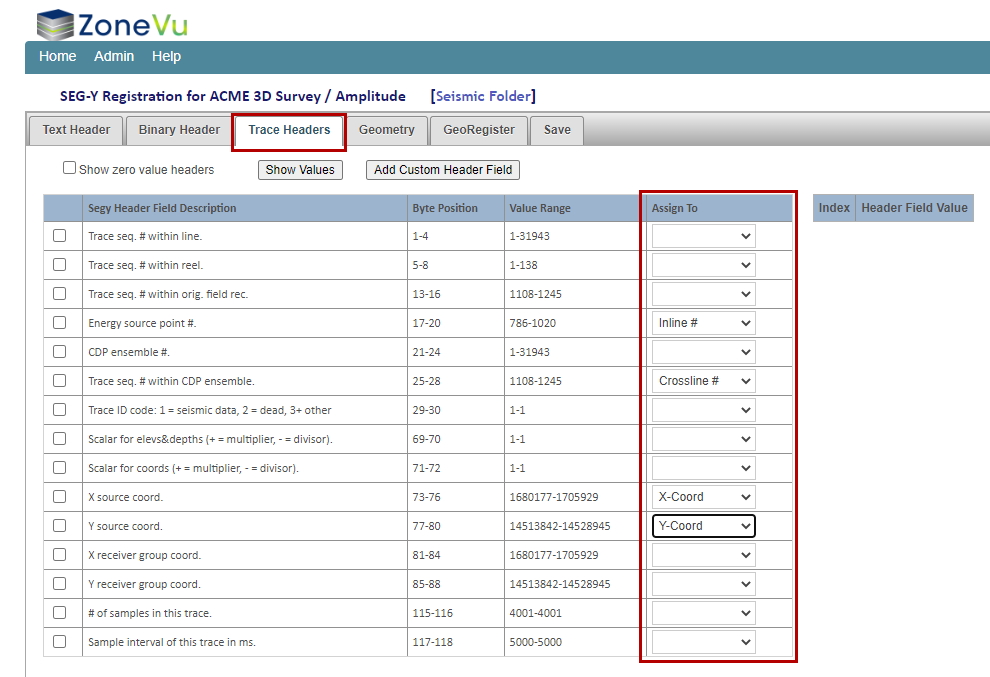
On the “Trace Headers” tab you will need to define the bit locations for the Inline #, Crossline #, X-Coordinate, and Y-Coordinate. The bit locations can be found on the “Text Header” tab
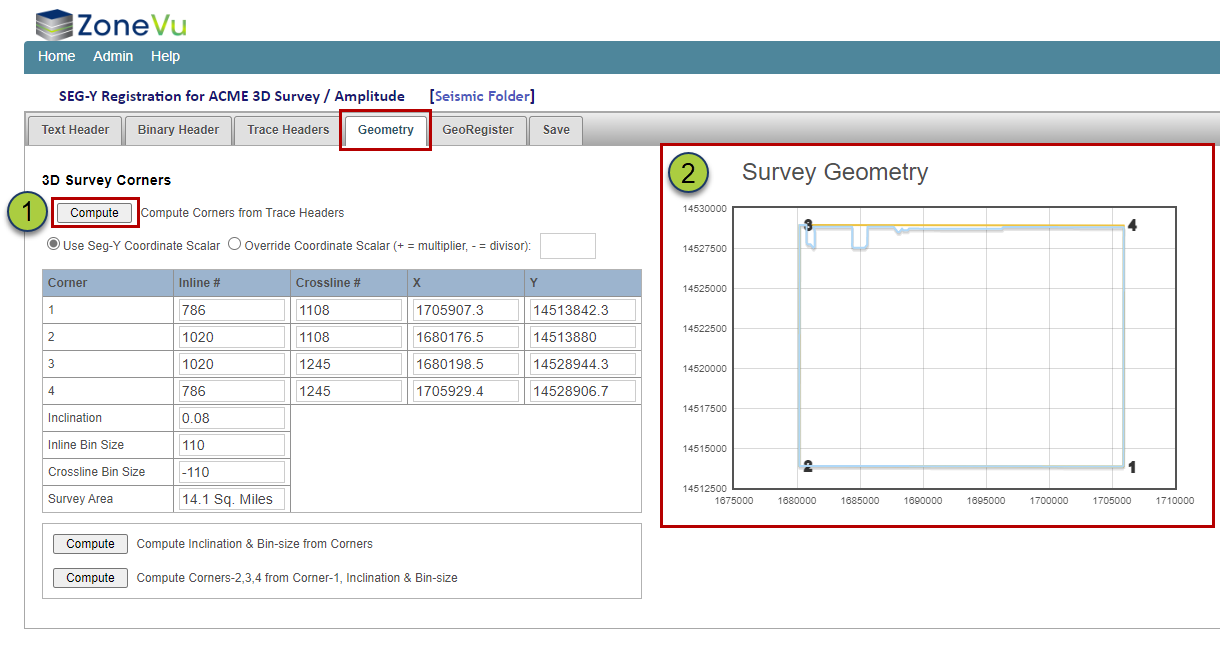
Next, go to the “Geometry” tab and click the “Compute” button.
ZoneVu will then calculate the corner locations and draw the Survey Geometry in the right grid box. Make sure to check that the Survey outline looks correct.
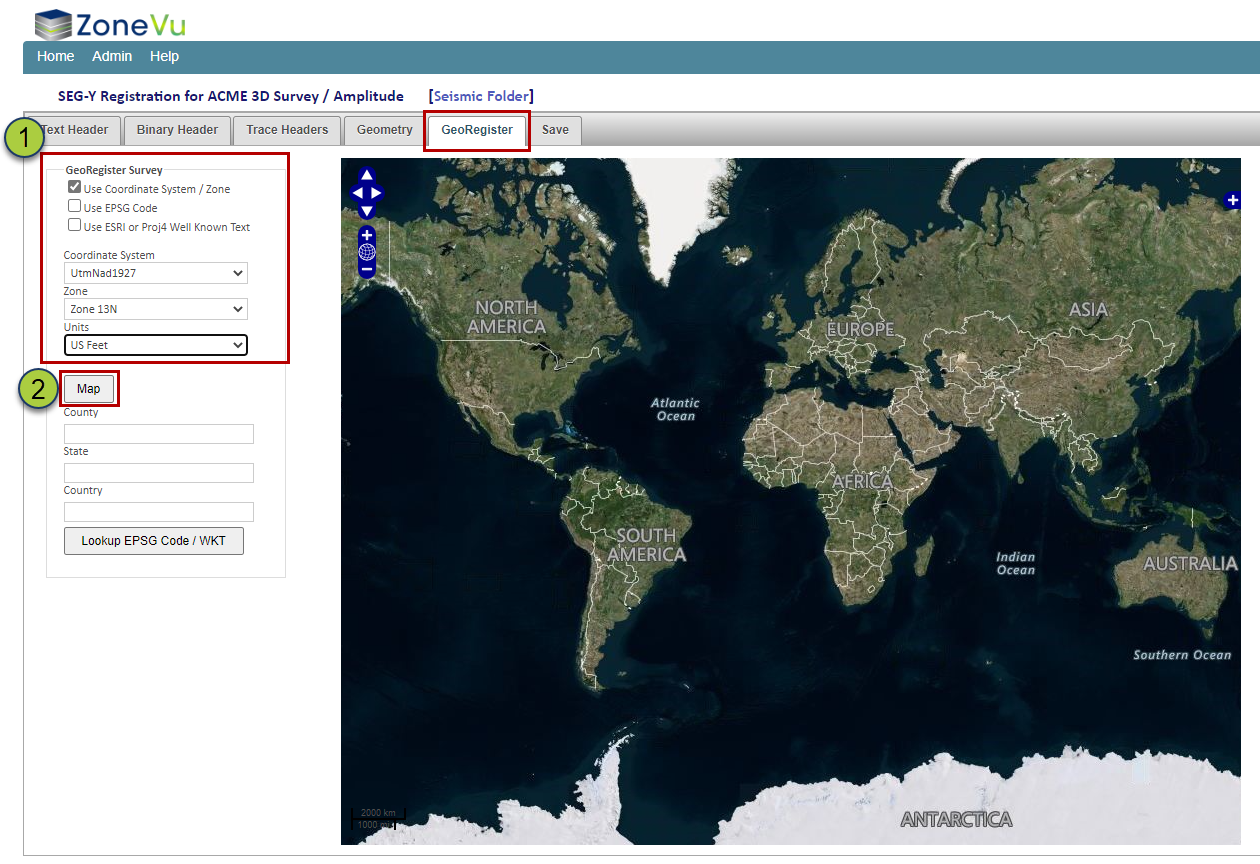
Next, go to the “GeoRegister” tab and assign the correct Coordinate system for the Survey. Then click the “Map” button to have ZoneVu draw the survey boundary on the map. Make sure to check that the Survey is being drawn in the correct location on the map.
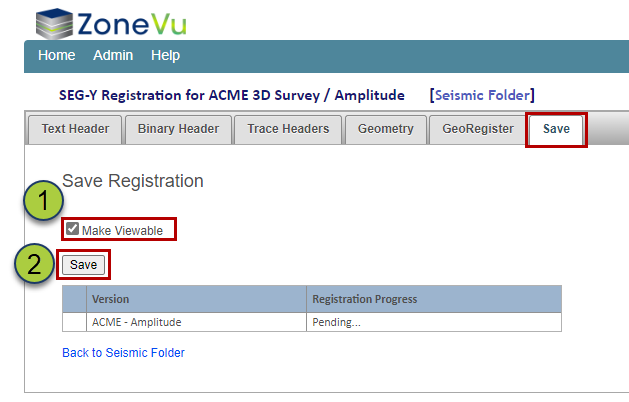
Finally, go to the “Save” tab, check the “Make Viewable” checkbox
Then click the “Save” button to have ZoneVu register the Seismic Volume
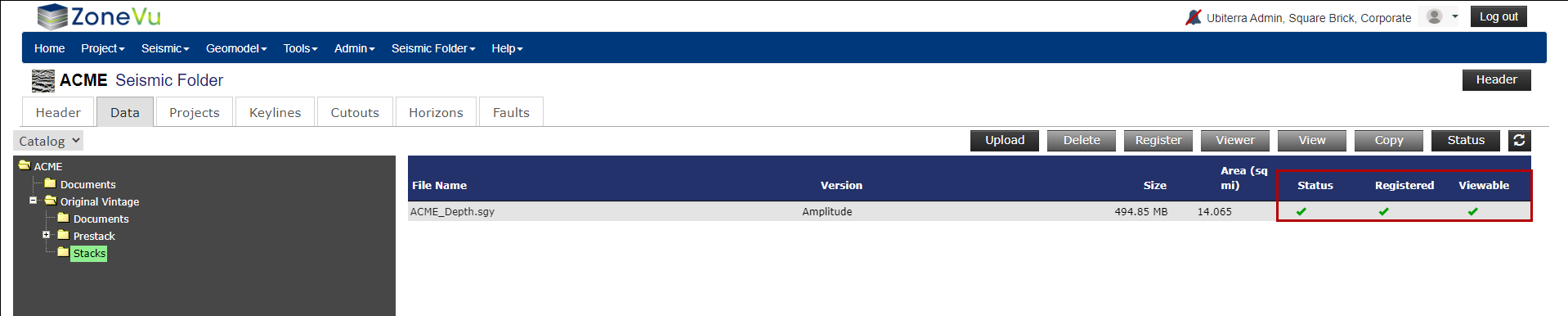
Once ZoneVu has finished Registering the Survey you will see a green checkmark under the Status, Registered, & Viewable columns. This indicates that your Seismic Volume is ready to use in the Viewer
Related Articles:
Exporting Seismic & Faults from Kingdom and Importing into ZoneVu
Importing Seismic Horizon Data
Changing the Depth Datum for a Seismic Volume