

After loading your 3D seismic volumes, ZoneVu lets you load the related Seismic Horizons for use in the Viewers. Once a Horizon has been loaded into ZoneVu, you can create Structural Surfaces and Zones (Geobodies) from these Seismic Horizons. Please see the related Geomodel How-To articles found at the bottom of this article for more information.
Loading Horizons
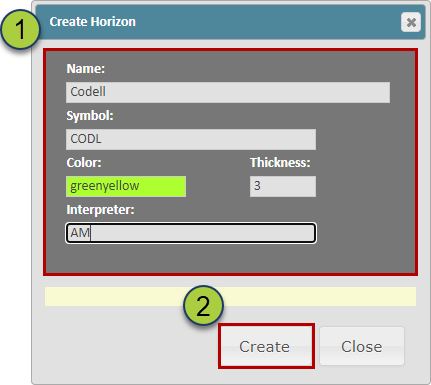
Navigate to the “Horizons” tab in the Seismic folder and click the “Create” button to open the “Create Horizon” pop-up

Enter a name, Symbol (Shorthand name), Color (Optional), and Interpreter (Optional).
Click the “OK” button to create the Horizon Folder
Select the Horizon you want to import data into and click the “Import” button to open the “Horizon Import” pop-up

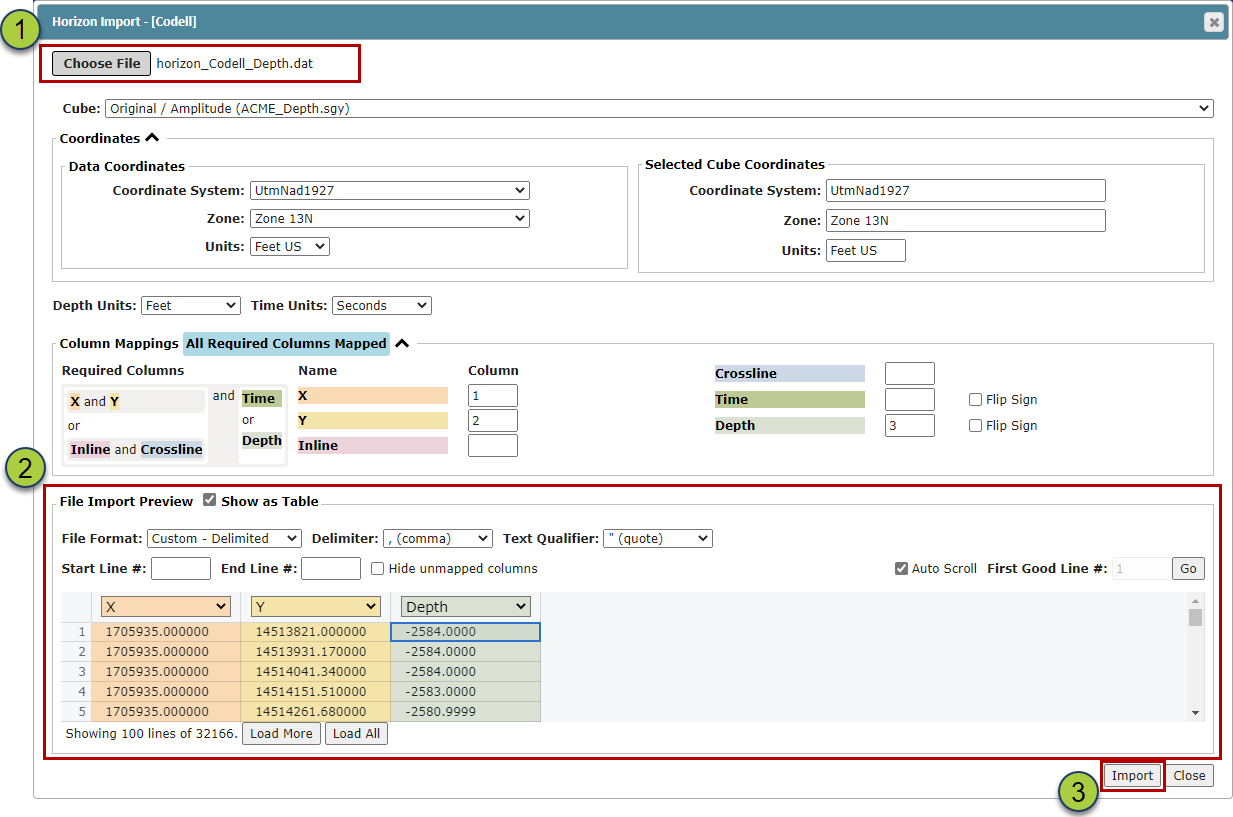
Drag & Drop or Choose the data file
Note: Inline, Crossline, Depth (XYZ) is our preferred format
Supported Formats:
Delimited Text: Comma, space, tab, pipe, or tilde
Excel Workbook
SeisWorks Line Trace
GeoGraphix ASCII
GeoQuest Card 7
If ZoneVu can auto-identify the required data, you will see a blue “All Required Columns Mapped” appear on the Importer; otherwise use the dropdowns on the Column headers to identify the required columns.
Click the “Import” button to import the horizon data
After the Horizon data has been loaded, ZoneVu will calculate the Min, Max, & Average depth of the Horizon to help you QC the import.
Note: You can edit or update this Horizon at any time by clicking the "Edit" or "Import" button.

Related Articles:
Exporting Seismic & Faults from Kingdom and Importing into ZoneVu
Creating Geomodels in ZoneVu (Video)