

Setting a GR Tool Setback:
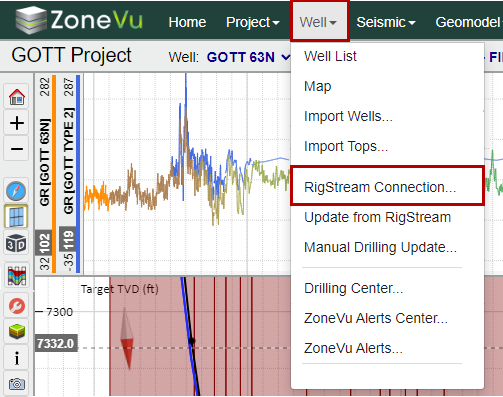
While in the Viewer, under the “Wells” dropdown, select “RigStream Connection…” to open the “RigStream Connection” pop-up
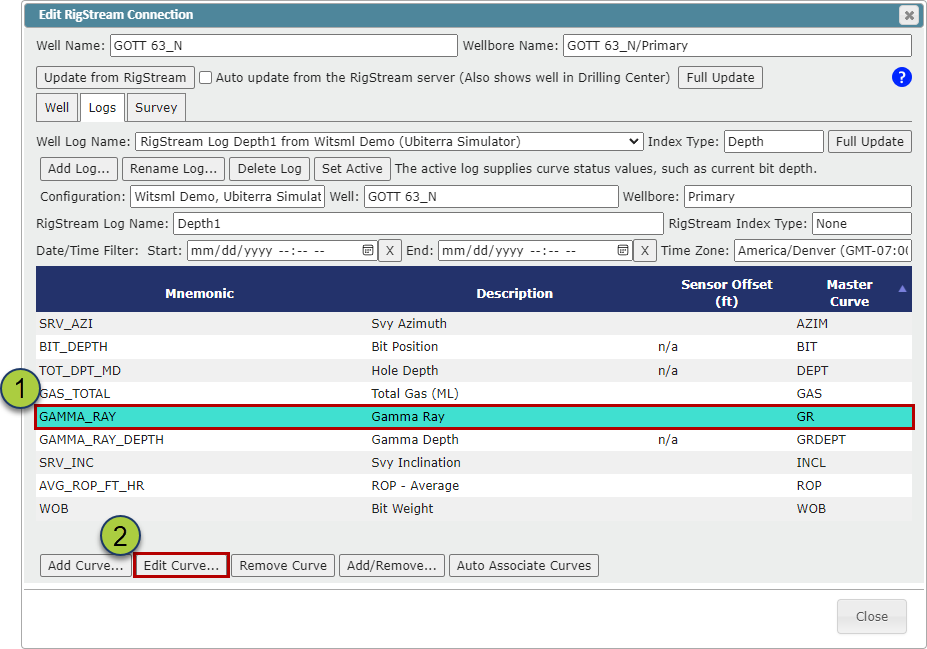
Go to the "Logs" tab and select the GR curve in the Curve List
Click the "Edit Curve..." button
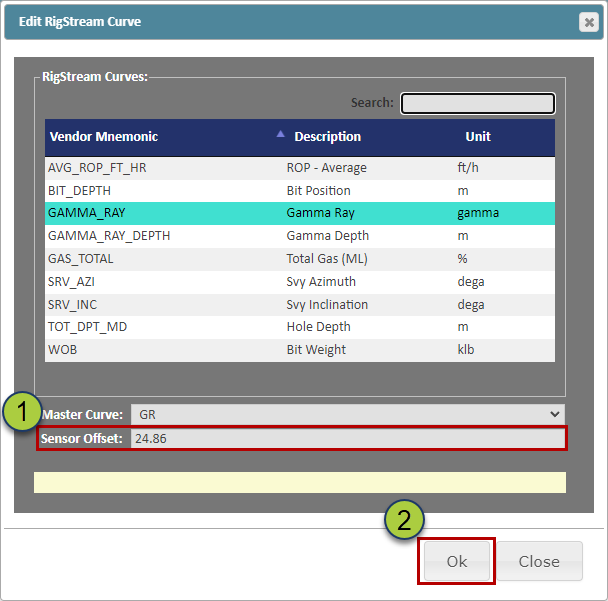
In the Edit RigStream Curve Dialog Box, add the GR Tool Setback Distance in the "Sensor Offset" input field
Click the "OK" button to apply these changes
The GR Tool Setback will now be listed in the Curve List under the Sensor Offset column, on the next RigStream update this new GR Tool Setback will be applied to the GR Curve
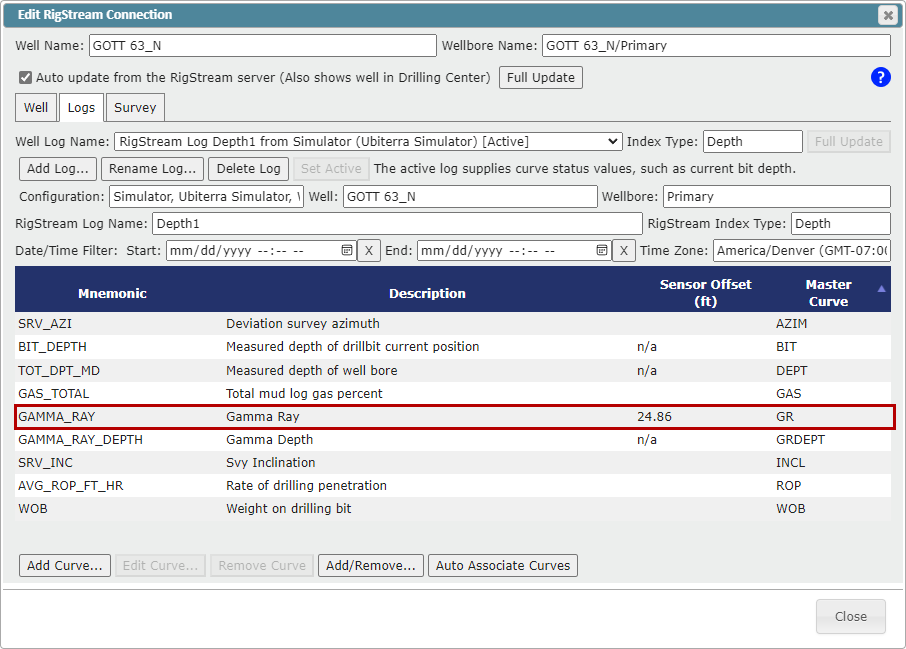
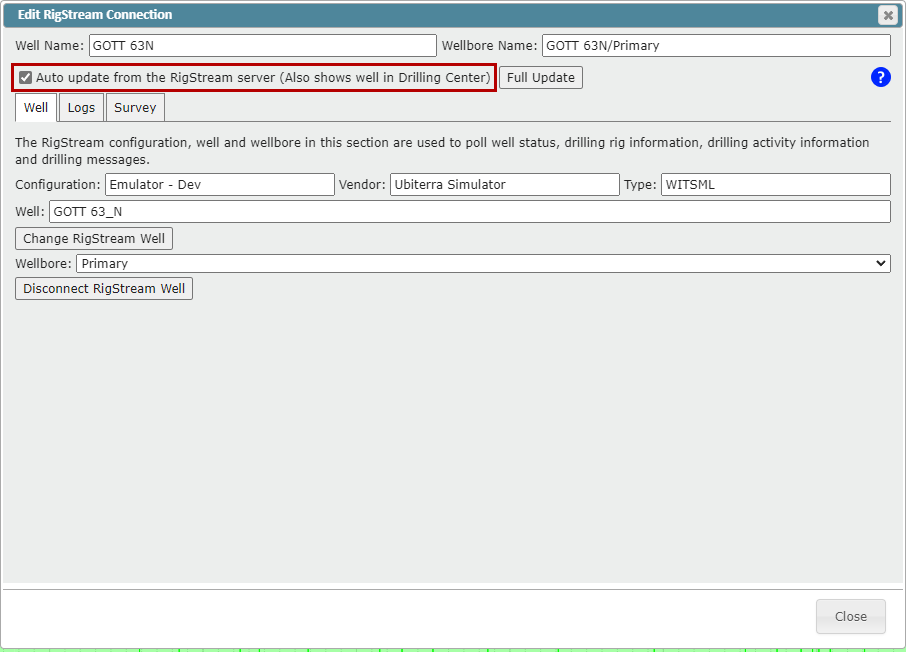
Please make sure the "Auto-update from the RigStream Server" checkbox is checked before exiting the "RigStream Connections" dialog box
Related Articles:
Setting up a RigStream Connection
Setting up RigStream on the Target Well
How to add a sidetrack when receiving data from the WITMSL (Pason, Totco, etc)